
1. Introduction and Overview
The Aqua-Vu AV Connect HD is a compact, smartphone-sized device designed to enhance your underwater exploration and fishing adventures. It serves as an underwater camera viewer and recorder, allowing you to effortlessly connect your Aqua-Vu HD Series Camera to your iPhone or iPad for live viewing, recording, and sharing of underwater footage. Featuring a built-in rechargeable 8000mAh lithium-ion battery, it provides extended use for capturing crystal-clear 1080p HD video.
This device is exclusively designed for iOS devices (iOS 10 or later, including iPhone 5 SE and newer models) and is not compatible with Android systems. It enables instant video editing and sharing directly from your iOS device.
2. What's in the Box
- Aqua-Vu AV Connect HD Unit
- Built-in 8000mAh Lithium-Ion Battery
- Charging Cable
Note: An HDMI cable, USB device connector cable (USB 2.0), and an Aqua-Vu camera system are sold separately and are required for full functionality.
3. Setup
Follow these steps to set up your Aqua-Vu AV Connect HD:
- Charge the AV Connect HD: Use the included charging cable to fully charge the built-in 8000mAh lithium-ion battery before first use.
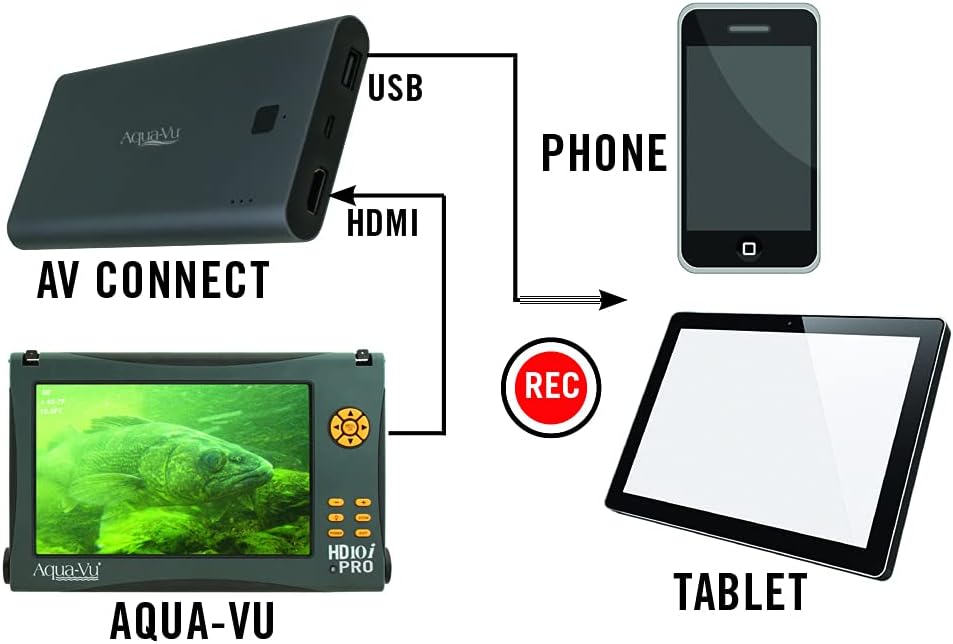
- Connect Your Aqua-Vu HD Camera: Connect your Aqua-Vu HD Series Camera to the AV Connect HD unit using an HDMI cable (sold separately). Ensure a secure connection.
- Connect to iOS Device: Connect the AV Connect HD to your iPhone or iPad using a USB device connector cable (USB 2.0, sold separately).
- Install the Aqua-Vu App: Download and install the official Aqua-Vu application from the Apple App Store on your iOS device.
- Power On: Power on your Aqua-Vu HD Series Camera and the AV Connect HD unit. Open the Aqua-Vu app on your iOS device to begin live viewing.


Setup Video Guides:
Aqua-Vu AV Connect HD Recorder
This video provides an overview of the Aqua-Vu AV Connect HD Recorder, demonstrating its features and basic setup for connecting to an Aqua-Vu camera system.
Record Everything You See - Aqua-Vu AV Connect HD Recorder
Learn how to record and capture all the underwater action using your Aqua-Vu AV Connect HD Recorder with this instructional video.
4. Operating Instructions
Once your AV Connect HD is set up with your Aqua-Vu camera and iOS device, you can begin operating it:
- Live Viewing: Open the Aqua-Vu app on your iOS device. The live feed from your connected Aqua-Vu camera will appear on your screen, allowing you to observe underwater activity in real-time.
- Recording Video: Within the Aqua-Vu app, locate the record button (typically a red circle icon). Tap it to start recording 1080p HD video. Tap again to stop recording.
- Capturing Photos: The app may also offer an option to capture still images from the live feed. Refer to the app's interface for the photo capture function.
- Editing and Sharing: After recording, you can access your saved videos and photos directly within the Aqua-Vu app or your iOS device's photo/video gallery. Use your device's editing tools or sharing options to modify and distribute your footage.
- Battery Life: The built-in 8000mAh battery provides extended operational time. Monitor the battery indicator on your iOS device or the AV Connect HD unit to ensure sufficient power.
5. Maintenance
To ensure the longevity and optimal performance of your Aqua-Vu AV Connect HD, follow these maintenance guidelines:
- Cleaning: After each use, especially in marine environments, gently wipe the unit with a soft, damp cloth to remove any dirt, salt, or debris. Ensure all ports are dry before storage.
- Storage: Store the AV Connect HD in a cool, dry place away from direct sunlight and extreme temperatures. Keep it in its original packaging or a protective case to prevent damage.
- Battery Care: For optimal battery health, avoid fully discharging the unit frequently. Recharge the battery regularly, even during periods of non-use, to maintain its capacity.
- Cable Inspection: Periodically inspect all connecting cables (HDMI, USB) for any signs of wear, fraying, or damage. Replace damaged cables immediately to prevent connectivity issues.
6. Troubleshooting
If you encounter issues with your Aqua-Vu AV Connect HD, refer to the following common troubleshooting steps:
- No Video Feed on iOS Device:
- Ensure all cables (HDMI from camera to AV Connect, USB from AV Connect to iOS) are securely connected.
- Verify that both the Aqua-Vu camera and the AV Connect HD unit are powered on.
- Check if the Aqua-Vu app is open and has the necessary permissions on your iOS device.
- Confirm your iOS device meets the compatibility requirements (iOS 10 or later).
- Recording Issues:
- Ensure your iOS device has sufficient storage space available for video recordings.
- Check the battery level of both the AV Connect HD and your iOS device.
- Unit Not Powering On:
- Fully charge the AV Connect HD unit. If the issue persists, try a different charging cable and power adapter.
- Intermittent Connectivity:
- Inspect all cables for damage. Replace if necessary.
- Ensure no other applications are interfering with the Aqua-Vu app on your iOS device.
For further assistance, please contact Aqua-Vu customer support.
7. Specifications
| Feature | Specification |
|---|---|
| Brand | Aqua-Vu |
| Model Number | AV Connect HD |
| Video Capture Resolution | 1080p |
| Battery | Built-in 8000mAh Lithium-Ion |
| Connectivity Technology | USB |
| Operating System Compatibility | iOS 10 or later (iPhone 5 SE and newer) |
| Video Capture Format | MP4 |
| Supported Audio Format | AAC, MP3, PCM |
| Item Weight | 16 ounces |
| Color | Black |
8. Warranty and Support
For information regarding product warranty, please refer to the warranty card included with your purchase or visit the official Aqua-Vu website. For technical support, troubleshooting assistance, or inquiries about replacement parts, please contact Aqua-Vu customer service through their official channels.
Online resources, including FAQs and additional instructional videos, may also be available on the Aqua-Vu website.