
1. Introduction
This manual provides instructions for the OMAIC Universal Remote Control, model EN2A27. This remote is designed as a replacement and universal control for most Hisense LCD LED HDTV Smart TVs.
Important Compatibility Notice: This remote control is specifically for Hisense Smart TVs and is not compatible with Hisense Roku TVs, Blu-ray disc players, DVD players, home theater systems, sound bars, AV receivers, or subwoofers.

Image: OMAIC Universal Remote Control shown alongside various Hisense TV screens, illustrating its broad compatibility with Hisense 4K ULED HD UHD Android Smart TVs.
The remote features dedicated hotkeys for popular streaming services, allowing quick access to your favorite content.
2. Setup
2.1 Battery Installation
The OMAIC EN2A27 remote control requires two (2) AAA batteries (not included) for operation. No programming or setup is required; simply insert the batteries, and the remote will be ready to use.
- Slide the back cover of the remote control downwards to open the battery compartment.
- Insert two AAA batteries, ensuring that the positive (+) and negative (-) ends match the indicators inside the compartment.
- Slide the battery compartment cover back into place until it clicks securely.

Image: A visual guide demonstrating the three steps for installing AAA batteries into the remote control's battery compartment.
3. Operating Instructions
Once batteries are installed, the remote control is ready for immediate use with your compatible Hisense Smart TV. Point the remote directly at your television for optimal performance.
3.1 Remote Control Layout and Functions
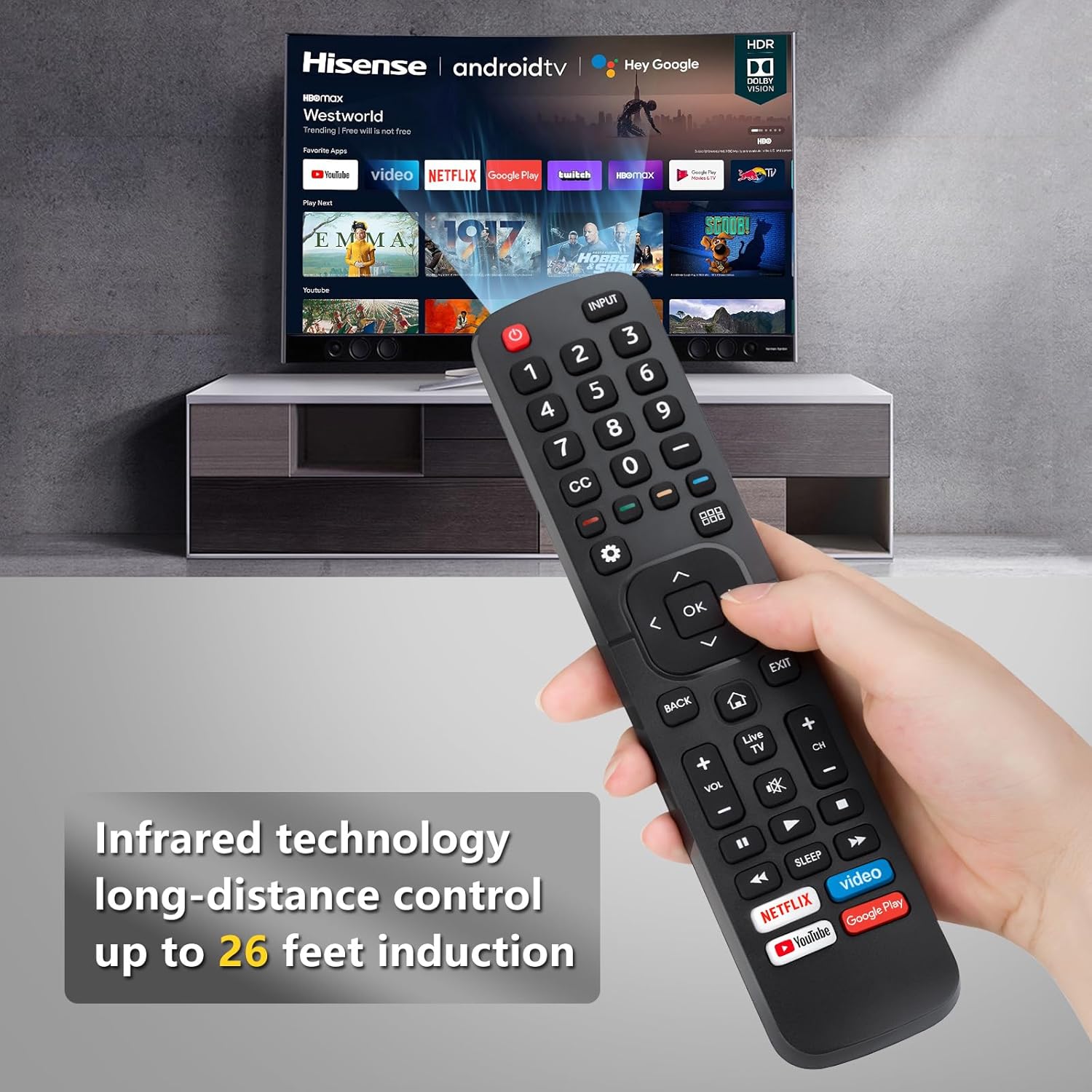
Image: A detailed diagram labeling each button on the OMAIC remote control with its corresponding function, such as Power, Input, Number Pad, Navigation, Volume, Channel, and Quick Access buttons.
- Power (Red Button): Turns the TV on and off.
- INPUT: Selects the video input source (e.g., HDMI 1, HDMI 2, AV).
- Number Buttons (0-9): Enter channel numbers or input numerical data.
- CC: Toggles Closed Captioning on or off.
- Dash button (-): Selects a digital sub-channel (e.g., 7-1).
- Gear Icon (Settings): Accesses the Quick Setup menu.
- Grid Icon (Apps): Displays the 'All Apps' menu.
- D-pad (Up/Down/Left/Right): Navigates through menus and options.
- OK: Confirms selections.
- BACK: Returns to the previous menu or app screen.
- EXIT: Exits the current application or menu.
- Home Icon: Displays the Home screen.
- Live TV: Selects the TV mode directly.
- VOL +/-: Adjusts the volume level.
- CH +/-: Changes TV channels.
- Mute: Cuts off the sound temporarily.
- Media Control Buttons (Play, Pause, Fast Forward, Rewind): Controls media content playback.
- SLEEP: Activates or adjusts the sleep timer function.
- Netflix: Direct access to the Netflix application.
- Video (Prime Video): Direct access to the Prime Video application.
- YouTube: Direct access to the YouTube application.
- Google Play: Direct access to the Google Play Store.
3.2 Infrared Technology
The remote operates using infrared (IR) technology, providing long-distance control up to approximately 26 feet. Ensure a clear line of sight between the remote's IR emitter and the TV's IR receiver for optimal functionality.

Image: A hand holding the OMAIC remote control, with an overlay indicating its infrared technology allows for long-distance control up to 26 feet.
4. Maintenance
4.1 Battery Replacement
Replace batteries when the remote's response becomes sluggish or stops functioning. Always replace both AAA batteries simultaneously with new ones. Do not mix old and new batteries, or different types of batteries.
4.2 Cleaning
To clean the remote control, gently wipe it with a soft, dry cloth. Avoid using liquid cleaners, aerosols, or abrasive materials, as these can damage the remote's surface or internal components.
5. Troubleshooting
- Remote not responding:
- Ensure fresh AAA batteries are correctly installed with proper polarity.
- Verify there is a clear line of sight between the remote's IR emitter and the TV's IR receiver. Obstructions can block the signal.
- Confirm your TV is a compatible Hisense Smart TV (not a Roku TV or other non-Hisense device).
- Buttons not working:
- Check for any physical obstructions or debris under the buttons.
- Replace batteries, as low power can cause intermittent button functionality.
- No setup required: This remote is designed to work immediately with compatible Hisense Smart TVs without any programming steps. If it does not work, double-check compatibility and battery installation.
6. Specifications
| Feature | Detail |
|---|---|
| Model Number | EN2A27 |
| Brand | OMAIC |
| Compatible Devices | Most Hisense LCD LED HDTV Smart TVs (Not for Roku TVs) |
| Power Source | 2 x AAA Batteries (not included) |
| Product Dimensions | 8 x 1.78 x 0.8 inches |
| Item Weight | 3.52 ounces |
| Special Feature | Ergonomic design, Quick access hotkeys |
| Max Supported Devices | 1 |
7. Warranty and Support
OMAIC is committed to providing quality products and customer satisfaction. We offer professional after-sale service for our products.
If you have any questions regarding your OMAIC Universal Remote Control EN2A27, please contact OMAIC customer support directly. We aim to respond to inquiries within 12 hours on working days.
For further assistance, please refer to the contact information provided with your purchase or visit the official OMAIC brand store online.
