
1. Introduction
Welcome to the user manual for your Ulefone Armor X9 Rugged Phone. This guide provides essential information on setting up, operating, maintaining, and troubleshooting your device. The Ulefone Armor X9 is designed for durability and performance, featuring robust protection and advanced functionalities.
Key features of your Ulefone Armor X9 include:
- IP68/IP69K Grade 360 All Round Protection: Built to withstand harsh environments.
- Android 11 Operating System: Enjoy the latest Android experience.
- 4GB RAM + 128GB ROM: Ample memory and storage for your applications and data.
- 16MP Triple Rear Camera: Capture high-quality photos and videos.
- Massive 5580mAh Battery Capacity: Extended usage time.
- Triple Navigation System: Enhanced positioning accuracy.
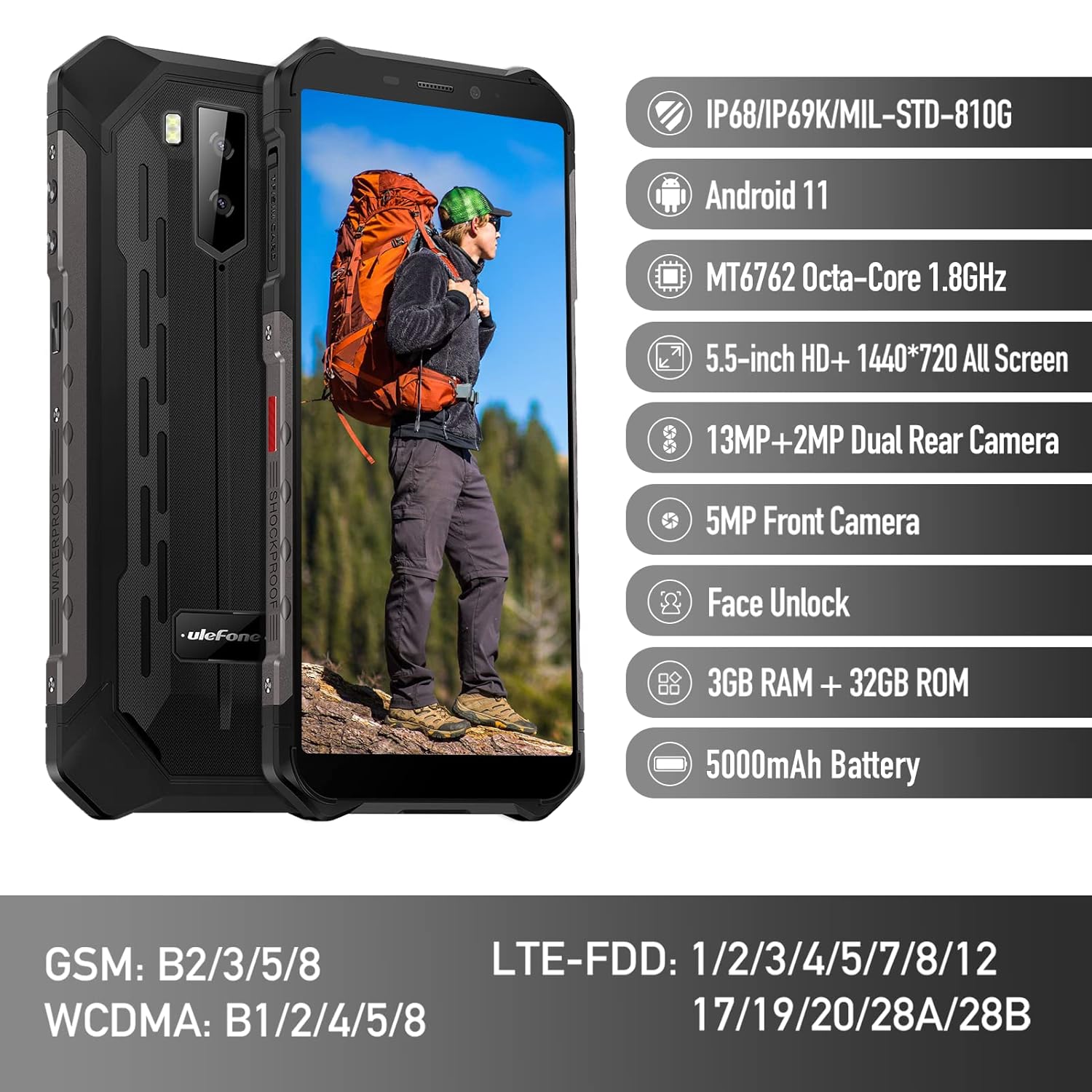
Figure 1: Ulefone Armor X9 Rugged Phone overview, highlighting its robust design and core specifications like IP68/IP69K rating, Android 11, Octa-Core processor, 5.5-inch HD+ screen, 13MP+2MP dual rear camera, 5MP front camera, Face Unlock, 3GB RAM + 32GB ROM, and 5000mAh battery.
2. Setup
2.1. SIM Card and TF Card Installation
The Ulefone Armor X9 supports dual SIM cards and a TF (microSD) card for expandable storage. Follow these steps to install them:
- Locate the SIM card tray on the side of the phone.
- Use the provided SIM ejector tool to open the tray.
- Carefully place your Nano-SIM cards into the designated slots (SIM1 and SIM2).
- If using a TF card, place it into the dedicated TF card slot. Note that some configurations may share a slot between SIM2 and the TF card.
- Gently push the tray back into the phone until it is flush with the device body. Ensure the tray is properly sealed to maintain water and dust resistance.

Figure 2: Illustration of the dual SIM and TF card tray, showing how to insert SIM1, SIM2, and a TF card into the Ulefone Armor X9.
2.2. Initial Charging
Before first use, it is recommended to fully charge your Ulefone Armor X9. Use the provided USB cable and power adapter.
- Connect the USB cable to the charging port on your phone.
- Connect the other end of the USB cable to the power adapter.
- Plug the power adapter into a wall outlet.
- The charging indicator will appear on the screen. Allow the phone to charge until the battery icon shows full.
2.3. Powering On/Off
- To Power On: Press and hold the Power button (usually on the right side) until the Ulefone logo appears.
- To Power Off: Press and hold the Power button until the power options menu appears on the screen. Select "Power off" and confirm.
- To Restart: From the power options menu, select "Restart" and confirm.
3. Operating Instructions
3.1. Basic Navigation (Android 11)
Your Ulefone Armor X9 runs on Android 11, offering an intuitive user interface. Common gestures and navigation include:
- Swipe Up: Access the app drawer.
- Swipe Down: Open the notification panel and quick settings.
- Tap: Select an item or open an app.
- Long Press: Access contextual menus or move icons.
- Pinch-to-Zoom: Zoom in or out on images and web pages.

Figure 3: Screenshots of the Android 11 interface on the Ulefone Armor X9, showing settings menus, quick toggles, and the sound recorder application.

Figure 4: The 5.5-inch 18:9 All Screen display of the Ulefone Armor X9, showcasing its immersive viewing experience with an image of a skier.
3.2. Camera Usage
Your phone is equipped with a 16MP Triple Rear Camera and a Front Camera. To use the camera:
- Open the "Camera" application from your home screen or app drawer.
- Tap the shutter button to take a photo.
- Switch between photo and video modes as needed.
- Tap the icon to switch between the front and rear cameras.
- Explore various camera modes and settings for optimal results.
3.3. Connectivity
The Ulefone Armor X9 supports various connectivity options:
- Wi-Fi: Go to Settings > Network & internet > Wi-Fi to connect to available networks.
- Bluetooth: Go to Settings > Connected devices > Bluetooth to pair with Bluetooth devices.
- GPS: The phone features AGPS for accurate location services. Ensure location services are enabled in Settings > Location.
- USB: Connect your phone to a computer using a USB cable for data transfer or charging.
3.4. Face Unlock
For convenient and secure unlocking, your Ulefone Armor X9 supports Face Unlock:
- Go to Settings > Security > Face Unlock.
- Follow the on-screen instructions to register your face.
- Ensure good lighting and hold the phone at eye level during registration.
- Once registered, you can unlock your phone by simply looking at the front camera.
4. Maintenance
4.1. Cleaning and Care
To maintain the performance and appearance of your rugged phone:
- Wipe the screen and body with a soft, lint-free cloth.
- For stubborn dirt, use a slightly damp cloth. Avoid harsh chemicals or abrasive materials.
- Ensure all port covers are securely closed to maintain water and dust resistance, especially after charging or using headphones.

Figure 5: The Ulefone Armor X9's 360° All Protection Design, showcasing its superior materials and superb durability against impacts and harsh conditions.
4.2. Water and Dust Resistance (IP68/IP69K)
The Ulefone Armor X9 is rated IP68/IP69K, meaning it is resistant to dust and water immersion. However, this resistance is not permanent and may decrease over time with normal wear. To ensure optimal protection:
- Do not intentionally submerge the phone in water for extended periods or beyond specified depths.
- Avoid exposing the phone to high-pressure water or extreme temperatures.
- Ensure all port covers are tightly sealed before exposure to water or dust.
- If the phone gets wet, dry it thoroughly before charging or opening any ports.
4.3. Battery Care
To prolong the life of your 5580mAh Lithium Polymer battery:
- Avoid extreme temperatures (hot or cold) as they can degrade battery performance.
- Use only the original charger and cable or certified compatible accessories.
- Do not let the battery completely drain frequently. Charge it before it reaches very low levels.
5. Troubleshooting
If you encounter issues with your Ulefone Armor X9, try the following troubleshooting steps:
5.1. Phone Not Turning On
- Ensure the battery is charged. Connect the phone to a charger for at least 30 minutes.
- Press and hold the Power button for 10-15 seconds to force a restart.
5.2. Charging Issues
- Verify that the charging cable and adapter are working correctly. Try a different charger if available.
- Ensure the charging port is clean and free of debris.
- Make sure the charging cable is fully inserted into the port. Some rugged phone ports may require a firm connection due to protective covers.
5.3. SIM/TF Card Not Detected
- Ensure the SIM/TF card is correctly inserted into the tray and the tray is fully seated.
- Restart the phone.
- Check if the SIM card is active with your network provider.
5.4. App Crashes or Freezing
- Close and reopen the problematic app.
- Clear the app's cache and data (Settings > Apps > [App Name] > Storage & cache).
- Ensure the app is updated to the latest version.
- Restart the phone.
5.5. Factory Reset
If issues persist, a factory reset may resolve them. Warning: This will erase all data on your phone. Back up important data before proceeding.
- Go to Settings > System > Reset options.
- Select "Erase all data (factory reset)".
- Confirm your decision and enter your PIN/password if prompted.
6. Specifications
Below are the detailed specifications for the Ulefone Armor X9:

Figure 6: Details of the Ulefone Armor X9's Octa-Core Processor, highlighting its power-efficient yet powerful performance, along with 3GB RAM and 32GB ROM, and support for up to 256GB TF card extendable storage.
| Feature | Specification |
|---|---|
| Operating System | Android 11.0 |
| RAM | 3 GB (Note: Feature bullets mention 4GB RAM, please verify actual model) |
| Memory Storage Capacity | 32 GB (Expandable with TF card up to 256GB. Feature bullets mention 128GB ROM, please verify actual model) |
| CPU Model | MT6762 Octa-Core 1.8GHz (Note: Specifications list 'Snapdragon', but image indicates MT6762. Please verify actual model) |
| Product Dimensions | 15.8 x 7.75 x 1.38 cm |
| Item Weight | 472 g |
| Batteries | 1 Lithium Polymer battery (5580mAh, included) |
| Wireless Communication | Cellular, Bluetooth, USB, Wi-Fi |
| GPS | AGPS |
| Special Features | Rear Camera, Face Unlock, IP68/IP69K, MIL-STD-810G |
| Display | 5.5-inch HD+ 1440*720 All Screen |
| Rear Camera | 13MP+2MP Dual Rear Camera (Note: Feature bullets mention 16MP Triple Rear Camera, please verify actual model) |
| Front Camera | 5MP Front Camera |
| Color | Black |
| Manufacturer | Ulefone |
Note: Specifications are based on available product data and may vary slightly. Please refer to your product packaging for the most accurate information. There are discrepancies between feature bullets, specifications, and image text regarding RAM, ROM, CPU, and camera megapixels. This manual uses the most frequently cited or detailed information, with notes for clarification.
7. Warranty and Support
7.1. Warranty Information
Your Ulefone Armor X9 is covered by a manufacturer's warranty. The specific terms and duration of the warranty may vary by region and retailer. Please refer to the warranty card included in your product packaging or contact your point of purchase for detailed information regarding warranty coverage and claims.
7.2. Customer Support
For technical assistance, troubleshooting beyond this manual, or warranty inquiries, please contact Ulefone customer support or your authorized dealer. You can typically find contact information on the official Ulefone website or in your product documentation.
- Visit the official Ulefone website for FAQs, software updates, and support contact details.
- Keep your purchase receipt and product serial number handy when contacting support.


