
DrayTek V2865AX-K
DrayTek Vigor 2865ax Ethernet Router User Manual
Model: V2865AX-K
Introduction
Welcome to the user manual for your DrayTek Vigor 2865ax Ethernet Router. This document provides detailed instructions for setting up, operating, maintaining, and troubleshooting your device to ensure optimal performance and connectivity. The Vigor 2865ax is a high-performance router designed for Small to Medium Businesses (SMBs) and advanced home users, offering robust features like VDSL2/ADSL2+ and Ethernet WAN load balancing, Wi-Fi 6 (AX3000), VPN capabilities, and extensive LAN port options.
Safety Information
Please read these safety instructions carefully before using the device.
- Place the router on a stable, flat surface away from direct sunlight, heat sources, and moisture.
- Ensure adequate ventilation around the device to prevent overheating.
- Use only the power adapter supplied with the router.
- Do not open the router casing; refer all servicing to qualified personnel.
- Keep the device away from children and pets.
- Disconnect power during electrical storms or when unused for long periods.
Package Contents
Verify that all items listed below are included in your package:
- Vigor 2865 Series Router
- DC 12V Power Supply with UK Plug
- Quick Start Guide
- Screws & wall plugs for wall mounting
- 2m Cat-5e RJ-45 Network Cable
- 2x Detachable Wireless LAN Antennas
Product Overview
Familiarize yourself with the physical components and ports of your DrayTek Vigor 2865ax router.
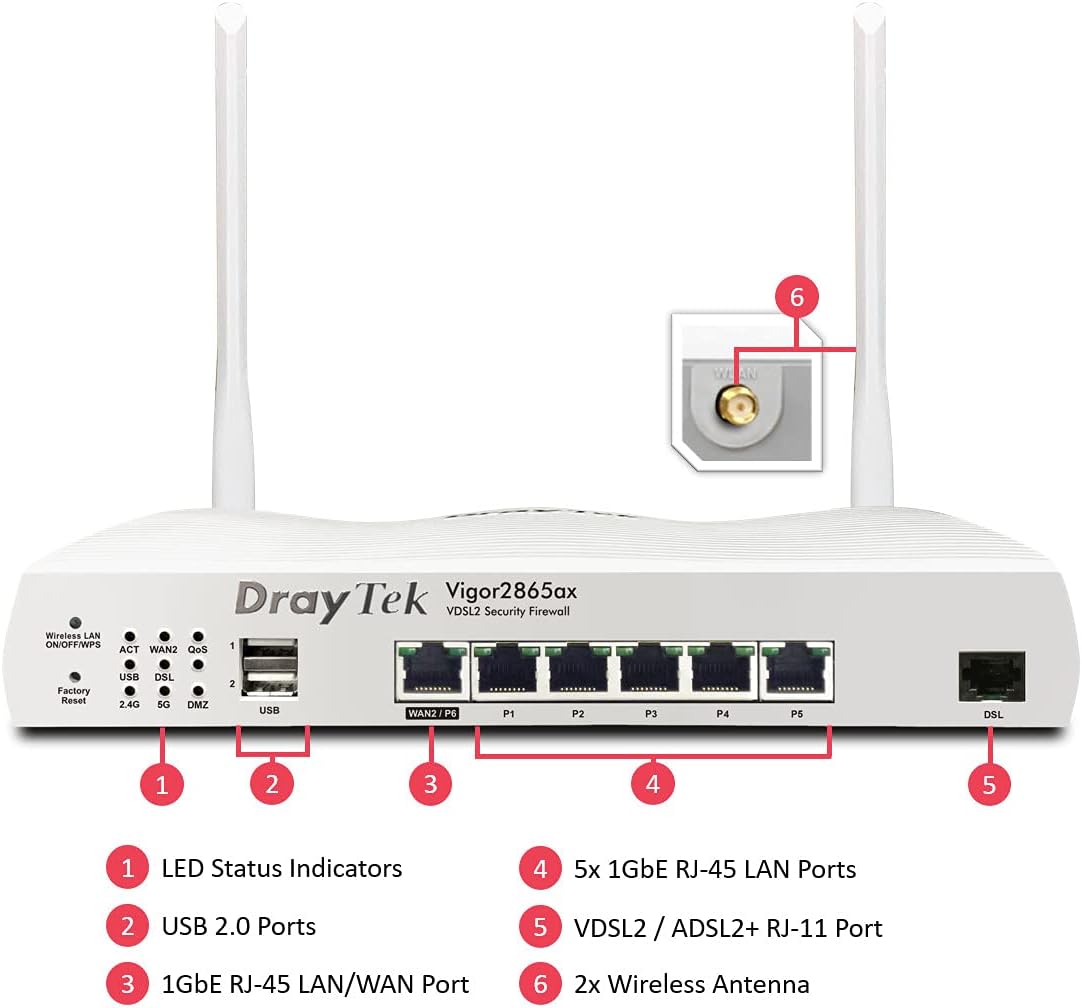
This image displays the front panel of the DrayTek Vigor 2865ax router, highlighting key components. Label 1 points to the LED Status Indicators, Label 2 to the USB 2.0 Ports, Label 3 to the 1GbE RJ-45 LAN/WAN Port (WAN2/P6), Label 4 to the 5x 1GbE RJ-45 LAN Ports (P1-P5), Label 5 to the VDSL2 / ADSL2+ RJ-11 Port (DSL), and Label 6 to the 2x Wireless Antenna connectors.
Front Panel
- LED Status Indicators: Provide visual feedback on the router's operational status, including power, internet connectivity, Wi-Fi activity, and LAN port status.
- USB 2.0 Ports: For connecting external devices such as 3G/4G USB modems for backup WAN or USB storage for network-attached storage (NAS) functionality.
- WAN2/P6 (1GbE RJ-45 LAN/WAN Port): Configurable as either a Gigabit Ethernet WAN port for connecting to a fiber modem or another internet source, or as an additional LAN port.
- P1-P5 (5x 1GbE RJ-45 LAN Ports): Gigabit Ethernet ports for connecting wired devices such as computers, servers, and network switches.
- DSL (VDSL2 / ADSL2+ RJ-11 Port): For connecting directly to your VDSL or ADSL broadband line.
Rear Panel
- Power Input: Connects to the supplied DC 12V power adapter.
- Power Button: To turn the router on or off.
- Antenna Connectors: For attaching the two detachable wireless LAN antennas.
Setup
Step 1: Connect the Hardware
- Connect Antennas: Screw the two detachable wireless LAN antennas onto the connectors at the rear of the router.
- Connect to Internet (WAN):
- For VDSL/ADSL: Connect an RJ-11 cable from your telephone line's DSL filter/socket to the DSL port on the router.
- For Ethernet WAN (e.g., Fibre/Cable Modem): Connect an Ethernet cable from your fiber/cable modem to the WAN2/P6 port on the router.
- Connect to Local Network (LAN): Connect an Ethernet cable from one of the LAN ports (P1-P5) on the router to your computer or network switch.
- Connect Power: Connect the supplied DC 12V power adapter to the router's power input and then plug it into a power outlet. Press the power button to turn on the router.
Step 2: Initial Configuration
- Access Web Interface: Open a web browser on a connected computer and enter the default IP address: 192.168.1.1.
- Login: Enter the default username (admin) and password (admin). It is highly recommended to change the default password immediately after logging in for the first time.
- Run Quick Start Wizard: Follow the on-screen instructions of the Quick Start Wizard to configure your internet connection (WAN settings), Wi-Fi network name (SSID), and password.
- Firmware Update: After initial setup, navigate to System Maintenance > Firmware Upgrade to check for and install the latest firmware. This ensures optimal performance and security.
Operating Instructions
Multi-WAN Load Balancing and Failover
The Vigor 2865ax supports multiple WAN connections, allowing for load balancing to increase bandwidth or failover for connection redundancy.

This diagram shows the DrayTek Vigor 2865ax router connected to various internet sources: WiFi WAN, 1Gb Ethernet & FTTP, ADSL2+ & VDSL2 FTTC, and G.Fast FTTC. This illustrates the router's capability to utilize multiple WAN connections simultaneously for load balancing or failover.
Configure WAN settings under WAN > General Setup. You can enable load balancing policies or set up failover rules to ensure continuous internet access.
Wi-Fi 6 (AX3000) Configuration
The router provides high-speed Wi-Fi 6 connectivity across dual bands (2.4GHz and 5GHz).

This image depicts the Wi-Fi coverage provided by the DrayTek Vigor 2865ax router, showing distinct coverage areas for the 2.4GHz (AX600) and 5GHz (AX2400) bands, with various devices connected within these zones.
Access Wi-Fi settings via Wireless LAN menu. Here you can:
- Change SSID (Wi-Fi network name) and password.
- Configure security settings (WPA2/WPA3).
- Set up multiple SSIDs for different networks (e.g., guest network).
- Adjust channel and bandwidth settings for optimal performance.
VPN (Virtual Private Network)
The Vigor 2865ax supports up to 32 VPN tunnels, including SSL VPN and OpenVPN, for secure remote access and site-to-site connectivity.
Navigate to VPN and Remote Access to configure VPN profiles. Detailed guides for various VPN types are available on the DrayTek support website.
LAN Management and VLANs
The router features 5+1 Gigabit LAN ports and supports VLANs for network segmentation.
Manage LAN settings under LAN > General Setup. You can:
- Configure IP addresses and DHCP server settings.
- Create VLANs (Virtual LANs) to isolate network segments for enhanced security and management (e.g., separating guest Wi-Fi from internal network).
- Set up port mirroring or link aggregation if supported.
Maintenance
Firmware Updates
Regularly check for and install firmware updates to ensure your router has the latest features, security patches, and performance improvements.
- Visit the official DrayTek website and navigate to the support section for the Vigor 2865ax.
- Download the latest firmware file.
- Access the router's web interface and go to System Maintenance > Firmware Upgrade.
- Follow the on-screen instructions to upload and install the firmware. Do not power off the router during this process.
Backup Configuration
It is advisable to back up your router's configuration settings before performing major changes or firmware updates.
Go to System Maintenance > Configuration Backup to save your settings to a file.
Factory Reset
If you encounter persistent issues or wish to revert all settings to default, you can perform a factory reset.
Warning: A factory reset will erase all your custom configurations.
To perform a factory reset:
- With the router powered on, use a paperclip or a thin object to press and hold the Factory Reset button (located on the front panel, often recessed) for about 5-10 seconds until the LEDs flash.
- Release the button and wait for the router to restart with default settings.
Troubleshooting
No Internet Connection
- Check Cables: Ensure all Ethernet and DSL cables are securely connected to the correct ports.
- Check WAN LED: Verify that the WAN LED (DSL or WAN2) is lit and stable, indicating a connection to your ISP.
- ISP Settings: Confirm that your WAN settings (e.g., PPPoE username/password, static IP, DHCP) are correctly configured in the router's web interface, matching your ISP's requirements.
- Modem Status: If using an external modem, check its status lights to ensure it's online.
- Reboot: Power cycle both your modem (if applicable) and the DrayTek router.
Wi-Fi Not Working or Slow
- Check Wireless LAN LED: Ensure the Wireless LAN LED is active.
- SSID Broadcast: Verify that your Wi-Fi network (SSID) is being broadcast.
- Password: Double-check your Wi-Fi password.
- Channel Interference: Try changing the Wi-Fi channel in the router's settings to avoid interference from neighboring networks.
- Signal Strength: Ensure the router is placed centrally and away from obstructions.
Cannot Access Web Interface
- IP Address: Confirm your computer's IP address is in the same subnet as the router (e.g., 192.168.1.x).
- Cable Connection: Ensure your computer is directly connected to a LAN port on the router.
- Browser Cache: Clear your browser's cache or try a different browser.
- Firewall/Antivirus: Temporarily disable any software firewalls or antivirus programs on your computer that might be blocking access.
- Factory Reset: As a last resort, perform a factory reset (see Maintenance section).
Specifications
| Feature | Detail |
|---|---|
| Product Dimensions | 34.5 x 28.6 x 7.5 cm; 1.6 kg |
| Item Model Number | V2865AX-K |
| Brand | DrayTek |
| Model Name | Vigor 2865ax |
| Special Feature | Remote Access |
| Frequency Band Class | Dual-Band |
| Wireless Communication Standard | 802.11a (Wi-Fi 6 AX3000) |
| Compatible Devices | Laptop, Personal Computer, Tablet, Smartphone |
| Frequency | 2.4 GHz, 5 GHz |
| Recommended Uses | Gaming, Home, Business |
| Connectivity Technology | Wi-Fi, Ethernet, VDSL2/ADSL2+ |
Warranty and Support
DrayTek products typically come with a standard manufacturer's warranty. Please refer to the warranty card included in your product packaging or visit the official DrayTek website for detailed warranty terms and conditions specific to your region.
For technical support, firmware downloads, and additional documentation, please visit the official DrayTek support website: www.draytek.co.uk/support. You may also contact DrayTek customer service directly for assistance.
When contacting support, please have your router's model number (Vigor 2865ax) and serial number ready.
Related documentsV2865AX-K


Ask a question about this manual
Ask about setup, troubleshooting, compatibility, parts, safety, or missing instructions. Manuals+ will review the question and use this page’s manual context to help answer it.