
1. Introduction
Thank you for choosing the MUSTAR 61-Key Electronic Keyboard Piano. This manual provides essential information for the safe and effective use of your new instrument. Please read it thoroughly before operation and retain it for future reference.
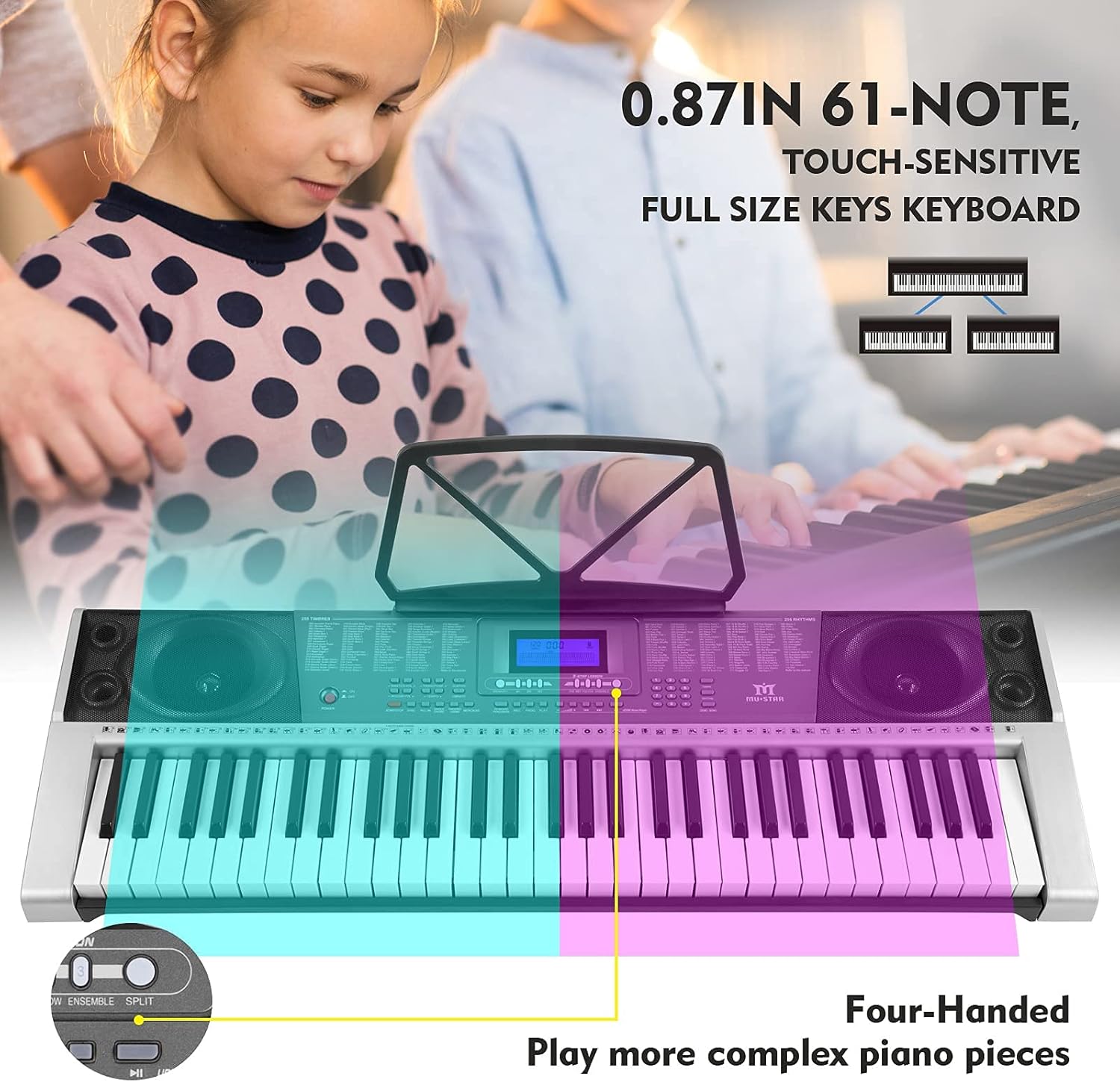
Figure 1.1: The MUSTAR 61-Key Electronic Keyboard Piano, featuring 61 full-size, touch-sensitive keys, designed for beginners and intermediate users.
2. Package Contents
Carefully unpack your keyboard and ensure all items listed below are present:
- MUSTAR 61-Key Electronic Keyboard Piano
- Adjustable Keyboard Stand
- Headphones
- Microphone
- Power Adapter (DC 9V)
- User Manual
3. Product Overview
The MUSTAR 61-Key Electronic Keyboard Piano features a user-friendly design with an LCD display and various control buttons for easy navigation and sound customization.
3.1 Keyboard Dimensions

Figure 3.1: The keyboard measures approximately 36.6 inches (930mm) in length and 12 inches (304mm) in width. The height with the stand is adjustable from 12.6 to 38.2 inches.
3.2 Key Features

Figure 3.2: The keyboard features 61 full-size keys with a standard 0.87-inch width, providing a realistic playing experience.
3.3 Control Panel

Figure 3.3: The central control panel includes an LCD display for settings, along with buttons for Timbres, Rhythms, Demo Songs, Volume, Tempo, and various other functions.
4. Setup
4.1 Power Supply
The keyboard can be powered in two ways:
- AC Adapter: Connect the included DC 9V power adapter to the 'DC 9V' jack on the rear of the keyboard and plug it into a standard wall outlet.
- Batteries: For portable use, insert six (6) 'AA' size batteries (not included) into the battery compartment located on the underside of the keyboard. Ensure correct polarity.
4.2 Connecting Accessories

Figure 4.1: The rear panel provides various connection ports for external devices.
- Udisk Jack: Insert a USB flash drive (Udisk, not included) to play MP3 audio files.
- Audio Input Jack: Connect an external audio source, such as a mobile phone, using a 3.5mm audio cable to play music through the keyboard's speakers.
- MIC Jack: Connect the included microphone for vocal input.
- Phones/Output Jack: Connect the included headphones for private practice or use this as an audio output to external amplifiers or recording devices.
5. Operating Instructions
5.1 Basic Functions
- Power On/Off: Press the 'POWER' button to turn the keyboard on or off.
- Volume Control: Use the 'MASTER VOLUME' controls to adjust the overall sound level. 'ACCOM VOLUME' adjusts the accompaniment volume.
- Timbres: Select from 255 different instrument sounds. Use the number pad or dedicated buttons to browse.
- Rhythms: Choose from 255 built-in rhythms. Use the number pad or dedicated buttons to select.
- Demonstration Songs: Play one of the 50 pre-recorded demonstration songs.
- Tempo Control: Adjust the speed of rhythms and demo songs using the 'TEMPO +/-' buttons.
- Transpose Control: Shift the pitch of the keyboard up or down.
5.2 Advanced Features
- Chord Functions:
- Single Chord: Play a chord with a single key press.
- Fingered Chord: Play chords by pressing multiple keys in the lower register.
- Rhythm Programming: Create and store your own rhythm patterns.
- Record & Playback: Record your performances and play them back.
- Effects: Apply 'SUSTAIN' for longer notes and 'VIBRATO' for a wavering pitch effect.
- Keyboard Split: Divide the keyboard into two sections, allowing two different instrument sounds or functions to be played simultaneously.
- Teaching Functions: Utilize 'ONE-KEY', 'FOLLOW', and 'ENSEMBLE' modes to assist with learning songs.
- Metronome: Activate the metronome for timing practice.
- Music Player (Udisk): Play MP3 files from a connected USB flash drive.
6. Maintenance
To ensure the longevity and optimal performance of your MUSTAR keyboard, follow these maintenance guidelines:
- Cleaning: Wipe the keyboard with a soft, dry cloth. For stubborn dirt, use a slightly damp cloth and then dry thoroughly. Avoid abrasive cleaners or solvents.
- Storage: Store the keyboard in a cool, dry place away from direct sunlight, extreme temperatures, and high humidity.
- Handling: Avoid dropping the keyboard or subjecting it to strong impacts. Do not place heavy objects on top of it.
- Power: Disconnect the power adapter when not in use for extended periods. Remove batteries if the keyboard will not be used for a long time to prevent leakage.
7. Troubleshooting
If you encounter issues with your keyboard, refer to the following common problems and solutions:
- No Sound:
- Check if the power is on and the volume is turned up.
- Ensure headphones are not plugged in if you expect sound from the speakers.
- Verify the power adapter is securely connected or batteries are correctly inserted and not depleted.
- Keys Not Responding:
- Ensure the keyboard is powered on.
- If only some keys are not responding, contact customer support.
- Distorted Sound:
- Reduce the volume.
- Check connections to external audio devices for loose cables.
- Udisk Music Not Playing:
- Ensure the Udisk is properly inserted.
- Verify that the audio files are in a supported format (e.g., MP3).
For issues not covered here, please contact MUSTAR customer support.
8. Specifications
| Feature | Specification |
|---|---|
| Model Number | f7c73f72-d379-4140-bd05-247a21628f21 |
| Number of Keys | 61 (Full-size, Touch-sensitive) |
| Product Dimensions (Keyboard) | 930 x 304 x 93 mm (36.6 x 12 x 3.66 inches) |
| Timbres | 255 |
| Rhythms | 255 |
| Demonstration Songs | 50 |
| Display | LCD |
| Connectivity | Udisk Jack, Audio Input Jack (3.5mm), MIC Jack, Phones/Output Jack (3.5mm), DC 9V Power Input |
| Power Source | DC 9V Power Adapter or 6 x 'AA' Batteries (not included) |
| Speakers | 2 Built-in Metal Speakers |
| Skill Level | Beginner |
9. Warranty and Support
For warranty information and customer support, please refer to the documentation provided at the time of purchase or visit the official MUSTAR website. Keep your purchase receipt as proof of purchase.
For further assistance, you may contact the seller directly via your purchase platform or refer to the manufacturer's contact details.

