
1. Product Overview
The GreenLaw Surface Pro Keyboard is a versatile accessory designed for Microsoft Surface Pro 7+, 7, 6, 5, 4, and 3 models. It features a 7-color adjustable backlight, a responsive touchpad, and a reliable Bluetooth 5.1 wireless connection. This ultra-slim type cover enhances your tablet's functionality, providing a comfortable typing experience and precise navigation.
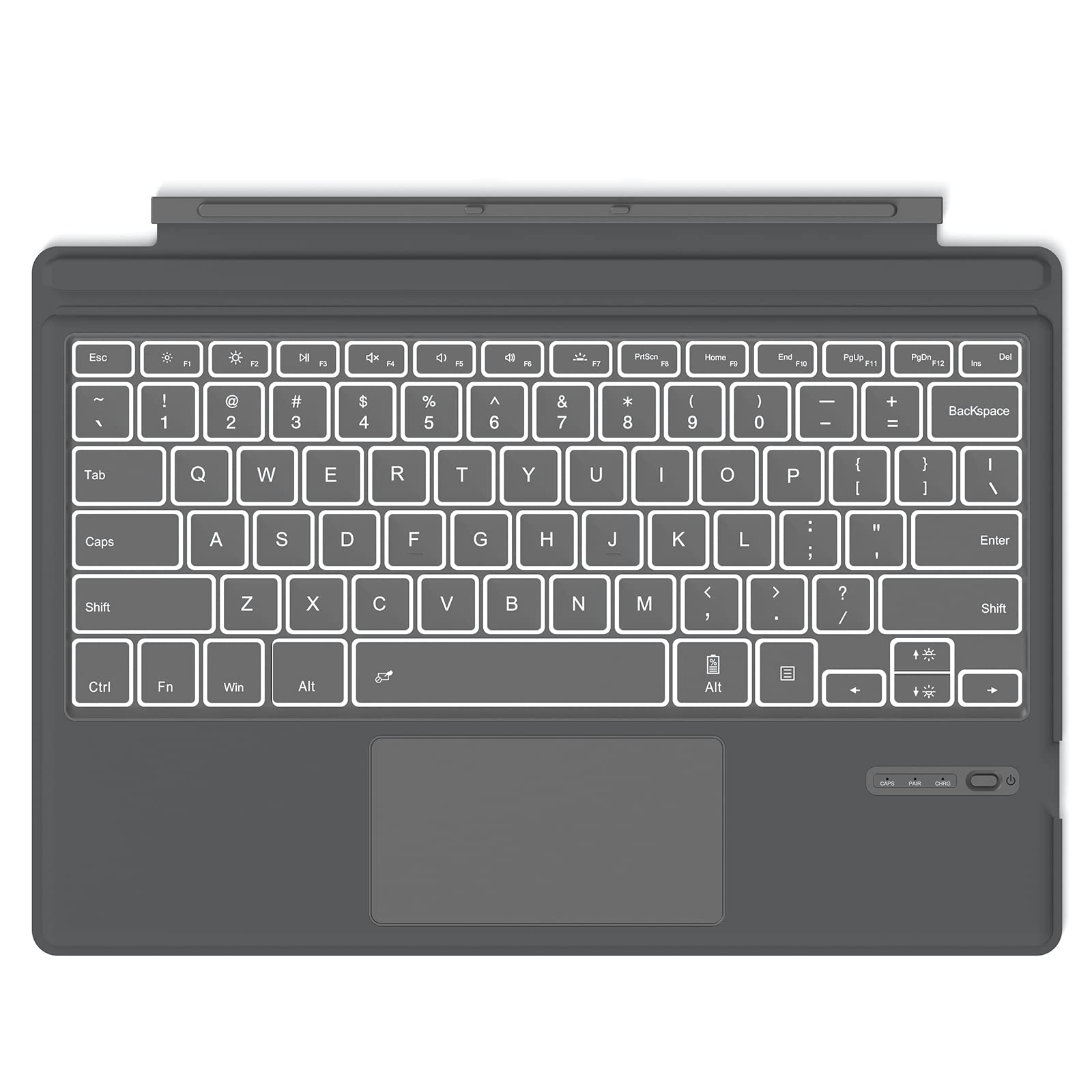
Image: The GreenLaw Surface Pro Keyboard in use, attached to a Surface Pro tablet, highlighting its integrated design and backlit keys.
2. Setup Instructions
2.1 Charging the Keyboard
Before initial use, fully charge the keyboard. Connect the provided Type-C charging cable to the keyboard's charging port and a USB power source. The charging indicator light will show the charging status.

Image: A close-up view of the keyboard's Type-C charging port, illustrating how to connect the charging cable.
2.2 Bluetooth Pairing
- Ensure the keyboard is charged and powered on.
- On your Surface Pro, go to Settings > Devices > Bluetooth & other devices.
- Turn on Bluetooth.
- On the keyboard, press and hold the Fn + C keys simultaneously to enter pairing mode. The Bluetooth indicator light will flash.
- On your Surface Pro, select Add Bluetooth or other device > Bluetooth.
- Select "GreenLaw Keyboard" (or similar name) from the list of available devices.
- Follow any on-screen prompts to complete the pairing process. The indicator light on the keyboard will stop flashing once successfully paired.
Once paired, the keyboard will automatically connect to your Surface Pro when powered on and within range.

Image: The keyboard magnetically attached to a Surface Pro, demonstrating its wireless connection capability.
3. Operating Instructions
3.1 Backlight Control
The keyboard features a 7-color backlight with 3 adjustable brightness levels.
- To turn the backlight on/off: Press the Fn + Light Bulb key.
- To change backlight color: Press the Fn + RGB key (usually located near the right Ctrl key).
- To adjust brightness: Press the Fn + Up Arrow or Fn + Down Arrow keys.

Image: The keyboard's adjustable backlight feature demonstrated in a low-light setting, showing enhanced visibility.
3.2 Touchpad Usage
The integrated touchpad supports multi-touch gestures for precise control and navigation.
- Single Finger Tap: Left-click.
- Two Finger Tap: Right-click.
- Two Finger Scroll: Scroll up or down.
- Pinch to Zoom: Zoom in or out.

Image: A user's hands operating the large, responsive touchpad on the keyboard, illustrating ease of navigation.
3.3 Function Keys
The top row of keys provides quick access to various functions. Press the Fn key in combination with the F1-F12 keys to activate their secondary functions (e.g., media control, volume adjustment, screen brightness).

Image: A detailed view of the keyboard's function keys, indicating their various shortcuts and controls.
3.4 Power Saving Features
The keyboard is designed with power-saving features to extend battery life:
- The backlight automatically turns off after a few seconds of inactivity.
- The keyboard enters sleep mode after 10 minutes of inactivity. Press any key to wake it up.
Video: An official GreenLaw video demonstrating the features and usage of the Surface Pro Keyboard Cover.
4. Maintenance
4.1 Cleaning
- Use a soft, lint-free cloth slightly dampened with water or a mild cleaning solution to wipe the keyboard surface.
- Avoid using harsh chemicals, abrasives, or solvents.
- Do not spray cleaners directly onto the keyboard.
4.2 Storage
When not in use, store the keyboard in a cool, dry place away from direct sunlight and extreme temperatures. Ensure it is not exposed to excessive dust or moisture.
5. Troubleshooting
5.1 Keyboard Not Connecting via Bluetooth
- Ensure the keyboard is charged and powered on.
- Verify Bluetooth is enabled on your Surface Pro.
- Put the keyboard into pairing mode (Fn + C).
- If previously paired, try unpairing and re-pairing the keyboard from your Surface Pro's Bluetooth settings.
- Restart both your Surface Pro and the keyboard.
5.2 Backlight Not Working
- Ensure the keyboard has sufficient battery charge.
- Press Fn + Light Bulb key to toggle the backlight.
- Adjust brightness using Fn + Up/Down Arrow keys.
5.3 Touchpad Issues
- Ensure the touchpad is not disabled (check for a dedicated touchpad toggle key or function key combination).
- Clean the touchpad surface to remove any dirt or debris.
- Restart the keyboard and your Surface Pro.
5.4 Keys Not Responding
- Check battery level and charge if necessary.
- Ensure the keyboard is properly connected via Bluetooth.
- Restart the keyboard and your Surface Pro.
6. Specifications
| Feature | Detail |
|---|---|
| Brand | GreenLaw |
| Compatible Devices | Surface Pro 7/7+/6/5/4/3 |
| Connectivity Technology | Bluetooth |
| Keyboard Description | Wireless |
| Special Feature | Magnetic |
| Color | Grey |
| Keyboard Backlighting | 7-Color, 3 Brightness Levels |
| Power Source | Battery Powered (Type-C rechargeable) |
| Battery Life (approx.) | 50 hours (without backlight), 5 hours (with backlight) |
| Wireless Range | Up to 10 meters |
7. Warranty Information
This GreenLaw product is covered by a limited warranty against defects in materials and workmanship. Please refer to the product packaging or the manufacturer's official website for specific warranty terms and conditions. Keep your purchase receipt as proof of purchase.
8. Customer Support
For further assistance, technical support, or warranty claims, please contact GreenLaw customer service through the retailer where you purchased the product or visit the official GreenLaw website for contact information.