
1. Introduction
Thank you for choosing the arVin Wireless Gaming Controller. This device is designed to enhance your mobile gaming experience on both iPhone and Android smartphones. This manual provides essential information on setting up, operating, maintaining, and troubleshooting your controller to ensure optimal performance.
2. Product Overview
The arVin Wireless Gaming Controller features a comfortable, ergonomic design with a stretchable phone holder, precision joysticks, and responsive buttons. It connects wirelessly via Bluetooth to your smartphone, offering a versatile gaming solution.
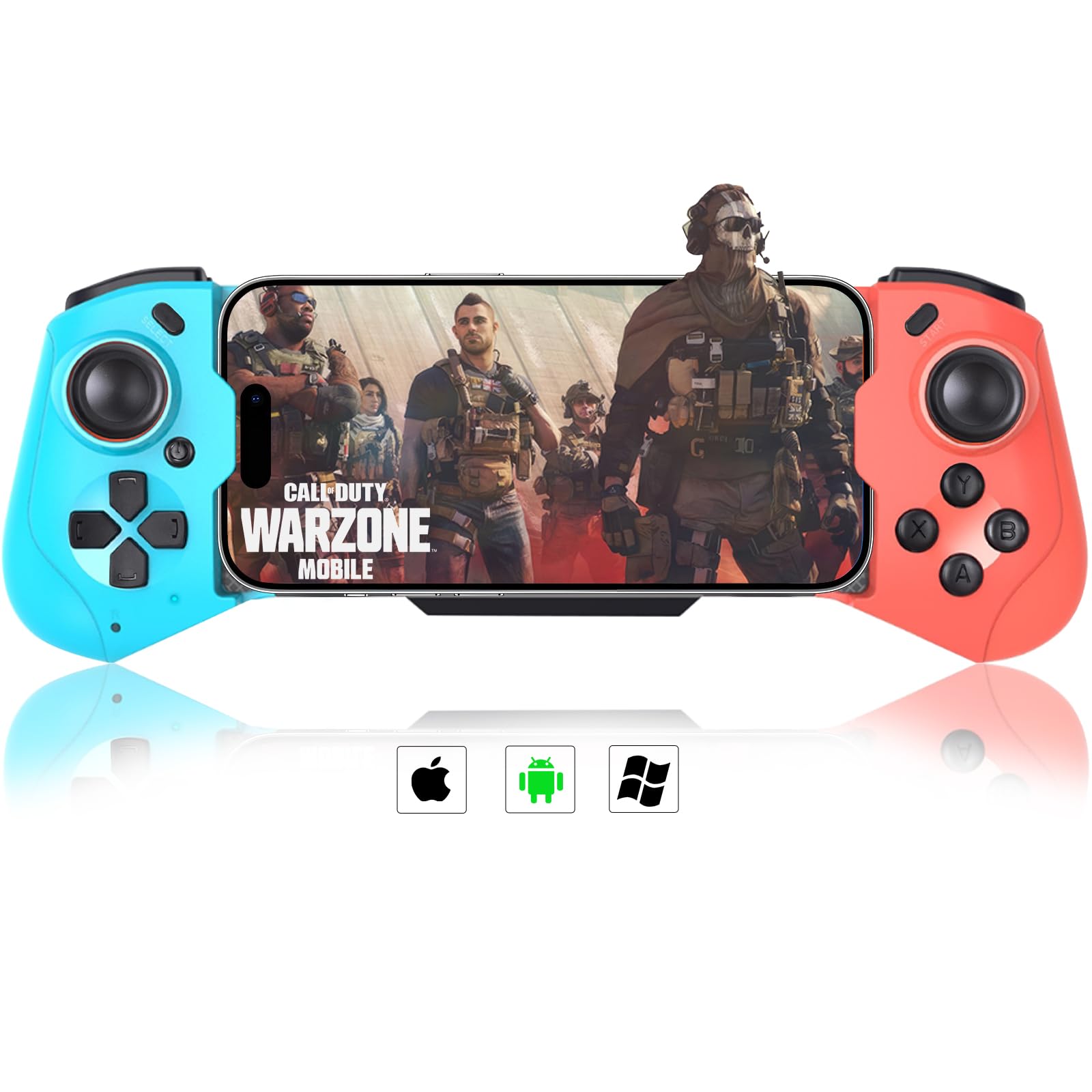
Figure 2.1: Controller Overview
The arVin Wireless Gaming Controller, featuring a red and blue design, is shown on a desk, ready for use.

Figure 2.2: Multi-Platform Compatibility
This image illustrates the controller's compatibility with multiple platforms, including iOS, Android, and Windows, highlighting various connection modes for different games and devices.

Figure 2.3: Stretchable Design
The controller's stretchable design is shown, indicating it can hold phones with lengths between 115mm and 185mm, and a maximum thickness of 13mm with a phone cover.

Figure 2.4: Battery and Charging Specifications
Details of the controller's power features, including a 400mAh built-in rechargeable battery, 2-3 hours charging time, 18-20 hours playtime, and Bluetooth 4.2 wireless connection.

Figure 2.5: High Precision Joystick
This image focuses on the high-precision joystick, designed for smooth movement without slipping, featuring a 50-degree big angle, 0.01 linear variation, and 360-degree positioning for enhanced control.
3. Specifications
| Feature | Description |
|---|---|
| Model Number | B0CKVJVYFZ |
| Compatible Devices | Android, iOS (iPhone), Windows PC, MacBook, Samsung Galaxy, TCL, OnePlus (Smartphones) |
| Controller Type | Gamepad |
| Connectivity | Wireless (Bluetooth 4.2) |
| Power Source | Battery Powered (Built-in rechargeable 400mAh battery) |
| Charging Time | 2-3 Hours |
| Playtime | 18-20 Hours (fully charged) |
| Phone Length Support | 115mm - 185mm |
| Max Phone Thickness | 13mm (with phone cover) |
| Manufacturer | Shenzhen Sunkong Technology Development Co., Ltd |
4. Setup
4.1 Charging the Controller
- Connect the provided Micro USB cable to the charging port on the controller.
- Connect the other end of the cable to a USB power source (e.g., computer USB port, USB wall adapter).
- The charging indicator light will illuminate. Once fully charged (approximately 2-3 hours), the light may change color or turn off.
4.2 Attaching Your Smartphone
- Gently pull the two sides of the controller apart to extend the phone holder.
- Carefully place your smartphone into the holder, ensuring it is securely seated. The controller supports phone lengths from 115mm to 185mm and a maximum thickness of 13mm.
- Release the sides to allow the holder to grip your phone firmly.
4.3 Bluetooth Pairing
The pairing method may vary slightly depending on your device's operating system and the game you intend to play. Refer to Figure 2.2 for common pairing modes.
- General Pairing: Press and hold the power button until the indicator light flashes rapidly, indicating pairing mode.
- On your smartphone, navigate to Bluetooth settings and search for available devices.
- Select "arVin Controller" or a similar name from the list to connect. The indicator light will become solid once connected.
- Specific Modes (Refer to Figure 2.2): Some games or platforms may require specific button combinations to enter a particular pairing mode (e.g., A+U for iOS, Y+U for most games, LB+U for COD Mobile & Honkai Impact 3). Consult your game's settings or the controller's quick start guide for details.
5. Operating Instructions
5.1 Basic Controls
- Left Joystick: Movement and navigation.
- Right Joystick: Camera control and aiming.
- Directional Pad (D-Pad): Menu navigation, specific in-game actions.
- Action Buttons (A, B, X, Y): In-game actions (jump, shoot, interact, etc.).
- Shoulder Buttons (L1, L2, R1, R2): Additional in-game actions, triggers.
- Start/Select/Home Buttons: Game menus, system functions.
5.2 Game Compatibility
The arVin controller supports a wide range of mobile games. For iOS devices, it supports Apple MFI (Made For iPhone/iPad) compatible games. For Android, it works with many games that support external controllers. Some games may require specific controller modes or in-game settings adjustments for optimal performance.
For games that do not natively support controllers, third-party mapping applications may be available, though compatibility and functionality can vary with different Android versions.
6. Maintenance
- Cleaning: Use a soft, dry cloth to wipe the controller. Avoid using harsh chemicals or abrasive materials.
- Storage: Store the controller in a cool, dry place away from direct sunlight and extreme temperatures.
- Battery Care: To prolong battery life, avoid fully discharging the controller frequently. Charge it regularly, even if not in use for extended periods.
- Avoid Drops: Protect the controller from drops and impacts, which can damage internal components.
7. Troubleshooting
7.1 Controller Not Connecting/Disconnecting Frequently
- Ensure the controller is fully charged.
- Make sure Bluetooth is enabled on your smartphone.
- Try unpairing and re-pairing the controller from your phone's Bluetooth settings.
- Ensure no other Bluetooth devices are causing interference.
- Restart both your smartphone and the controller.
- Verify you are using the correct pairing mode for your device/game (refer to Section 4.3).
7.2 Buttons/Joysticks Unresponsive
- Check if the controller is properly connected via Bluetooth.
- Ensure the game you are playing supports external controllers.
- Restart the controller and your smartphone.
- Some games may require specific in-game controller settings to be enabled or configured.
7.3 Charging Issues
- Ensure the charging cable is securely connected to both the controller and the power source.
- Try using a different Micro USB cable or USB power adapter.
- Check the charging port on the controller for any debris or damage.
8. Warranty and Support
For warranty information or technical support, please refer to the documentation included with your purchase or contact the retailer where the product was acquired. Keep your proof of purchase for any warranty claims.


