
Anker A3308
Anker PowerConf S330 USB Speakerphone User Manual
Model: A3308
Product Overview
The Anker PowerConf S330 is a USB speakerphone designed to enhance your conference calls and online meetings. It features smart voice enhancement, 360-degree voice coverage, and superior sound quality, making it ideal for home office environments and professional use. Its plug-and-play functionality ensures easy setup and immediate use with various communication platforms.
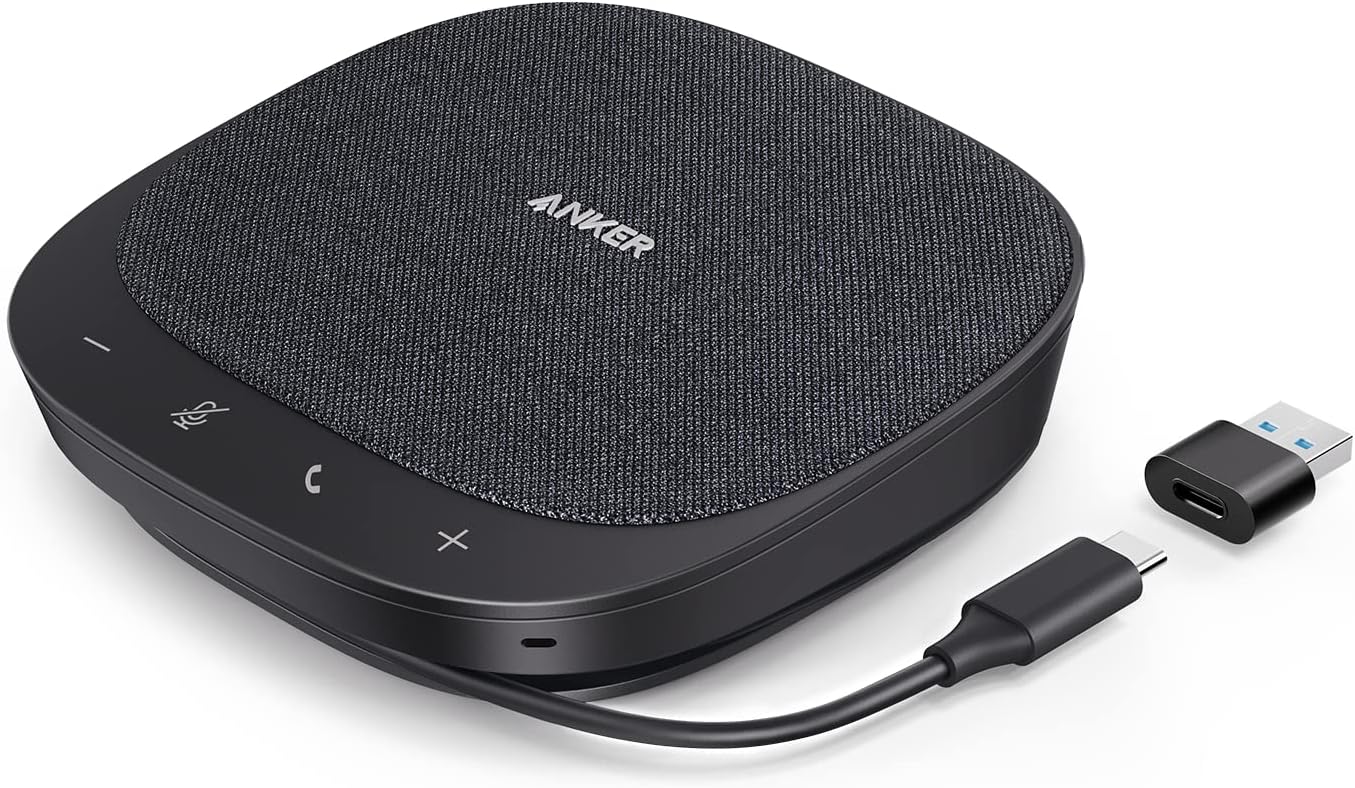
Image: The Anker PowerConf S330 USB Speakerphone, showing its compact design, integrated USB-C cable, and included USB-A adapter.
What's in the Box
- Anker PowerConf S330 USB Speakerphone
- USB-C to USB-A Adapter
Setup
Connecting to Your Device
The PowerConf S330 is designed for simple plug-and-play operation. No additional drivers or software are typically required for basic functionality.
- Identify the USB Port: Determine if your computer or laptop has a USB-C port or a standard USB-A port.
- Connect the Speakerphone:
- If your device has a USB-C port, directly plug the integrated USB-C cable from the PowerConf S330 into the USB-C port.
- If your device has a USB-A port, attach the provided USB-C to USB-A adapter to the PowerConf S330's USB-C cable, then plug the adapter into your device's USB-A port.
- Automatic Recognition: Your operating system should automatically detect the PowerConf S330 and set it as the default audio input (microphone) and output (speaker) device.
- Verify Settings (Optional): For optimal performance, you may want to verify the audio settings within your operating system or preferred conferencing software (e.g., Zoom, Microsoft Teams, Skype for Business, Google Meet, Webex, FaceTime, GoToMeeting) to ensure the PowerConf S330 is selected for both microphone and speaker.
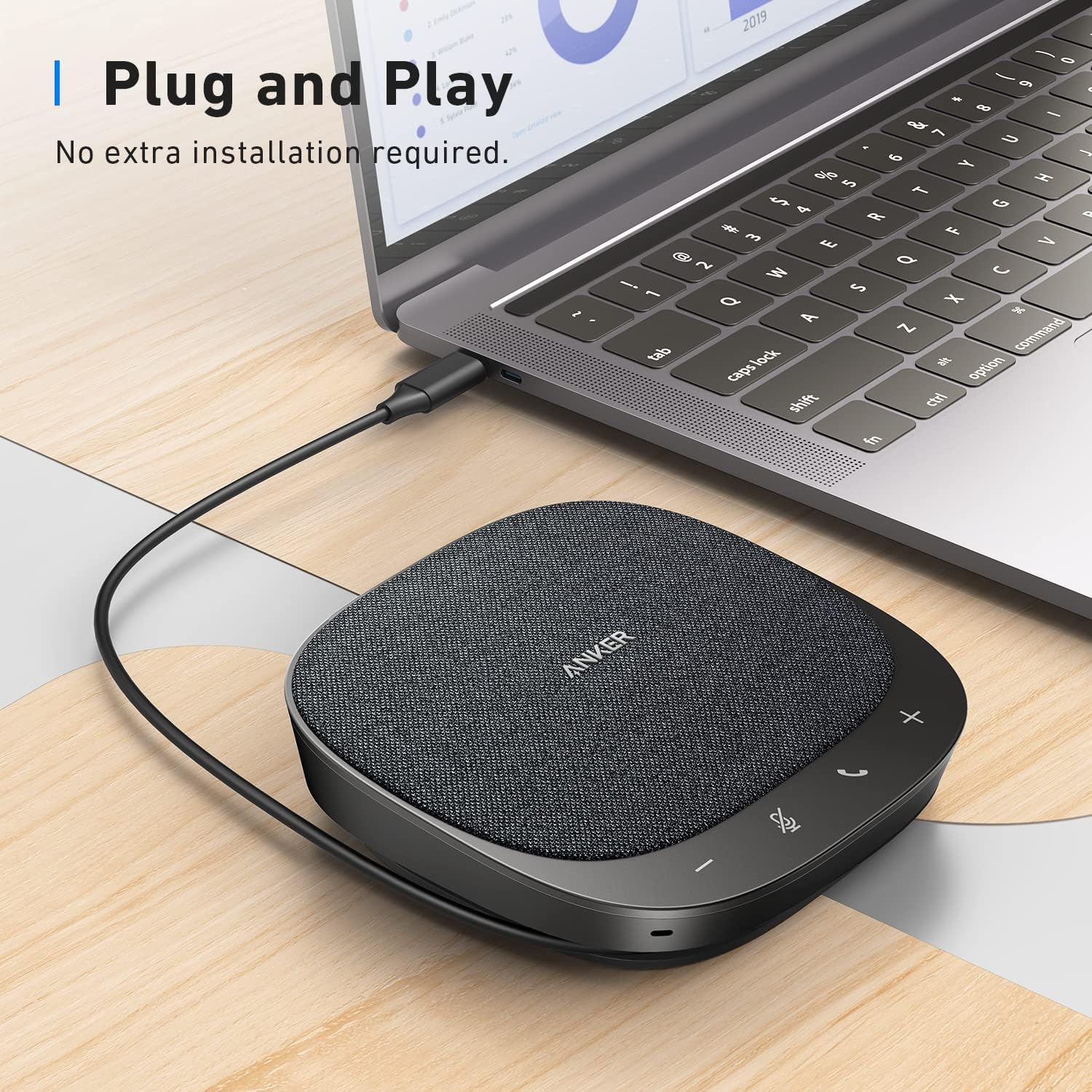
Image: The Anker PowerConf S330 connected to a laptop via its USB-C cable, illustrating the plug-and-play setup.

Image: Close-up view of the USB-C connector and the included USB-A adapter, demonstrating connectivity options.
Operating the PowerConf S330
Controls and Indicators
The PowerConf S330 features intuitive touch controls on its surface for managing calls and audio.
| Control/Indicator | Function |
|---|---|
| Volume Down (-) | Decreases speaker volume. |
| Mute Microphone | Toggles microphone mute on/off. An indicator light will show the mute status. |
| Call Button | Answers or ends a call (functionality may vary with software). |
| Volume Up (+) | Increases speaker volume. |
| LED Indicators | Indicate power status, microphone mute status, and volume levels. |
Key Features in Operation
- Smart Voice Enhancement: The speakerphone utilizes advanced algorithms to reduce background noise and enhance human voices, ensuring clear communication.
- 360° Voice Coverage: Equipped with 4 high-sensitivity microphones, the PowerConf S330 can pick up voices from all directions within a 3-meter radius, making it suitable for small to medium-sized meeting rooms.

Image: An overhead diagram illustrating the 360-degree voice pickup capability of the PowerConf S330, showing sound waves emanating from participants to the central device.
- Superior Sound: A 1.75-inch driver combined with two passive bass radiators delivers rich and clear audio for both voice and music.

Image: An exploded view of the internal speaker components, highlighting the 1.75-inch driver and passive bass radiators responsible for superior sound.
- Wide Compatibility: The PowerConf S330 is compatible with popular online conferencing platforms including Zoom, Skype for Business, Cisco Webex, GoToMeeting, Google Hangouts, and FaceTime.

Image: The Anker PowerConf S330 shown with logos of various compatible conferencing platforms, including Zoom, Skype for Business, Cisco Webex, GoToMeeting, and Google Hangouts.
Maintenance
- Cleaning: Use a soft, dry cloth to clean the surface of the speakerphone. Avoid using abrasive cleaners or solvents.
- Storage: When not in use, store the PowerConf S330 in a cool, dry place away from direct sunlight and extreme temperatures.
- Cable Care: Avoid sharp bends or kinks in the integrated USB cable to prevent damage.
Troubleshooting
| Problem | Possible Solution |
|---|---|
| No sound from speakerphone / Microphone not picking up audio. |
|
| Audio is distorted or unclear. |
|
| Speakerphone not recognized by computer. |
|
Specifications
| Feature | Detail |
|---|---|
| Model Name | A3308 |
| Brand | Anker |
| Connectivity Technology | USB (Wired) |
| Connector Type | USB-C (with USB-A adapter) |
| Microphone Form Factor | Boundary |
| Microphone Pickup Pattern | Omnidirectional (360° coverage) |
| Number of Microphones | 4 high-sensitivity microphones |
| Speaker Driver Size | 1.75 inches |
| Bass Radiators | 2 passive bass-radiators |
| Signal-to-Noise Ratio | 78 dB |
| Hardware Platform | PC |
| Color | Black |
| Material | Premium materials |
| Product Dimensions (L x W x H) | 4.72 x 4.72 x 1.36 inches |
| Item Weight | 8 ounces (0.5 Pounds) |
| Power Source | Corded Electric (via USB) |
| UPC | 194644083960 |
Warranty and Support
Anker products typically come with a limited warranty. Please refer to the official Anker website or your product packaging for specific warranty terms and conditions.
For technical support, troubleshooting assistance, or to inquire about warranty claims, please contact Anker customer service through their official support channels. You can often find contact information on the Anker website or within the product's original packaging.
A digital version of the user manual can be found here: Anker PowerConf S330 User Manual (PDF)
Related Documents - A3308
 |
Anker PowerConf S330 User Manual User manual for the Anker PowerConf S330 USB conference speakerphone, detailing setup, usage, button functions, LED indicators, and technical specifications. Includes instructions for connecting to a PC and using the AnkerWork software. |
 |
Anker PowerConf S330 Quick Start Guide Get started with your Anker PowerConf S330 conference speakerphone. This guide covers setup, software installation, and basic controls. |
 |
Anker PowerConf S330 User Manual - Conference Speakerphone Comprehensive user manual for the Anker PowerConf S330 conference speakerphone, detailing setup, usage, LED indicators, and technical specifications for clear audio communication. |
 |
Anker PowerConf S500 User Manual: Setup, Features, and Specifications Comprehensive user manual for the Anker PowerConf S500 speakerphone. Learn how to connect, use features, troubleshoot, and view specifications for this Bluetooth conference speaker. |
 |
Anker PowerConf User Manual: Setup, Features, and Operation This user manual provides detailed instructions for the Anker PowerConf Bluetooth conference speakerphone, covering setup, connectivity options (USB and Bluetooth), button controls, charging, and technical specifications for optimal use in professional and home office environments. |
 |
Anker PowerConf S500 User Manual User manual for the Anker PowerConf S500 conference speakerphone, covering setup, Bluetooth and USB-C connectivity, call management, Anker Work app features, and technical specifications. |
Ask a question about this manual
Ask about setup, troubleshooting, compatibility, parts, safety, or missing instructions. Manuals+ will review the question and use this page’s manual context to help answer it.