
DELTACO SH-P01-3P
DELTACO Smart Home SH-P01-3P Wi-Fi Smart Plug User Manual
Model: SH-P01-3P
Introduction
Thank you for choosing the DELTACO Smart Home SH-P01-3P Wi-Fi Smart Plugs. This pack includes three smart plugs designed to provide convenient control over your electronic devices. These plugs connect to your 2.4 GHz Wi-Fi network, allowing you to manage connected appliances remotely via a smartphone application, set schedules, and integrate with smart home assistants.
Please read this manual carefully before use to ensure proper installation, operation, and maintenance of your smart plugs.
Safety Information
Always observe the following safety precautions to prevent injury or damage to the device:
- Do not disassemble or modify the device.
- Do not expose the device to water, moisture, or extreme temperatures.
- Ensure the connected appliance's power consumption does not exceed the smart plug's maximum rating (10A).
- Use only in dry indoor environments.
- Keep out of reach of children.
- Unplug the device from the wall outlet before cleaning.
Package Contents
The DELTACO Smart Home SH-P01-3P package includes:
- 3 x DELTACO Smart Home SH-P01-3P Wi-Fi Smart Plugs
- 1 x User Manual (this document)
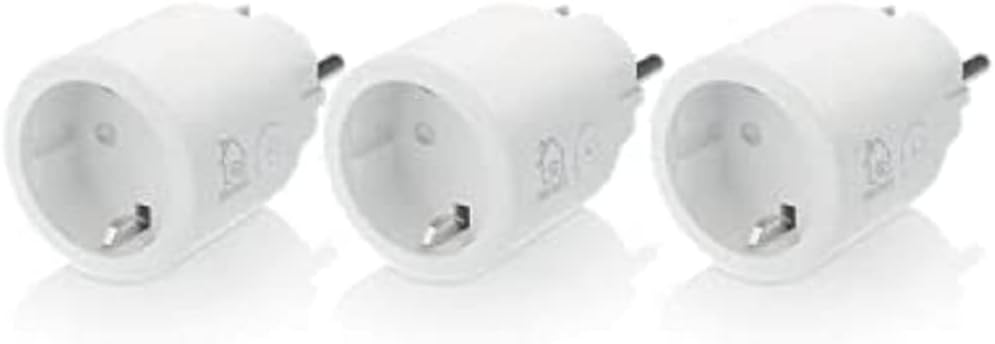
Image: Three DELTACO Smart Home SH-P01-3P Wi-Fi Smart Plugs, showing the compact design and standard European plug type.
Product Overview
Each SH-P01-3P smart plug features a compact design with a single power button and an indicator light.
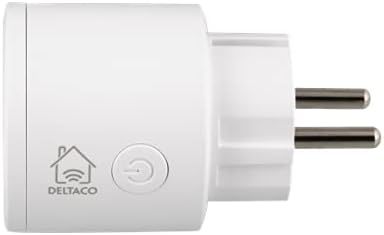
Image: Side view of the smart plug, highlighting the DELTACO logo and the circular power button.
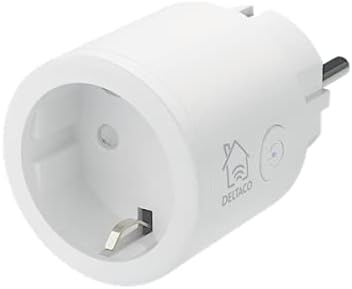
Image: Angled front view of the smart plug, showing the outlet socket and the power button with an integrated indicator light.
Key Components:
- Power Button: Press to manually turn the plug on/off. Press and hold for 5 seconds to reset and enter pairing mode.
- Indicator Light: Shows the status of the plug (e.g., solid for on, blinking for pairing mode).
- Outlet Socket: For connecting your appliance.
- Plug Prongs: For inserting into a wall outlet.
Setup
Follow these steps to set up your DELTACO Smart Home SH-P01-3P smart plugs:
- Download the App: Search for "DELTACO Smart Home" in your smartphone's app store (Google Play Store for Android or Apple App Store for iOS) and download the application. Alternatively, the plugs are often compatible with the "Smart Life" app.
- Register/Log In: Open the app and register a new account or log in if you already have one.
- Plug In the Device: Insert the SH-P01-3P smart plug into a standard wall outlet. The indicator light on the plug should start blinking rapidly, indicating it is in pairing mode. If it does not blink rapidly, press and hold the power button on the plug for 5 seconds until it starts blinking.
- Add Device in App:
- In the DELTACO Smart Home app, tap the "+" icon (usually in the top right corner) to add a new device.
- Select "Electrical Outlet" or "Smart Plug" from the device list.
- Confirm that the indicator light on the smart plug is blinking rapidly.
- Enter your Wi-Fi network name (SSID) and password. Ensure your phone is connected to a 2.4 GHz Wi-Fi network, as the smart plugs do not support 5 GHz networks.
- The app will begin searching for the device. Once found, it will connect and add the smart plug to your account.
- Rename Device (Optional): After successful pairing, you can rename the smart plug to something easily recognizable (e.g., "Living Room Lamp," "Coffee Machine").
- Repeat for Additional Plugs: Follow the same steps for the other smart plugs in the pack.
Operating Instructions
Once set up, you can control your smart plugs using the DELTACO Smart Home app or through voice commands.
Controlling via App:
- On/Off Control: Open the app, select the desired smart plug from your device list, and tap the power icon to toggle it on or off.
- Scheduling: Use the "Schedule" or "Timer" function within the app to set specific times for the plug to turn on or off automatically. This is ideal for lights, coffee makers, or other appliances.
- Countdown Timer: Set a countdown timer for the plug to turn off after a specified duration.
- Automation/Scenes: Create custom automation rules or scenes (e.g., "Good Morning" scene to turn on multiple devices, or turn on a light when motion is detected by another smart sensor).
Voice Control Integration:
The DELTACO Smart Home system is compatible with popular voice assistants like Google Assistant and Amazon Alexa.
- Link Accounts: In your Google Home or Amazon Alexa app, navigate to the "Skills" or "Works with Google" section. Search for "DELTACO Smart Home" (or "Smart Life" if you used that app) and link your account.
- Discover Devices: Once linked, ask your voice assistant to "Discover devices."
- Voice Commands: You can now control your smart plugs using voice commands, such as:
- "Hey Google, turn on Living Room Lamp."
- "Alexa, turn off Coffee Machine."
- "Hey Google, set Bedroom Light to 7 PM." (if supported by the app's scheduling)
Maintenance
Proper maintenance ensures the longevity and optimal performance of your smart plugs.
- Cleaning: Disconnect the smart plug from the wall outlet before cleaning. Use a soft, dry cloth to wipe the surface. Do not use liquid cleaners, aerosols, or abrasive materials.
- Storage: If storing the smart plugs for an extended period, keep them in a cool, dry place, away from direct sunlight and extreme temperatures.
- Firmware Updates: Periodically check the DELTACO Smart Home app for any available firmware updates for your devices. Updates can improve performance and add new features.
Troubleshooting
If you encounter issues with your DELTACO Smart Home SH-P01-3P smart plugs, refer to the following common solutions:
| Problem | Possible Cause | Solution |
|---|---|---|
| Smart plug not connecting to Wi-Fi. | Incorrect Wi-Fi password; 5 GHz Wi-Fi network; plug too far from router; router issues. |
|
| Smart plug offline in app. | Wi-Fi disconnected; power outage; plug unplugged. |
|
| Voice control not working. | Accounts not linked; incorrect device name; internet issue. |
|
| Plug not responding to manual button press. | Device malfunction; no power. |
|
Specifications
Technical specifications for the DELTACO Smart Home SH-P01-3P Wi-Fi Smart Plug:
| Feature | Detail |
|---|---|
| Model | SH-P01-3P |
| Brand | DELTACO |
| Connectivity | Wi-Fi 2.4 GHz (802.11b/g/n) |
| Max Current Rating | 10 Ampere |
| Max Wattage | Up to 2300W (at 230V) |
| Material | Plastic, Metal |
| Dimensions (LxWxH) | Compact design (individual plug dimensions not specified, package dimensions: 14.2 x 6.9 x 19.9 cm) |
| Operating Mode | Automatic (via app/schedule) |
| Mounting Type | Wall mount (direct plug-in) |
Warranty and Support
For warranty information, please refer to the purchase terms and conditions provided by your retailer. Typically, products purchased from Amazon.se come with a 30-day return policy.
For technical support or further assistance, please visit the official DELTACO website or contact their customer service. You can often find FAQs and troubleshooting guides on their support pages.
Online Resources:
Related documentsSH-P01-3P


Ask a question about this manual
Ask about setup, troubleshooting, compatibility, parts, safety, or missing instructions. Manuals+ will review the question and use this page’s manual context to help answer it.