
Introduction
The Keychron K1 SE is an 87-key ultra-slim wireless mechanical keyboard designed for enhanced productivity and a superior tactile typing experience. It features RGB LED backlighting, hot-swappable low-profile Gateron mechanical switches, and broad compatibility with Mac and Windows operating systems. This manual provides detailed instructions for setting up, operating, maintaining, and troubleshooting your Keychron K1 SE keyboard.

Overview of the Keychron K1 SE keyboard highlighting its key features: wireless/wired connectivity, 87 keys, hot-swappable low-profile Gateron switches, Mac & Windows compatibility, and RGB backlighting.
Setup
Package Contents
- Keychron K1 SE Keyboard
- Keycap Puller
- USB-C to USB-A Cable
- Extra Keycaps for Mac and Windows operating systems
Initial Connection
The Keychron K1 SE supports both wireless (Bluetooth) and wired (USB-C) connections.
Wired Connection
- Locate the toggle switch on the side of the keyboard labeled "Bluetooth OFF Cable".
- Slide the switch to the "Cable" position.
- Connect the provided USB-C cable to the keyboard and the USB-A end to your computer.
- The keyboard will be recognized automatically by your system.
Wireless (Bluetooth) Connection
- Locate the toggle switch on the side of the keyboard labeled "Bluetooth OFF Cable".
- Slide the switch to the "Bluetooth" position.
- On your computer or device, enable Bluetooth and search for new devices.
- The keyboard will appear as "Keychron K1 SE". Select it to pair.
- If prompted, enter the pairing code displayed on your screen using the keyboard and press Enter.
- The K1 SE can connect to up to 3 devices simultaneously. To switch between paired devices, press Fn + 1, Fn + 2, or Fn + 3.

The side of the Keychron K1 SE keyboard features two toggle switches: one for selecting between Wireless (Bluetooth) and Wired (USB-C) modes, and another for switching between Mac/iOS and Windows/Android layouts.

The Keychron K1 SE can connect to up to three devices, including desktops, tablets, and smartphones, and is compatible with both Mac and Windows operating systems.
Operating System Layout Switch
The keyboard includes a dedicated switch to optimize its layout for either Mac/iOS or Windows/Android operating systems. Use the toggle switch labeled "Win/Android Mac/iOS" on the side of the keyboard to select the appropriate layout. Extra keycaps for both Windows and Mac are included in the box for customization.
Adjusting Keyboard Height
The K1 SE features two levels of adjustable rubber feet, allowing you to set the keyboard at a comfortable typing angle (6° or 9°). Extend or retract the feet as desired.

The Keychron K1 SE is engineered with two adjustable feet levels, providing ergonomic typing support at angles of 6 or 9 degrees.
Operating Instructions
Multimedia and Function Keys
The K1 SE provides access to essential multimedia and function keys through combinations with the Fn key. Refer to the keycap legends for specific functions (e.g., brightness, media control, volume).
RGB LED Backlight Control
The keyboard features a charming RGB backlight with various patterns and intensity levels.
- To cycle through different RGB lighting effects, press the light bulb key (usually located near F12).
- To adjust backlight brightness, press Fn + F5 (decrease) or Fn + F6 (increase).

The Keychron K1 SE features vibrant RGB LED backlighting, offering a range of colors and effects to personalize your typing experience.
Battery Status
To check the current battery charge level, press Fn + B. The backlight will briefly indicate the battery status.
Bluetooth Power Saving
By default, the keyboard may enter a power-saving mode after a period of inactivity. If you experience a delay in wake-up time, you can disable Bluetooth power saving by pressing and holding Fn + S + O for 4 seconds.
Maintenance
Cleaning the Keyboard
To clean your keyboard, gently wipe the keycaps and chassis with a soft, damp cloth. For deeper cleaning, you may remove the keycaps using the provided keycap puller. Avoid using harsh chemicals or abrasive materials.
Hot-Swapping Switches
The Keychron K1 SE features hot-swappable switches, allowing you to easily change switches without soldering. This is useful for customizing your typing feel or replacing a faulty switch.
- Ensure the keyboard is disconnected or powered off.
- Use the provided keycap puller to carefully remove the desired keycap.
- Use a switch puller (not included, but often comes with switch sets) to gently pull the switch straight up from the keyboard plate.
- Align the pins of the new switch with the holes on the PCB and press it firmly into place until it clicks.
- Replace the keycap.

The Keychron K1 SE features hot-swappable low-profile Gateron mechanical switches, allowing for easy removal and replacement of individual switches without soldering.
Troubleshooting
Connectivity Issues
- Keyboard not connecting via Bluetooth: Ensure the keyboard's toggle switch is set to "Bluetooth". Check if Bluetooth is enabled on your device. Try re-pairing the keyboard. Ensure no other devices are interfering with the Bluetooth signal.
- Lag or disconnections in Bluetooth mode: Try disabling Bluetooth power saving (Fn + S + O for 4 seconds). Ensure the keyboard is within range of your device.
- Wired connection not working: Ensure the keyboard's toggle switch is set to "Cable". Try a different USB-C cable or USB port on your computer.
Power and Charging
- Keyboard not turning on: Ensure the battery is charged. Connect the keyboard via USB-C cable to charge it.
- Battery not charging: Try a different USB-C cable and power source. Ensure the cable is securely connected.
Key Functionality
- Keys not responding: Check if the keyboard is properly connected (wired or Bluetooth). If it's a specific key, consider hot-swapping the switch for a new one.
- Incorrect key output (Mac/Windows): Ensure the operating system toggle switch on the side of the keyboard is set to the correct position for your system.
Specifications
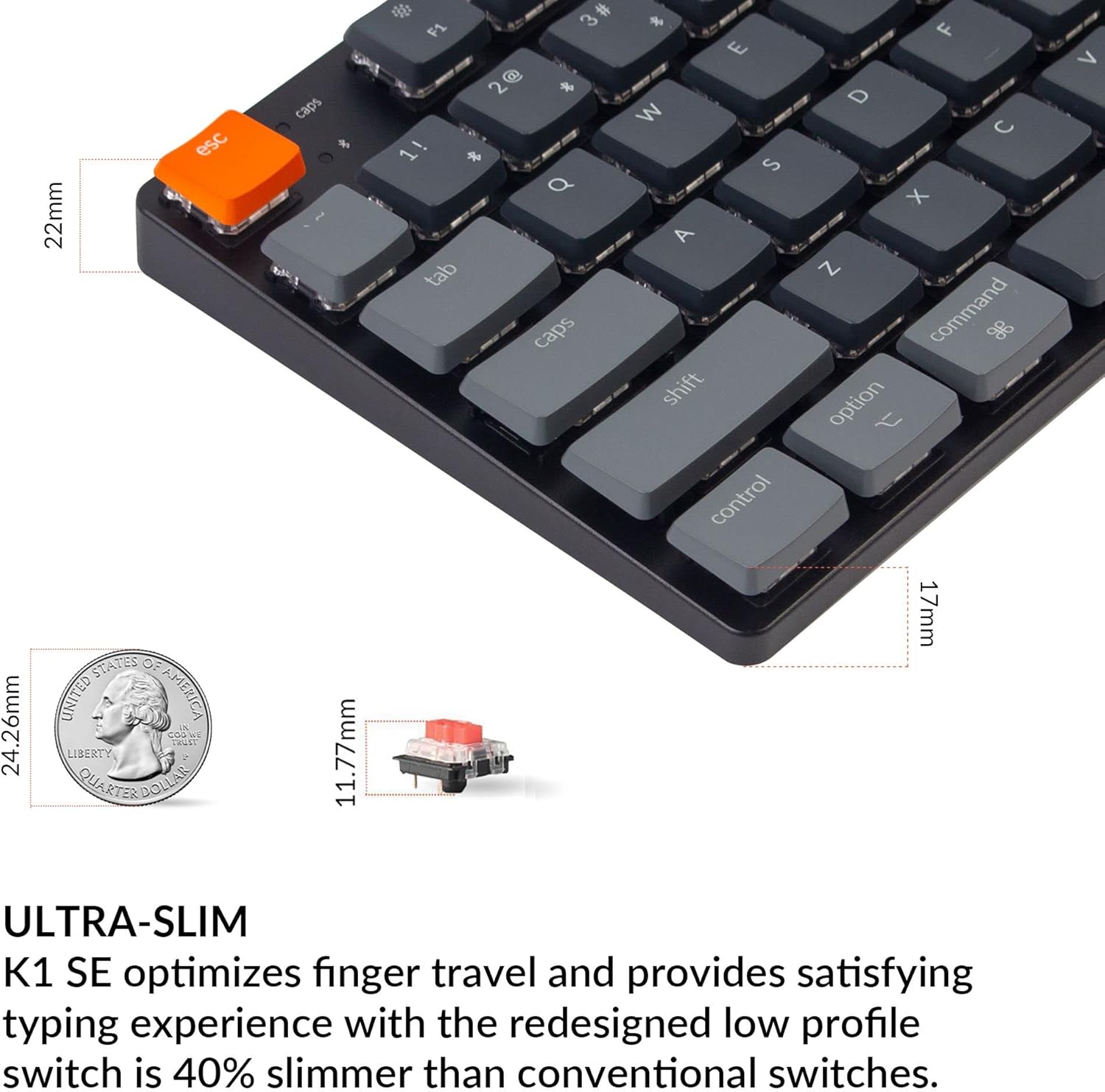
The Keychron K1 SE features an ultra-slim design, optimizing finger travel and providing a satisfying typing experience with its low-profile Gateron mechanical switches, which are 40% slimmer than conventional switches.
| Feature | Detail |
|---|---|
| Model | K1SE-H1 |
| Keys | 87 (TKL Layout) |
| Switch Type | Low-Profile Gateron Mechanical Red Switch |
| Actuation Force (Red Switch) | 50±15gf |
| Pre-travel (Red Switch) | 1.5±0.5mm |
| Total Travel (Red Switch) | 2.5±0.25mm |
| Switch Behavior (Red Switch) | Linear |
| Sound Level (Red Switch) | Quiet |
| Connectivity | Bluetooth 5.1, USB-C Wired |
| Backlight | RGB LED |
| Battery | 1 Lithium Ion (included) |
| Dimensions (L x W x H) | 14.45 x 6.22 x 1.57 inches |
| Item Weight | 2.03 pounds |
| Compatibility | Mac, Windows, iOS, Android, Chromebook, Linux, Gaming Consoles |


