
Google GA01317-US
Google Nest Cam (Outdoor or Indoor, Battery) User Manual
Model: GA01317-US
1. Product Overview
The Google Nest Cam (Outdoor or Indoor, Battery) is a versatile security camera designed for both indoor and outdoor use. It operates wire-free thanks to its built-in battery and is weather-resistant, allowing for flexible placement. The camera provides intelligent alerts, distinguishing between people, animals, and vehicles, and sends notifications directly to the Google Home app. It offers 1080p HDR video with night vision and includes 3 hours of free event video history.
This camera requires the Google Home app and a free Google Account for operation and is not compatible with the older Nest app.
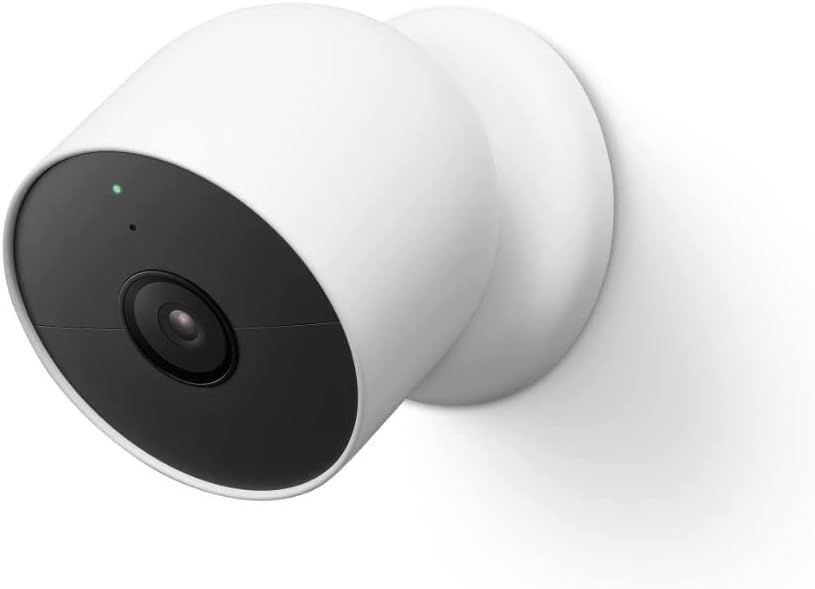
Figure 1: Front view of the Google Nest Cam (Outdoor or Indoor, Battery), showing the lens and indicator light.
2. What's in the Box
Verify that all components are present before beginning installation:
- Nest Cam Camera
- Magnetic and Wall Plate
- Wall Anchors and Screws
- Charge Cable
- Power Adapter
3. Setup and Installation
3.1 App Requirements
To set up and manage your Nest Cam, you must download and use the Google Home app. A free Google Account is required. This camera is not compatible with the older Nest app.
3.2 Initial Setup
- Download the Google Home app from your device's app store.
- Open the app and sign in with your Google Account, or create a new one.
- Follow the in-app instructions to add a new device and select your Nest Cam.
- Scan the QR code on your camera when prompted.
- Connect the camera to your Wi-Fi network.
3.3 Mounting the Camera
The Nest Cam is battery-powered, offering flexible placement without needing a nearby outlet. The magnetic mount simplifies installation.
- Choose a suitable location, considering the camera's field of view (130 degrees) and Wi-Fi signal strength.
- Use the included wall plate, anchors, and screws to securely mount the magnetic base to a wall or surface.
- Attach the Nest Cam to the magnetic base. Ensure it is firmly in place.

Figure 2: A hand holding the Nest Cam, demonstrating how it attaches to its magnetic wall mount, simplifying installation.
For continuous power and 24/7 video recording (with Nest Aware Plus subscription), a weatherproof power cable or indoor stand with power cable can be purchased separately.
4. Operating the Nest Cam
4.1 Live View and Video History
Access live HD video from your Nest Cam 24/7 through the Google Home app. The camera provides 1080p HDR video with night vision for clear viewing in various lighting conditions.
The camera includes 3 hours of free event video history. For extended video history (up to 60 days), a Nest Aware subscription is required (sold separately).
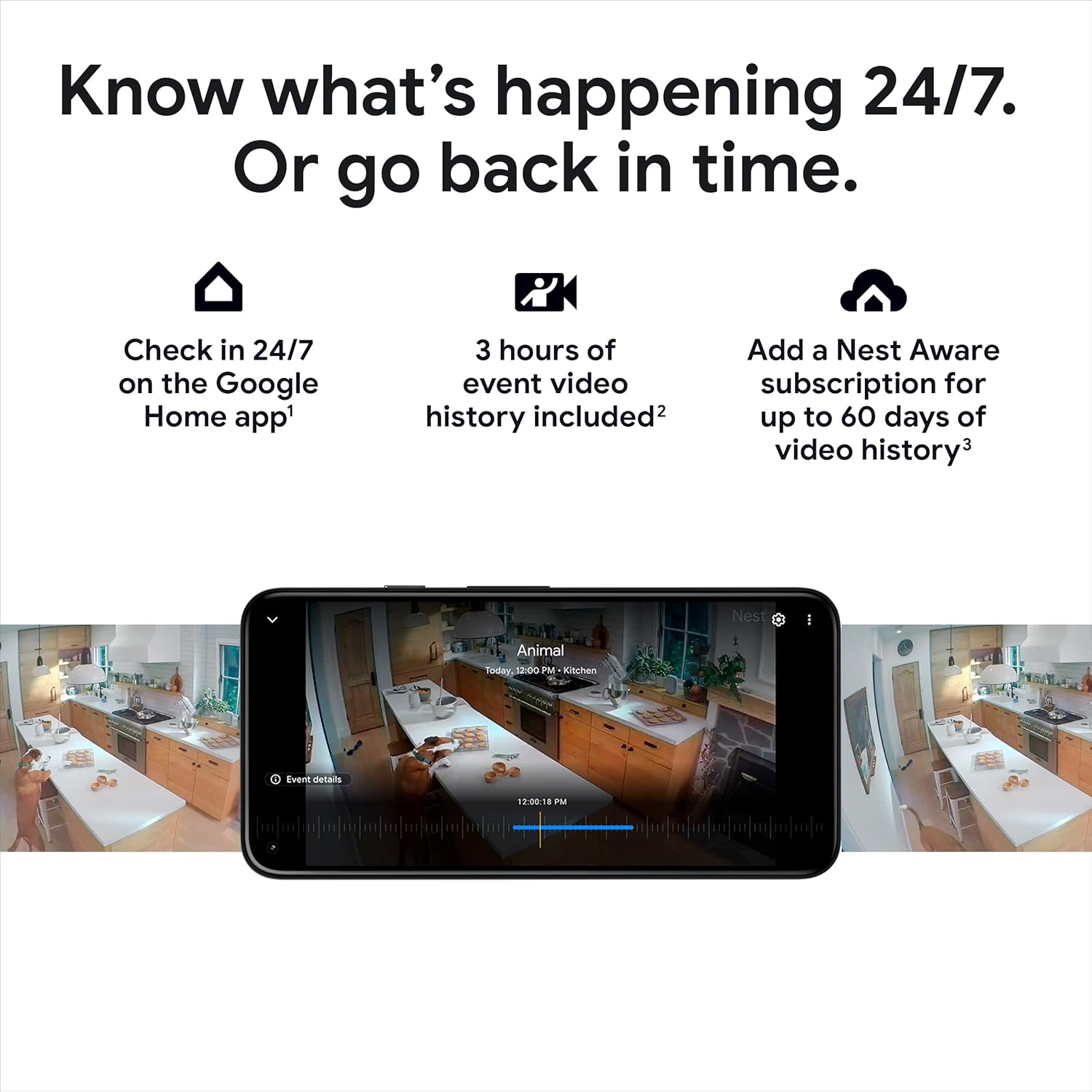
Figure 3: A smartphone displaying the Google Home app interface, showing live video feed and options to review video history from the Nest Cam.
4.2 Intelligent Alerts
The Nest Cam features built-in intelligence to differentiate between people, animals, and vehicles. It sends specific alerts to your Google Home app without requiring a subscription.
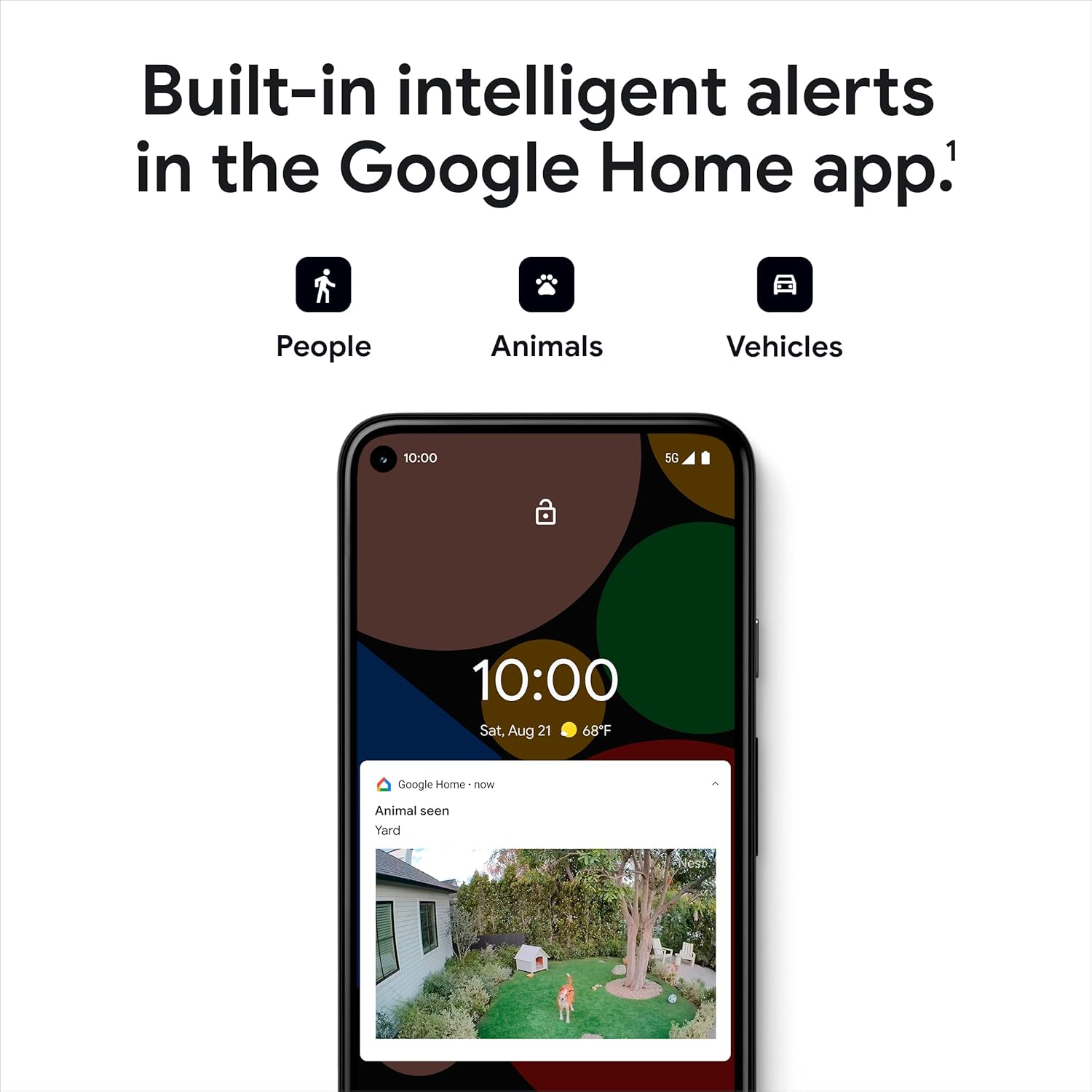
Figure 4: A smartphone screen illustrating the intelligent alert feature of the Nest Cam, showing notifications for detected people, animals, and vehicles.
4.3 Two-Way Audio
The camera includes a built-in speaker and microphone, enabling two-way communication. You can talk to visitors or deter unwanted guests directly through the Google Home app.

Figure 5: An image depicting the two-way audio feature, showing a person speaking into their phone while a delivery person is at the door, implying communication via the Nest Cam.
4.4 Activity Zones
Customize your monitoring by setting up Activity Zones within the Google Home app. This allows you to receive notifications for specific areas of interest within the camera's view.
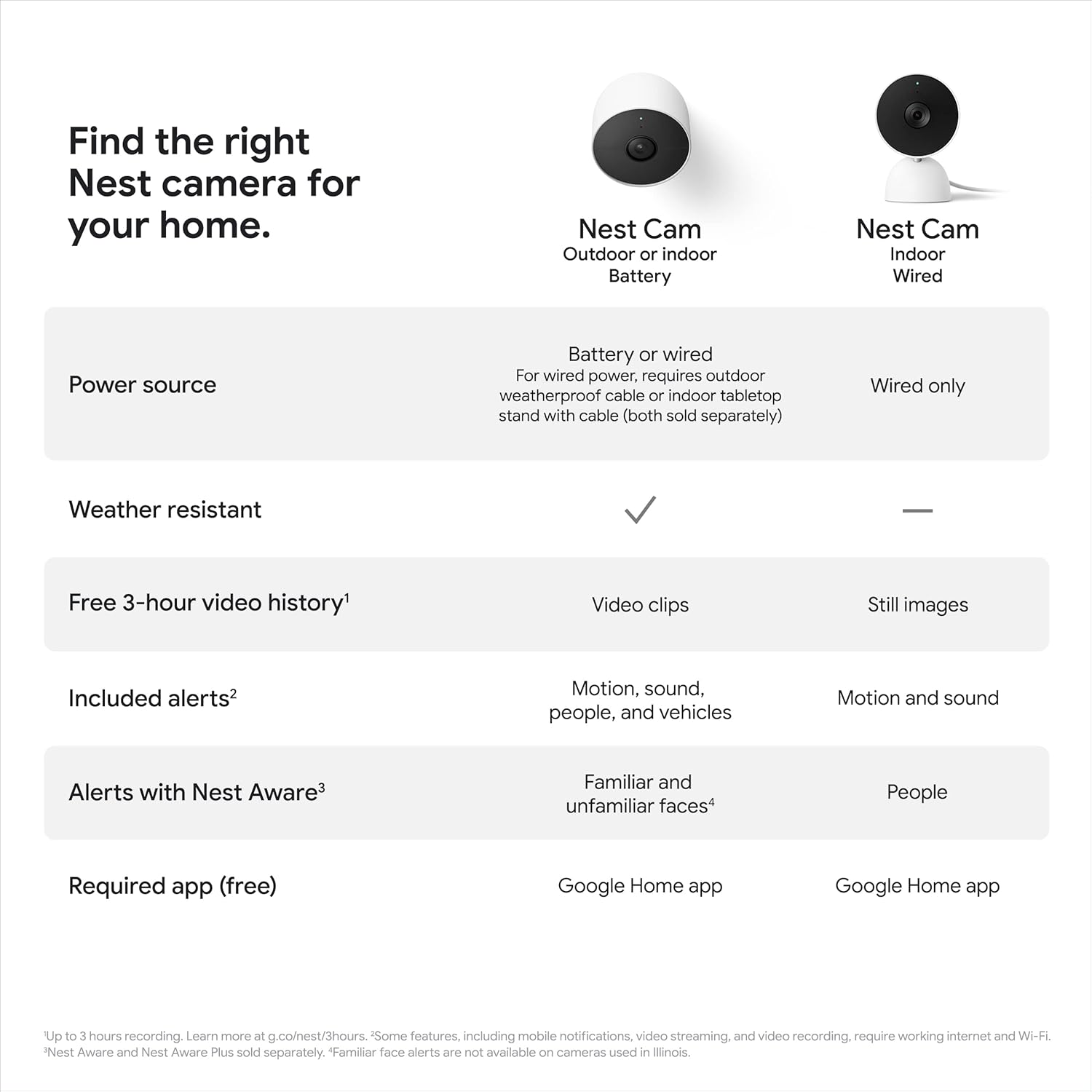
Figure 6: A smartphone screen displaying the Google Home app, with a highlighted area over a driveway, demonstrating the Activity Zones feature for focused monitoring.
5. Maintenance
5.1 Charging the Battery
The Nest Cam is battery-powered. When the battery level is low, you will receive a notification via the Google Home app. To charge, detach the camera from its mount and connect it to the included charge cable and power adapter. Ensure the camera is fully charged before re-mounting for optimal performance.
5.2 Weather Resistance
The Nest Cam is designed to be weather-resistant (IP54 rated), suitable for outdoor use. While it can withstand various weather conditions, ensure proper installation to prevent direct water accumulation on the lens or charging port.
6. Troubleshooting
- Camera Offline / No Connection:
- Ensure your Wi-Fi network is active and the camera is within range. Check the camera's battery level. If the issue persists, try restarting your Wi-Fi router or performing a factory reset on the camera (refer to Google Home app for specific steps).
- Power Outage / Wi-Fi Loss:
- If your Wi-Fi goes down or there's a power outage, the Nest Cam will store up to an hour of recorded events locally, allowing you to review what happened once power and Wi-Fi are restored.
- Poor Video Quality:
- Check your Wi-Fi signal strength at the camera's location. Ensure the camera lens is clean and free from obstructions. Adjust camera placement if necessary to improve lighting conditions.
7. Specifications
| Feature | Detail |
|---|---|
| Model Number | GA01317-US |
| Indoor/Outdoor Usage | Outdoor, Indoor |
| Power Source | Battery Powered |
| Connectivity Protocol | Wi-Fi, Bluetooth |
| Video Capture Resolution | 1080p HDR |
| Viewing Angle | 130 Degrees |
| Night Vision Range | 20 Feet |
| Water Resistance Level | Waterproof (IP54) |
| Item Weight | 14 ounces (396.89 grams) |
| Included Components | Camera, Magnetic/Wall Plate, Anchors/Screws, Charge Cable, Power Adapter |
8. Warranty and Support
For detailed warranty information and technical support, please refer to the official Google Nest support resources. You can often find comprehensive guides, FAQs, and contact options on the manufacturer's website.
Additional resources:
- Official Google Nest Support: support.google.com/googlenest
- User Manual (PDF): Download PDF
- Installation Manual (PDF): Download PDF
Related documentsGA01317-US


Ask a question about this manual
Ask about setup, troubleshooting, compatibility, parts, safety, or missing instructions. Manuals+ will review the question and use this page’s manual context to help answer it.