
Introduction
The Roborock E5 Mop is a self-charging robotic vacuum cleaner designed for efficient floor cleaning. It combines vacuuming and mopping functionalities, featuring strong suction, Wi-Fi connectivity, and control via a mobile application, remote control, or voice commands. This manual provides detailed instructions for setting up, operating, maintaining, and troubleshooting your Roborock E5 Mop.
Setup
1. Unpacking and Component Check
Carefully remove all components from the packaging. Verify that all items listed in the product's packing list are present and undamaged. Keep the packaging for future storage or transport.
2. Charging Dock Placement
Place the charging dock against a wall on a hard, level surface. Ensure there is at least 0.5 meters (1.6 feet) of clear space on both sides and 1.5 meters (4.9 feet) in front of the dock. Connect the power adapter to the dock and plug it into a power outlet. Ensure the cable is neatly arranged to prevent entanglement.

Image: The Roborock E5 Mop robot vacuum returning to its charging dock, illustrating the recommended clear space around the dock for optimal navigation.
3. Initial Charging
Place the robot onto the charging dock. The robot will automatically align and begin charging. For first-time use, ensure the robot is fully charged before starting a cleaning cycle. The battery indicator light will show the charging status.
4. Connecting to the Mi Home App
- Download the Mi Home app from your device's app store.
- Open the app and create an account or log in.
- Tap '+' to add a new device and follow the in-app instructions to connect your Roborock E5 Mop to your home Wi-Fi network.
- Ensure your phone is connected to a 2.4GHz Wi-Fi network during the pairing process.
5. Remote Control Setup
The remote control is pre-paired with the robot. Simply insert the batteries (if not already installed) and it is ready for use. The remote can be attached to magnetic surfaces for convenient access.

Image: The Roborock E5 Mop robot vacuum alongside its dedicated remote control, showing the primary components.
Operation
1. Starting and Pausing Cleaning
- Start: Press the power button on the robot, the 'Clean' button on the remote, or initiate cleaning via the Mi Home app.
- Pause: Press the power button on the robot or the 'Pause' button on the remote/app during a cleaning cycle.
- Return to Dock: Press the 'Dock' button on the remote or app to send the robot back to its charging station.
2. Cleaning Modes
The Roborock E5 Mop offers various cleaning modes:
- Vacuum & Mop: The robot vacuums and mops simultaneously. Attach the mop cloth and fill the water tank before selecting this mode.
- Vacuum Only: The robot performs dry vacuuming. Remove the mop module for this mode.
- Spot Clean: The robot cleans a small area intensively. Activate this mode via the remote or app.

Image: The Roborock E5 Mop robot vacuum cleaning a hard floor, demonstrating its simultaneous vacuuming and mopping capability with a visible water tank.
3. Navigation and Mapping
The E5 Mop utilizes OpticEye and dual gyroscopes for navigation, creating a Z-shape cleaning path for systematic coverage. It tracks its location to ensure thorough cleaning and avoid missed spots.

Image: The Roborock E5 Mop robot vacuum following a Z-shaped cleaning path on a hard floor, illustrating its methodical navigation system.
4. Control Methods
The robot can be controlled using multiple methods:
- Mobile App (Mi Home): Provides comprehensive control including starting/stopping, scheduling, adjusting suction power, viewing cleaning routes, and setting No-Go Zones.
- Remote Control: Allows basic functions like starting/stopping, directional control, spot cleaning, and sending the robot back to the dock.
- Voice Control: Compatible with Amazon Alexa and Google Assistant for hands-free operation. Link your Roborock account in the respective voice assistant app.
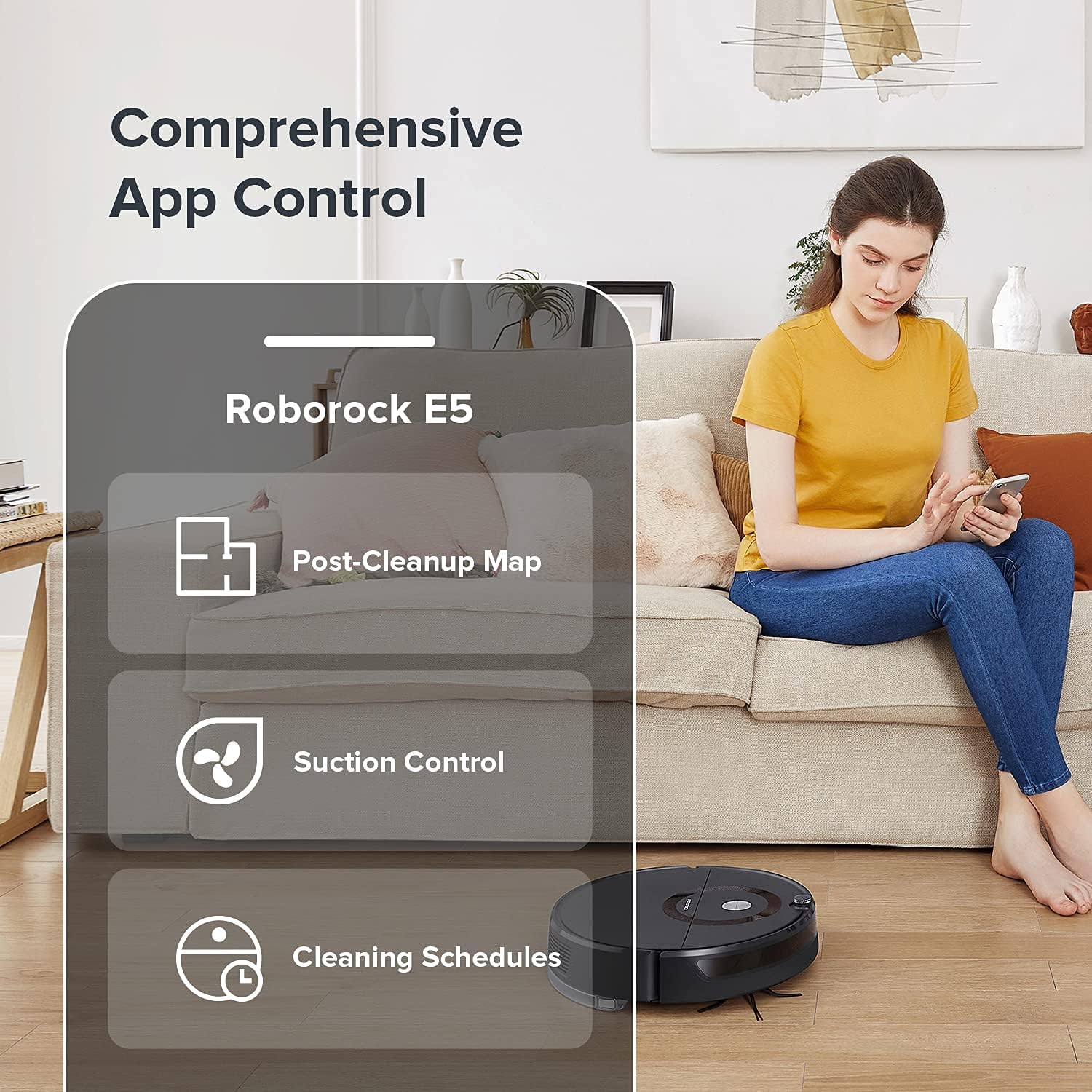
Image: A person interacting with the Mi Home app on a smartphone, displaying options for post-cleanup map, suction control, and cleaning schedules for the Roborock E5 Mop.

Image: A person using the Roborock E5 Mop remote control while the robot vacuum cleans the floor, demonstrating convenient manual operation.
Maintenance
Regular maintenance ensures optimal performance and extends the lifespan of your Roborock E5 Mop.
1. Emptying and Cleaning the Dustbin
Open the robot's top cover, remove the dustbin, and empty its contents into a trash receptacle. Rinse the dustbin with water if necessary and allow it to air dry completely before reinserting.
2. Cleaning the Main Brush
Remove the main brush cover and then the main brush. Use the cleaning tool provided to remove hair and debris tangled around the brush. Reinstall the brush and cover securely.
3. Cleaning the Side Brush
Periodically check the side brush for tangled hair or debris. Remove any obstructions to ensure effective edge cleaning.
4. Washing the Filter
Remove the filter from the dustbin. Rinse it under running water until clean. Shake off excess water and allow it to air dry for at least 24 hours before reinserting. Do not use a dryer or direct sunlight.
5. Cleaning the Mop Cloth and Water Tank
After mopping, remove the mop cloth and wash it thoroughly. Allow it to air dry. Empty any remaining water from the water tank and rinse it. Ensure the tank is dry before storage.

Image: A close-up view of the Roborock E5 Mop's water tank and mop pad assembly, highlighting the components used for wet cleaning.
6. Cleaning Sensors and Charging Contacts
Use a soft, dry cloth to wipe the cliff sensors, wall sensors, and charging contacts on both the robot and the charging dock. This prevents dust buildup from affecting performance.

Image: An illustration showing the Roborock E5 Mop's cliff sensor detecting an edge, indicating its function to prevent falls.
7. Wheel Maintenance
Inspect the drive wheels and omnidirectional wheel for any trapped hair or debris. Clean them as needed to ensure smooth movement.
Troubleshooting
If you encounter issues with your Roborock E5 Mop, refer to the following common problems and solutions:
| Problem | Possible Cause | Solution |
|---|---|---|
| Robot does not start or respond. | Low battery; power button not pressed; robot stuck. | Charge the robot; press the power button; clear obstructions. |
| Poor cleaning performance. | Full dustbin; clogged filter; tangled brushes. | Empty dustbin; clean/replace filter; clean main/side brushes. |
| Robot cannot find charging dock. | Dock obstructed; robot too far from dock; dirty charging contacts. | Ensure clear space around dock; manually place robot near dock; clean charging contacts. |
| App connectivity issues. | Incorrect Wi-Fi password; 5GHz Wi-Fi network; robot offline. | Verify Wi-Fi password; ensure 2.4GHz network; restart robot and router. |
| Robot gets stuck frequently. | Cables, rugs, or small objects on floor; dirty sensors. | Clear floor area; clean all sensors. |
Specifications
- Brand: Roborock
- Model Name: E5 Mop
- Special Features: 2500Pa Suction, Edge Cleaning, Logical Navigation, Smart Mapping, Washable Filter
- Color: Black
- Included Components: Mop Pad
- Filter Type: Washable
- Battery Life: 200 minutes
- Power Source: Battery Powered
- Batteries Included: Yes (1 Lithium Ion battery required)
- Control Method: Remote, App, Voice
- Compatible Devices: Amazon Echo, Google Home, Smartphones
- Form Factor: Robotic
- UPC: 656942345534
- Item Weight: 12.13 pounds
- Manufacturer: Roborock
- ASIN: B09F9ZX5HN
- Date First Available: September 2, 2021
Warranty Information
Specific warranty details for the Roborock E5 Mop are typically provided with the product packaging or available on the official Roborock website. Please refer to these sources for comprehensive warranty terms and conditions.
Customer Support
For further assistance, technical support, or inquiries regarding your Roborock E5 Mop, please visit the official Roborock support website or contact their customer service department. Contact information can usually be found on the product packaging or the official brand website.


