
1. Introduction
Welcome to the user manual for your new Redmi 32-inch HD Ready Smart LED TV. This guide provides essential information to help you set up, operate, and maintain your television, ensuring you get the most out of its features. Your Redmi Smart TV combines stunning visuals with smart functionalities powered by Android 11, offering a seamless entertainment experience.
Please read this manual thoroughly before using your TV and keep it for future reference.
2. Safety Information
To ensure safe operation and prevent damage, please observe the following safety precautions:
- Power Supply: Connect the TV only to an AC power source within the specified voltage range.
- Ventilation: Ensure adequate ventilation around the TV. Do not block ventilation openings.
- Water and Moisture: Do not expose the TV to rain, moisture, or excessive humidity.
- Cleaning: Unplug the TV before cleaning. Use a soft, dry cloth. Avoid liquid cleaners.
- Placement: Place the TV on a stable, level surface or mount it securely to a wall. Keep it away from direct sunlight, heat sources, and strong magnetic fields.
- Servicing: Do not attempt to service the TV yourself. Refer all servicing to qualified personnel.
3. Package Contents
Carefully unpack your TV and check that all the following items are included:
- Redmi 32-inch HD Ready Smart LED TV (x1)
- Table Stand Base (x2)
- Remote Control (x1)
- User Manual (x1)
- Screws for Stand Installation (x4)
4. Setup
4.1 Unpacking
Remove the TV and all accessories from the packaging. Retain the packaging materials for future transport or servicing needs.
4.2 Stand Installation
If you are placing the TV on a table, attach the two table stand bases to the bottom of the TV using the provided screws. Ensure the stands are securely fastened.

Image: Rear view of the Redmi Smart TV showing dimensions and the attached table stands. The TV measures approximately 72.97 cm (28.7 inches) wide, 43.35 cm (17 inches) high without stand, and 47.56 cm (18.7 inches) high with stand. The stand depth is 18.08 cm (7.1 inches). Weight with base is 3.92kg, without base is 3.87kg.
4.3 Wall Mounting
For wall mounting, ensure you use a VESA-compatible wall mount kit (not included) that supports a 20cm x 20cm pattern. Follow the instructions provided with your wall mount kit for safe installation.
4.4 Initial Power On
Connect the power cord to the TV and then to a power outlet. Press the power button on the remote control or the TV to turn it on. Follow the on-screen instructions for the initial setup, including language selection, network connection, and Google account login.
5. Connections
Your Redmi Smart TV offers various ports for connecting external devices and network access.
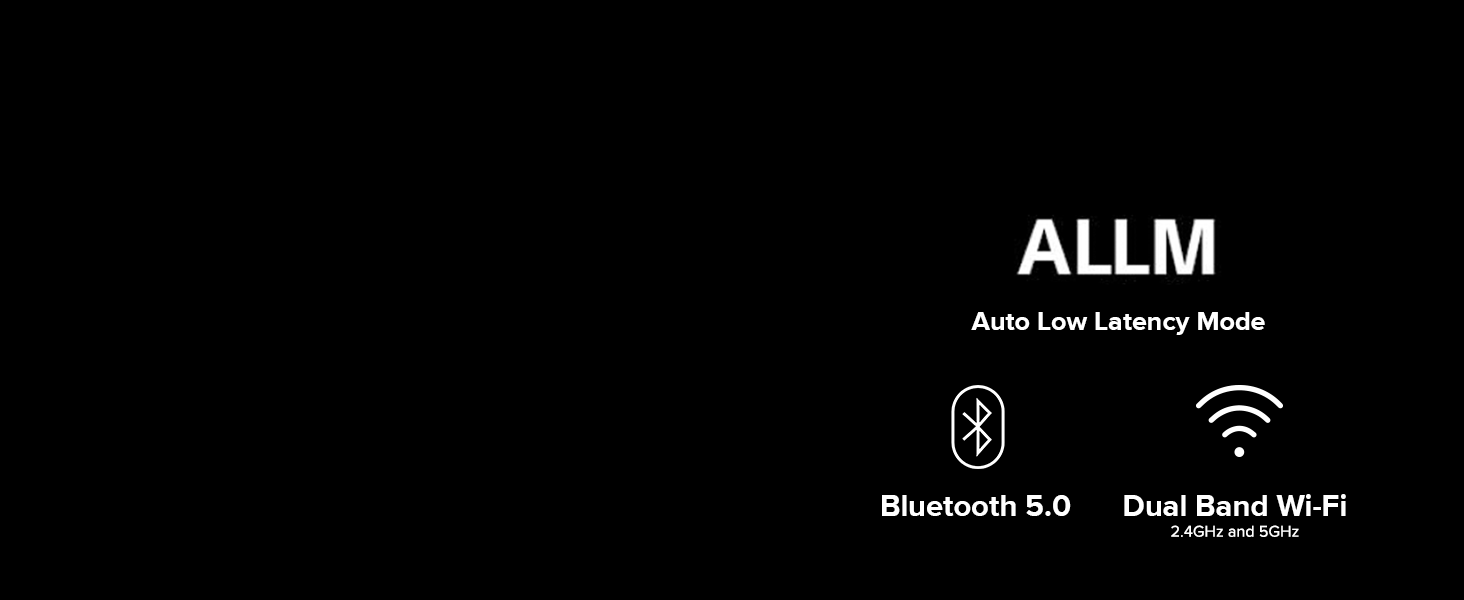
Image: A diagram illustrating the various input and output ports on the back of the Redmi Smart TV. These include Antenna, Network (Ethernet), HDMI (1 ARC, 2), Earphone (3.5mm), AV Input (R, L, Video), and USB 2.0 (1, 2).
- HDMI Ports (x2): Connect set-top boxes, Blu-ray players, gaming consoles, and other HDMI-enabled devices. One HDMI port supports Audio Return Channel (ARC) for simplified audio connections to soundbars or AV receivers.
- USB 2.0 Ports (x2): Connect USB storage devices for media playback or other USB accessories.
- AV Input (x1): For connecting older devices using composite video and stereo audio cables.
- 3.5mm Headphone Jack (x1): For connecting headphones or external speakers.
- Ethernet Port (x1): For a stable wired internet connection.
- Antenna Input (x1): For connecting an antenna to receive terrestrial broadcast signals.
5.1 Wireless Connectivity
Your TV supports advanced wireless options:
- Dual Band Wi-Fi (2.4GHz & 5GHz): Connect to your home network for internet access and streaming.
- Bluetooth 5.0: Pair with compatible Bluetooth devices such as headphones, speakers, or game controllers.
Image: A graphic highlighting key features including Auto Low Latency Mode (ALLM), Bluetooth 5.0, and Dual Band Wi-Fi (2.4GHz and 5GHz).
6. Operating Your TV
6.1 Remote Control
The included remote control provides easy access to all TV functions. Familiarize yourself with its buttons:

Image: A close-up of the Redmi Smart TV remote control, featuring dedicated buttons for Netflix and Prime Video, along with standard navigation, volume, and power controls. Text labels indicate 'Quick Wake' (turn on TV in less than 5s), 'Quick Mute' (double tap volume down button), and 'Quick Settings' (long press PatchWall button).
- Power Button: Turns the TV on or off.
- Navigation Pad: Use to navigate menus and select options.
- Volume Up/Down: Adjusts the TV volume. Double-tap volume down for Quick Mute.
- Channel Up/Down: Changes TV channels.
- Home Button: Returns to the Android TV home screen.
- Back Button: Returns to the previous screen or menu.
- Netflix/Prime Video Buttons: Direct access to these streaming services.
- Google Assistant Button: Activates voice control.
- Quick Wake: Turn on the TV in less than 5 seconds.
- Quick Settings: Long press the PatchWall button to enter the quick settings menu.
6.2 Basic Functions
To power on the TV, press the power button on the remote. Use the volume buttons to adjust audio levels. To switch between input sources (HDMI, AV, etc.), press the 'Input' button on your remote and select the desired source from the on-screen menu.
7. Smart TV Features
Your Redmi Smart TV is equipped with a range of smart features to enhance your viewing experience.

Image: The Redmi Smart TV screen showing the Android TV 11 interface, with icons for Google Play, Chromecast built-in, and 'Ok Google' (Google Assistant).
7.1 Android TV 11
Experience a user-friendly interface with Android TV 11, providing access to a vast library of content and applications.
7.2 Google Assistant
Use your voice to search for movies, launch apps, get answers, and control smart home devices with the built-in Google Assistant.
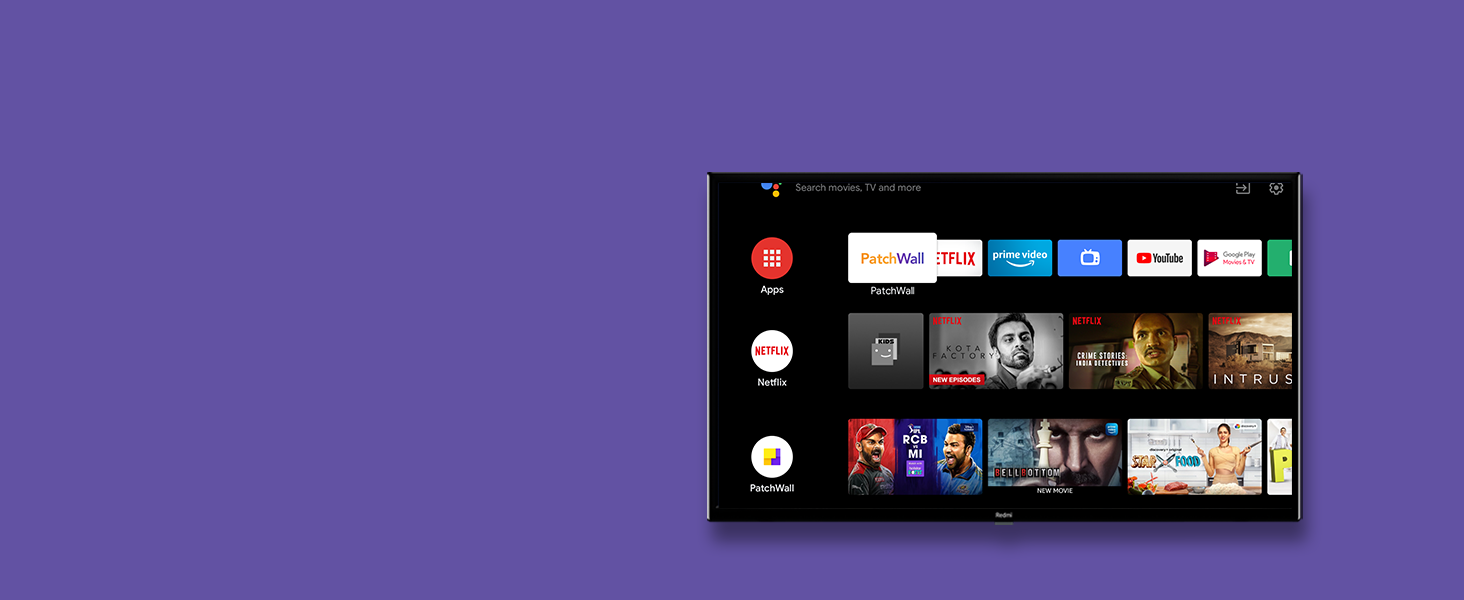
Image: The Redmi Smart TV screen displaying the Google Assistant interface, with a voice command 'Turn on the Mi Air Purifier' shown at the bottom.
7.3 Google Play Store
Download your favorite apps, games, and content directly from the Google Play Store.

Image: The Redmi Smart TV screen displaying the Google Play Store interface, showing various apps like TED TV, Red Bull, and Tubi.
7.4 Chromecast Built-in
Easily cast movies, shows, photos, and more from your phone or tablet to your TV screen.
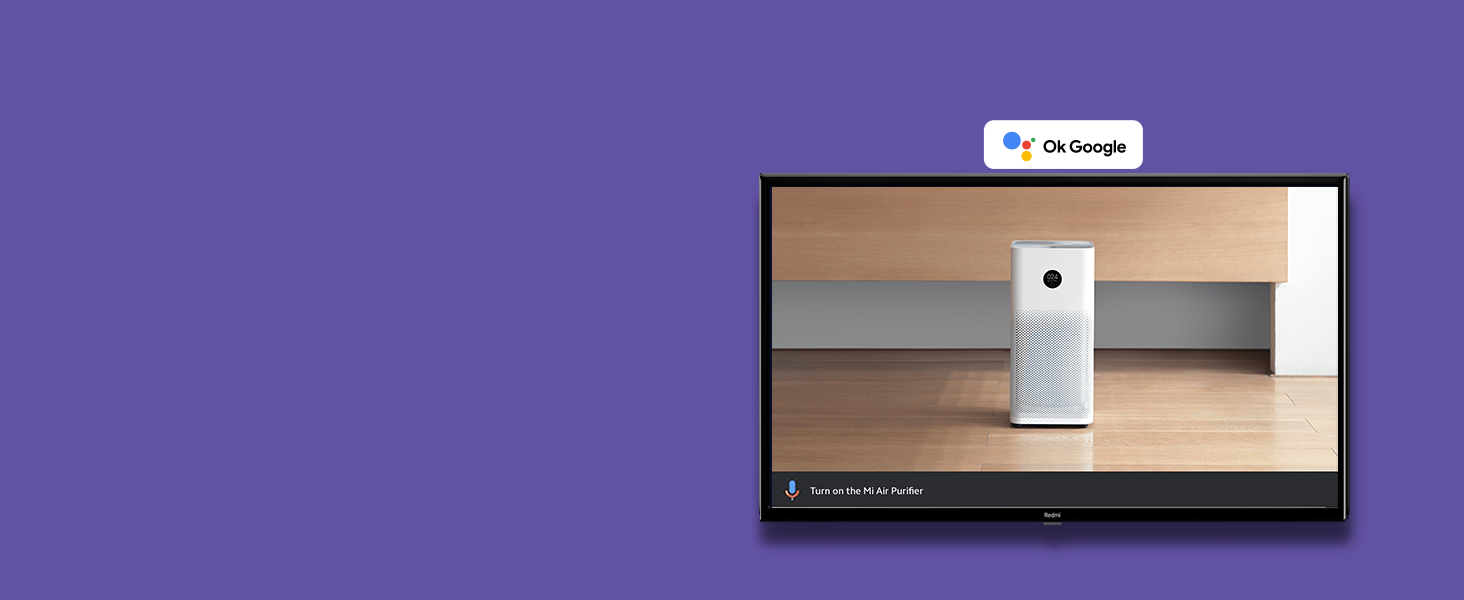
Image: The Redmi Smart TV screen displaying a video game scene, with a mobile phone screen mirrored in the bottom left corner, illustrating the Chromecast built-in feature.
7.5 Pre-installed Apps & PatchWall 4
Enjoy popular streaming services like Netflix, YouTube, Prime Video, and Disney+ Hotstar. PatchWall 4 with IMDb integration provides a curated content experience with personalized recommendations and easy discovery.
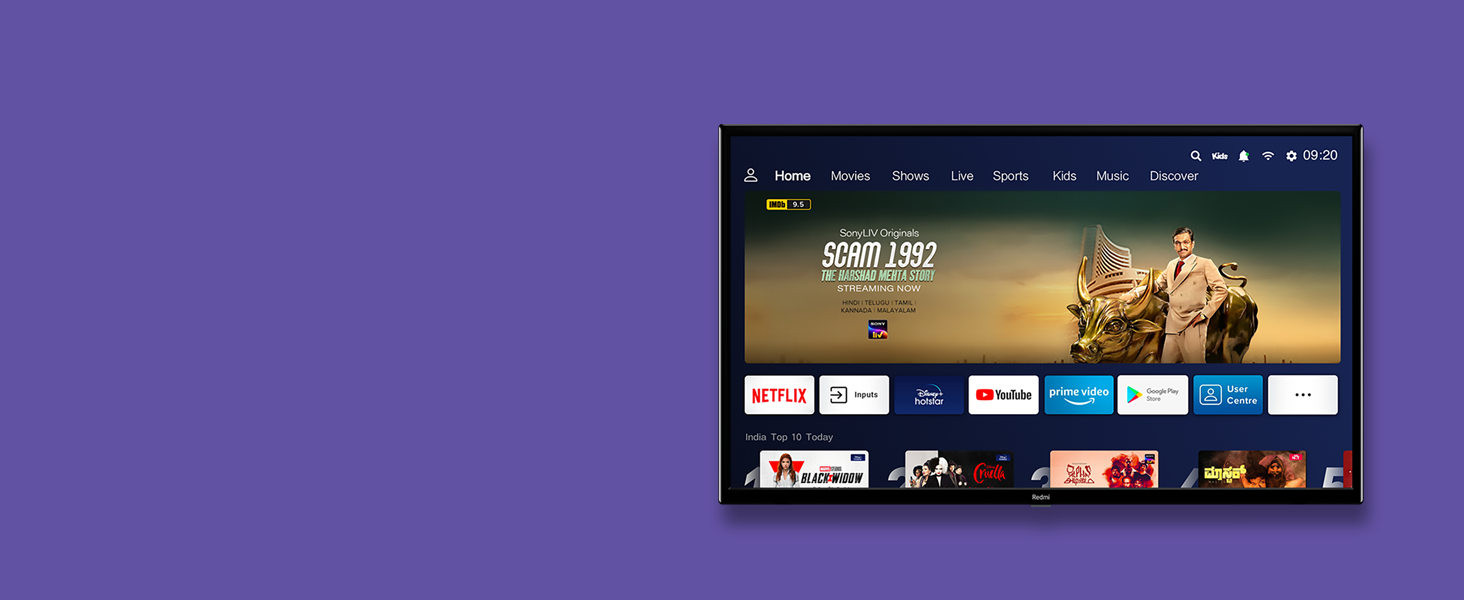
Image: The Redmi Smart TV screen showing the PatchWall 4 interface, featuring various streaming apps and content categories like Home, Movies, Shows, Live, Sports, Kids, and Music.
7.6 Vivid Picture Engine
The Vivid Picture Engine optimizes color, contrast, and brightness to deliver stunning visual clarity and vibrant images.
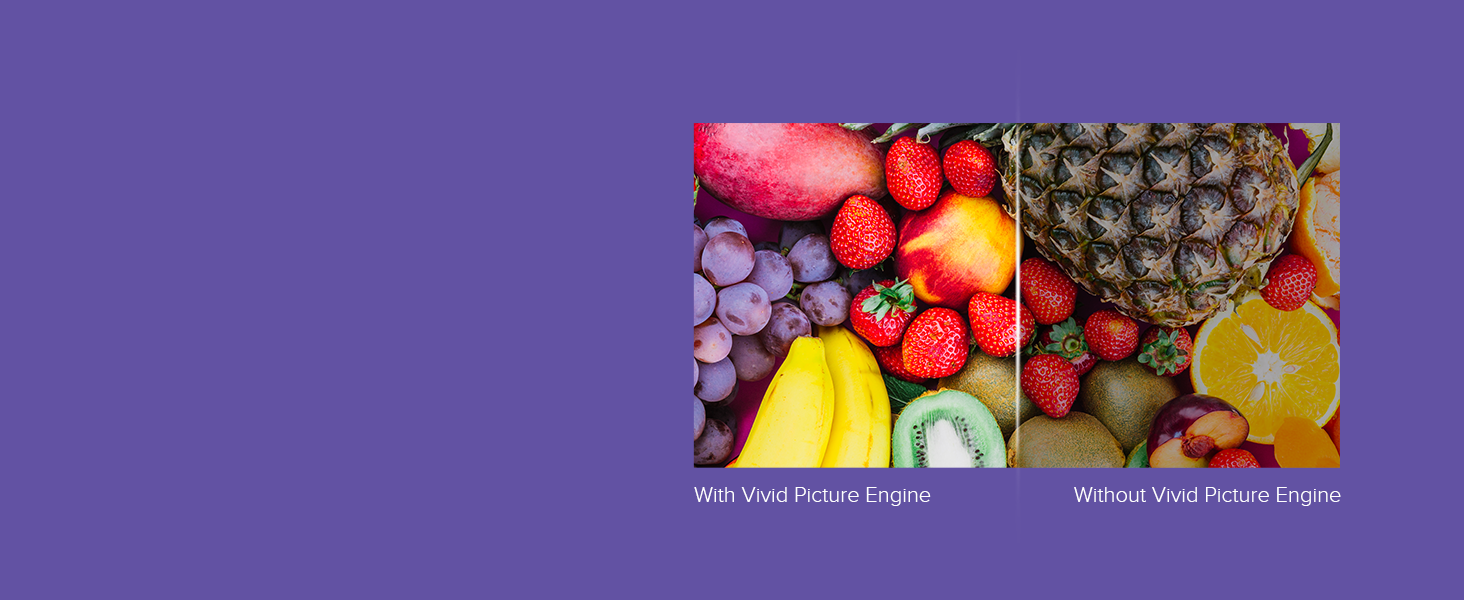
Image: A split screen comparison showing a fruit platter. The left side is labeled 'With Vivid Picture Engine' and displays richer, more vibrant colors, while the right side is labeled 'Without Vivid Picture Engine' and shows duller colors.
7.7 Audio Features
Enjoy immersive sound with 20W stereo speakers, enhanced by Dolby Audio and DTS Virtual: X for a rich audio experience.
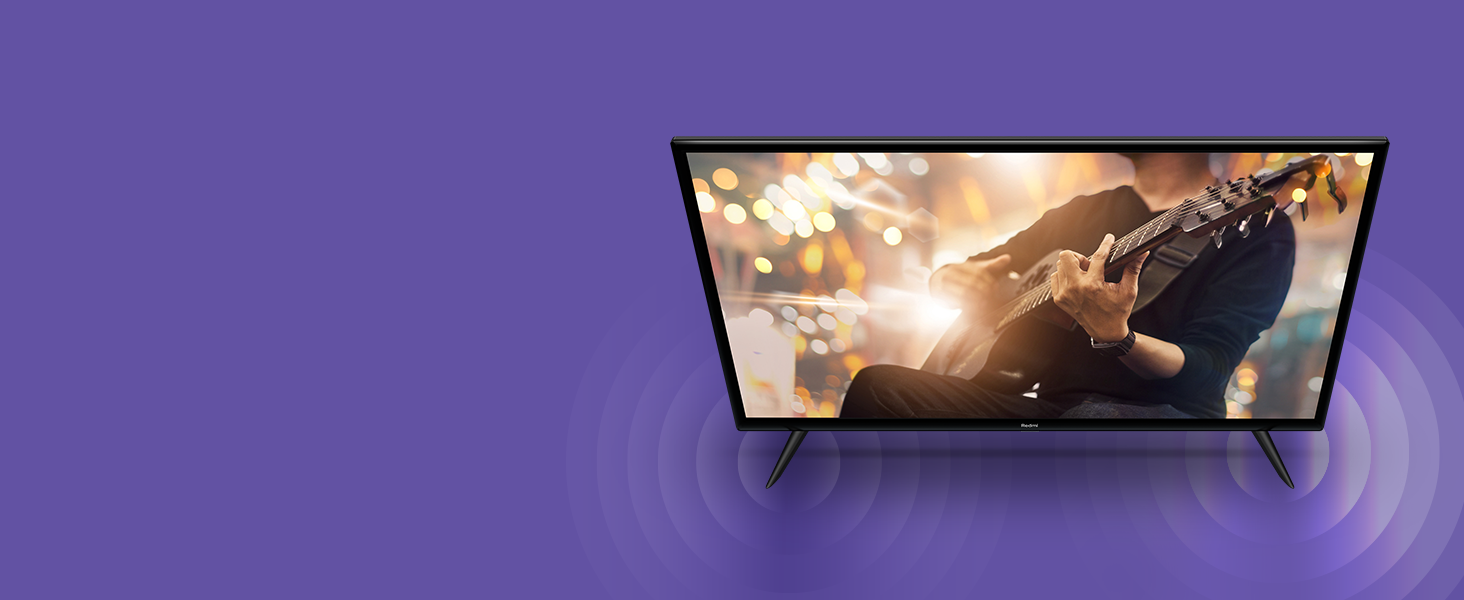
Image: A Redmi Smart TV on a stand, with circular sound waves emanating from its sides, illustrating its audio capabilities.
7.8 Auto Low Latency Mode (ALLM)
For gamers, ALLM automatically detects when you're playing a game and switches to a low-latency mode, reducing input lag for a smoother gaming experience.
7.9 Product Overview Video
Video: A short promotional video showcasing the key features of the Redmi Smart TV Series, including its display, audio, Patchwall, Android TV 11, Dual Band Wi-Fi, and Auto Low Latency Mode.
8. Maintenance
8.1 Cleaning
Screen: Gently wipe the screen with a soft, lint-free cloth. For stubborn marks, lightly dampen the cloth with water or a screen cleaner specifically designed for TVs. Do not spray liquid directly onto the screen.
Body: Wipe the TV's body with a soft, dry cloth. Avoid using abrasive cleaners or solvents that may damage the finish.
8.2 Software Updates
Ensure your TV's software is up to date for optimal performance and access to the latest features. You can usually check for updates in the TV's settings menu under 'About' or 'System Update'.
9. Troubleshooting
If you encounter any issues with your TV, refer to the following common solutions:
- No Power: Check if the power cord is securely connected to both the TV and the power outlet. Ensure the power outlet is functioning.
- No Picture/Sound: Verify the correct input source is selected. Check all cable connections (HDMI, AV). Try restarting the TV.
- Remote Control Not Working: Replace the batteries in the remote. Ensure there are no obstructions between the remote and the TV's IR sensor.
- Network Connection Issues: Check your Wi-Fi router or Ethernet cable. Try restarting your router and the TV.
- Apps Not Loading: Ensure your internet connection is stable. Try clearing the app's cache or reinstalling the app.
If the problem persists, contact customer support for further assistance.
10. Specifications
| Feature | Specification |
|---|---|
| Model Numbers | L32M6-RA, L32M7-RA |
| Screen Size | 32 inches (80 cm) |
| Resolution | HD Ready (1366x768) |
| Refresh Rate | 60 Hz |
| Operating System | Android 11 |
| Processor | Quad-core |
| RAM | 1 GB |
| Storage | 8 GB |
| Audio Output | 20W Stereo Speakers |
| Audio Technologies | Dolby Audio, DTS Virtual: X |
| Wi-Fi | Dual Band (2.4GHz & 5GHz) |
| Bluetooth | Bluetooth 5.0 |
| HDMI Ports | 2 (1 with ARC) |
| USB Ports | 2 (USB 2.0) |
| Other Ports | AV Input (x1), 3.5mm Headphone Jack (x1), Ethernet (x1), Antenna (x1) |
| Viewing Angle | 178 Degrees |
| Dimensions (with stand) | 71.3 cm (W) x 20 cm (D) x 46.9 cm (H) |
| Weight | 5.3 kg |
| VESA Wall Mount | 20cm x 20cm |
11. Warranty and Support
Your Redmi Smart LED TV comes with a standard manufacturer's warranty. Please refer to the warranty card included in your package for specific terms and conditions, including the warranty period and coverage details.
Image: A graphic detailing the benefits of Mi Extended Warranty, including Zero Documentation, Genuine Spare Parts, Cashless Repairs, Authorised Service Centres, and On-site Support.
For technical support, service requests, or any questions regarding your product, please contact Redmi customer service. Contact details can typically be found on the official Redmi website or in your product documentation.


