
1. Product Overview
The Kaysuda SP300U is a portable USB speakerphone designed for conference calls, online meetings, and voice communication. It features a 360-degree omnidirectional microphone array, echo cancellation, and noise reduction technology to ensure clear audio quality for all participants.

A top-down view of the Kaysuda SP300U speakerphone, showcasing its circular design, speaker grille, and control panel with mute and volume buttons, and the Kaysuda logo. A USB-C cable is connected to the side.
2. Package Contents
Please check the box for the following items:
- 1 x Kaysuda SP300U USB Speakerphone
- 1 x USB Type-C Cable (100 cm)
- 1 x User Manual
- 1 x Carrying Pouch
3. Key Features
- 360° Omnidirectional Microphone: Equipped with 6 microphones to capture sound from all directions, suitable for 3-4 person conferences.
- Echo Cancellation & Noise Reduction: Advanced technology to eliminate echo and reduce unwanted background noise for crystal-clear conversations.
- Full-Duplex Communication: Allows both parties to speak and be heard simultaneously, mimicking natural conversation.
- HD Voice: Provides a wider frequency range for calls, ensuring high-definition sound quality.
- Plug and Play: No drivers or software required; simply connect via USB.
- 3.5mm Auxiliary Port: For private listening with headphones or earphones.
- Wide Compatibility: Supports various operating systems and communication platforms.
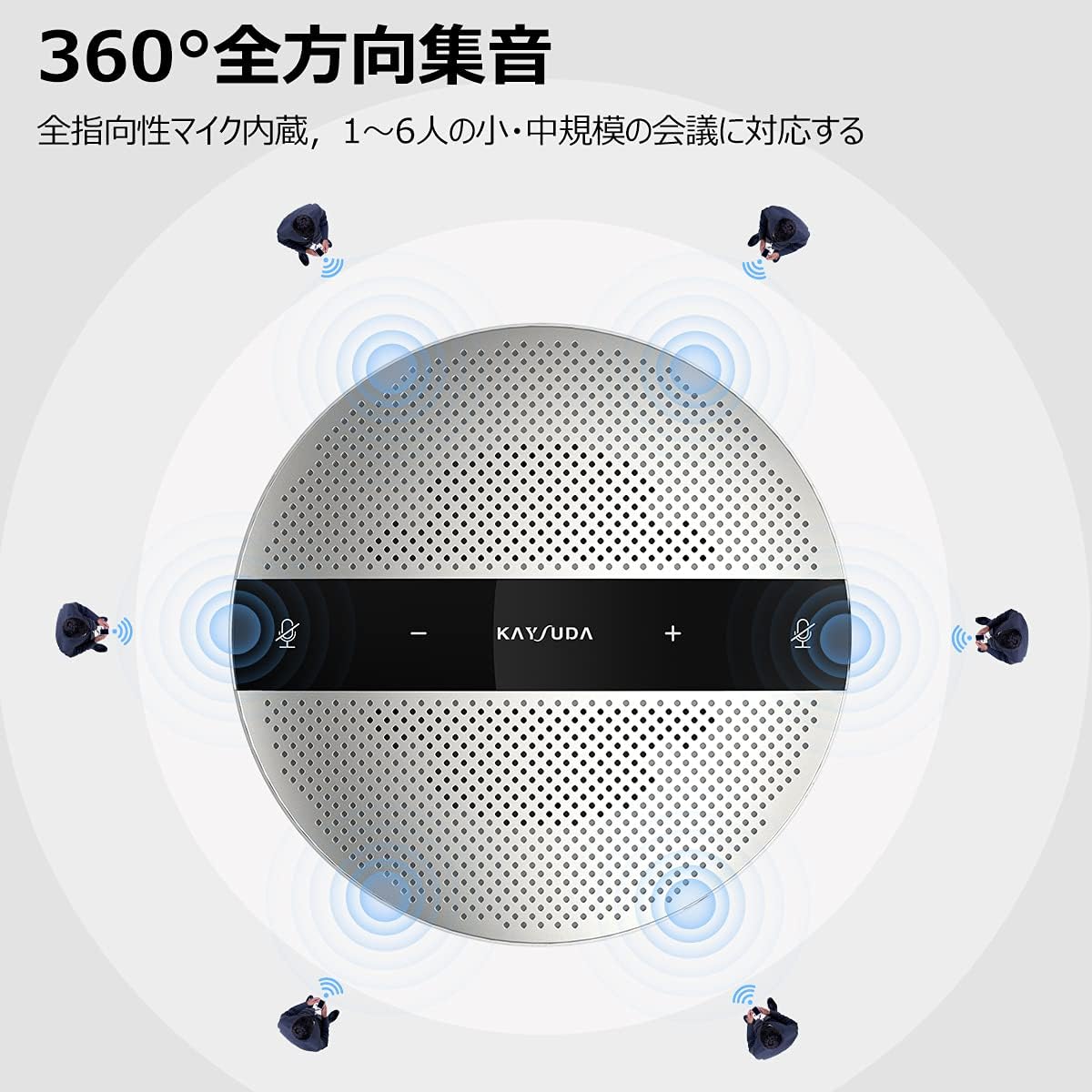
An illustration demonstrating the 360-degree omnidirectional audio pickup capability of the Kaysuda SP300U speakerphone, with sound waves radiating outwards and small figures representing participants around the device.

An image illustrating the environmental noise cancelling and echo reduction features of the Kaysuda SP300U. Sound waves are shown being filtered, with icons representing common background noises like keyboard typing and paper shuffling being suppressed.
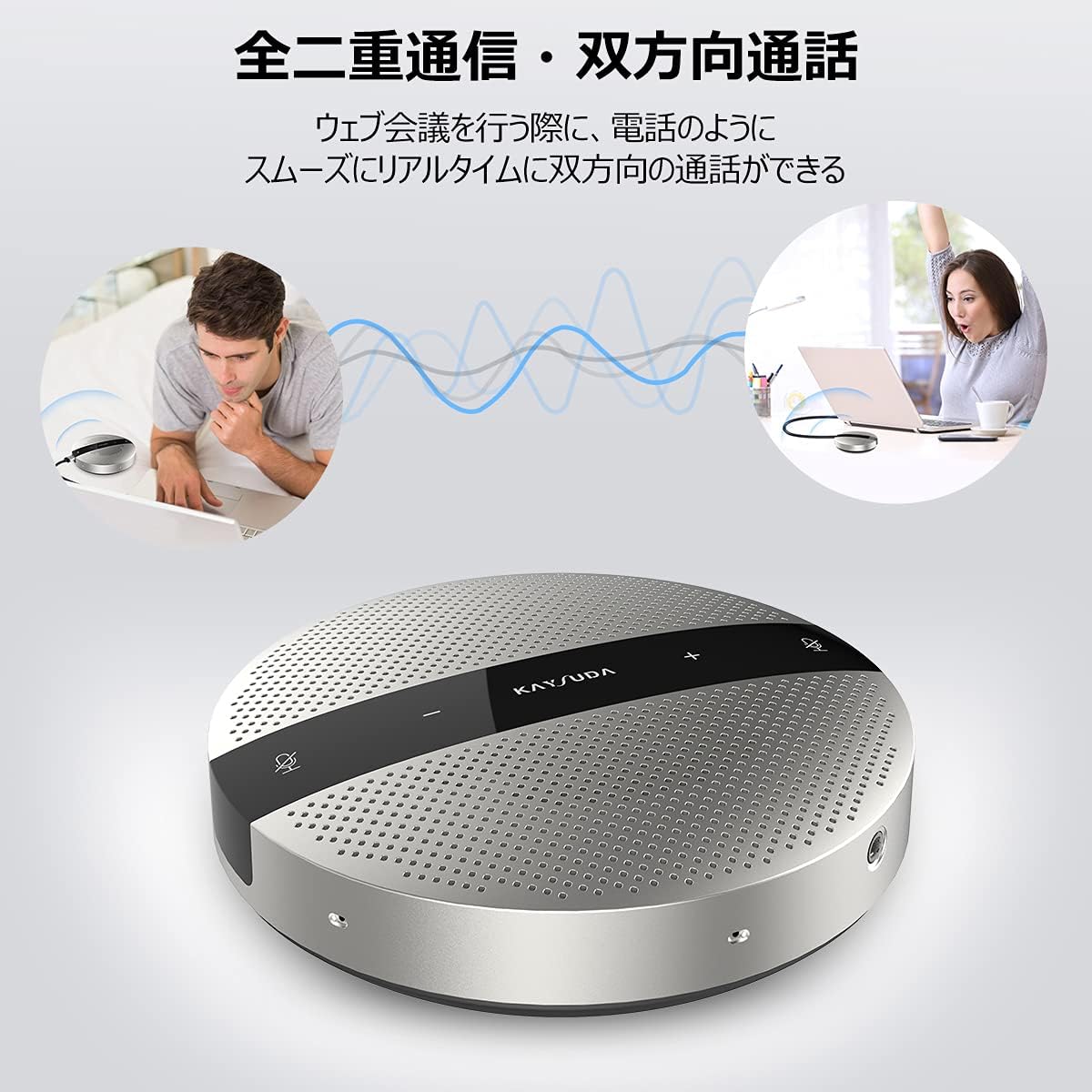
An illustration showing two individuals communicating seamlessly via the Kaysuda SP300U speakerphone, indicating its full-duplex capability where both parties can speak and be heard simultaneously without interruption.
4. System Requirements & Compatibility
The Kaysuda SP300U is compatible with a wide range of operating systems and communication software:
- Operating Systems: Windows, Mac OS, Chrome OS, Linux (partial support depending on Linux system settings and specifications).
- Software: Skype, Zoom, Google Hangout, Microsoft Teams, Cisco Webex, Avaya, Face Time, Ding Talk, Vonage Business, Adobe Web, etc.
- Also compatible with PS4.
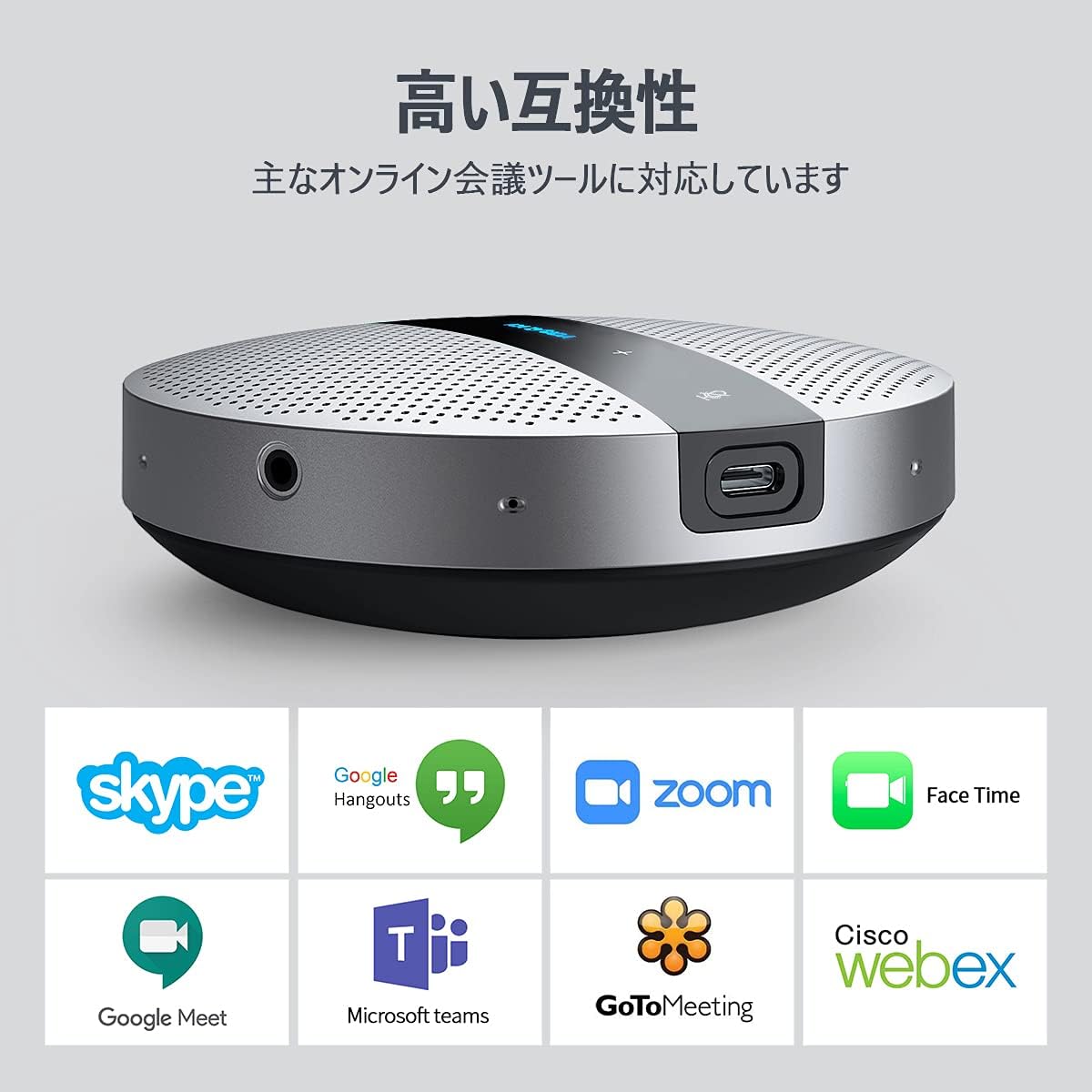
An image showcasing the broad compatibility of the Kaysuda SP300U speakerphone with popular online meeting and communication platforms, including logos for Skype, Google Hangouts, Zoom, Face Time, Google Meet, Microsoft Teams, GoToMeeting, and Cisco Webex.
5. Setup Guide
The SP300U is designed for simple plug-and-play operation.
- Connect the provided USB Type-C cable to the USB-C port on the Kaysuda SP300U speakerphone.
- Plug the other end of the USB cable into an available USB port on your computer (USB 3.0 recommended for optimal performance).
- The device will be automatically recognized by your operating system. No additional drivers are typically required.
- For Mac users: Go to System Preferences > Sound, and select the Kaysuda SP300U for both input and output devices.
- For Windows users: Go to Sound Settings, and select the Kaysuda SP300U as your default communication device for both microphone and speaker.

A laptop connected to the Kaysuda SP300U speakerphone via a USB-C cable, demonstrating its plug-and-play functionality which requires no additional drivers for immediate use.
6. Operating Instructions
The Kaysuda SP300U features intuitive controls for managing your calls:
- Volume Control: Use the '+' and '-' buttons on the device to adjust the speaker volume.
- Mute Microphone: Press the microphone icon button to mute or unmute the microphone. An indicator light will typically show the mute status.
- 3.5mm Headphone Jack: Connect headphones or earphones to the 3.5mm auxiliary port on the side of the device for private listening during calls.

A visual representation of the Kaysuda SP300U speakerphone held in a hand, highlighting its compact size and weight (approximately 295g). Dimensions (125mm x 125mm x 32mm) and the 3.5mm auxiliary port for private listening are also indicated.
7. Specifications
| Feature | Detail |
|---|---|
| Model Number | SP300U |
| Input | 5 V / 500 mA |
| RMS Power | 2 W |
| Weight | 296 g (10.4 Ounces) |
| Cable Length (USB Type-C) | 100 cm |
| Dimensions (L x W x H) | 12.5 x 12.5 x 3.2 cm (4.92 x 4.92 x 1.26 inches) |
| Audio Sensitivity | 65 Decibels |
| Impedance | 4 ohms |
| Microphone Form Factor | Mini |
| Power Source | Cable Electric |
| Material | Acrylonitrile Butadiene Styrene |
| Hardware Platform | Gaming Console, Laptop, PC |
| Number of Channels | 1 |
| Connectivity Technology | USB |
| Connector Type | 3.5 mm Jack, USB Type C |
| Special Feature | Mute function |
| Polar Pattern | Omnidirectional |
8. Troubleshooting
If you encounter issues with your Kaysuda SP300U, try the following solutions:
- No Sound/Microphone Not Working:
- Ensure the USB cable is securely connected to both the speakerphone and your computer.
- Verify that the SP300U is selected as the default audio input and output device in your computer's sound settings and within your communication software (e.g., Zoom, Teams).
- Check if the microphone is muted on the device or within your software.
- Try connecting to a different USB port on your computer.
- Restart your computer.
- Poor Audio Quality (Echo/Noise):
- Ensure the speakerphone is placed on a flat, stable surface away from walls or reflective objects that might cause echo.
- Reduce background noise in your environment.
- Adjust the speaker volume to an appropriate level.
- Device Not Recognized:
- Try connecting to a different USB port.
- Ensure your operating system is up to date.
- If using Linux, note that support can vary depending on specific system configurations.
9. Maintenance
To ensure the longevity and optimal performance of your Kaysuda SP300U:
- Keep the device clean by wiping it with a soft, dry cloth.
- Avoid exposing the device to extreme temperatures, direct sunlight, or moisture.
- Do not attempt to disassemble or repair the device yourself.
10. Warranty and Support
The Kaysuda SP300U comes with the following warranty:
- 30-day money-back guarantee
- 60-day free return policy
- Lifetime warranty
For any issues, defects, or missing accessories, please contact Kaysuda customer support for assistance. Refer to the contact information provided with your purchase or on the official Kaysuda website.


