
SINWE SD-315O
SINWE Portable Bluetooth Karaoke Machine User Manual
Model: SD-315O | Brand: SINWE
Introduction
Thank you for choosing the SINWE Portable Bluetooth Karaoke Machine. This device is designed to provide a versatile and enjoyable audio experience, featuring Bluetooth connectivity, two wireless microphones, a disco ball, and party lights. This manual provides detailed instructions for setup, operation, maintenance, and troubleshooting to ensure optimal performance and longevity of your karaoke system.

Image: The SINWE Portable Bluetooth Karaoke Machine, showcasing the main unit with integrated disco ball and two wireless microphones.
What's in the Box
Please verify that all items are present in the package:
- 1 x Karaoke Machine (Main Unit)
- 2 x UHF Wireless Microphones
- 1 x 3.5 mm AUX Cable
- 1 x Charging Cable for Karaoke Machine and Mics
- 1 x User Manual
Setup
1. Charging the Device
Before first use, fully charge the karaoke machine and both wireless microphones. Connect the provided charging cable to the respective charging ports on the main unit and microphones, then connect to a suitable USB power source (e.g., 5V USB adapter, computer USB port).
- Karaoke Machine: The charging port is typically located on the rear or side panel.
- Wireless Microphones: Each microphone has its own micro USB charging port.
Charging indicators will typically illuminate during charging and turn off or change color when fully charged.
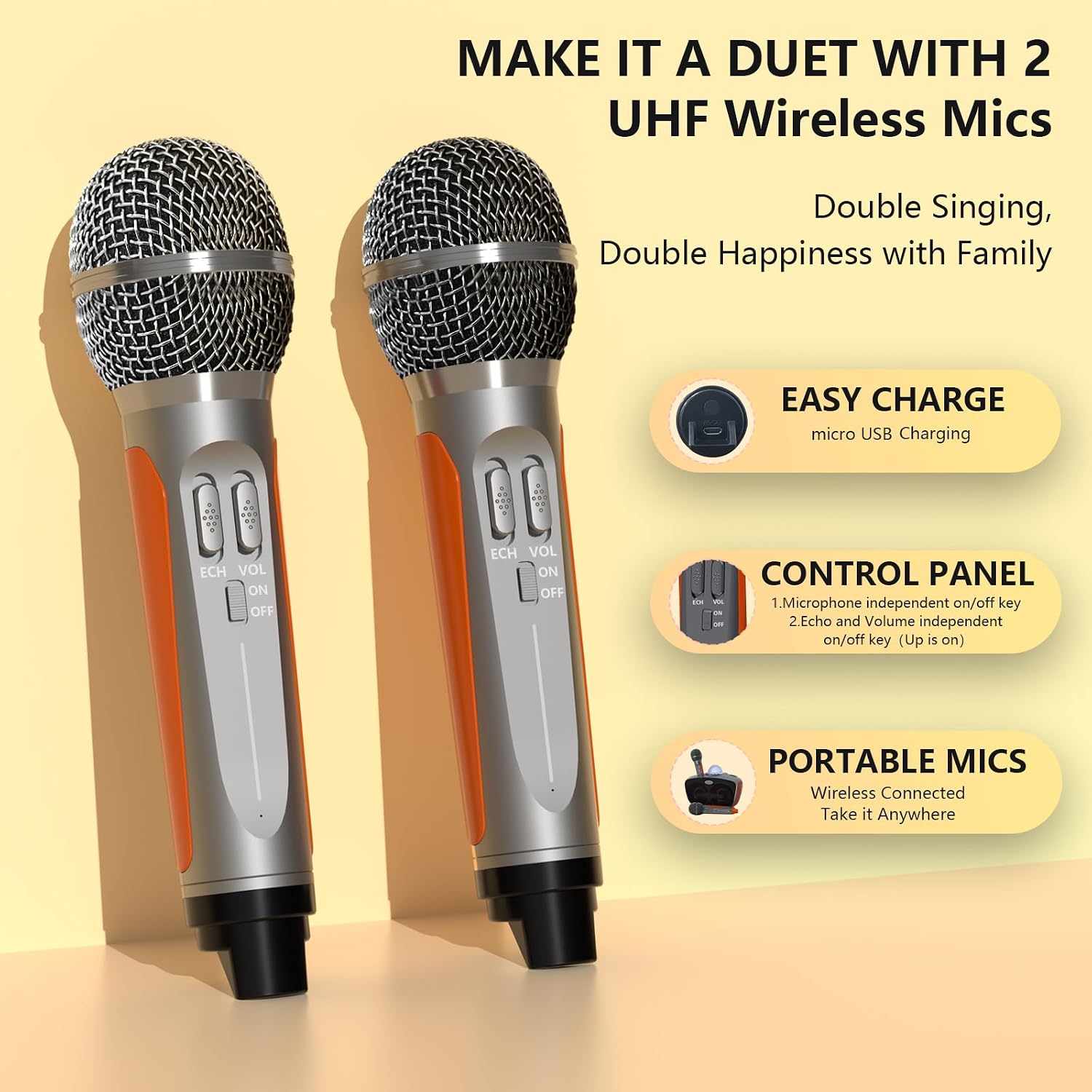
Image: Close-up view of the two wireless microphones, highlighting the micro USB charging port and control buttons.
2. Powering On
Locate the ON/OFF switch on the main karaoke machine unit. Slide the switch to the 'ON' position. The unit will power on, and the disco ball lights may activate.
3. Initial Bluetooth Connection
Upon powering on, the karaoke machine will typically enter Bluetooth pairing mode automatically. You will hear an audible prompt or see a blinking indicator light.
- On your smartphone, tablet, or other Bluetooth-enabled device, navigate to the Bluetooth settings.
- Search for available devices. The karaoke machine will appear as "SDRD".
- Select "SDRD" to pair. Once connected, you will hear a confirmation sound.

Image: Visual guide demonstrating the four steps to wirelessly connect and use the karaoke machine with a smart device.
Operating Instructions
1. Main Unit Controls
The main unit features several buttons for controlling playback and modes:
- MODE: Cycles through input modes (Bluetooth, USB, TF Card, AUX).
- Vocal Cancel/Original: Toggles between original song and vocal-removed version (if supported by track).
- Play/Pause: Starts or pauses playback.
- Previous/Volume Down: Short press for previous track, long press to decrease volume.
- Next/Volume Up: Short press for next track, long press to increase volume.
- Music Orig: Restores original music.

Image: Detailed diagram illustrating the functions of the main unit's control buttons and the microphone's adjustment knobs.
2. Microphone Controls
Each wireless microphone has independent controls:
- ON/OFF Switch: Powers the microphone on or off.
- ECH (Echo) Adjustment: Rotates to increase or decrease the echo effect on your voice.
- VOL (Volume) Adjustment: Rotates to adjust the microphone's volume independently.
3. Sound Field Effects
The system offers multiple sound field effects to enhance your audio experience. These modes can be selected via the main unit's controls or connected device, if applicable:
- Standard
- Pop
- Classical
- Treble
- Bass
4. Media Playback (USB/TF Card/AUX)
In addition to Bluetooth, the karaoke machine supports playback from various sources:
- USB: Insert a USB flash drive into the USB port. The unit will automatically switch to USB mode and begin playing compatible audio files.
- TF Card: Insert a TF (microSD) card into the TF card slot. The unit will switch to TF card mode and play compatible audio files.
- AUX: Connect an external audio device (e.g., TV, MP3 player) using the provided 3.5mm AUX cable. Select AUX mode on the karaoke machine.

Image: Visual representation of the multiple input options available on the karaoke machine, including USB, Micro-SD, TV, AUX, Bluetooth, and PA.
5. Disco Ball & Party Lights
The integrated disco ball and party lights activate automatically when the unit is powered on, creating a dynamic visual effect. There is no separate control for these lights; they operate in conjunction with the main unit's power.

Image: An illustration of the karaoke machine's disco ball effect in a room setting, enhancing the party atmosphere.
Specifications
| Feature | Detail |
|---|---|
| Model Number | SD-315O |
| Brand | SINWE |
| Power Source | Battery Powered (Built-in rechargeable Li-ion batteries) |
| Output Wattage | 2*10W (Speaker) |
| Connectivity Technology | Bluetooth 4.2, USB, AUX IN, TF Card |
| Number of Channels | 3 |
| Microphones | 2 x UHF Wireless Microphones |
| Material | Plastic |
| Item Weight | 3.87 pounds |
| Package Dimensions | 11.18 x 9.21 x 7.09 inches |
| Battery Life (Max Volume) | Up to 3.5 hours |
| Recommended Use | Indoor/Outdoor |
Maintenance
1. Cleaning
To maintain the appearance and functionality of your karaoke machine:
- Wipe the exterior surfaces with a soft, dry, or slightly damp cloth.
- Do not use abrasive cleaners, solvents, or strong chemicals, as these can damage the finish.
- Ensure no liquids enter the ports or speaker grilles.
2. Battery Care
To prolong battery life:
- Fully charge the device before long periods of inactivity.
- Avoid completely draining the battery frequently.
- Store the device in a cool, dry place away from extreme temperatures.
3. Storage
When not in use, store the karaoke machine and its accessories in a clean, dry environment, preferably in its original packaging or a protective case, to prevent dust accumulation and physical damage.
Troubleshooting
If you encounter issues with your SINWE Portable Bluetooth Karaoke Machine, refer to the following common problems and solutions:
| Problem | Possible Cause / Solution |
|---|---|
| No power / Unit won't turn on | Battery is depleted. Charge the unit fully. Ensure the power switch is in the 'ON' position. |
| No sound from speaker | Volume is too low (on unit or connected device). Ensure the correct input mode is selected (Bluetooth, USB, AUX). Check if the audio cable (if using AUX) is properly connected. |
| Microphones not working | Microphone battery is low or depleted. Charge the microphones. Ensure microphones are powered on. Adjust microphone volume (VOL knob) on the microphone itself. |
| Bluetooth connection issues | Ensure the karaoke machine is in Bluetooth pairing mode. Your device's Bluetooth may be off or already connected to another device. Try unpairing and re-pairing. Move closer to the unit to avoid interference. |
| Distorted sound | Volume is too high, causing clipping. Reduce volume. Check audio source quality. Ensure microphones are not too close to the speaker, causing feedback. |
Warranty and Support
SINWE products are designed for reliability and performance. For specific warranty information, please refer to the warranty card included with your purchase or visit the official SINWE website. If you require technical assistance, have questions about product operation, or need to report a defect, please contact SINWE customer support through the contact information provided on our website or your purchase platform. Please have your model number (SD-315O) and purchase details ready when contacting support.
Ask a question about this manual
Ask about setup, troubleshooting, compatibility, parts, safety, or missing instructions. Manuals+ will review the question and use this page’s manual context to help answer it.