
1. Introduction
Thank you for choosing the CHORTAU Dual Dash Cam. This manual provides detailed instructions for the proper installation, operation, and maintenance of your new dash camera. Please read this manual thoroughly before use to ensure optimal performance and longevity of the device.
Key Features
- Dual 1080P Full HD Recording: Simultaneously captures both the road ahead and the vehicle's interior at 1920x1080P resolution, providing comprehensive coverage.
- 2.45-inch LCD Screen: Allows for real-time viewing and easy navigation of settings.
- Excellent Infrared Night Vision: The interior-facing camera features 4 infrared LED lights for clear video footage in low-light conditions, automatically adjusting exposure.
- Parking Monitor: Automatically records and locks a short video when bumps are detected while the car is parked and the engine is off, providing evidence of incidents. Requires constant power supply.
- Seamless Loop Recording: Automatically overwrites the oldest footage with new content when the memory card is full, ensuring continuous recording without manual deletion.
- G-Sensor (Emergency Lock): Built-in adjustable sensitivity gravity sensor automatically detects sudden collisions and locks the current footage to an "EMR file" to prevent overwriting.

The CHORTAU Dual Dash Cam provides comprehensive recording with its dual lenses and advanced features.

Dual 1080P Full HD for clear front and interior recording.

Enhanced night vision with infrared lights for clear recordings in the dark.
2. What's in the Box
Upon opening the package, please verify that all the following items are included:
- CHORTAU Dual Dash Cam Unit
- Suction Cup Mount
- Cigar Lighter Car Charger Power Cord
- Type C Data Cable
Note: A Micro SD card (up to 32GB) is NOT included in the package and must be purchased separately before using the dash cam.

The main dash cam unit and included suction cup mount.
3. Setup and Installation
Installation Steps
- Insert Micro SD Card: Ensure the dash cam is powered off. Insert a compatible Micro SD card (Class 10 or higher, up to 32GB) into the designated slot on the side of the camera.
- Attach Suction Cup Mount: Slide the dash cam unit onto the suction cup mount until it clicks securely into place.
- Mount to Windshield: Choose a location on your windshield that does not obstruct your view of the road. Clean the area thoroughly. Press the suction cup firmly against the windshield and flip the lever to secure it.
- Connect Power: Plug the cigar lighter car charger power cord into your vehicle's 12V power outlet (cigarette lighter socket). Connect the other end of the power cord to the dash cam's power input port.
- Adjust Camera Angle: Adjust the angle of the dash cam to ensure both the front and interior cameras capture the desired view. The front camera should capture the road clearly, and the interior camera should cover the cabin.

Easy installation on the windshield using the provided suction cup mount.
Installation Video Guide
This video demonstrates the unboxing and initial setup process of the CHORTAU Dual Dash Cam, including attaching the mount and connecting power.
4. Operating Instructions
Basic Operation
- Power On/Off: The dash cam will automatically power on and begin recording when your vehicle's ignition is turned on. It will power off automatically when the ignition is turned off. You can also manually power it on/off by pressing and holding the power button.
- Menu Navigation: Use the menu buttons (usually labeled 'M' or with arrows) to navigate through the settings. The 'OK' button confirms selections.
- Screen Display: The 2.45-inch LCD screen displays real-time footage from both cameras. You can switch between front-only, interior-only, or dual-view display modes via the settings.
Recording Modes and Features
Loop Recording
The dash cam records video in continuous loops (e.g., 1, 3, or 5-minute segments). When the memory card is full, the oldest unlocked video files are automatically overwritten by new recordings. This ensures that you never run out of storage space for new footage.
G-Sensor (Emergency Lock)
The built-in G-sensor detects sudden impacts or collisions. When an event is detected, the current video segment is automatically locked and saved to a protected folder (EMR file) on the SD card, preventing it from being overwritten by loop recording. You can adjust the G-sensor sensitivity (Low, Medium, High) in the settings. It is recommended to set it to 'Low' to prevent frequent locking due to minor bumps.
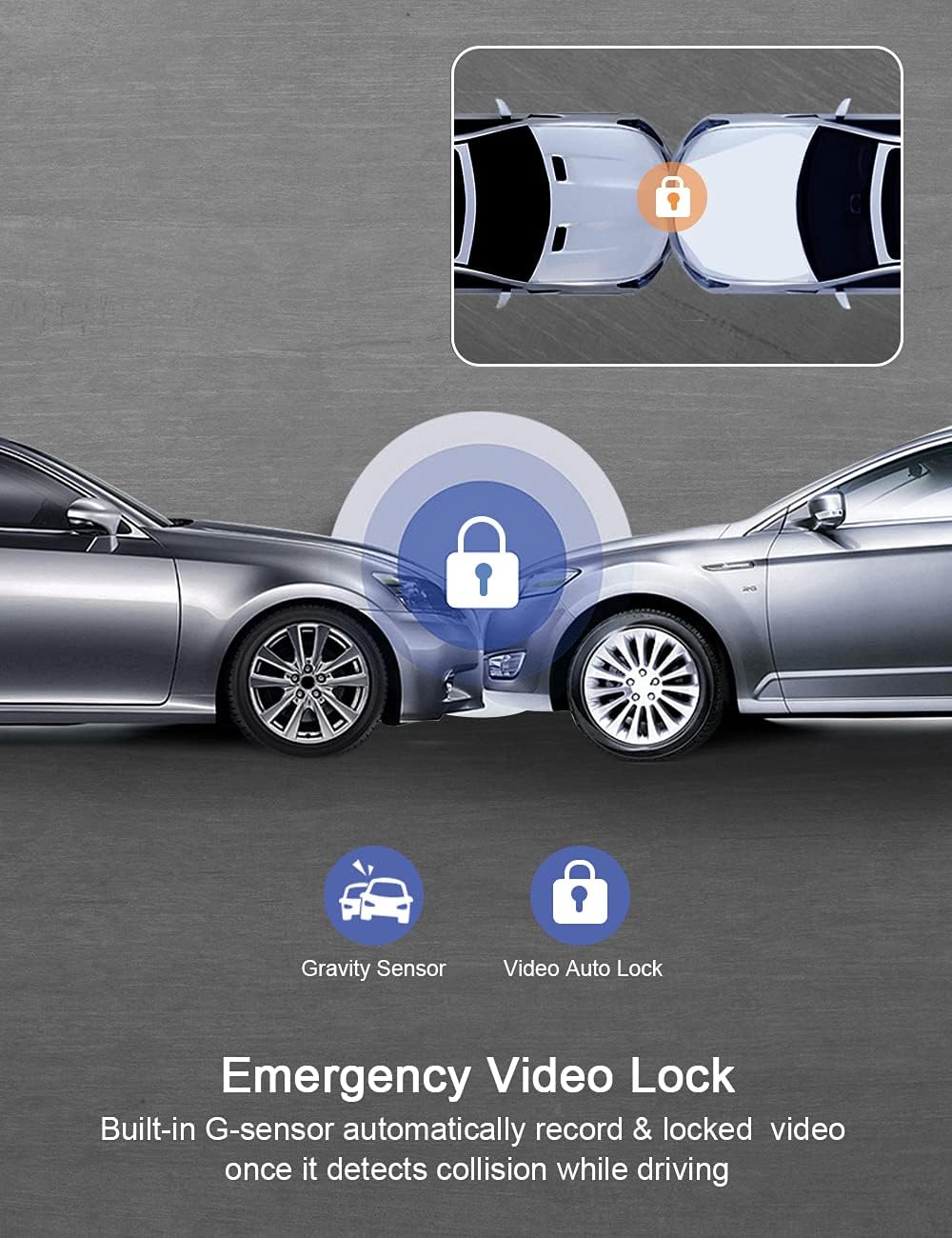
Emergency Video Lock automatically secures footage during collisions.
Parking Monitor
When enabled, the Parking Monitor feature allows the dash cam to automatically start recording a short video if it detects a bump or vibration while your car is parked and the engine is off. This video is then saved and locked as evidence. For continuous 24/7 monitoring, the dash cam requires a constant power supply, either from an external battery pack or a hardwire kit (not included).

The Parking Monitor feature provides security even when your vehicle is off.
5. Maintenance
SD Card Management
- Formatting: It is recommended to format the Micro SD card regularly (e.g., once a month) to ensure stable recording performance and prevent data corruption. You can format the card through the dash cam's menu settings.
- Card Lifespan: Frequent overwriting can reduce the lifespan of an SD card. If you experience recording errors, try formatting the card or replacing it with a new one.
Cleaning
- Lens Cleaning: Use a soft, lint-free cloth to gently wipe the camera lenses. Avoid using abrasive materials or chemical cleaners that could scratch the lens.
- Device Body: Wipe the body of the dash cam with a dry or slightly damp soft cloth. Do not use excessive moisture.
6. Troubleshooting
If you encounter any issues with your dash cam, please refer to the table below for common problems and their solutions.
| Problem | Possible Cause | Solution |
|---|---|---|
| Dash cam does not power on. | No power supply; faulty power cable; dead internal battery. | Check power connection; try a different 12V outlet; ensure vehicle ignition is on; replace power cable if damaged. |
| Recording stops unexpectedly. | SD card full; SD card error; G-sensor too sensitive. | Format SD card; replace SD card; lower G-sensor sensitivity. |
| Video footage is blurry or unclear. | Protective film on lens; dirty lens; improper focus. | Remove protective film; clean lenses; ensure proper installation angle. |
| Dash cam freezes or crashes. | SD card issue; firmware issue. | Format or replace SD card; perform a factory reset (refer to menu settings). |
| Parking monitor not working. | No constant power; feature disabled. | Ensure constant power supply (hardwire kit/external battery); enable Parking Monitor in settings. |
7. Specifications
| Feature | Detail |
|---|---|
| Product Dimensions | 4.2 x 1.5 x 1.2 inches |
| Item Weight | 3.2 ounces |
| Video Capture Resolution | 1080p (Front and Interior) |
| Display | 2.45-inch LCD |
| Special Features | Loop Recording, G-Sensor, Night Vision, Parking Monitor |
| Max SD Card Support | 32GB (Class 10 or higher) |
| Power Source | Cigar Lighter Car Charger (12V) |
| Battery | 1 CR123A battery (included) |
| Connectivity | Does NOT support Wi-Fi or Bluetooth |
8. Warranty and Support
Warranty Information
The CHORTAU Dual Dash Cam comes with a 2-year warranty from the date of purchase. This warranty covers manufacturing defects and issues arising from normal use. Please retain your proof of purchase for warranty claims.
Customer Support
For any technical assistance, troubleshooting, or warranty inquiries, please contact CHORTAU customer service. Our team is available to provide 7*24 hours technical support.
You can find contact information on the official CHORTAU website or through your purchase platform.


