
TP-Link AX5400 Archer AX73
TP-Link AX5400 WiFi 6 Router (Archer AX73) User Manual
Model: Archer AX73 / AX5400
1. Product Overview
The TP-Link AX5400 WiFi 6 Router (Archer AX73) is a high-performance dual-band gigabit wireless internet router designed to provide fast and reliable network connectivity for your home. Featuring Wi-Fi 6 technology, it offers enhanced speeds, increased capacity, and reduced network congestion, making it ideal for streaming 8K content, online gaming, and supporting multiple connected devices simultaneously.
2. What's in the Box
Verify that all items are present in your package:
- Wi-Fi Router Archer AX73
- Power Adapter
- RJ45 Ethernet Cable
3. Product Features and Components
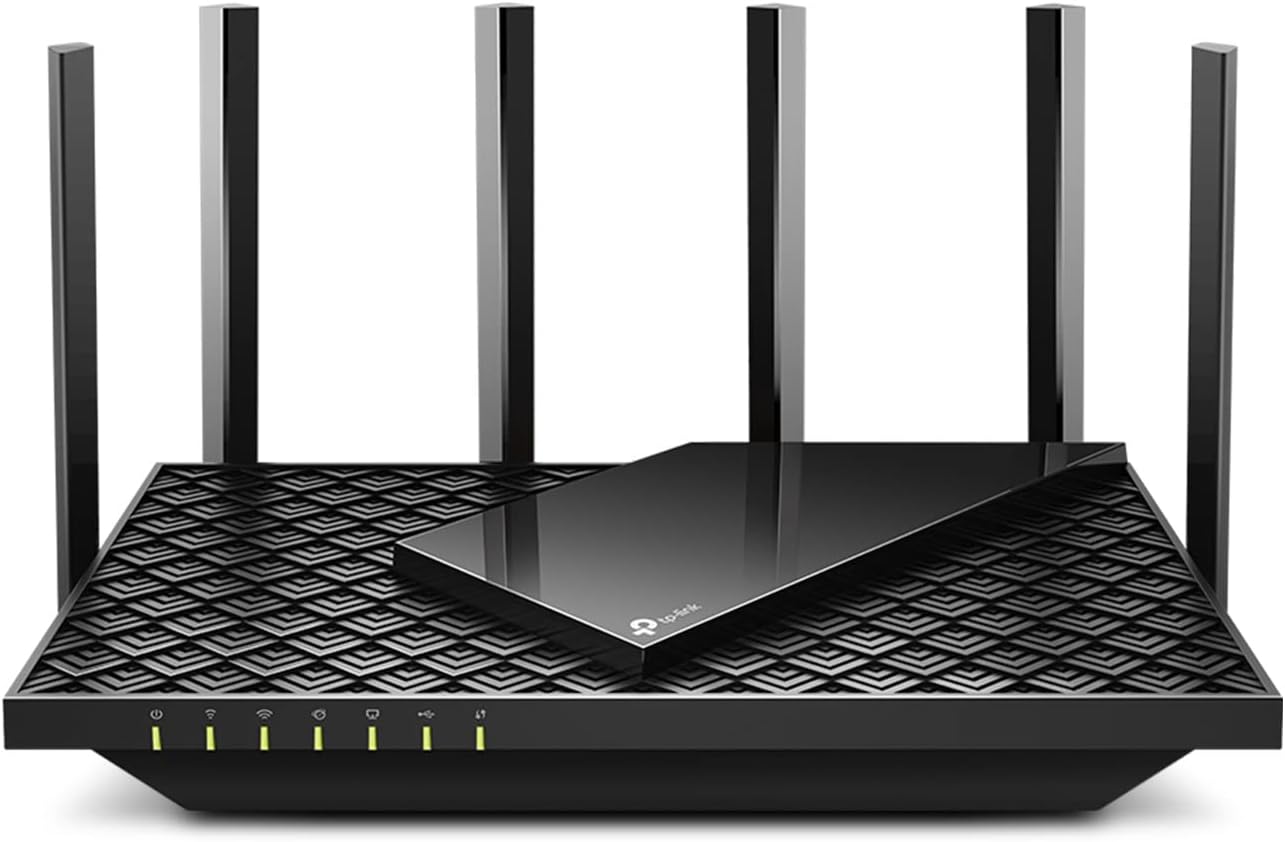
Figure 3.1: Front view of the TP-Link AX5400 WiFi 6 Router (Archer AX73).

Figure 3.2: Rear panel of the router detailing the USB 3.0 port, Reset button, Wi-Fi On/Off, WPS On/Off, LED On/Off, 4 Gigabit LAN Ports, Gigabit WAN Port, and Power On/Off button.
The Archer AX73 is equipped with several key features to enhance your network experience:
- High-Speed Performance: Supports up to 5400 Mbps of simultaneous streams for faster browsing, gaming, and downloading, optimized for smooth 8K streaming.
- Stronger Coverage: Features 6 high-gain antennas with Beamforming and 4T4R technologies to provide reliable and extended Wi-Fi coverage throughout your home.
- Secure VPN: Supports OpenVPN, PPTP, and L2TP VPN Client functionalities for secure network access.
- Gigabit Wired Connections: Includes 1x Gigabit WAN/LAN port and 4x Gigabit LAN ports for high-speed wired connections.
- USB 3.0 Port: Allows for network storage and file sharing.
- HomeShield Security: Provides comprehensive network security features including Home Network Scanner, Quality of Service (QoS), Parental Controls, and Comprehensive Reports.
4. Setup Guide
Follow these steps to set up your TP-Link Archer AX73 router:
- Position the Router: Place the router in a central location in your home, away from obstructions and devices that may cause interference (e.g., cordless phones, microwave ovens). Ensure the antennas are oriented vertically for optimal signal.
- Connect Hardware:
- Power off your modem.
- Connect the Ethernet cable from your modem's Ethernet port to the WAN port (blue) on your Archer AX73 router.
- Connect the power adapter to the router's power port and plug it into a power outlet.
- Power on your modem, then wait for about 2 minutes for it to start up.
- Power on the router. Wait for the LED indicators to stabilize, indicating a successful connection.
- Connect to the Router:
- Wired Connection: Connect your computer to one of the router's LAN ports (yellow) using an Ethernet cable.
- Wireless Connection: Find the Wi-Fi network name (SSID) and password printed on the label at the bottom of the router. Connect your wireless device to this network.
- Configure the Router:
- Open a web browser on a connected device and type http://tplinkwifi.net or http://192.168.0.1 into the address bar.
- Create a login password when prompted.
- Follow the on-screen Quick Setup wizard to configure your internet connection and wireless settings.
- Alternatively, download the TP-Link Tether app from the App Store or Google Play for an easier setup process via your mobile device.
5. Operating Instructions
Once your router is set up, you can manage and optimize your network:
- Connecting Devices: Connect your devices to the Wi-Fi network using the SSID and password you configured during setup. For optimal performance, connect Wi-Fi 6 compatible devices to the 5 GHz band.
- Guest Network: Create a separate guest network for visitors to ensure the security of your main network. This can be configured via the web management interface or the Tether app.
- Parental Controls: Utilize the HomeShield Parental Controls to manage internet access times and block inappropriate content for specific devices.
- Quality of Service (QoS): Prioritize network traffic for specific applications or devices (e.g., gaming consoles, streaming devices) to ensure smooth performance.
- USB Sharing: Connect a USB storage device to the USB 3.0 port to share files across your network or set up a personal cloud storage.
- VPN Client: Configure the router to act as a VPN client, allowing all devices connected to the router to access the internet through the VPN tunnel.
6. Maintenance
Regular maintenance helps ensure optimal performance and security for your router:
- Firmware Updates: Periodically check for and install the latest firmware updates from the TP-Link website or through the router's web management interface. Firmware updates often include performance improvements, bug fixes, and security enhancements.
- Regular Reboot: Reboot your router every few weeks by unplugging it from the power outlet for 10 seconds and then plugging it back in. This can help clear temporary issues and improve performance.
- Physical Placement: Ensure the router is in a well-ventilated area to prevent overheating. Keep it clean and free of dust.
- Password Security: Regularly change your Wi-Fi password and router login password to strong, unique combinations.
7. Troubleshooting
If you encounter issues with your router, try the following troubleshooting steps:
- No Internet Access:
- Check all cable connections between the modem, router, and your devices. Ensure they are securely plugged in.
- Reboot your modem and router. Power off both, wait 30 seconds, then power on the modem first, wait for it to fully boot, then power on the router.
- Verify your internet service is active by connecting a computer directly to the modem (bypassing the router).
- Check the WAN LED on the router; it should be solid green or amber, indicating a connection.
- Slow Wi-Fi Speed:
- Ensure your devices are connected to the 5 GHz band if possible, as it offers higher speeds over shorter distances.
- Reduce interference by moving the router away from other electronic devices.
- Check for firmware updates.
- Use the QoS feature to prioritize bandwidth for critical applications.
- Cannot Access Router Management Page:
- Ensure your device is connected to the router (wired or wireless).
- Verify you are typing the correct address: http://tplinkwifi.net or http://192.168.0.1.
- Try a different web browser.
- Temporarily disable any VPN or firewall software on your computer.
- Forgot Wi-Fi Password or Router Login Password:
- The default Wi-Fi password is on the label at the bottom of the router.
- If you changed it and forgot, you will need to perform a factory reset. Use a pin to press and hold the Reset button on the back of the router for about 10 seconds until the LEDs flash. This will restore the router to its factory default settings, including the default Wi-Fi password and no login password. You will then need to reconfigure the router.
8. Specifications
| Feature | Detail |
|---|---|
| Brand | TP-Link |
| Model Name | Archer AX73 |
| Item Model Number | AX5400 |
| Product Dimensions | 5.91 x 5.91 x 3.15 inches |
| Item Weight | 1.32 pounds |
| Connectivity Technology | Ethernet, USB, Wi-Fi |
| Wireless Communication Standard | 802.11ax (Wi-Fi 6) |
| Frequency Band Class | Dual-Band (2.4 GHz & 5 GHz) |
| Special Feature | WPS, VPN Client |
| Included Components | Wi-Fi Router Archer AX73, Power Adapter, RJ45 Ethernet Cable |
9. Warranty and Support
For warranty information, technical support, and additional resources, please visit the official TP-Link website. You can find detailed FAQs, troubleshooting guides, and contact information for customer service.
TP-Link Support Website: https://www.tp-link.com/support
Please retain your purchase receipt for warranty purposes.
Related documentsAX5400 Archer AX73


Ask a question about this manual
Ask about setup, troubleshooting, compatibility, parts, safety, or missing instructions. Manuals+ will review the question and use this page’s manual context to help answer it.