
TECH PAD SW Sport Pro
TECHPAD Smartwatch SW Sport Pro User Manual
Model: SW Sport Pro
1. Introduction
This manual provides essential instructions for setting up, operating, and maintaining your TECHPAD Smartwatch SW Sport Pro. Please read this guide thoroughly to ensure proper use and to maximize the features of your device. The smartwatch is designed to integrate with both iOS and Android smartphones, offering multisport tracking, notification alerts, and health monitoring capabilities.

Image 1.1: Front view of the TECHPAD Smartwatch SW Sport Pro displaying various metrics.
2. Package Contents
Please verify that all items are present in the package:
- TECHPAD Smartwatch SW Sport Pro (with pre-installed strap)
- Charging Cable
- User Manual (this document)
3. Setup Guide
3.1. Charging the Smartwatch
Before first use, fully charge your smartwatch. Connect the charging cable to the charging port on the back of the smartwatch and plug the USB end into a standard USB power adapter (not included) or a computer's USB port. The watch display will indicate charging status.
3.2. Powering On/Off
- Power On: Press and hold the side button until the screen illuminates.
- Power Off: Navigate to the 'Settings' menu on the smartwatch, then select 'Power Off' or press and hold the side button, then confirm power off.
3.3. App Installation and Pairing
To unlock the full functionality of your smartwatch, you must pair it with your smartphone via a companion application. The specific app name is not provided, please refer to the packaging or product information for the correct app to download from the App Store (iOS) or Google Play Store (Android).
- Download and install the companion app on your iOS or Android smartphone.
- Ensure Bluetooth is enabled on your smartphone.
- Open the app and follow the on-screen instructions to create an account and set up your profile.
- Within the app, select 'Add Device' or 'Pair Smartwatch' and choose 'SW Sport Pro' from the list of available devices.
- Confirm the pairing request on both your smartphone and smartwatch if prompted.
Once paired, the smartwatch will synchronize data with your phone, and you can customize settings through the app.
4. Operating Instructions
4.1. Basic Navigation
The TECHPAD Smartwatch SW Sport Pro features a responsive touch screen and a side button for navigation:
- Swipe Up/Down: Scroll through menus and notifications.
- Swipe Left/Right: Access different widgets or quick functions (e.g., heart rate, activity data).
- Tap: Select an item or confirm an action.
- Side Button: Press to return to the home screen or wake the device. A long press may access power options.
4.2. Key Features
Your smartwatch offers a range of features to enhance your daily life and fitness:
- Multisport Mode: Track various activities such as running, walking, cycling, and more. Select your desired sport from the activity menu to begin tracking.
- Sleep Monitor: Automatically tracks your sleep patterns, including deep sleep, light sleep, and awake times. View detailed analysis in the companion app.
- Push Notifications: Receive alerts for incoming calls, text messages, and app notifications directly on your wrist. The smartwatch will vibrate to alert you.
- Call Alerts: See who is calling and choose to accept or reject calls from your smartwatch (call answering functionality may vary).
- Alarms: Set silent vibrating alarms through the companion app to wake you up or remind you of important events.
- GPS via Smartphone: When connected to your smartphone, the smartwatch can utilize your phone's GPS for more accurate distance and route tracking during outdoor activities.

Image 4.1: Smartwatch display showing real-time health and activity data.
4.3. Customizing Watch Faces
You can change the watch face to personalize your device. This is typically done through the companion app, where you can browse and download various watch face designs. Some watch faces may allow for customization of displayed information.
5. Maintenance and Care
To ensure the longevity and optimal performance of your TECHPAD Smartwatch SW Sport Pro, follow these care guidelines:
- Cleaning: Regularly clean the smartwatch and strap with a soft, damp cloth. Avoid using harsh chemicals or abrasive materials. Ensure the charging contacts are clean and dry.
- Water Resistance: Refer to the product specifications for the exact water resistance rating. Avoid exposing the device to hot water, steam, or high-pressure water jets.
- Temperature: Do not expose the smartwatch to extreme temperatures (very hot or very cold) as this can damage the battery and internal components.
- Charging: Use only the provided charging cable. Do not attempt to force the charger into the port.
- Strap Care: If the strap is removable, clean it separately. Ensure it is securely reattached before wearing.
6. Troubleshooting
If you encounter issues with your smartwatch, try the following solutions:
- Smartwatch not turning on: Ensure the device is fully charged. Connect it to the charging cable and allow it to charge for at least 30 minutes before attempting to power on again.
- Cannot pair with smartphone:
- Ensure Bluetooth is enabled on your smartphone.
- Make sure the smartwatch is within Bluetooth range of your phone.
- Restart both your smartwatch and smartphone.
- Clear the Bluetooth cache on your phone (if applicable) and try pairing again.
- Ensure the correct companion app is installed and updated.
- Notifications not appearing:
- Check notification settings within the companion app to ensure they are enabled for desired applications.
- Verify that your smartphone's notification settings allow the companion app to display alerts.
- Ensure the smartwatch is connected via Bluetooth to your phone.
- Inaccurate activity tracking:
- Ensure the smartwatch is worn snugly on your wrist, about one finger's width above your wrist bone.
- Update your personal information (height, weight, age) in the companion app for better accuracy.
- For GPS-dependent activities, ensure your phone's GPS is active and the smartwatch is connected to the phone.
- Short battery life:
- Reduce screen brightness.
- Disable continuous heart rate monitoring if not needed.
- Limit the number of apps sending notifications to the smartwatch.
- Ensure the smartwatch is fully charged before use.
If problems persist, contact customer support for further assistance.
7. Specifications
| Feature | Description |
|---|---|
| Model | TECHPAD Smartwatch SW Sport Pro |
| Display Type | AMOLED |
| Screen Size | 1 inch |
| Operating System | Android Wear (as specified) |
| Connectivity | Bluetooth |
| Compatible Devices | Smartphones (iOS, Android) |
| Special Features | Sleep Monitor, Multisport Mode, Push Notifications, Call Alerts, Alarms, Touch Screen, GPS via smartphone |
| Battery Life (Standby) | Up to 15 days |
| Battery Life (Training) | 4 to 6 days |
| Shape | Round |
| Included Accessories | Strap, Charging Cable |
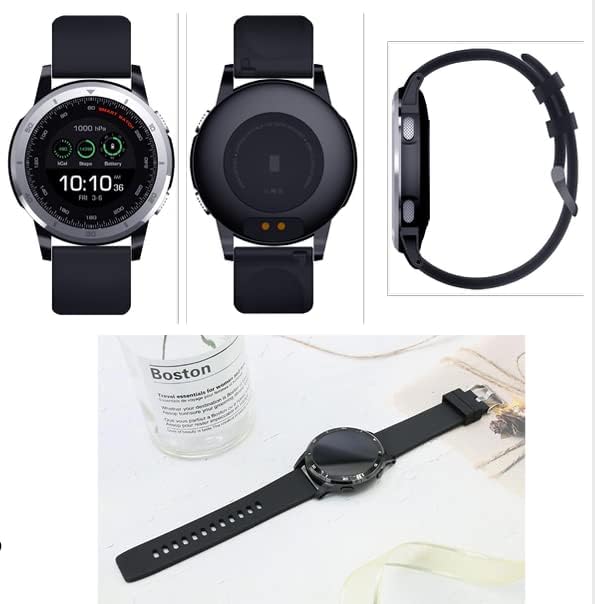
Image 7.1: Various angles of the smartwatch, including its charging contacts and side profile.
8. Warranty and Support
For warranty information, please refer to the warranty card included with your product or visit the official TECH PAD website. Keep your proof of purchase for warranty claims.
If you require technical support or have questions not covered in this manual, please contact TECH PAD customer service. Contact details can typically be found on the product packaging or the official brand website.
Ask a question about this manual
Ask about setup, troubleshooting, compatibility, parts, safety, or missing instructions. Manuals+ will review the question and use this page’s manual context to help answer it.