1. Introduction
This manual provides essential instructions for the setup, operation, maintenance, and troubleshooting of your SHREYANS 1D 2D QR Hands-Free Desktop Barcode Scanner. Please read this manual thoroughly before using the device to ensure proper functionality and longevity.
Key Features:
- Omnidirectional Scanning: Capable of reading 1D, 2D, and QR barcodes from various surfaces including labels, paper, and digital displays.
- Automatic Smart Sensing: Features an induction trigger for auto-sensing scanning, intelligently recognizing barcodes. Includes a sleeping mode for power saving and automatic activation upon item movement.
- Durable Design: Equipped with a non-slip base for stability and an anti-vibration system designed to withstand drops from up to 4.92 feet. IP54 rated for dust protection.
- Enhanced Efficiency: Hands-free operation streamlines scanning processes, reducing the need to manually handle the scanner.
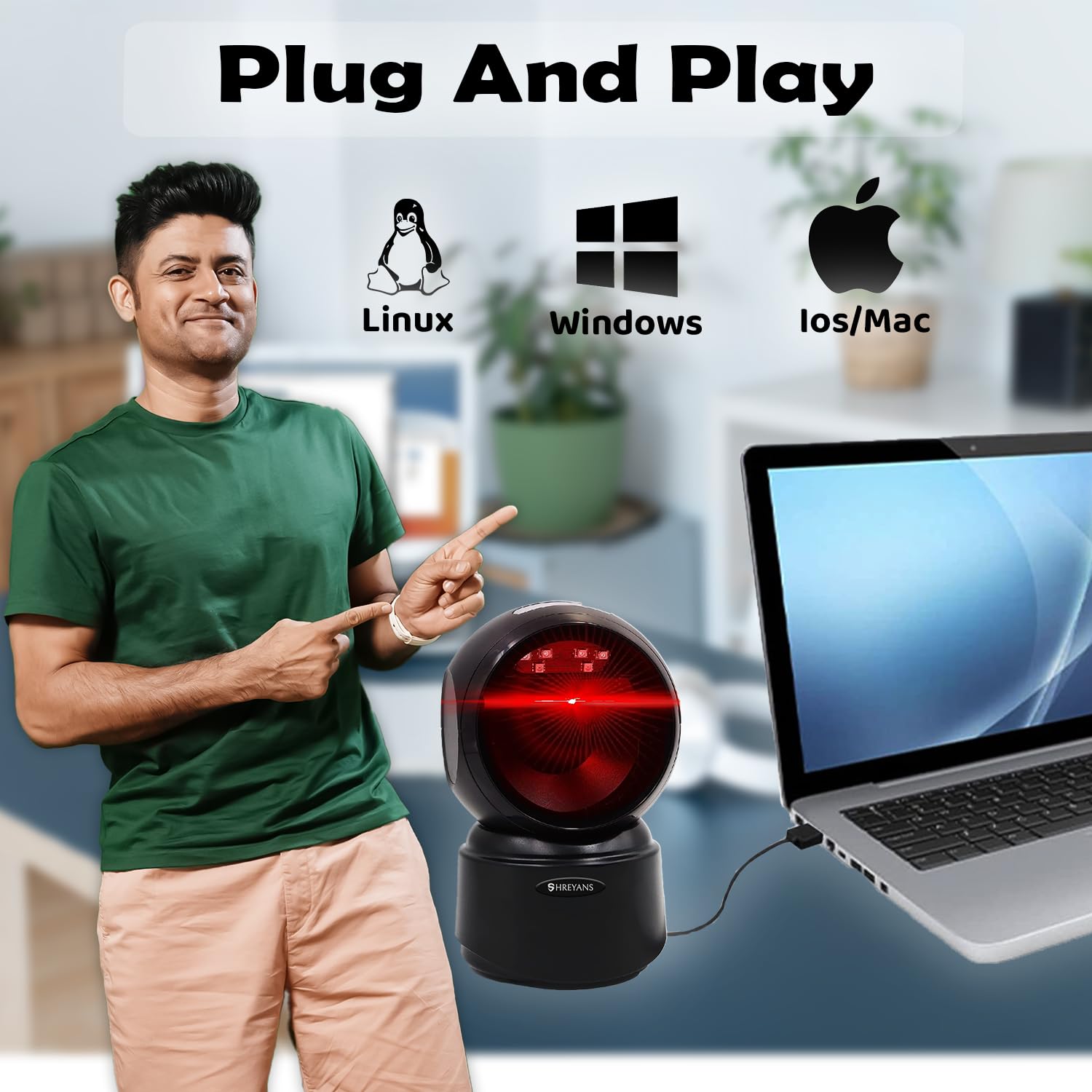
- Plug and Play Connectivity: Requires no software or driver installation. Connects easily via USB cable to laptops, PCs, and POS systems.
- Broad Compatibility: Supports Windows XP/7/8/10, Mac OS, and Linux operating systems.
2. Setup Instructions
The SHREYANS Desktop Barcode Scanner is designed for simple plug-and-play installation.
2.1 Connecting the Scanner
- Place the scanner on a stable, flat surface, such as a desk or countertop. Ensure the non-slip base is securely positioned.
- Locate the USB cable attached to the scanner.
- Plug the USB cable into an available USB port on your computer (laptop, PC, or POS system).
- The scanner will automatically install necessary drivers (if any) and be ready for use. No additional software installation is typically required.
3. Operating Instructions
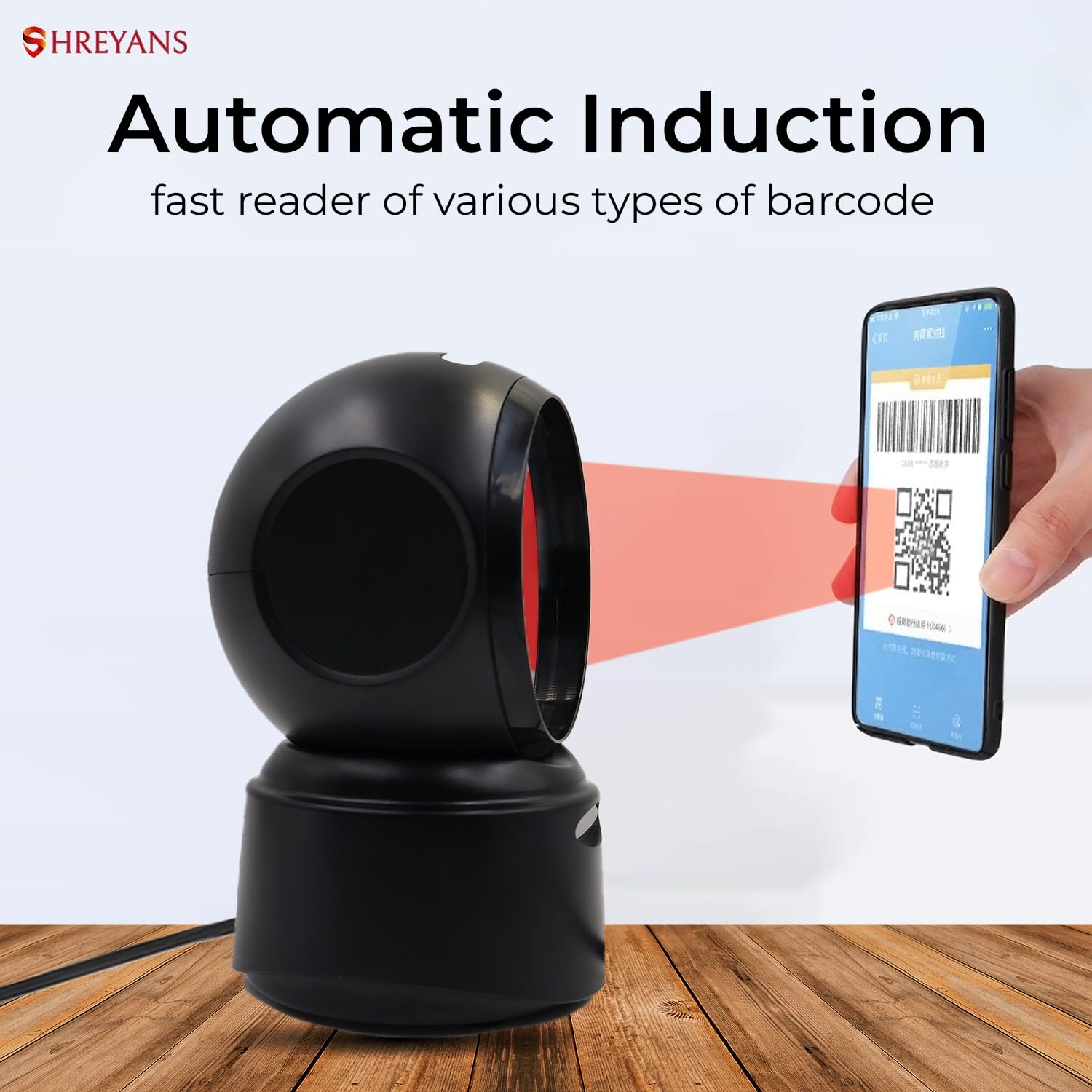
The SHREYANS Desktop Barcode Scanner features automatic induction for efficient scanning.
3.1 Basic Scanning
- Ensure the scanner is connected to your computer and powered on. The scanner will emit a red light or a standby indicator.
- Position the barcode (1D, 2D, or QR) in front of the scanner's window. The scanner's automatic induction feature will detect the item.
- The scanner will emit a beep and the red light will flash to indicate a successful scan. The barcode data will be transmitted to your connected device.
- The scanner can read barcodes from various sources, including printed labels, product packaging, and digital screens (e.g., mobile phones, tablets).
3.2 Supported Barcode Types
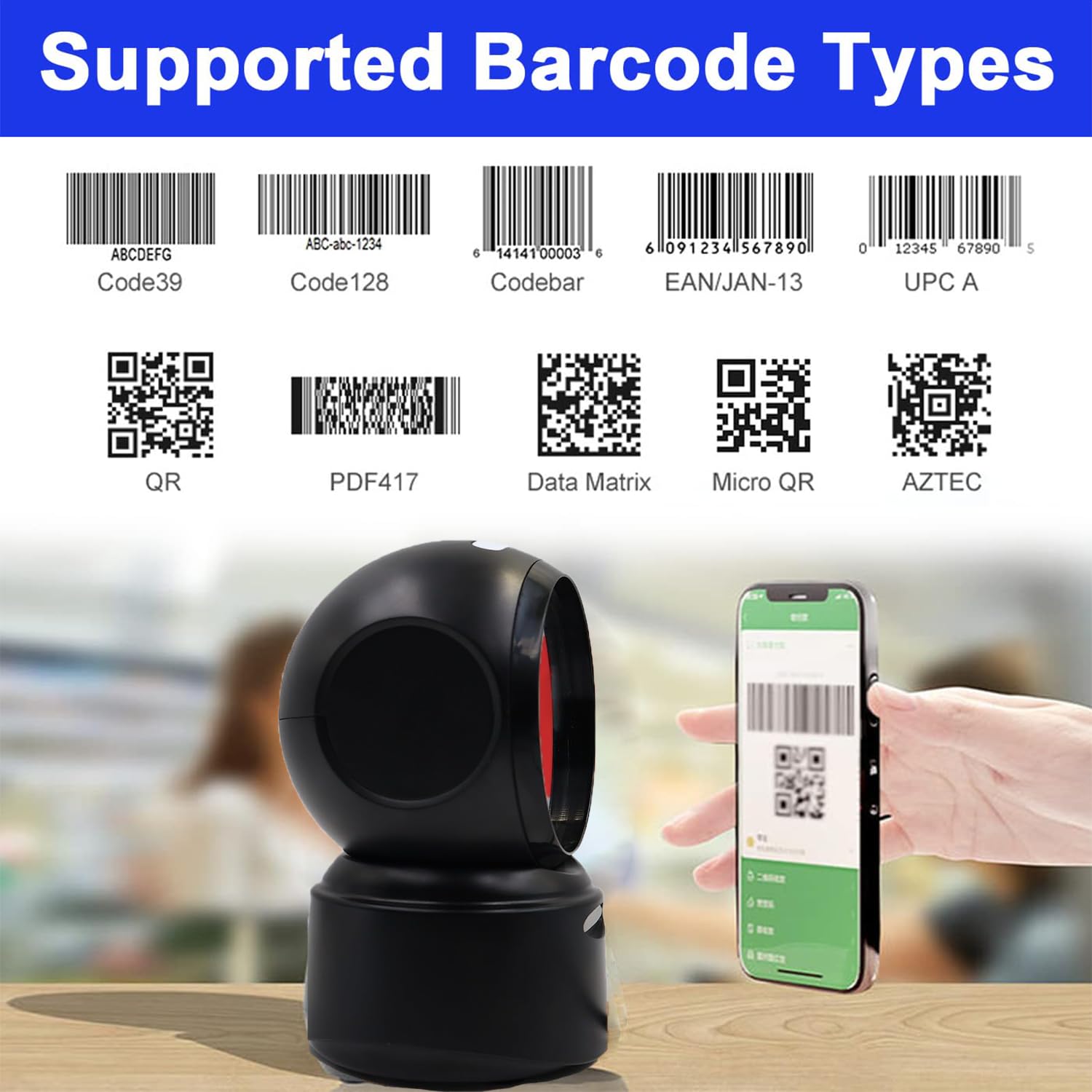
The scanner is designed to recognize a wide range of barcode symbologies, including:
- 1D Barcodes: Code39, Code128, Codabar, EAN/JAN-13, UPC A, and more.
- 2D Barcodes: QR Code, PDF417, Data Matrix, Micro QR, AZTEC, and more.
It can effectively scan damaged, distorted, colorful, or reflective barcodes.
3.3 Smart Sensing and Power Management
The scanner enters a sleeping mode after a period of inactivity to conserve power. It will automatically reactivate and begin scanning once an item is placed within its scanning range.
3.4 Adjustable Angle
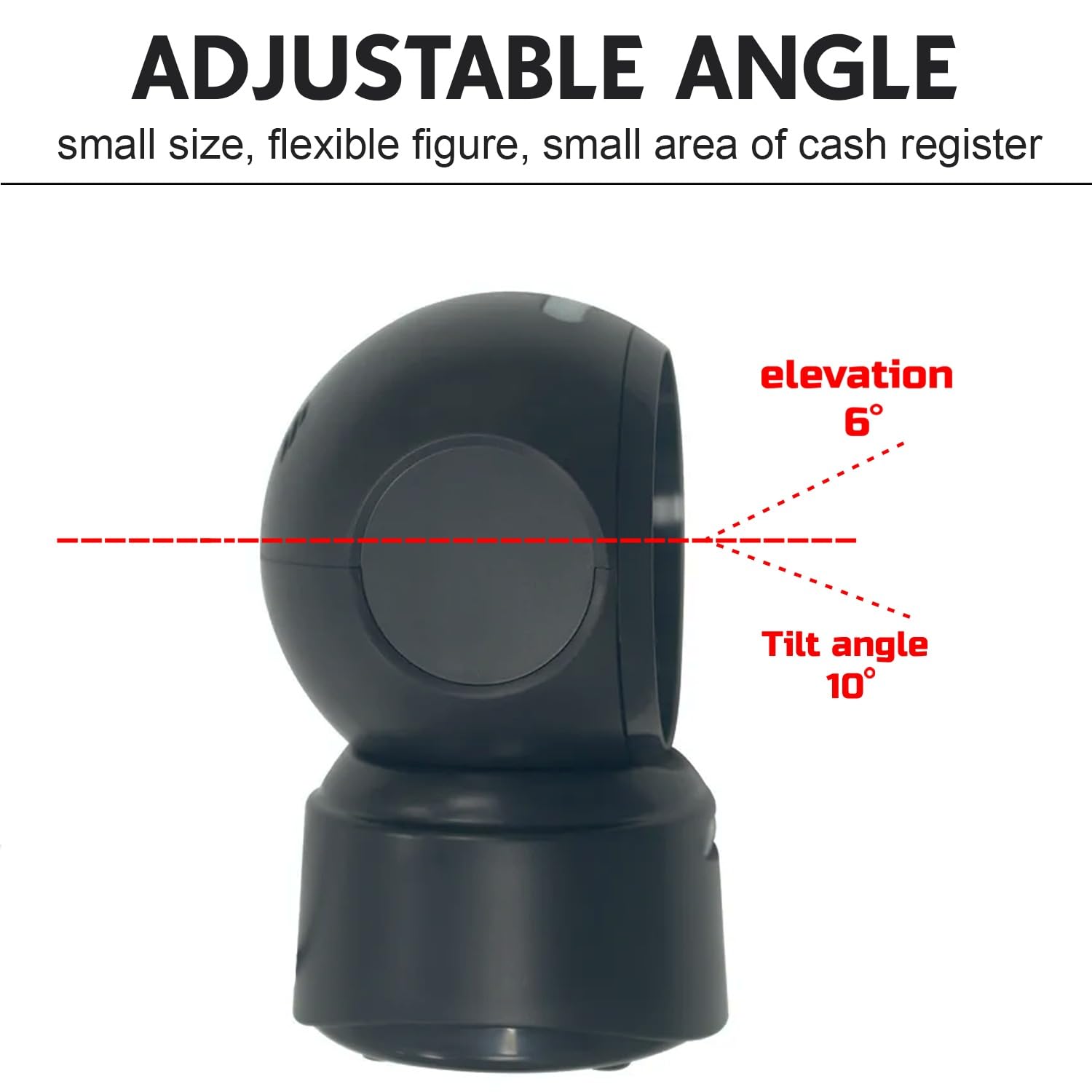
The scanner head can be adjusted to optimize scanning angles for various items and counter setups. The typical elevation is 6 degrees and tilt angle is 10 degrees.
4. Maintenance
4.1 Cleaning the Scanner
To ensure optimal performance, keep the scanner's window clean:
- Use a soft, lint-free cloth, slightly dampened with water or a mild, non-abrasive cleaning solution.
- Gently wipe the scanning window. Avoid using harsh chemicals or abrasive materials that could scratch the surface.
- Ensure the scanner is unplugged before cleaning.
4.2 Environmental Protection
The scanner has an IP54 rating, providing protection against dust ingress and splashing water. However, it is not waterproof and should not be submerged in liquids. Operate and store the scanner within recommended temperature ranges to prevent damage.
5. Troubleshooting
If you encounter issues with your SHREYANS Desktop Barcode Scanner, refer to the following common problems and solutions:
| Problem | Possible Cause | Solution |
|---|---|---|
| Scanner does not power on or scan. | Loose USB connection, power issue, or system incompatibility. | Ensure the USB cable is securely connected to both the scanner and the computer. Try a different USB port. Verify your operating system is supported. |
| Scanner reads incorrectly or not at all. | Dirty scanning window, damaged barcode, or incorrect scanning angle. | Clean the scanning window as described in Section 4.1. Ensure the barcode is clear and undamaged. Adjust the item's position or the scanner's angle. |
| No data transmitted to the computer. | Software conflict or incorrect input focus. | Ensure the cursor is active in the desired input field (e.g., text editor, POS software). Restart the computer and scanner. |
| Scanner enters sleeping mode too quickly/slowly. | Default settings. | Refer to the full product manual (if available) for advanced configuration options to adjust sleep timer settings. |
If the problem persists after attempting these solutions, please contact SHREYANS customer support.
6. Technical Specifications
| Feature | Detail |
|---|---|
| Brand | SHREYANS |
| Model | Dekstop Scanner |
| Compatible Devices | Laptop, PC, POS Systems |
| Power Source | Corded Electric (USB Powered) |
| Connectivity Technology | USB Cable |
| Scan Rate | 200 fps (frames per second) |
| Operating Voltage | 2 Volts |
| Item Dimensions (D x W x H) | 8D x 5W x 9H Centimeters |
| Item Weight | 200 Grams |
| Ingress Protection (IP) Rating | IP54 (Dust protected, splash resistant) |
| Drop Resistance | Up to 4.92 feet |
| Supported OS | Windows XP/7/8/10, Mac OS, Linux |
7. Warranty Information
The SHREYANS 1D 2D QR Hands-Free Desktop Barcode Scanner comes with a limited warranty. Please retain your proof of purchase for warranty claims. For specific warranty terms and conditions, refer to the documentation included with your product or contact SHREYANS customer support.
8. Customer Support
For technical assistance, troubleshooting, or warranty inquiries, please contact:
- Manufacturer: Shreyans Retail Solution
- Website: www.shreyanspos.com (Please note: This link is based on information from a promotional video and may not be the primary support channel. Refer to product packaging for official contact details.)
When contacting support, please have your product model (Dekstop Scanner) and purchase information ready.


