
VEEZOOM WS-KN808P-50BS#ITFBA
VEEZOOM 5MP PoE Camera Surveillance Kit User Manual
Model: WS-KN808P-50BS#ITFBA | Brand: VEEZOOM
1. Introduction
This manual provides essential information for the installation, operation, and maintenance of your VEEZOOM 5MP PoE Camera Surveillance Kit. This system is designed to provide reliable security monitoring with high-definition video quality and intelligent features.
The VEEZOOM 5MP PoE Camera Surveillance Kit offers 2560x1920 Ultra HD clarity day and night, with ultimate night vision up to 100 feet. This Plug & Play PoE system provides stable power and video signals through its 8-port NVR, supporting up to 8*8MP/6MP/5MP/4MP/2MP IP cameras. It features intelligent motion detection alerts sent to your smartphone via the Veezoompro app. A 2TB hard drive is pre-installed for 24/7 continuous recording. The IP66 waterproof rating ensures reliable operation in all weather conditions, from -35°C to 55°C.
2. What's in the Box
Please verify that all items listed below are included in your package:
- 1 x 8CH 8MP NVR (Network Video Recorder)
- 4 x 5MP PoE IP Cameras
- 4 x 18m Network Cables
- 1 x USB Mouse
- 1 x HDMI Cable
- 1 x 1.5m Network Cable
- 1 x Quick Instruction Guide
- 1 x NVR Power Supply

This image displays the VEEZOOM 8-channel NVR unit along with four 5MP PoE bullet-style IP cameras and a 2TB hard drive, illustrating the complete surveillance system.
3. Setup Guide
The VEEZOOM PoE system is designed for easy plug-and-play installation. Follow these steps to set up your surveillance system:
- Connect the NVR: Connect the NVR to a power source using the provided power adapter. Connect the NVR to your router using the 1.5m network cable for internet access.
- Connect Cameras: Connect each 5MP PoE IP camera to an available PoE port on the NVR using the 18m network cables. The cameras will receive both power and video signal through these cables.
- Connect Display: Connect the NVR to a monitor or TV using the HDMI cable to view the camera feeds and configure settings.
- Install Mobile App: Download the "Veezoompro" application from the App Store (for iOS) or Google Play Store (for Android) on your smartphone.
- Remote Viewing: Follow the in-app instructions to add your NVR device and begin viewing live footage remotely.

This diagram shows how the PoE cameras connect directly to the NVR via a single Ethernet cable for both power and video, simplifying installation. It also depicts downloading the Veezoompro app and viewing live footage on a smartphone.
4. Operating Instructions
4.1. Live View and Recording
Once the system is set up, you can view live feeds on your connected monitor or through the Veezoompro app. The pre-installed 2TB hard drive enables 24/7 continuous recording for all connected cameras.

This image displays a monitor showing live feeds from four cameras, and below it, the NVR unit with an indication that up to 8 cameras can be connected for continuous recording, including the pre-installed 2TB HDD.
4.2. 5MP Ultra HD Vision
The cameras provide 5-megapixel resolution (2560x1920) for clear and detailed images. They are equipped with advanced night vision technology to ensure visibility up to 100 feet in low-light or no-light conditions.

This image demonstrates the camera's ability to capture clear Ultra HD footage during the day in full color and at night using infrared technology for black and white vision.
4.3. Smart Motion Detection
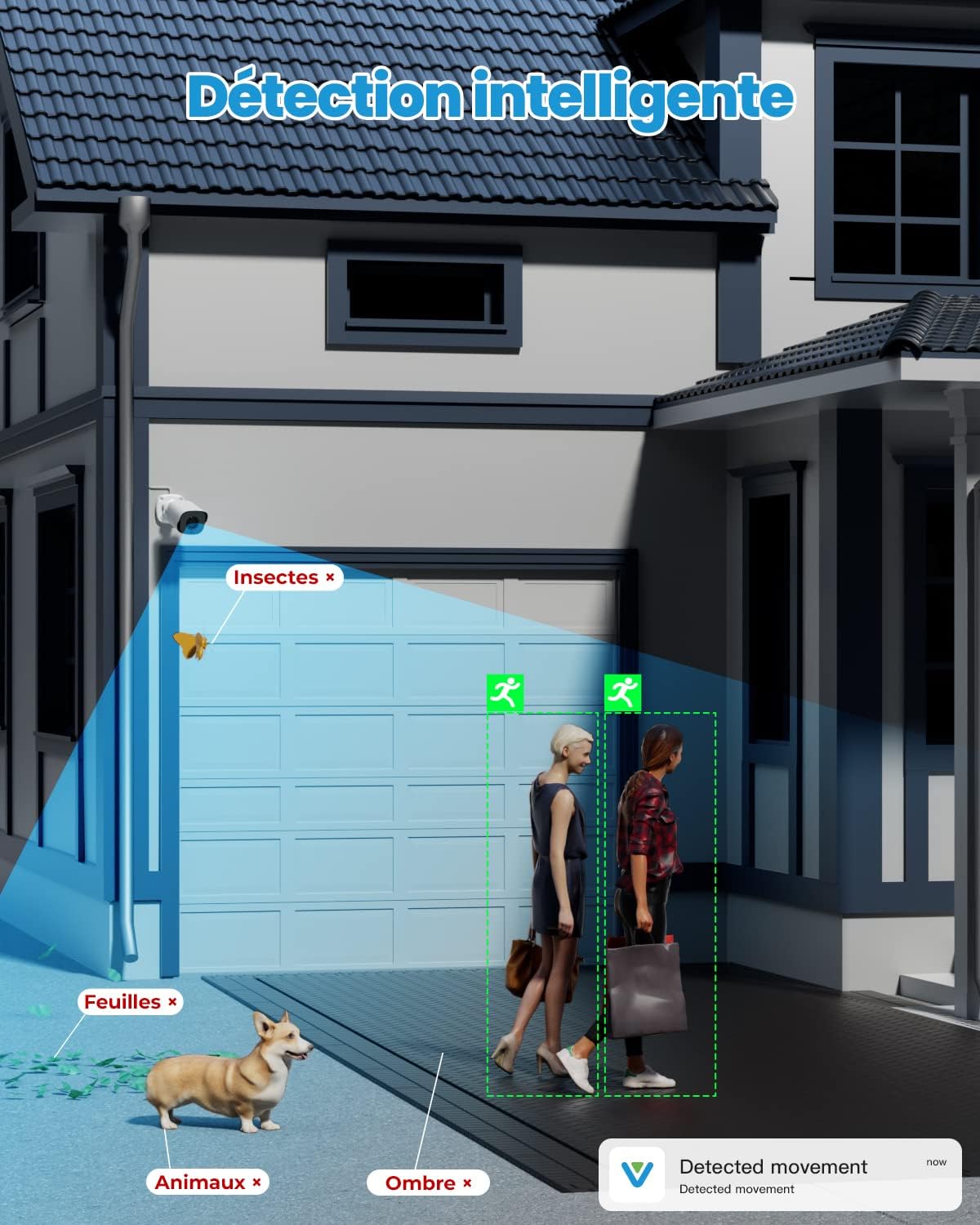
The system features intelligent motion detection that can distinguish human movement from other objects like insects, leaves, or shadows, reducing false alarms. When a suspicious event occurs, smart notifications with images will be sent to your smartphone via the Veezoompro app.

This graphic illustrates the intelligent motion detection feature, highlighting how the system accurately identifies human movement while filtering out irrelevant triggers like insects, leaves, or shadows.
4.4. Remote Access
Access your surveillance system from anywhere, at any time, using the Veezoompro mobile application on your smartphone, tablet, or computer. This allows for live viewing, playback of recorded footage, and system management on the go.

This image illustrates the remote access functionality, showing a user viewing live camera feeds on a smartphone, tablet, and laptop, enabled by the Veezoompro application.
5. Maintenance
Regular maintenance ensures optimal performance and longevity of your VEEZOOM surveillance system.
- Cleaning Cameras: Periodically clean the camera lenses with a soft, damp cloth to remove dust, dirt, or water spots that may obstruct the view. Avoid abrasive cleaners.
- Check Connections: Ensure all network cables and power connections are secure and free from damage. Loose connections can lead to signal loss or power interruptions.
- Software Updates: Check the Veezoompro app or VEEZOOM's official website for any available firmware or software updates for your NVR and cameras. Keeping your system updated ensures the latest features and security patches.
- Hard Drive Health: While the 2TB HDD is pre-installed, it is good practice to periodically check its health through the NVR's system settings to ensure continuous recording functionality.
This image shows a VEEZOOM camera being exposed to rain, emphasizing its IP66 weather-resistant design, suitable for outdoor use in various conditions from -35°C to 55°C.
6. Troubleshooting
If you encounter issues with your VEEZOOM surveillance system, refer to the following common troubleshooting steps:
- No Video Feed:
- Ensure the NVR is powered on and connected to a display.
- Check that all cameras are properly connected to the NVR's PoE ports.
- Verify network cables are securely plugged in at both ends.
- Restart the NVR and cameras.
- No Remote Access:
- Ensure the NVR is connected to the internet via your router.
- Check your router's internet connection.
- Verify that the Veezoompro app is updated to the latest version.
- Confirm that the NVR is correctly added to your Veezoompro account.
- Motion Detection Not Working:
- Check the motion detection settings in the NVR interface or Veezoompro app to ensure it is enabled and configured correctly.
- Adjust sensitivity settings if necessary.
- Poor Image Quality:
- Clean the camera lens.
- Ensure there are no obstructions in the camera's field of view.
- Check cable integrity for any damage that might affect signal quality.
7. Specifications
| Feature | Specification |
|---|---|
| Brand | VEEZOOM |
| Model Number | WS-KN808P-50BS#ITFBA |
| Color | PoE 5MP Camera |
| Product Type | Bullet |
| Operating System | Embedded Operating System |
| Connectivity Technology | Wired |
| Special Features | Motion Sensor, Night Vision |
| Total USB Ports | 3 |
| Compatible Devices | PoE IP Cameras |
| Video Recording Resolution | 5MP |
| Number of Channels | 8 |
| Memory Storage Capacity | 2 TB |
| Power Source | 12 V DC 1.25 A |
| Item Dimensions L x W x H | 36.5 x 31.5 x 18.5 centimeters |
8. Warranty and Support
Your VEEZOOM 5MP PoE Camera Surveillance Kit comes with a 1-year manufacturer's warranty.
For technical support, warranty claims, or any questions regarding your product, please contact VEEZOOM customer service. Refer to the contact information provided in your quick instruction guide or visit the official VEEZOOM website for assistance.
Related documentsWS-KN808P-50BS#ITFBA


Ask a question about this manual
Ask about setup, troubleshooting, compatibility, parts, safety, or missing instructions. Manuals+ will review the question and use this page’s manual context to help answer it.