
MageGee Typewriter Mechanical Gaming Keyboard
MageGee Typewriter Mechanical Gaming Keyboard User Manual
Model: Typewriter Mechanical Gaming Keyboard
Introduction
This manual provides instructions for the MageGee Typewriter Mechanical Gaming Keyboard. It covers setup, operation, maintenance, and troubleshooting to ensure optimal performance and longevity of your device. Please read this manual thoroughly before using the keyboard.
Package Contents
- MageGee Typewriter Mechanical Gaming Keyboard
- Magnetic Wrist Rest
- USB Cable
- User Manual (this document)
Setup
1. Connecting the Keyboard
- Locate the USB cable provided with your keyboard.
- Connect the USB Type-A end of the cable to an available USB port on your computer (PC, Laptop, or Mac).
- Connect the other end of the USB cable to the port on the keyboard.
- The keyboard is plug-and-play; no additional drivers or software are required for basic functionality. Your operating system should automatically detect and configure the device.
2. Attaching the Wrist Rest
If your model includes a magnetic wrist rest, align it with the front edge of the keyboard. The magnets will help secure it in place, providing ergonomic support during use.
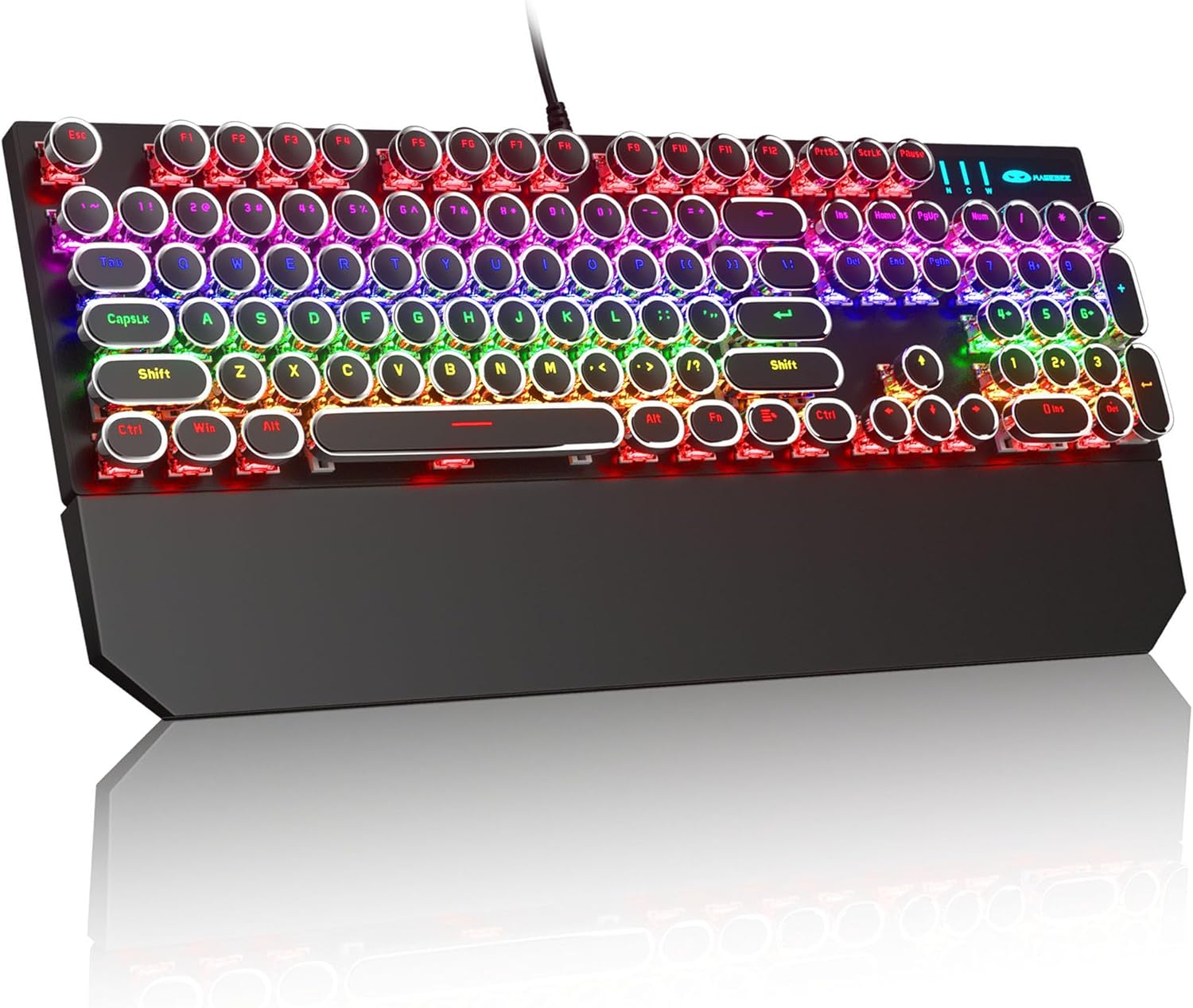
Image: The MageGee Typewriter Mechanical Gaming Keyboard connected via USB, with its magnetic wrist rest attached. The keyboard features retro round keycaps and vibrant RGB backlighting.
Operating Instructions
Keyboard Layout
The MageGee Typewriter Mechanical Gaming Keyboard features a full-size 104-key layout, including a numeric keypad and dedicated function keys (F1-F12).

Image: An overhead view of the keyboard, highlighting the full 104-key layout and the LED backlighting effect.
Backlight Control
The keyboard features multiple RGB rainbow backlit modes. Use the following key combinations to adjust the lighting effects:
- Fn + Ins: Cycle through various backlight modes.
- Fn + Home: Adjust backlight brightness.
- Fn + PgUp: Increase backlight speed.
- Fn + PgDn: Decrease backlight speed.
- Fn + Del: Change backlight color (if applicable to the current mode).
- Fn + End: Turn backlight on/off.

Image: A close-up view of the keyboard's keys, illustrating the RGB backlighting and the visible blue mechanical switches beneath the round keycaps.
Multimedia and Function Keys
The F1-F12 keys can be used in conjunction with the Fn key to access multimedia and system functions. Specific functions may vary slightly depending on your operating system.
| Key Combination | Function |
|---|---|
| Fn + F1 | Media Player |
| Fn + F2 | Volume Down |
| Fn + F3 | Volume Up |
| Fn + F4 | Mute |
| Fn + F5 | Stop |
| Fn + F6 | Previous Track |
| Fn + F7 | Play/Pause |
| Fn + F8 | Next Track |
| Fn + F9 | |
| Fn + F10 | Web Browser |
| Fn + F11 | My Computer |
| Fn + F12 | Calculator |
Maintenance
Cleaning the Keyboard
- Disconnect the keyboard from your computer before cleaning.
- Use a soft, lint-free cloth slightly dampened with water or a mild cleaning solution to wipe the keycaps and keyboard surface.
- For dust and debris between keys, use compressed air.
- Avoid using harsh chemicals, abrasive cleaners, or spraying liquids directly onto the keyboard.
General Care
- Avoid exposing the keyboard to extreme temperatures, humidity, or direct sunlight.
- Do not drop the keyboard or subject it to strong impacts.
- Keep liquids away from the keyboard to prevent damage.
Troubleshooting
Keyboard Not Responding
- Ensure the USB cable is securely connected to both the keyboard and the computer.
- Try connecting the keyboard to a different USB port on your computer.
- Test the keyboard on another computer to rule out a computer-specific issue.
- Restart your computer.
Backlight Not Working or Incorrect
- Ensure the backlight is not turned off (Fn + End).
- Adjust backlight brightness (Fn + Home).
- Cycle through different backlight modes (Fn + Ins) to see if the issue persists across all modes.
Keys Not Registering or Double Typing
- Clean the affected key(s) using compressed air to remove any debris.
- If the issue persists, it may indicate a hardware fault. Contact customer support for assistance.
Specifications
| Feature | Detail |
|---|---|
| Model | Typewriter Mechanical Gaming Keyboard |
| Connectivity | Wired USB 2.0 |
| Key Type | Mechanical (Blue Switch) |
| Keycaps | Retro Round, Double-shot injection molded |
| Backlight | RGB Rainbow Backlit |
| Layout | 104-Key Full-Size, Anti-ghosting |
| Compatibility | Windows (2000, XP, ME, Vista, 7, 8), Linux, Mac |
| Dimensions (L x W x H) | 17.1 x 4.9 x 1.3 inches (434mm x 130mm x 37mm) |
| Item Weight | 1.99 pounds |
| Material | Aluminum alloy metal panel |

Image: A diagram illustrating the physical dimensions of the keyboard and its detachable wrist rest.
Warranty and Support
Warranty Information
MageGee products are designed for quality and reliability. This product comes with a standard manufacturer's warranty against defects in materials and workmanship. Please refer to the product packaging or the official MageGee website for specific warranty terms and duration.
Customer Support
If you encounter any issues or have questions regarding your MageGee Typewriter Mechanical Gaming Keyboard, please contact our customer support team:
- Email: support@magegee.com
- Website: www.magegee.com
When contacting support, please provide your product model and a detailed description of the issue.
Related documentsTypewriter Mechanical Gaming Keyboard


Ask a question about this manual
Ask about setup, troubleshooting, compatibility, parts, safety, or missing instructions. Manuals+ will review the question and use this page’s manual context to help answer it.