
1. Introduction
The XZEAL XZ100 Gaming PC Case (Model XZCGB00B) is designed to accommodate a variety of high-performance computer components. This mid-tower case offers compatibility with ATX, Micro ATX, and Mini ITX motherboards, providing a robust foundation for your gaming or professional build. This manual provides essential information for proper installation, operation, and maintenance of your PC case.

Figure 1: Front view of the XZEAL XZ100 Gaming PC Case.
2. Product Features
- Motherboard Compatibility: Supports ATX, Micro ATX, and Mini ITX form factors.
- Drive Bays: Includes 2 x 2.5" SSD bays and 2 x 3.5" HDD bays for versatile storage options.
- Cooling Support: Designed to accommodate up to two 120mm front fans (fans not included).
- Material: Constructed with durable steel and features a tempered glass side panel for component visibility.
- Front Panel I/O: Conveniently located USB 2.0, USB 3.0, and audio ports for easy peripheral access.
- Cable Management: Provides ample space behind the motherboard tray for organized cable routing.

Figure 2: Interior layout of the XZEAL XZ100 PC Case.
3. Package Contents
Please verify that all items are present in your package:
- XZEAL XZ100 Gaming PC Case
- Accessory Kit (screws, standoffs, cable ties)
- User Manual (this document)
4. Safety Information
Observe the following safety guidelines during installation and operation:
- Always disconnect the power supply from the wall outlet before installing or removing any components.
- Handle all components with care to prevent damage.
- Wear an anti-static wrist strap or frequently touch a grounded metal object to discharge static electricity, which can harm sensitive electronic components.
- Keep the case away from liquids and excessive humidity.
- Ensure proper ventilation to prevent overheating.
5. Setup and Installation
5.1 Preparation
- Unpack the XZEAL XZ100 PC case and place it on a stable, flat surface.
- Remove the side panels by unscrewing the thumbscrews at the rear of the case.
- Familiarize yourself with the internal layout and included accessories.
5.2 Motherboard Installation
- Install the I/O shield provided with your motherboard into the rear opening of the case.
- Align the motherboard with the pre-installed standoffs. If your motherboard is Micro ATX or Mini ITX, ensure only the necessary standoffs are used.
- Secure the motherboard using the screws from the accessory kit. Do not overtighten.
5.3 Power Supply Unit (PSU) Installation
- Position the PSU in the designated bay at the bottom rear of the case.
- Secure the PSU with screws from the accessory kit, ensuring the fan faces the correct direction for optimal airflow (typically downwards if there's a vent, or upwards if not).
- Route the necessary power cables through the cable management cutouts.
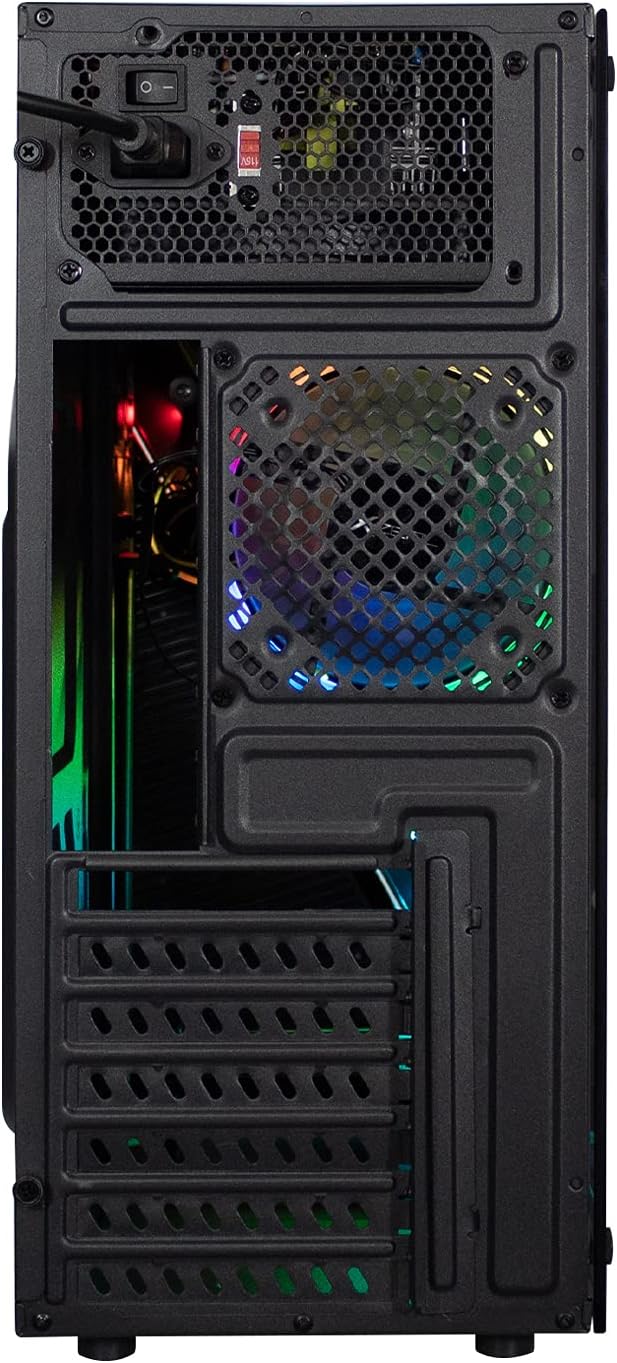
Figure 3: Rear view illustrating PSU and I/O shield placement.
5.4 Drive Installation (SSD/HDD)
- 2.5" SSDs: Locate the 2.5" drive bays, typically behind the motherboard tray or on the PSU shroud. Secure SSDs using the provided screws.
- 3.5" HDDs: Locate the 3.5" drive cage. Slide the HDDs into the bays and secure them with screws.
5.5 Expansion Card Installation (GPU, PCIe Cards)
- Remove the necessary PCIe slot covers from the rear of the case.
- Insert your expansion card (e.g., graphics card) into the corresponding PCIe slot on the motherboard.
- Secure the card with a screw.
5.6 Fan Installation
The XZ100 supports up to two 120mm fans at the front. Install fans by aligning them with the mounting holes and securing them with screws. Connect fan power cables to your motherboard or a fan controller.
5.7 Front Panel Connections
Connect the front panel cables to the appropriate headers on your motherboard. Refer to your motherboard manual for exact header locations.
- Power Switch (PWR SW): Connects to the motherboard's power header.
- Reset Switch (RESET SW): Connects to the motherboard's reset header.
- Power LED (PLED +/-): Connects to the motherboard's power LED header.
- HDD LED (HDD LED): Connects to the motherboard's HDD activity LED header.
- USB 3.0: Connects to the motherboard's USB 3.0 header.
- USB 2.0: Connects to the motherboard's USB 2.0 header.
- HD Audio (AUDIO): Connects to the motherboard's front panel audio header.
- RGB Connector: Connect the RGB cable from the front panel to a compatible RGB header on your motherboard or an RGB controller.
6. Operating Instructions
6.1 Powering On/Off
After all components are installed and connected, close the side panels. Connect your monitor, keyboard, mouse, and power cable. Press the power button on the front panel to turn on your system.
6.2 Front Panel Ports
Utilize the front panel USB 2.0, USB 3.0, and audio jacks for convenient access to peripherals and headsets.
6.3 RGB Lighting
The XZ100 features an integrated RGB LED strip on the front panel. If connected to a compatible motherboard header or controller, you can customize lighting effects using your motherboard's software or a dedicated RGB control button (if present on the case).
7. Maintenance
Regular maintenance helps ensure optimal performance and longevity of your PC components.
- Dust Cleaning: Periodically clean dust filters (if present) and internal components using compressed air. Ensure the system is powered off and unplugged before cleaning.
- Cable Management: Periodically check cable routing to ensure no cables are obstructing airflow or fan operation.
- Exterior Cleaning: Wipe the exterior of the case with a soft, damp cloth. Avoid harsh chemicals.
8. Troubleshooting
If you encounter issues, consider the following common troubleshooting steps:
- System Not Powering On:
- Ensure the power supply is switched on and properly connected to the wall outlet and motherboard.
- Verify that the front panel power switch cable is correctly connected to the motherboard header.
- Check all internal power connections (24-pin ATX, CPU 8-pin, GPU PCIe power).
- Fans Not Spinning:
- Confirm fan power cables are securely connected to the motherboard or fan controller.
- Check BIOS/UEFI settings for fan control.
- Front Panel Ports Not Working:
- Ensure USB and audio headers are correctly connected to the motherboard.
- Check motherboard drivers for front panel audio/USB.
- Motherboard Fit Issues:
- Ensure you are using the correct standoffs for your motherboard form factor (ATX, Micro ATX, Mini ITX).
- Verify that no components or cables are obstructing the motherboard's seating.
9. Specifications
| Feature | Specification |
|---|---|
| Model Name | XZ100 |
| Part Number | XZCGB00B |
| Motherboard Support | ATX, Micro ATX, Mini ITX |
| Case Type | Mid-Tower |
| Drive Bays | 2 x 2.5" SSD, 2 x 3.5" HDD |
| Fan Support (Front) | 2 x 120mm (fans not included) |
| Front I/O Ports | USB 3.0, USB 2.0, HD Audio, Power, Reset |
| Dimensions (L x W x H) | 52 x 48.5 x 23.5 cm |
| Weight | 4.94 kg |
| Materials | Steel, Tempered Glass |
| Color | Black |
10. Warranty and Support
XZEAL products are designed for reliability and performance. For warranty information or technical support, please refer to the warranty card included with your product or visit the official XZEAL website. Please have your product model (XZ100) and part number (XZCGB00B) ready when contacting support.
