
Introduction
This manual provides detailed instructions for the setup, operation, maintenance, and troubleshooting of your Portronics Toad 13 Wireless Mouse. Designed for seamless navigation and comfort, this mouse offers 2.4 GHz wireless connectivity and a 1200 DPI optical sensor for precise tracking. Please read this manual thoroughly before using the device.
Product Overview

Figure 1: Portronics Toad 13 Wireless Mouse
The Portronics Toad 13 is an ambidextrous wireless optical mouse featuring a compact and ergonomic design. It connects via a 2.4 GHz USB Nano Dongle, providing a stable wireless connection up to 10 meters. The mouse is equipped with a 1200 DPI optical sensor for smooth and precise cursor control. It includes three buttons: left-click, right-click, and a scroll wheel.
- Wireless Freedom: Enjoy a stable 2.4 GHz wireless connection with a range of up to 10 meters. The mouse automatically connects to your computer system.
- High-Speed Optical Tracking: Features a 1200 DPI optical sensor for smooth and precise cursor movement.
- Durable Design: Engineered for longevity, providing over 30 million clicks.
- Portable: Its compact and lightweight design makes it ideal for travel and on-the-go use.
- Ergonomic Comfort: Contoured shape with soft side grips ensures comfortable use for extended periods.
Setup Instructions
- Install Battery:
The Portronics Toad 13 mouse requires one AA battery (not included). Open the battery compartment located on the underside of the mouse. Insert the battery, ensuring correct polarity (+/-), then close the compartment cover securely.

Figure 2: Battery compartment location and mouse dimensions.
- Locate USB Nano Dongle:
The USB Nano Dongle is stored within the battery compartment for convenience during transport. Carefully remove the dongle from its storage slot.

Figure 3: Mouse with its USB Nano Dongle.
- Connect USB Nano Dongle:
Plug the USB Nano Dongle into an available USB port on your computer (laptop or PC). The system should automatically detect and install the necessary drivers.
- Pairing Process (if needed):
In most cases, the mouse will connect automatically. If the mouse does not respond, follow these steps to re-pair:
- Press the right and middle (scroll wheel) buttons together on the mouse.
- Ensure the battery is correctly installed.
- Plug the USB receiver into your computer.
- Wait for approximately 5 seconds for the connection to establish.
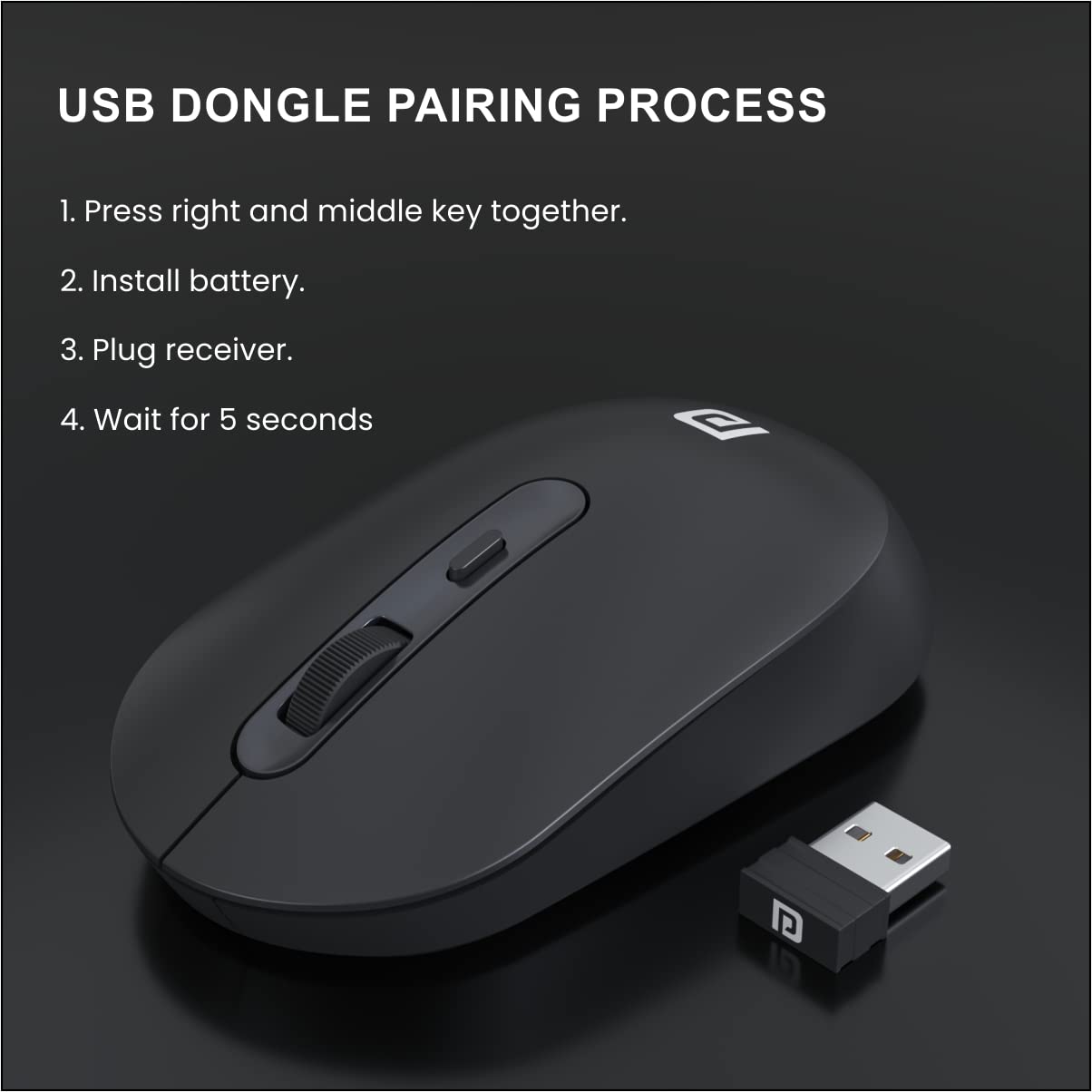
Figure 4: Visual guide for the USB dongle pairing process.
Operating Instructions
Once successfully set up, your Portronics Toad 13 Wireless Mouse is ready for use.
- Basic Functions: Use the left button for primary clicks, the right button for secondary clicks (context menus), and the scroll wheel for vertical scrolling.
- Optical Tracking: The 1200 DPI optical sensor provides accurate and smooth tracking on most surfaces.
- Wireless Range: Maintain operation within a 10-meter radius from the USB Nano Dongle for optimal performance.
- Power Saving: The mouse features an automatic power-saving mode that activates after a period of inactivity to conserve battery life. Move the mouse or click a button to wake it up.

Figure 5: Smooth tracking and 1200 DPI resolution optical sensor.
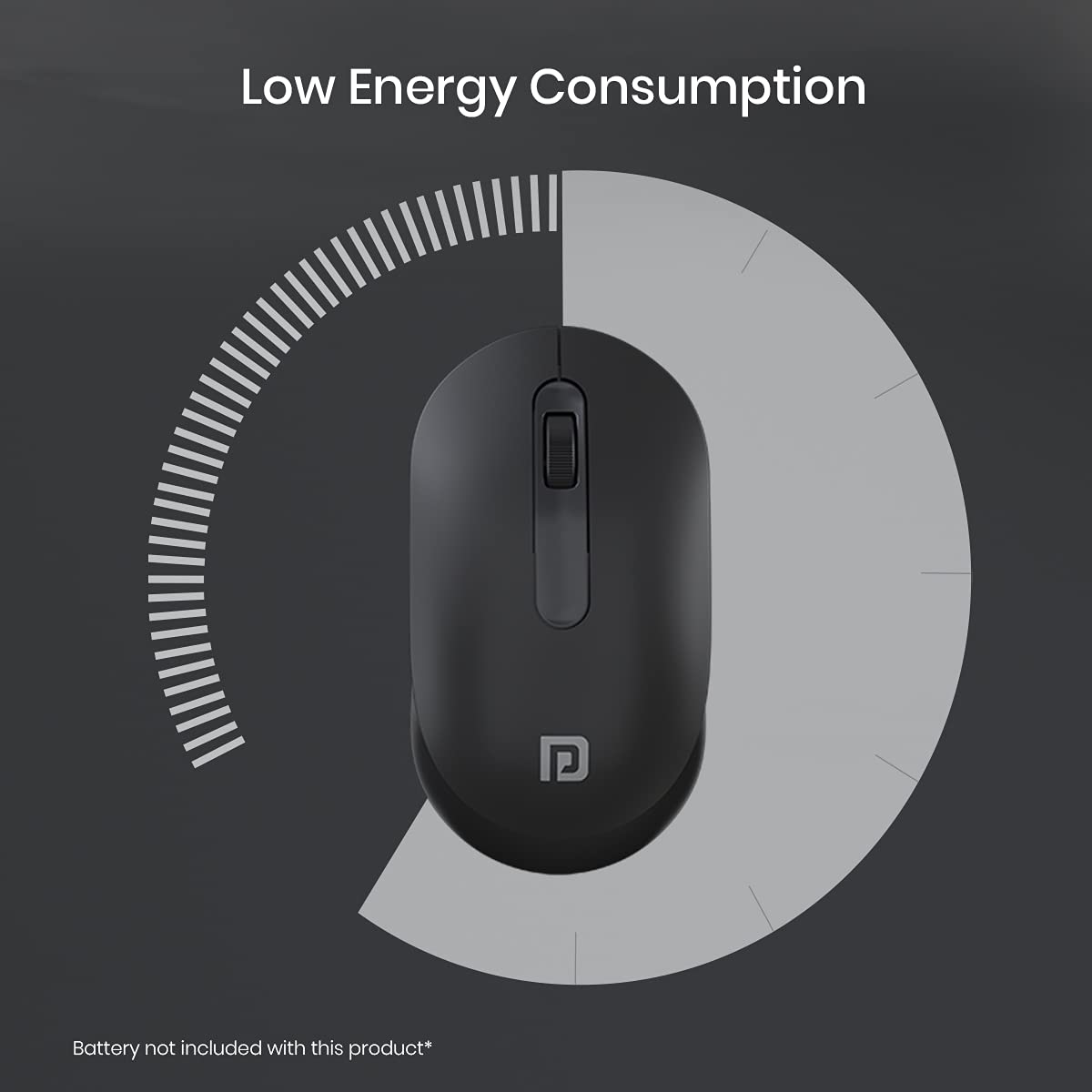
Figure 6: Low energy consumption feature.
Maintenance
- Battery Replacement: Replace the AA battery when the mouse performance degrades or stops responding. Refer to the "Install Battery" step in the Setup section.
- Cleaning: Use a soft, dry cloth to clean the exterior of the mouse. For the optical sensor, use a cotton swab lightly dampened with rubbing alcohol, ensuring no liquid enters the device.
- Storage: When not in use for extended periods, remove the battery to prevent leakage. Store the USB Nano Dongle in its dedicated slot within the battery compartment.
Troubleshooting
| Problem | Possible Cause | Solution |
|---|---|---|
| Mouse not responding. | Low or dead battery; USB Nano Dongle not connected; pairing issue. | Replace the battery. Ensure the USB Nano Dongle is securely plugged into a USB port. Try the pairing process described in the Setup section. |
| Intermittent connection or lag. | Mouse too far from dongle; wireless interference; low battery. | Move the mouse closer to the USB Nano Dongle. Ensure no large metal objects are between the mouse and dongle. Replace the battery. |
| Cursor movement is erratic or imprecise. | Dirty optical sensor; unsuitable surface. | Clean the optical sensor on the underside of the mouse. Use the mouse on a clean, non-reflective surface or a mouse pad. |
Specifications
| Brand | Portronics |
| Model Name | Toad 13 |
| Model Number | POR-1381 |
| Colour | Black |
| Connectivity Technology | 2.4 GHz Wireless (USB Nano Dongle) |
| Movement Detection Technology | Optical |
| Mouse Maximum Sensitivity | 1200 DPI |
| Button Quantity | 3 (Left, Right, Scroll Wheel) |
| Hand Orientation | Ambidextrous |
| Compatible Devices | Personal Computer (Laptop, Mac, PC) |
| Wireless Range | Up to 10 meters |
| Power Source | Battery Powered (1x AA battery, not included) |
| Battery Average Life | 6 Months (approximate) |
| Item Dimensions (L x W) | 11.4L x 6.2W Centimeters |
| Item Weight | 46 Grams |
| Box Contents | Mouse 1N |
Warranty and Support
The Portronics Toad 13 Wireless Mouse comes with a 6 Months Manufacturing Warranty.
For warranty claims, technical support, or any product-related inquiries, please contact Portronics customer service.
- Manufacturer: Portronics Digital Pvt Ltd.
- Address: FLOOR-1st and 2nd, B-76, Wazirpur Industrial area, Wazirpur, New Delhi, Delhi, 110052
- Importer: Portronics Digital Pvt Ltd, B-76, 1st & 2nd Floor, Wazirpur Industrial Area, New Delhi-110052
- For further assistance, please visit the official Portronics website or refer to the contact information provided with your product packaging.


