
1. Introduction
The Microsoft Surface Pro 8 is a versatile 2-in-1 laptop designed to combine the power of a laptop with the flexibility of a tablet. Featuring the Intel® Evo™ platform and optimized for Windows 11, it offers a seamless experience for various tasks. This manual provides essential information for setting up, operating, maintaining, and troubleshooting your device.

Figure 1.1: Microsoft Surface Pro 8 showcasing the Windows 11 desktop interface.
2. What's in the Box
Upon unboxing your Microsoft Surface Pro 8, ensure all the following items are present:
- Surface Pro 8 Device
- Power Supply
- AC Cord
- Quick Start Guide (QSG)
- Regulatory Documents
3. Setup
3.1 Initial Power On
To power on your Surface Pro 8 for the first time, press and hold the power button located on the right side of the device until the Microsoft logo appears on the screen.
3.2 Connecting Accessories
The Surface Pro 8 is designed to work seamlessly with its detachable accessories. If you have a Surface Pro Signature Keyboard (sold separately), align it with the magnetic connector at the bottom edge of your Surface Pro 8 until it clicks into place. The Surface Slim Pen 2 (sold separately) can be stored and charged within the keyboard's dedicated slot.

Figure 3.1: Microsoft Surface Pro 8 with the detachable keyboard and Slim Pen 2.
3.3 Charging Your Device
Connect the provided power supply to the Surface Connect port on the right side of your device. The Surface Pro 8 can also be charged via its Thunderbolt 4 (USB-C) ports.
3.4 Windows 11 Setup
Follow the on-screen instructions to complete the Windows 11 setup process. This includes connecting to a Wi-Fi network, creating a user account, and configuring privacy settings. The device supports Windows Hello facial recognition for quick and secure login.
Video 3.1: Official Microsoft Surface Pro 8 Sizzle Reel showcasing key features and Windows 11 interface.
4. Operating
4.1 Modes of Use
The Surface Pro 8 offers multiple modes to adapt to your needs:
- Laptop Mode: Attach the Surface Pro Signature Keyboard and adjust the built-in Kickstand for a traditional laptop experience.
- Tablet Mode: Detach the keyboard for a lightweight and portable tablet experience, ideal for browsing or media consumption.
- Studio Mode: Adjust the Kickstand to a lower angle, providing an ideal surface for writing, drawing, or sketching with the Surface Slim Pen 2.
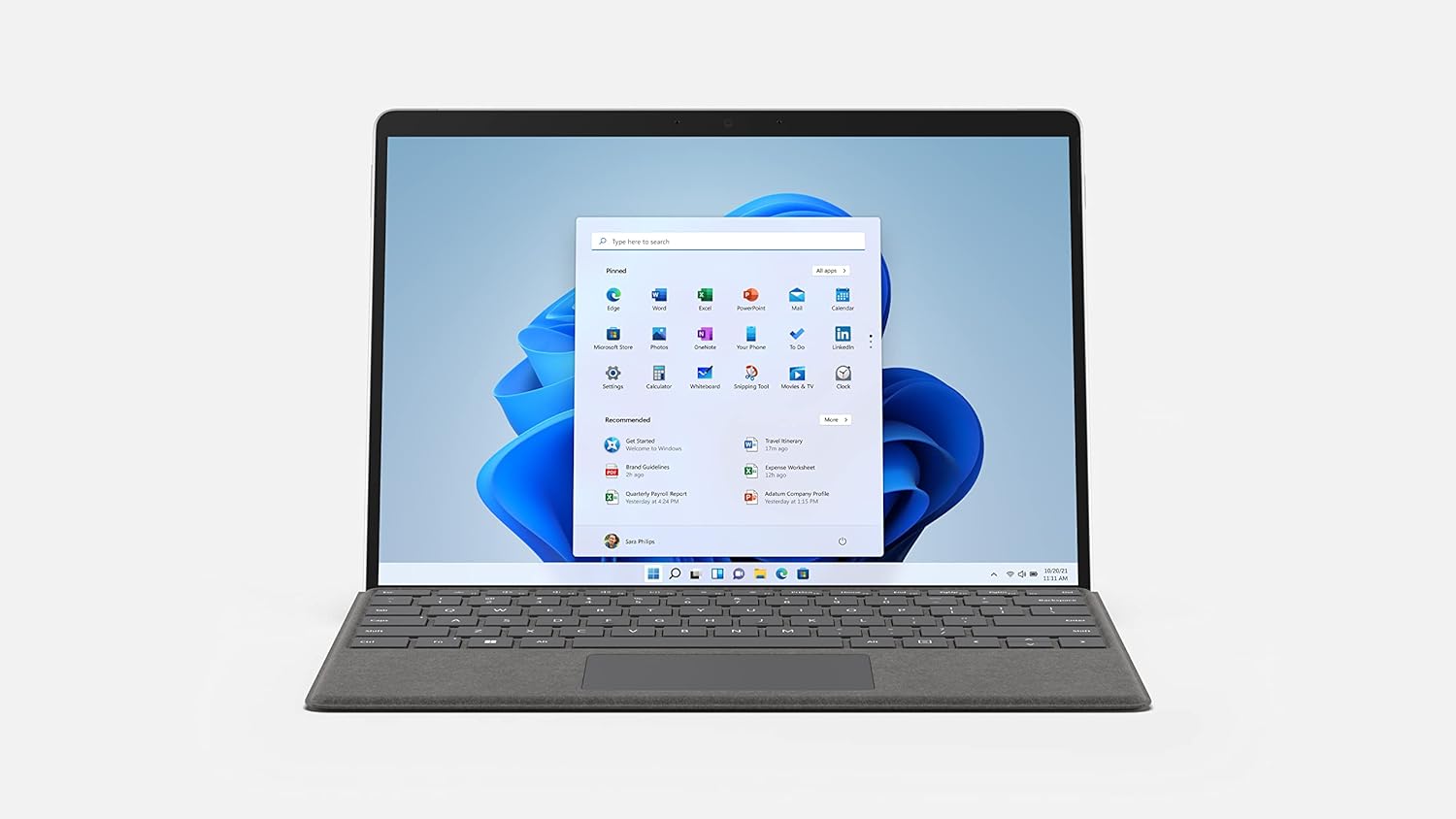
Figure 4.1: Microsoft Surface Pro 8 in laptop mode with the keyboard attached.
4.2 Touchscreen and Pen Interaction
The 13-inch PixelSense™ Flow Display supports 10-point multi-touch gestures. The Surface Slim Pen 2 offers a natural writing experience with haptic feedback and 4096 levels of pressure sensitivity, making it highly accurate for detailed work.

Figure 4.2: A hand interacting with the Surface Pro 8 touchscreen using the Surface Slim Pen 2.
4.3 Keyboard and Touchpad
The Surface Pro Signature Keyboard features mechanical backlit keys and optimal key spacing for fast and accurate typing. The precision glass touchpad supports multi-finger gestures for intuitive navigation.
4.4 Ports and Connectivity
The Surface Pro 8 is equipped with:
- 2 x Thunderbolt™ 4 (USB-C) ports: These versatile ports support data transfer, video output (up to two 4K displays), and charging. They also enable external GPU (eGPU) connectivity for enhanced graphics performance.
- 1 x 3.5mm Headphone Jack: For audio output.
- 1 x Surface Connect Port: For charging and connecting to Surface Docks.
For wireless connectivity, the device supports Wi-Fi 6 (802.11ax) and Bluetooth 5.1.

Figure 4.3: Side view of the Surface Pro 8 highlighting the Thunderbolt 4 ports and Surface Connect port.
4.5 Display Features
The 13-inch PixelSense™ Flow Display offers a resolution of 2880 x 1920 pixels (267 PPI) and supports up to a 120Hz refresh rate for smoother visuals. It also features Dolby Vision® for vibrant colors and contrast. Note that running at 120Hz will consume more battery life compared to the default 60Hz setting.
4.6 Audio and Cameras
The Surface Pro 8 includes 2W stereo speakers with Dolby Atmos® for immersive audio. Dual far-field Studio Mics ensure clear audio input for calls and recordings. The device is equipped with a 5.0MP front-facing camera (1080p Full HD video) for video conferencing and a 10.0MP rear-facing autofocus camera (4K video) for high-quality photos and videos.
Video 4.1: Microsoft Nails It With The Surface Pro 8, highlighting its features and performance.
5. Maintenance
5.1 Cleaning Your Surface Pro 8
To maintain the appearance and functionality of your device, regularly clean the screen and casing with a soft, lint-free cloth. For stubborn smudges, a slightly dampened cloth with water or a mild screen cleaner can be used. Avoid harsh chemicals or abrasive materials.
5.2 User-Replaceable SSD
The Surface Pro 8 features a user-replaceable M.2 2230 NVMe SSD. To access the SSD, open the Kickstand and locate the small cover. This allows for easy upgrades or replacement of the storage drive.

Figure 5.1: The user-replaceable SSD slot located under the Kickstand of the Surface Pro 8.
6. Troubleshooting
6.1 Battery Life Optimization
The Surface Pro 8 offers an average battery life of 6 hours. To extend battery life, navigate to Windows Settings > System > Display and set the refresh rate to 60Hz instead of 120Hz. You can also adjust power mode settings in Windows Settings > System > Power & battery.
6.2 Heat Management
The Surface Pro 8 features an active cooling system with dual fans to prevent thermal throttling. Under heavy workloads, the device's CPU can maintain good clock speeds while staying relatively cool. The top-left and rear of the tablet may become warm under sustained heavy load, but this is normal operation.
6.3 Display Reflections
The PixelSense™ Flow Display is highly reflective. While this enhances visual quality, it may cause glare in brightly lit environments. Anti-glare screen protectors (sold separately) can help mitigate this issue.
7. Specifications
| Feature | Detail |
|---|---|
| Display | 13" PixelSense™ Flow Display, 2880 x 1920 pixels (267 PPI), up to 120Hz refresh rate, Dolby Vision® |
| Processor | Intel® Evo Platform Core™ i5 (4.2 GHz) |
| RAM | 8 GB DDR4 SDRAM |
| Storage | 256 GB SSD (User-replaceable M.2 2230 NVMe) |
| Graphics | Intel Iris Xe Graphics |
| Operating System | Windows 11 |
| Wireless Connectivity | Wi-Fi 6 (802.11ax), Bluetooth 5.1 |
| Ports | 2 x Thunderbolt™ 4 (USB-C), 1 x 3.5mm Headphone Jack, 1 x Surface Connect Port |
| Cameras | Front: 5.0MP (1080p Full HD video), Rear: 10.0MP (4K video) |
| Battery Life | Up to 6 hours (average usage) |
| Weight | 1.96 pounds (891 g) |
| Dimensions | 9.06 x 12.22 x 1.97 inches |
| Color | Platinum |
8. Warranty and Support
8.1 Product Warranty
Warranty information for your Microsoft Surface Pro 8 is typically included with your device in the Regulatory Documents. Please refer to these documents for specific terms and conditions. Extended protection plans may also be available for purchase.
8.2 Customer Support
For additional support, troubleshooting, or service inquiries, please visit the official Microsoft Support website or contact their customer service. You can find detailed FAQs, drivers, and software updates online.


