
aovo aovo Drone
aovo Drone W11
Instruction Manual
Brand: aovo | Model: aovo Drone
1. Introduction
Thank you for choosing the aovo Drone W11. This high-performance quadcopter features a 4K camera with a 2-axis gimbal and EIS anti-shake technology, a brushless motor, and GPS-assisted flight modes for an enhanced flying experience. This manual provides essential information for safe operation, setup, maintenance, and troubleshooting.
2. Safety Guidelines
- Always operate the drone in open areas, away from people, animals, buildings, and trees.
- Ensure the drone is fully charged and calibrated before each flight.
- Do not fly near airports or in restricted airspace (no-fly zones).
- Avoid flying in strong winds, rain, or other adverse weather conditions.
- Maintain visual line of sight with the drone at all times.
- Regularly inspect the drone for any damage to propellers, motors, or the body.
3. Package Contents
The aovo Drone W11 package includes:
- aovo Drone W11 Quadcopter
- Remote Controller
- 2 x Batteries (2500 mAh Lithium Ion)
- USB Charging Hub
- Spare Propellers
- Instruction Manual (this document)
- Carrying Case
4. Product Overview
The aovo Drone W11 is designed for portability and high-quality aerial photography.
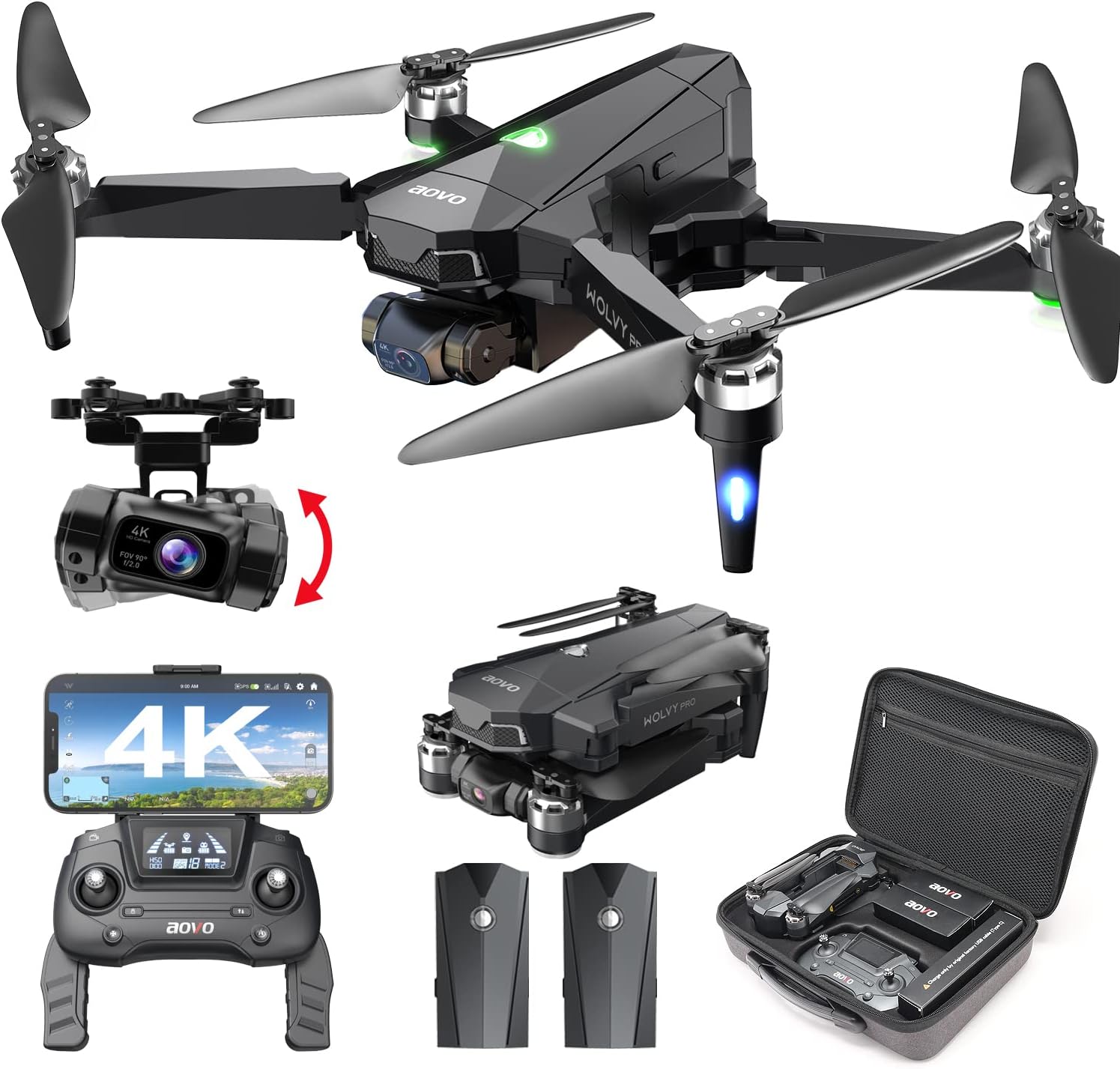
Figure 1: Complete aovo Drone W11 package contents including the foldable drone, remote controller, two batteries, and carrying case.
4.1. Foldable Design
The drone features an exquisite folding structure, making it highly portable and convenient for travel. Simply unfold the arms and propellers before flight.
4.2. 4K Camera with 2-Axis Gimbal
Equipped with a 4K UHD camera and a 2-axis gimbal with EIS anti-shake, the drone captures stable and high-definition photos and videos. The gimbal automatically adjusts to the aircraft's tilt angle for stable footage.

Figure 2: Detail of the 4K UHD camera and its 2-axis gimbal, capable of 45° horizontal and 110° longitudinal movement for stable capture.
4.3. Brushless Motors
Powerful brushless motors ensure stable flight and enhanced durability, providing a reliable and smooth flying experience.
4.4. Battery Life & Flight Distance
The drone comes with two 2500 mAh lithium batteries, offering up to 56 minutes of total flight time (28 minutes per battery). It supports a maximum flight distance of 3281 feet (1000 meters).

Figure 3: The drone's battery system, highlighting the extended flight time with two included batteries.
5. Setup
5.1. Unfolding the Drone
Carefully unfold the drone's arms and propellers. Ensure all parts click into place securely before powering on.
5.2. Battery Installation
Insert the fully charged battery into the drone's battery compartment until it clicks securely. Ensure the battery is properly seated to avoid dislodgement during flight.
5.3. Controller Setup
The remote controller features foldable antennas and a phone holder. Pull out the phone holder until it clicks, then securely place your smartphone in it. This allows for FPV viewing and app control.
5.4. App Installation & Connection
Download the official aovo drone app from your smartphone's app store. Connect your smartphone to the drone's Wi-Fi signal (5GHz FPV for real-time transmission). The app will guide you through the connection process.
Video 1: aovo W11 Drone App Operation Guide. This video demonstrates how to install the app, connect to the drone's Wi-Fi, and navigate the app interface for various flight functions.
6. Operating Instructions
6.1. Calibration
Before each flight, perform compass and gyroscope calibration to ensure stable and accurate flight. The app will guide you through the steps. Ensure the drone is placed on a level surface during calibration.
Video 2: aovo W11 Drone Operation Guide. This comprehensive guide includes detailed steps for drone calibration, essential for stable flight.
6.2. Take-off and Landing
After successful calibration and GPS signal acquisition, press the one-key take-off button on the controller. The drone will automatically ascend to a safe height. For landing, press the one-key landing button, and the drone will descend and land automatically.
6.3. Basic Flight Controls
Familiarize yourself with the remote controller's joysticks for basic flight maneuvers:
- Left Joystick (Throttle): Push up to ascend, pull down to descend.
- Left Joystick (Yaw): Push left to turn left, push right to turn right.
- Right Joystick (Pitch): Push up to fly forward, pull down to fly backward.
- Right Joystick (Roll): Push left to fly left (sideways), push right to fly right (sideways).
6.4. Advanced Flight Modes
The aovo Drone W11 offers several intelligent flight modes for enhanced control and creative shots:
- GPS Auto Return Home: The drone automatically returns to its take-off point if the signal is lost or battery is low.
- Follow Me Mode: The drone uses GPS to automatically follow your movement, capturing dynamic footage.
- Waypoint Mode: Plan a custom flight path by drawing points on the app's map. The drone will follow this pre-set route.
- Point of Interest (Surrounding Flight): Set a central point, and the drone will continuously fly in a circle around it, capturing panoramic views.

Figure 4: Visual representation of GPS-assisted features, including Auto Return Home and Waypoint Mode, making flight easier and more precise.

Figure 5: The drone's Follow Me Mode in action, capturing a user enjoying outdoor activities.
6.5. Camera Operation
Use the dedicated buttons on the remote controller or the app interface to control the camera:
- Take Photos: Press the camera button to capture still images.
- Record Video: Press the video button to start/stop recording.
- Adjust Camera Angle: Use the camera angle adjustment wheel on the controller to tilt the camera up or down during flight.
7. Maintenance
- Cleaning: Use a soft, dry cloth to clean the drone body and camera lens. Avoid harsh chemicals.
- Propeller Replacement: If propellers are damaged, replace them with spare blades. Ensure correct A/B blade placement as indicated on the drone arms and blades. Use the provided hexagonal screwdriver to remove and install.
- Battery Care: Store batteries in a cool, dry place. Charge them fully before storage if not used for extended periods.
8. Troubleshooting
If you encounter issues, refer to the following common problems and solutions:
| Problem | Solution |
|---|---|
| Drone makes a circle after taking off / Floats | Geomagnetism is not calibrated well. Perform gyroscope and compass calibration in an open environment. |
| Flying distance is too short | Flight environment has too much interference. Move to an open environment without interference. |
| Aircraft cannot return (GPS, RTH, Follow Me, Points of Interest malfunctioning) | Confirm venue is not a no-fly zone. Ensure strong GPS signal. Turn off/restart drone and app, clear cache, then reconnect. |
| Battery could not charge | Ensure battery is powered off before charging. Check charging cable and adapter. Replace adapter if indicator light does not flash. |
Video 3: aovo W11 Guide to Common Problems. This video provides visual solutions for frequently encountered issues.
9. Specifications
| Feature | Detail |
|---|---|
| Brand | aovo |
| Model Name | aovo Drone |
| Special Features | GPS auto return home, Follow me mode |
| Age Range (Description) | Adult |
| Color | Black |
| Video Capture Resolution | 4K UHD 2160p |
| Connectivity Technology | Wi-Fi (5G FPV) |
| Included Components | Battery, Brushless Motor |
| Skill Level | Beginner |
| Video Capture Format | 4k |
| Control Type | Remote Control |
| Material | Plastic |
| Item Weight | 4.22 pounds |
| Product Dimensions | 11.2"L x 8.9"W x 3.15"H |
10. Warranty & Support
For warranty information and technical support, please refer to the contact details provided in your product packaging or visit the official aovo website. You can also use the in-app chat feature for direct assistance.
Video 4: W11 Drone Introduction. This video provides an overview of the drone's features and highlights the support options available.
Related documentsaovo Drone


Ask a question about this manual
Ask about setup, troubleshooting, compatibility, parts, safety, or missing instructions. Manuals+ will review the question and use this page’s manual context to help answer it.