
1. Overview
The Nokia XR20 is a rugged 5G smartphone designed for durability and performance. This manual provides essential information for its setup, operation, and maintenance.

Image 1.1: Front and back view of the Nokia XR20 5G smartphone.
Key Features:
- Rugged Design: MIL-STD-810H compliant, IP68 dust and water resistance, Corning Gorilla Glass Victus.
- Display: 6.67-inch FHD+ (1080x2400) display.
- Camera: 48MP main camera with 13MP ultrawide lens, 8MP front camera.
- Performance: Qualcomm Snapdragon 480 5G processor, 6GB RAM, 128GB internal storage (expandable up to 512GB with MicroSD).
- Connectivity: 5G, Wi-Fi 6, Bluetooth 5.1, NFC, GPS.
- Battery: 4630 mAh battery with 18W wired and 15W wireless charging support.
- Operating System: Android 11 (upgradable to Android 14), with guaranteed OS upgrades and security updates.
2. Getting Started
2.1. Unboxing and Package Contents
Before you begin, ensure all items are present in the package:

Image 2.1: Contents of the Nokia XR20 package, including the phone, power adapter, USB-C cable, SIM tray ejector, and screen protector.
- Nokia XR20 Smartphone
- Power Adapter
- USB Type-C Cable
- SIM Tray Ejector
- Screen Protector (pre-applied or included)
2.2. Inserting SIM and MicroSD Cards
- Locate the SIM/MicroSD card tray on the side of the phone.
- Insert the SIM tray ejector tool into the small hole next to the tray and press firmly until the tray pops out.
- Place your Nano-SIM card(s) and/or MicroSD card into the designated slots on the tray. Ensure the gold contacts face downwards. The Nokia XR20 supports Dual SIM functionality.
- Carefully push the tray back into the phone until it clicks into place.
2.3. Initial Charging and Power On
- Connect the USB Type-C cable to the phone's charging port and the power adapter. Plug the adapter into a wall outlet.
- Allow the phone to charge for at least 30 minutes before first use, or until the battery indicator shows sufficient charge.
- To power on, press and hold the Power button (located on the side) until the Nokia logo appears.
2.4. Carrier Compatibility
The Nokia XR20 is an unlocked device compatible with all GSM carriers, including AT&T, Boost, Cricket, H2O Wireless, Metro, Net10, Simple Mobile, T-Mobile, and Tracfone. It is not compatible with Verizon. Please confirm 5G network availability with your preferred carrier.

Image 2.2: The Nokia XR20 is compatible with various GSM carriers.
3. Using Your Phone
3.1. Basic Navigation
The Nokia XR20 runs on Android 11 (upgradable). Navigate using on-screen gestures or the navigation bar at the bottom of the display.
- Home Screen: Swipe left or right to access different home screens.
- App Drawer: Swipe up from the bottom of the screen to view all installed applications.
- Notifications & Quick Settings: Swipe down from the top of the screen to access notifications and quick settings toggles.
3.2. Camera Functions
The Nokia XR20 features a dual rear camera system (48MP main, 13MP ultrawide) and an 8MP front camera.

Image 3.1: The Nokia XR20 features a 48MP dual camera system with ZEISS optics.
- Open the Camera application from your home screen or app drawer.
- Tap the shutter button to take a photo.
- Swipe left or right on the viewfinder to switch between photo, video, and other modes (e.g., Portrait, Night, Panorama).
- Tap the camera switch icon to toggle between the rear and front cameras.
- Utilize the 13MP ultrawide lens for broader landscape shots or group photos.
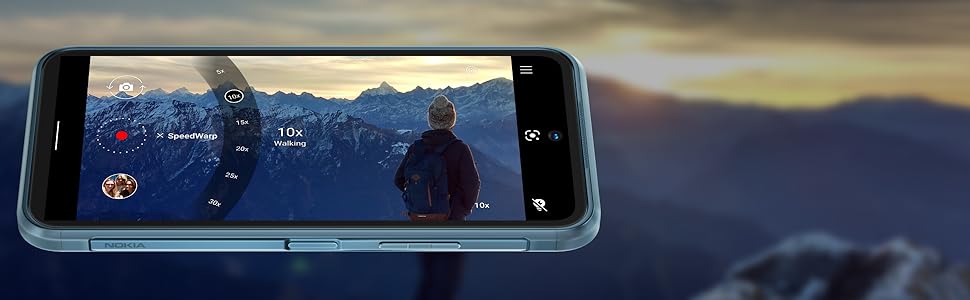
Image 3.2: The camera interface offers various modes and settings for capturing photos and videos.
3.3. 5G Connectivity
The Nokia XR20 supports 5G networks, offering faster download and upload speeds where available. Ensure your SIM card and mobile plan support 5G.

Image 3.3: Experience superfast 5G connectivity for quick data transfers.
3.4. Google Assistant
Access Google Assistant by saying "Hey Google" or by long-pressing the dedicated Google Assistant button on the side of the device. Use it for voice commands, information retrieval, and smart home control.

Image 3.4: Google Assistant provides hands-free help and information.
3.5. Fingerprint Sensor
The fingerprint sensor is integrated into the side power button for convenient and secure unlocking. To set it up, go to Settings > Security > Fingerprint Unlock and follow the on-screen instructions.
4. Care and Maintenance
4.1. Durability Features
The Nokia XR20 is built to withstand challenging environments:
- IP68 Rating: Provides protection against dust ingress and immersion in water up to 1.5 meters for 60 minutes.
- MIL-STD-810H Compliant: Tested against military standards for drops, temperature extremes, and other environmental factors.
- Corning Gorilla Glass Victus: The display is protected by the toughest Gorilla Glass available, offering enhanced scratch and drop resistance.

Image 4.1: The Nokia XR20 is designed to be water-resistant.
4.2. Cleaning Your Device
To clean your Nokia XR20, use a soft, lint-free cloth. For stubborn dirt or smudges, slightly dampen the cloth with water. Avoid using harsh chemicals, abrasive cleaners, or compressed air, as these can damage the device's protective coatings or seals.
4.3. Software Updates
Nokia provides 2 years of OS upgrades and up to 4 years of monthly security updates for the XR20 to ensure your device remains secure and up-to-date with the latest features.

Image 4.2: Regular software updates ensure your phone remains secure and performs optimally.
4.4. Battery Care
The Nokia XR20 is equipped with a 4630 mAh non-removable battery. To maximize battery life:
- Avoid extreme temperatures.
- Use the provided charger or a compatible 18W wired or 15W wireless charger.
- Optimize screen brightness and disable unnecessary features like GPS or Bluetooth when not in use.
5. Troubleshooting
This section addresses common issues you might encounter with your Nokia XR20.
5.1. Device Not Powering On
- Ensure the battery is charged. Connect the phone to its charger and wait a few minutes before attempting to power it on again.
- Press and hold the Power button for at least 10-15 seconds to perform a forced restart.
5.2. Network Connectivity Issues
- Check if your SIM card is correctly inserted (refer to Section 2.2).
- Verify that your mobile data is enabled in Quick Settings or Settings > Network & internet > Mobile network.
- Ensure your device is compatible with your carrier (refer to Section 2.4).
- Restart your phone.
5.3. Charging Problems
- Ensure the charging cable and adapter are securely connected to both the phone and the power outlet.
- Try using a different compatible USB-C cable and power adapter.
- Inspect the charging port for any debris or damage.
5.4. Screen Unresponsive
- Perform a forced restart by pressing and holding the Power button for 10-15 seconds.
- If the issue persists, contact customer support.
6. Technical Specifications

Image 6.1: Physical dimensions and weight of the Nokia XR20.
| Feature | Specification |
|---|---|
| Model Number | TA-1371 |
| Dimensions | 171.6 x 81.5 x 10.6 mm (6.76 x 3.21 x 0.42 inches) |
| Weight | 248 g (8.75 ounces) |
| Operating System | Android 11 (upgradable to Android 14) |
| Processor | Qualcomm SM4350 Snapdragon 480 5G (8 nm) Octa-core |
| RAM | 6 GB |
| Internal Storage | 128 GB |
| Expandable Storage | MicroSDXC up to 512 GB (uses shared SIM slot) |
| Display | 6.67 inches IPS LCD, 1080 x 2400 pixels (FHD+), 20:9 ratio, Corning Gorilla Glass Victus |
| Rear Camera | 48 MP, f/1.8 (wide) + 13 MP, f/2.4 (ultrawide) with ZEISS optics |
| Front Camera | 8 MP, f/2.0 (wide) |
| Battery | Li-Po 4630 mAh, non-removable |
| Charging | 18W wired, 15W wireless |
| Connectivity | Wi-Fi 802.11 a/b/g/n/ac/6, Bluetooth 5.1, NFC, GPS (L1+L5), USB Type-C 3.0 |
| Sensors | Side-mounted Fingerprint, Accelerometer, Gyro, Proximity, Compass, Barometer |
| Durability | IP68 dust/water resistant, MIL-STD-810H compliant, Corning Gorilla Glass Victus |
7. Warranty and Support
7.1. Manufacturer's Warranty
The Nokia XR20 comes with a manufacturer's warranty. Please refer to the warranty card included in your product packaging or visit the official Nokia website for detailed terms and conditions, including coverage period and service procedures.
7.2. Customer Support
For further assistance, technical support, or service inquiries, please visit the official Nokia support website or contact their customer service helpline. Contact information can typically be found on the Nokia website or in your product documentation.


