
1. Introduction
Thank you for choosing the Redragon K568R Dark Avenger Mechanical Gaming Keyboard. This high-performance keyboard is designed for competitive PC gaming, featuring responsive blue switches, dynamic rainbow LED backlighting, and full anti-ghosting technology. This manual provides essential information for setting up, operating, maintaining, and troubleshooting your new keyboard to ensure optimal performance and longevity.
2. Product Overview
The Redragon K568R Dark Avenger is a compact 90-key mechanical keyboard built for durability and precision. It features clicky blue switches for tactile feedback and quick actuation, an integrated wrist rest for comfort during extended use, and vibrant rainbow LED backlighting with various customizable effects.
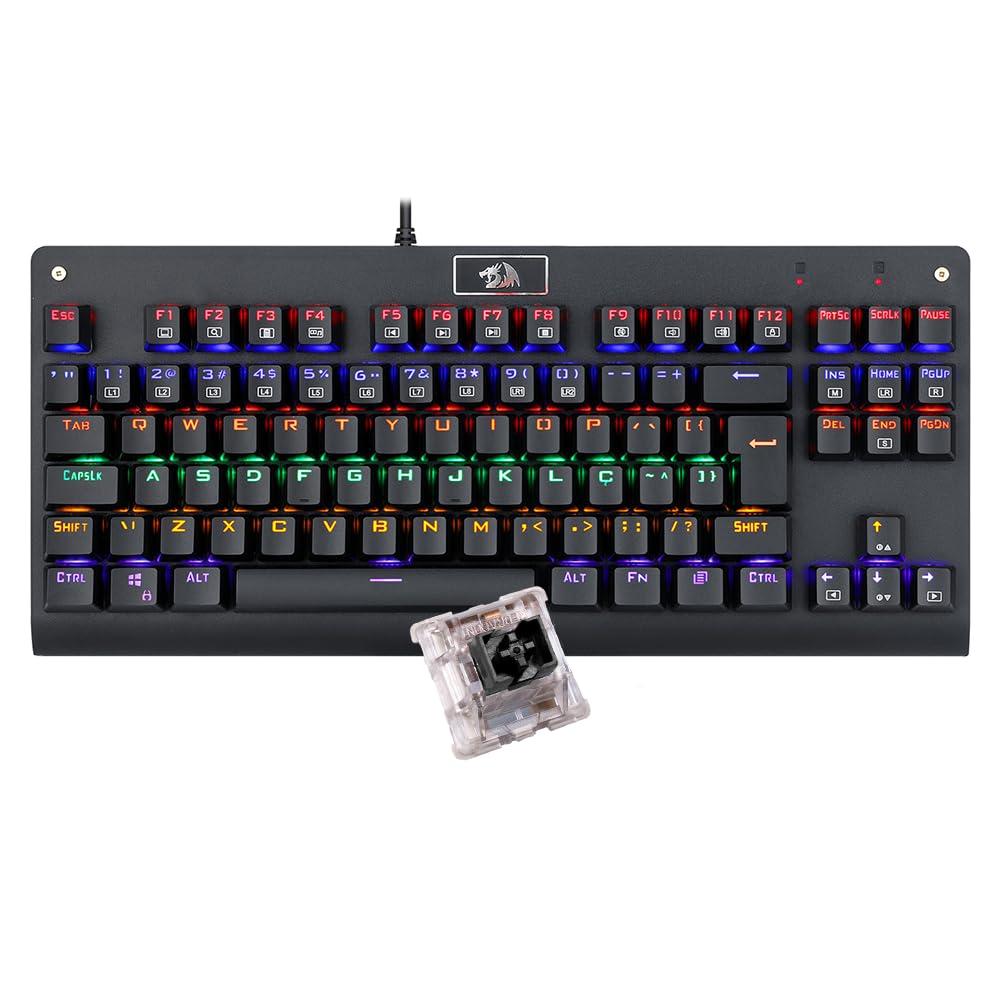
Figure 2.1: Top-down view of the Redragon K568R Dark Avenger keyboard, showcasing its compact layout and rainbow LED backlighting.
Key Features:
- Mechanical Blue Switches: Provide a distinct clicky sound and tactile bump for precise key presses.
- Rainbow LED Backlighting: Offers multiple lighting modes and brightness levels for a personalized gaming experience.
- 90-Key QWERTY Layout: Compact design without sacrificing essential keys.
- Full Anti-Ghosting: Ensures every key press is registered accurately, even during intense gaming sessions.
- Integrated Wrist Rest: Enhances comfort and reduces strain during prolonged use.
- Durable Construction: Built with high-quality plastic for long-lasting performance.
3. Setup Instructions
Setting up your Redragon K568R keyboard is a straightforward process. No special drivers are typically required for basic functionality.
3.1 Connecting the Keyboard
- Unpack the keyboard from its packaging.
- Locate an available USB port on your computer.
- Plug the USB connector of the keyboard into the USB port.
- Your operating system should automatically detect and install the necessary drivers. This may take a few moments.
- Once installation is complete, the keyboard's backlighting will illuminate, indicating it is ready for use.

Figure 3.1: Side view of the keyboard, illustrating the integrated USB cable for connection to a computer.
4. Operating Instructions
The Redragon K568R keyboard offers standard typing functionality along with several special features accessible via function key combinations.
4.1 Basic Key Functions
- All standard QWERTY keys function as expected for typing and general computer use.
- The numeric keypad provides quick access to numbers and arithmetic operations.
4.2 Multimedia and Special Functions (Fn Key Combinations)
Press and hold the Fn key, then press the corresponding function key (F1-F12) to activate multimedia or special functions:
- Fn + F1: Media Player
- Fn + F2: Volume Down
- Fn + F3: Volume Up
- Fn + F4: Mute
- Fn + F5: Stop
- Fn + F6: Previous Track
- Fn + F7: Play/Pause
- Fn + F8: Next Track
- Fn + F9: Email
- Fn + F10: Web Browser
- Fn + F11: My Computer
- Fn + F12: Calculator
- Fn + Win: Lock/Unlock Windows Key (prevents accidental presses during gaming).

Figure 4.1: Close-up view of the keyboard keys, highlighting the 'Fn' key and the function row for multimedia controls.
5. Lighting Modes and Customization
The K568R Dark Avenger features a fixed rainbow LED backlight with various dynamic effects. Please note that individual key colors are fixed in a rainbow pattern and cannot be changed to a single solid color across the entire keyboard.
5.1 Changing Lighting Effects
Use the following key combinations to cycle through different lighting modes:
- Fn + INS: Cycle through various preset lighting effects.
- Fn + HOME: Activates a breathing mode.
- Fn + PGUP: Activates a ripple mode.
- Fn + DEL: Activates a reactive mode (keys light up on press).
- Fn + END: Activates a wave mode.
- Fn + PGDN: Activates a static mode (all keys lit).
5.2 Adjusting Brightness and Speed
- Fn + ↑ (Up Arrow): Increase backlight brightness.
- Fn + ↓ (Down Arrow): Decrease backlight brightness.
- Fn + ← (Left Arrow): Decrease lighting effect speed.
- Fn + → (Right Arrow): Increase lighting effect speed.

Figure 5.1: Front view of the keyboard, demonstrating the vibrant rainbow backlighting in action.
6. Maintenance
Proper maintenance ensures the longevity and optimal performance of your mechanical keyboard.
6.1 Cleaning the Keyboard
- Disconnect: Always unplug the keyboard from your computer before cleaning.
- Dust Removal: Use compressed air to blow away dust and debris from between the keycaps.
- Surface Cleaning: Wipe the keycaps and keyboard surface with a soft, slightly damp, lint-free cloth. Avoid excessive moisture.
- Stubborn Stains: For stubborn stains, use a small amount of isopropyl alcohol on a cloth. Do not apply directly to the keyboard.
- Avoid Liquids: Do not immerse the keyboard in water or any cleaning solutions, as it is not water-resistant.
6.2 General Care
- Avoid spilling liquids on the keyboard.
- Do not expose the keyboard to extreme temperatures or direct sunlight.
- Handle the USB cable carefully to prevent damage.
7. Troubleshooting
If you encounter issues with your Redragon K568R keyboard, refer to the following common problems and solutions.
7.1 Keyboard Not Responding
- Check USB Connection: Ensure the USB cable is securely plugged into both the keyboard and the computer. Try a different USB port.
- Restart Computer: Sometimes a simple computer restart can resolve connectivity issues.
- Test on Another Computer: If possible, test the keyboard on another computer to determine if the issue is with the keyboard or your system.
7.2 Backlighting Not Working or Incorrect
- Check Brightness: Ensure the brightness is not set to the lowest level (Fn + ↑ to increase).
- Cycle Modes: Try cycling through different lighting modes (Fn + INS) to see if the lights react.
- Reset Keyboard: Unplug the keyboard, wait a few seconds, then plug it back in.
7.3 Keys Not Registering
- Clean Keys: Dust or debris under the keycap can prevent proper actuation. Refer to the cleaning instructions in Section 6.1.
- Test Specific Keys: Use an online keyboard tester to identify if specific keys are consistently failing.
- Software Interference: Ensure no conflicting software or drivers are installed that might interfere with keyboard input.
8. Specifications
Detailed technical specifications for the Redragon K568R Dark Avenger Mechanical Gaming Keyboard.
| Feature | Specification |
|---|---|
| Brand | Redragon |
| Model Number | K568R |
| Model Name | Dark Avenger Rainbow |
| Compatible Devices | Computer |
| Connectivity Technology | USB |
| Keyboard Description | Gaming |
| Recommended Uses | Gaming |
| Special Features | Backlit |
| Color | Black (as per product images) |
| Backlight Color Support | Rainbow LED (fixed color pattern, dynamic effects) |
| Style | Modern |
| Product Dimensions (WxDxH) | Approx. 40 cm x 20 cm x 8 cm |
| Number of Keys | 90 |
| Power Source | USB Powered |
| Switch Type | Clicky (Blue Mechanical Switches) |
| Keyboard Layout | QWERTY |
| Hand Orientation | Ambidextrous |
| Water Resistance Level | Not Water Resistant |
| Theme | Rainbow |
| Material | Plastic |
| Included Components | Integrated Wrist Rest |
| Country of Origin | China |
| Item Weight | 1 kg |
9. Warranty and Support
Redragon products are manufactured to high-quality standards. For specific warranty information, please refer to the warranty card included with your product or visit the official Redragon website. If you require technical assistance or have questions not covered in this manual, please contact Redragon customer support through their official channels.
For the most up-to-date support information, including drivers and FAQs, please visit: www.redragonzone.com


