
PlayStation CFI-1102A
PlayStation 5 Console User Manual
Model: CFI-1102A
Introduction
The PlayStation 5 console unleashes new gaming possibilities that you never anticipated. Experience lightning fast loading with an ultra-high speed SSD, deeper immersion with support for haptic feedback, adaptive triggers, and 3D Audio, and an all-new generation of incredible PlayStation games.
Safety Information
Always read and follow all warnings and instructions provided with the PlayStation 5 console and any accessories. Keep the console and accessories out of reach of small children. Do not expose the console to extreme temperatures, high humidity, or direct sunlight. Ensure proper ventilation to prevent overheating.
What's in the Box
The PlayStation 5 console package typically includes the following items:
- PlayStation 5 Console (Model CFI-1102A)
- DualSense Wireless Controller
- HDMI Cable
- AC Power Cord
- USB Cable
- Base (for vertical or horizontal orientation)
- Printed Materials (Quick Start Guide, Safety Guide)

Image: The PlayStation 5 console, its DualSense wireless controller, and the product's retail packaging. The console is shown both inside and outside its box, highlighting its sleek white and black design.
Setup
1. Physical Setup
- Positioning the Console: Place the console on a flat, stable surface. Ensure adequate space around the console for ventilation. Use the included base to position the console vertically or horizontally.
- Connecting the HDMI Cable: Connect one end of the HDMI cable to the HDMI OUT port on the PS5 console and the other end to the HDMI input on your TV or display.
- Connecting the Power Cord: Plug the AC power cord into the AC IN connector on the PS5 console, then plug the other end into a wall outlet.
- Connecting the DualSense Controller: Connect the DualSense wireless controller to the console using the included USB cable to pair and charge it.
2. Initial Console Setup
- Power On: Press the power button on the console or the PS button on the paired controller to turn on the PS5.
- Follow On-Screen Instructions: The console will guide you through initial setup steps, including language selection, internet connection (Wi-Fi or Ethernet), display settings, and user account creation or login.
- System Software Update: It is recommended to update the system software to the latest version for optimal performance and access to all features.
Operating the Console
Powering On/Off
- To Power On: Press the power button on the console or the PS button on the DualSense controller.
- To Enter Rest Mode: Select [Power] from the control center, then select [Enter Rest Mode].
- To Power Off: Select [Power] from the control center, then select [Turn Off PS5].
Navigating the User Interface
The PS5 features a streamlined user interface. Use the DualSense controller's directional buttons or left stick to navigate menus. The X button confirms selections, and the O button (or Circle button) typically cancels or goes back.
Gaming Experience
The PlayStation 5 offers a revolutionary gaming experience with advanced features:

Image: An overview of the PlayStation 5's stunning gaming capabilities, including Ray Tracing for realistic lighting, HDR Technology for vibrant colors, support for 4K-TV gaming, up to 120 frames per second with 120Hz output, and backward compatibility with PS4 games.
- Stunning Graphics: Marvel at incredible graphics with support for Ray Tracing, HDR Technology, and 4K-TV Gaming.
- High Frame Rates: Enjoy smooth and fluid gameplay at up to 120fps with 120Hz output for compatible games.
- Backward Compatibility: Play over 4,000 PS4 games on your PS5 console, with Game Boost for improved frame rates.
Breathtaking Immersion with DualSense Controller
The DualSense wireless controller enhances immersion through innovative feedback technologies:
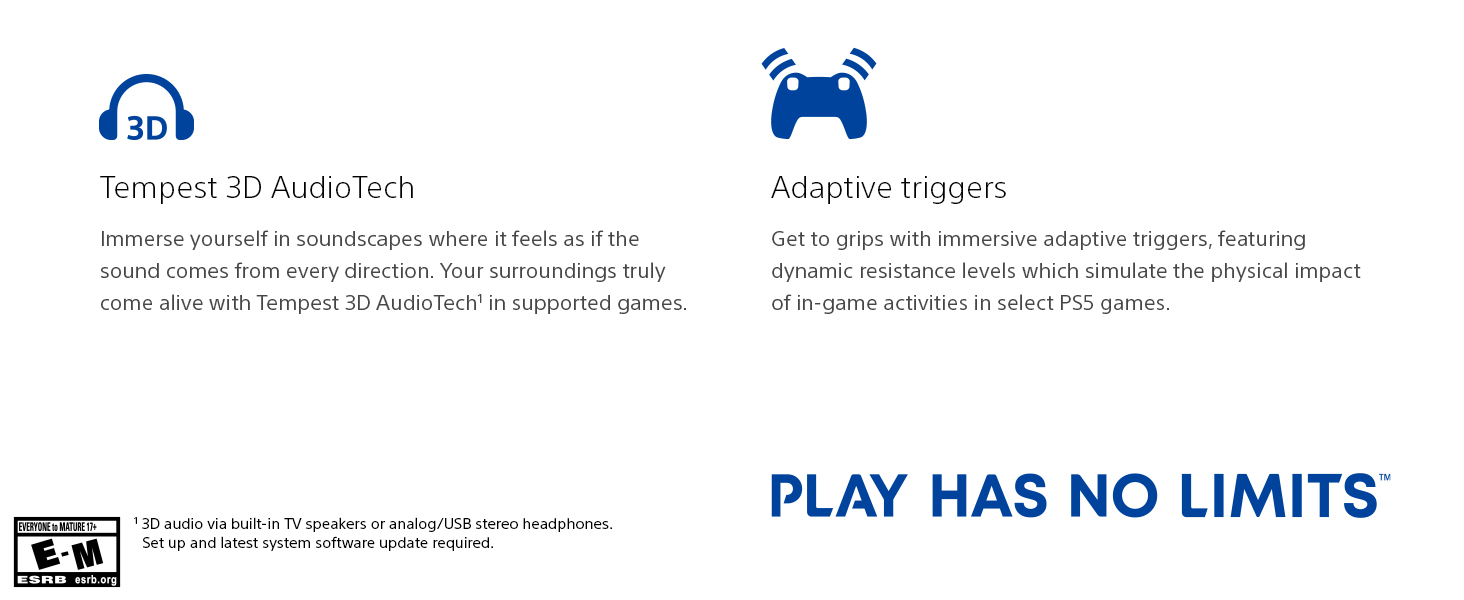
Image: The DualSense wireless controller, highlighting its key immersive features: Haptic Feedback for dynamic sensory responses, Tempest 3D AudioTech for directional sound, and Adaptive Triggers for realistic resistance.
- Haptic Feedback: Experience dynamic sensory feedback through the controller, simulating environmental effects and weapon recoil.
- Adaptive Triggers: Feel varying levels of force and tension as you interact with in-game gear and environments.
- 3D Audio: Immerse yourself in soundscapes where it feels as if the sound comes from every direction, supported by Tempest 3D AudioTech.
Official Product Video
Video: "Play Like Never Before | PS5 Console" - This official video from Sony Interactive Entertainment LLC showcases the immersive features and next-generation gaming experience offered by the PlayStation 5 console.
Maintenance
- Cleaning: Regularly wipe the console and controller with a soft, dry cloth. Do not use liquid cleaners or solvents.
- Ventilation: Ensure the console's vents are not blocked to prevent overheating. Keep the console in a well-ventilated area.
- Storage: When not in use for extended periods, store the console in a cool, dry place away from direct sunlight and dust.
Troubleshooting
| Problem | Possible Solution |
|---|---|
| Console does not power on. | Check power cord connection to both console and wall outlet. Ensure the outlet is functional. |
| No image on TV. | Verify HDMI cable connections. Ensure TV input is set to the correct HDMI port. Try a different HDMI cable or port. |
| Controller not responding. | Ensure controller is charged. Connect via USB cable to re-pair. Reset the controller using the small button on the back. |
| Game disc not reading. | Clean the disc with a soft cloth. Ensure the disc is inserted correctly. |
Specifications
| Feature | Detail |
|---|---|
| Model Number | CFI-1102A |
| Dimensions (approx.) | 18 x 18 x 12 inches |
| Weight (approx.) | 15.17 pounds |
| Release Date | October 22, 2021 |
| Manufacturer | Sony |
| Batteries | 1 Lithium Ion battery required (included) |
Warranty and Support
For detailed warranty information and customer support, please refer to the official documentation included with your PlayStation 5 console or visit the official PlayStation support website. Keep your proof of purchase for warranty claims.
Online Support: www.playstation.com/support
Related documentsCFI-1102A


Ask a question about this manual
Ask about setup, troubleshooting, compatibility, parts, safety, or missing instructions. Manuals+ will review the question and use this page’s manual context to help answer it.