
Mihodo 189-Black
Mihodo Computer Desk Model 189-Black User Manual
Model: 189-Black
1. Introduction
This manual provides detailed instructions for the assembly, operation, maintenance, and troubleshooting of your Mihodo Computer Desk with 2 Drawers and a Pull-Out Keyboard Tray. Please read this manual thoroughly before assembly and use to ensure proper function and safety.
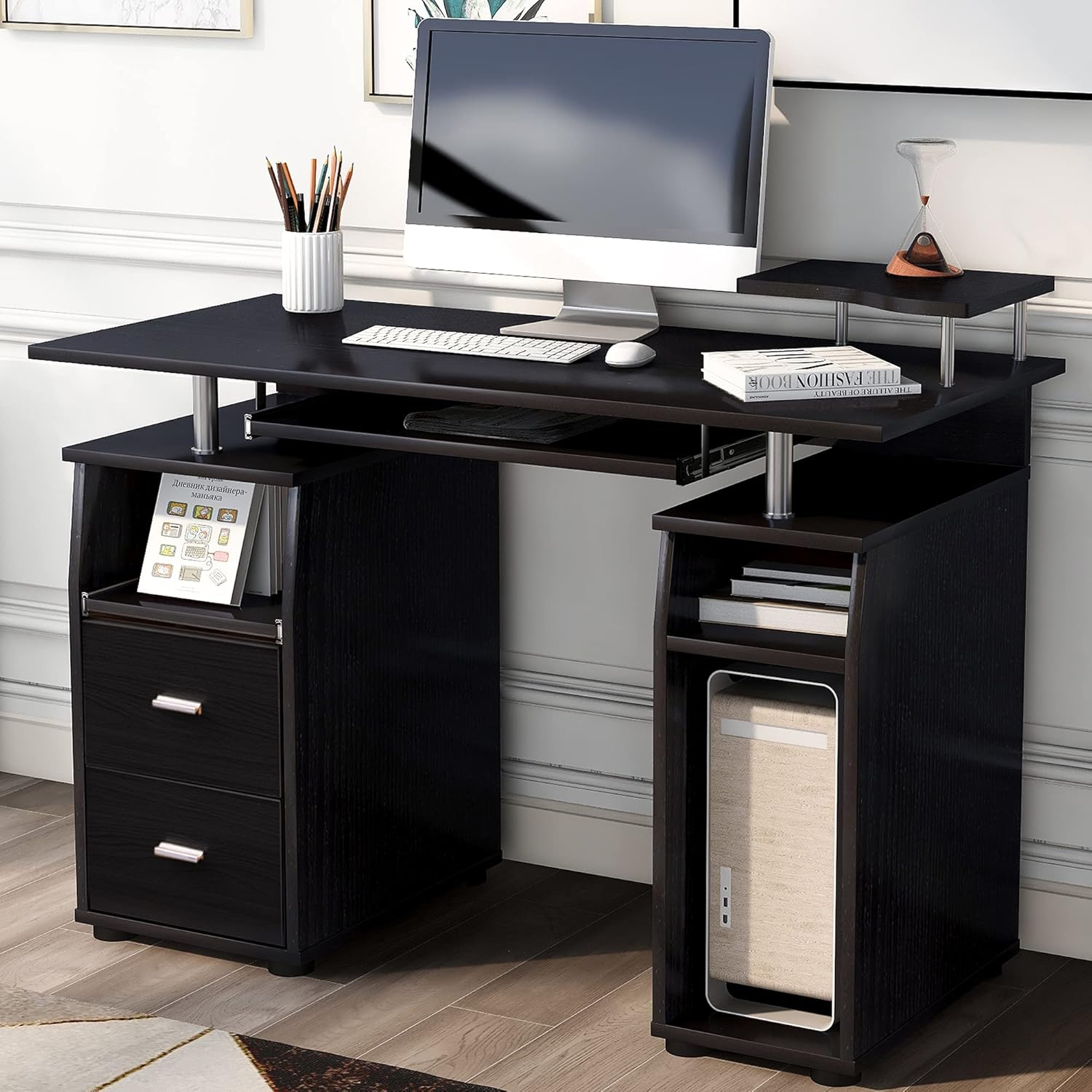
Image 1.1: Fully assembled Mihodo Computer Desk, showcasing its design and features.
2. Important Safety Information
WARNING: This desk requires assembly. Always follow the installation guide for safe and proper assembly. Do not attempt to assemble the desk without the provided hardware or instructions. This desk is designed to hold heavy items such as computers and monitors. Do not exceed the maximum weight recommendation of 50 pounds on the desktop surface to ensure stability and prevent accidents. Always keep the desk on a stable, level surface and secure it to the wall if possible to prevent tipping. Keep the desk clear of any flammable materials and do not place hot objects on the desktop surface to prevent damage or injury.
3. Package Contents
Before beginning assembly, ensure all parts listed below are present and undamaged. If any parts are missing or damaged, please contact customer support.
- Desktop Panel (1)
- Side Panels (2) - Left and Right
- Keyboard Tray (1)
- Drawer Fronts (2)
- Drawer Sides and Backs (sets for 2 drawers)
- Drawer Bottoms (2)
- Drawer Glides (4 sets)
- Top Shelf (1) with Support Rods (2)
- Hardware Pack (screws, dowels, cam locks, handles, foot pads, etc.)
- Assembly Instructions (this manual)
4. Assembly Instructions
Assembly requires a screwdriver (not included). Follow these steps carefully. It is recommended to assemble the desk on a soft, clean surface to prevent scratches.
4.1 Identify Components and Hardware
Refer to the dimensions diagram to identify the main panels and ensure you have all necessary hardware from the package contents list.
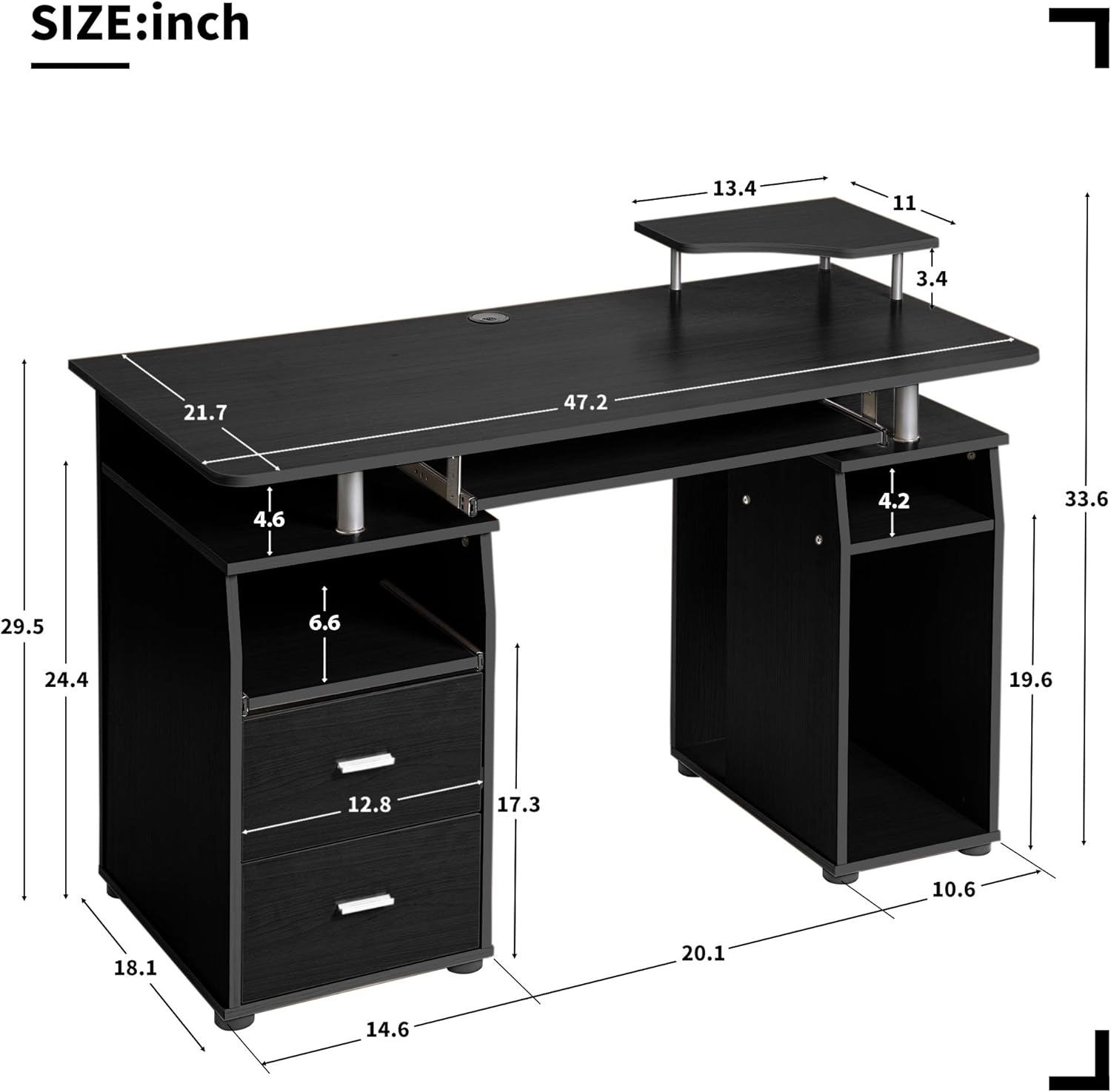
Image 4.1: Detailed dimensions of the Mihodo Computer Desk, illustrating various components and their sizes.
4.2 Assemble Drawer Units
- Attach the drawer glides to the side panels of the desk and to the drawer sides using the provided screws. Ensure they are oriented correctly for smooth operation.
- Assemble the drawer boxes by connecting the drawer sides, front, and back panels. Slide the drawer bottom into the grooves. Secure with screws.
- Attach the drawer handles to the drawer fronts.

Image 4.2: Front view of the desk with drawers open, showing the drawer construction and glides.
4.3 Attach Side Panels and Keyboard Tray Supports
- Connect the left and right side panels to the main desktop panel using dowels and cam locks. Ensure a secure fit.
- Install the metal supports for the pull-out keyboard tray to the underside of the desktop and the inner side panels.
4.4 Install Keyboard Tray and Top Shelf
- Slide the keyboard tray onto its installed supports. Test for smooth movement.
- Attach the metal support rods to the desktop for the top shelf. Place the top shelf onto these rods and secure.

Image 4.3: Close-up view of the pull-out keyboard tray and the elevated top shelf.
4.5 Final Assembly and Stability Check
- Insert the assembled drawers into their respective compartments.
- Attach the foot pads to the bottom of the desk's base panels to protect your floor and provide stability.
- Carefully stand the desk upright. Gently shake the desk to ensure all connections are secure and the desk is stable. Tighten any loose screws if necessary.
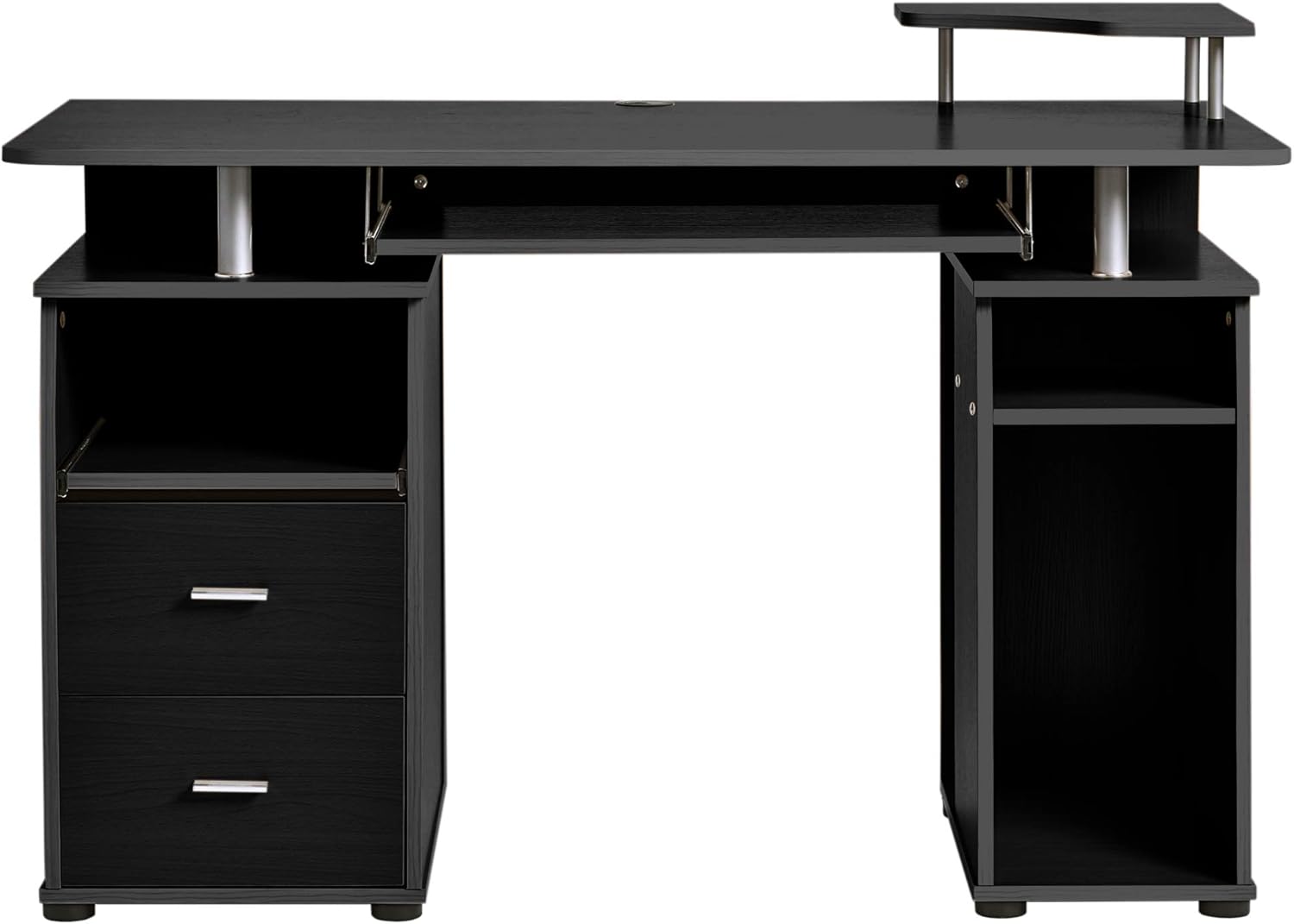
Image 4.4: Front view of the fully assembled Mihodo Computer Desk.
5. Operating Instructions
5.1 Using the Pull-Out Keyboard Tray
The keyboard tray is designed for convenient storage and access to your keyboard and mouse. To use, gently pull the tray forward until it extends fully. To store, push the tray back until it is flush with the desk front. Avoid forcing the tray, as this may damage the glides.
5.2 Using the Storage Drawers
The two drawers provide concealed storage for office supplies, documents, or personal items. Pull the handles to open the drawers. Push them back until they are fully closed. Do not overload the drawers to ensure smooth operation and prevent damage to the glides.
5.3 Utilizing the Top Shelf and Open Storage
The elevated top shelf is suitable for small monitors, speakers, or decorative items. The open compartments on the side are ideal for books, binders, or a CPU tower.
6. Maintenance and Care
To ensure the longevity and appearance of your Mihodo Computer Desk, follow these simple maintenance guidelines:
- Cleaning: The desk panel is waterproof and anti-scratch. Wipe the desk surfaces with a clean, damp cloth to remove dust and dirt. Avoid abrasive cleaners or harsh chemicals, which can damage the finish.
- Spills: Immediately wipe up any spills to prevent water damage or staining.
- Hardware: Periodically check all screws and fasteners to ensure they remain tight. Retighten as needed to maintain stability.
- Weight Distribution: Distribute weight evenly across the desktop and shelves. Do not exceed the maximum weight recommendation of 50 pounds on the desktop.
7. Troubleshooting
If you encounter any issues with your desk, refer to the following common problems and solutions:
- Desk is wobbly:
- Ensure all screws and cam locks are fully tightened.
- Verify the desk is on a flat, level surface. Adjust foot pads if necessary.
- Drawers do not slide smoothly:
- Check that the drawer glides are correctly installed and aligned.
- Ensure drawers are not overloaded.
- Clean the drawer glides to remove any dust or debris.
- Keyboard tray is stuck or difficult to pull out:
- Inspect the tray's glides for any obstructions or misalignment.
- Ensure the tray is not overloaded.
8. Product Specifications
| Feature | Detail |
|---|---|
| Brand | Mihodo |
| Model | 189-Black |
| Product Dimensions (D x W x H) | 22"D x 47"W x 30"H |
| Material | Engineered Wood (MDF), Alloy Steel |
| Color | Black |
| Number of Drawers | 2 |
| Keyboard Tray | Yes, Pull-Out |
| Assembly Required | Yes |
| Maximum Weight Recommendation | 50 Pounds (Desktop) |
| Included Components | Keyboard Tray |
| Product Care Instructions | Damp cloth |
9. Warranty and Support
9.1 Limited Warranty
This Mihodo Computer Desk comes with a limited warranty. Please refer to your purchase documentation or contact customer support for specific warranty terms and conditions.
9.2 Customer Support
For any questions, missing parts, or assistance with assembly or operation, please contact Mihodo customer support through the retailer's platform or the contact information provided with your purchase. When contacting support, please have your model number (189-Black) and purchase date available.
Ask a question about this manual
Ask about setup, troubleshooting, compatibility, parts, safety, or missing instructions. Manuals+ will review the question and use this page’s manual context to help answer it.