
LAUNCH LAUNCH Creader Elite 205
LAUNCH Creader Elite 205 OBD2 Scanner User Manual
Model: LAUNCH Creader Elite 205
Brand: LAUNCH
1. Product Overview
The LAUNCH Creader Elite 205 is an advanced OBD2 diagnostic scanner designed for comprehensive vehicle system analysis. It provides powerful diagnostic capabilities for Engine, ABS, SRS, and Transmission systems, along with essential reset functions. Its user-friendly interface, AutoVIN technology, and lifetime free updates make it an indispensable tool for both professional technicians and DIY enthusiasts.
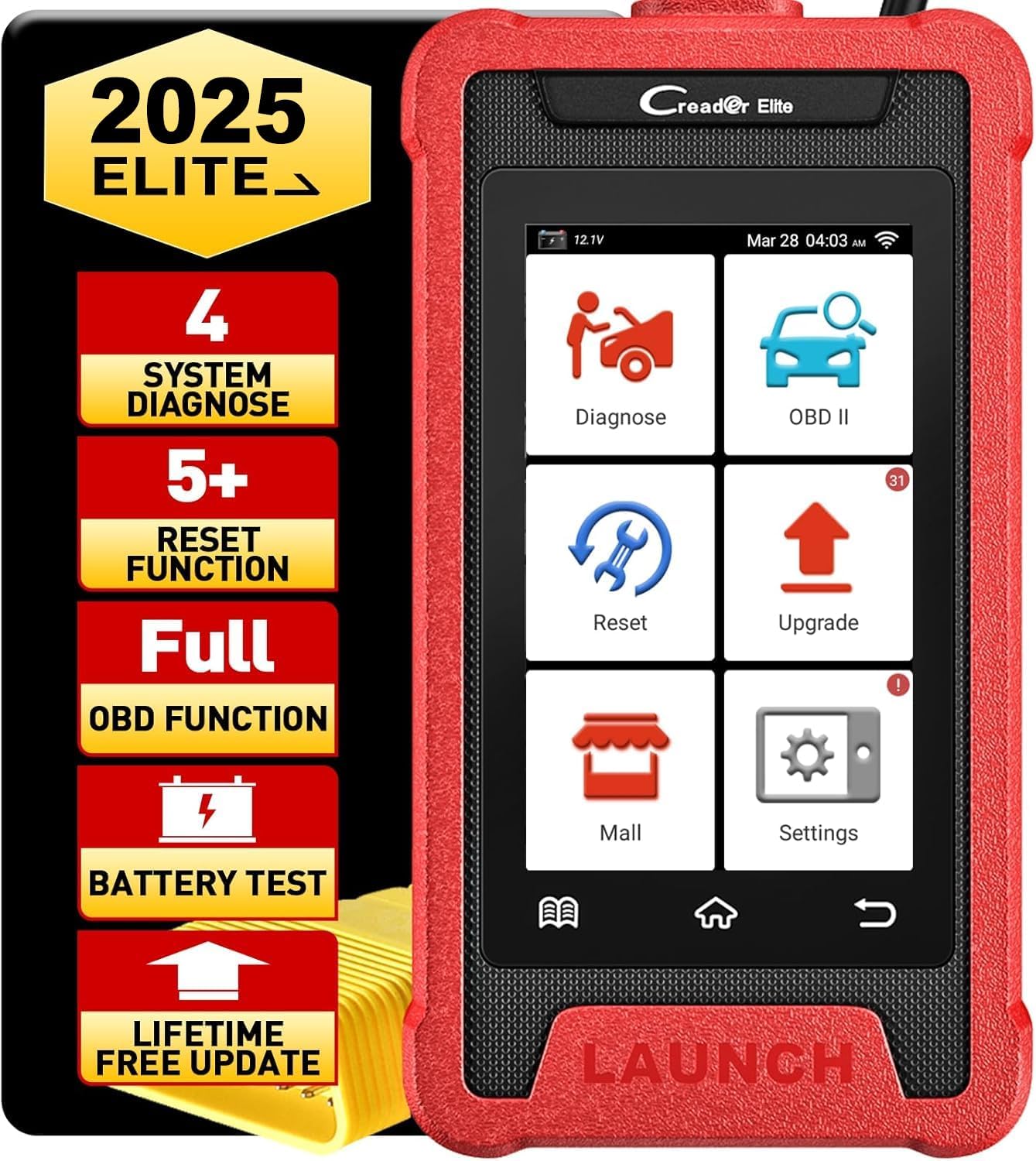
Figure 1: LAUNCH Creader Elite 205 OBD2 Scanner main unit.
2. Setup and Initial Use
Before first use, ensure the device is adequately charged. The device includes a built-in battery. Connect the scanner to your vehicle's OBDII port, typically located under the dashboard on the driver's side. The device will power on automatically upon successful connection.
2.1 Connecting to Vehicle
- Locate the vehicle's 16-pin Data Link Connector (DLC).
- Plug the scanner's OBDII cable into the vehicle's DLC.
- Turn the vehicle's ignition to the 'ON' position (engine off).
- The scanner will automatically power on and begin communication with the vehicle.

Figure 2: Connecting the LAUNCH Creader Elite 205 to the vehicle's OBDII port.
2.2 Initial Setup and Language Selection
The device features an Android touchscreen for intuitive navigation. Upon first boot-up or after a factory reset, you may be prompted to select your preferred language. The device supports 10 languages including English, Spanish, French, German, Italian, Russian, Portuguese, Japanese, and Korean.
Figure 3: Language selection interface on the LAUNCH Creader Elite 205.
3. Operating Instructions
The LAUNCH Creader Elite 205 offers a range of diagnostic and maintenance functions accessible via its touchscreen interface.
3.1 4-System Diagnostics
This function allows you to perform basic inspections and retrieve/clear fault codes from the Transmission Control Module (TCM), Anti-lock Braking System (ABS), Supplemental Restraint System (SRS), and Engine systems. It also supports storage and playback of dynamic data streams for quick analysis.
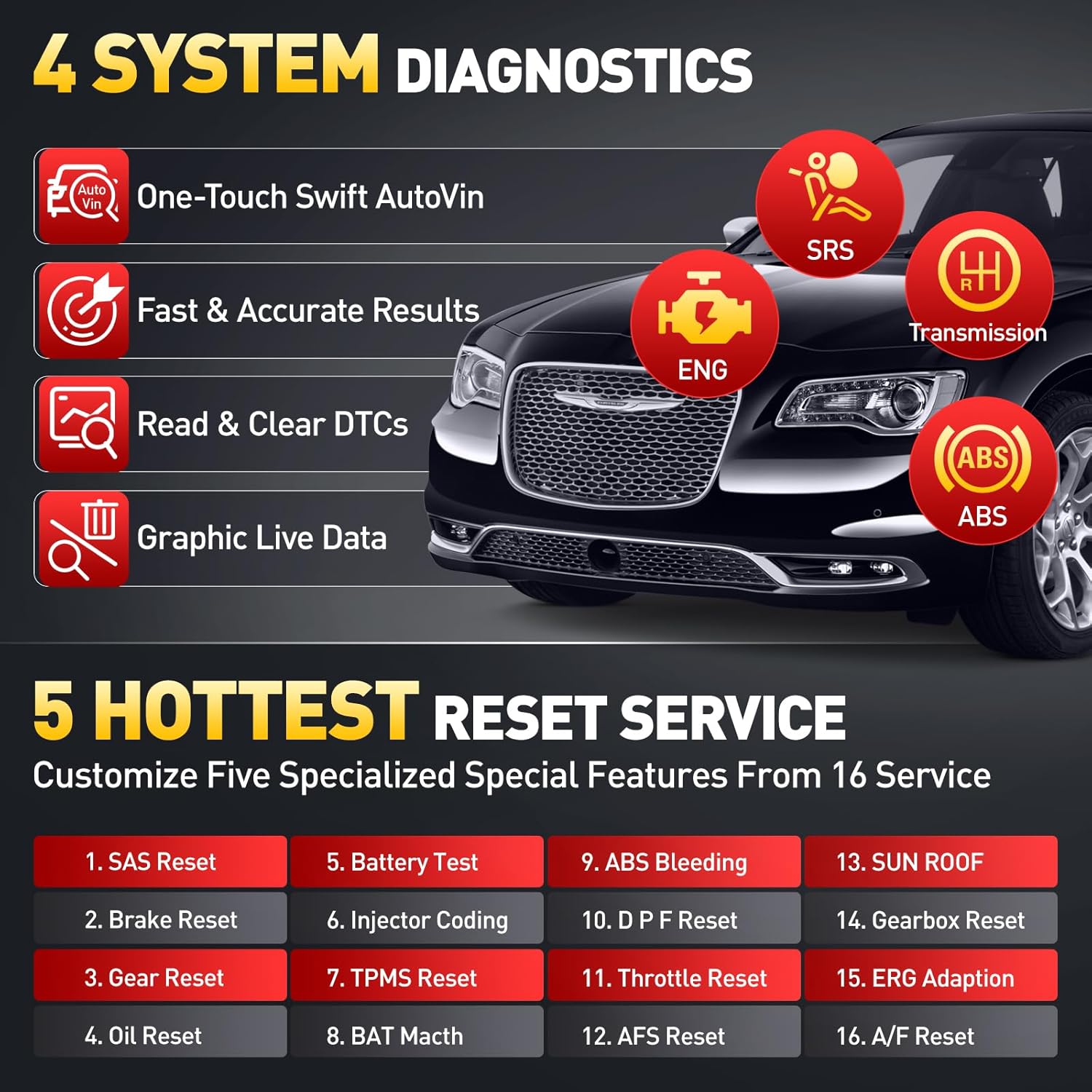
Figure 4: Overview of 4-System Diagnostics capabilities.
3.2 5 DIY Reset Functions
The device includes 5 customizable reset functions selected from a total of 16 available maintenance services. These include, but are not limited to, ABS bleeding, injector coding, steering angle calibration (SAS), Electronic Parking Brake (EPB) reset, oil maintenance reset, TPMS reset, throttle position reset, crankshaft sensor learning, battery matching, gearbox relearning, and sunroof/air suspension matching.
Figure 5: Available reset functions for vehicle maintenance.
3.3 Full OBD2 Modes
The scanner supports all 10 OBDII test modes for comprehensive vehicle diagnostics. This includes reading and clearing Diagnostic Trouble Codes (DTCs), EVAP tests, live data streaming, I/M readiness, and freeze frame data.
3.4 AutoVIN Technology
The AutoVIN feature allows the scanner to automatically identify the vehicle's make, model, and year, streamlining the diagnostic process and reducing manual input errors.

Figure 6: AutoVIN feature and extensive car brand coverage.
3.5 Graphic Live Data Stream
Monitor real-time data in graphical format, allowing for simultaneous comparison of up to four data streams. This feature aids in quickly analyzing and pinpointing the cause of vehicle faults.
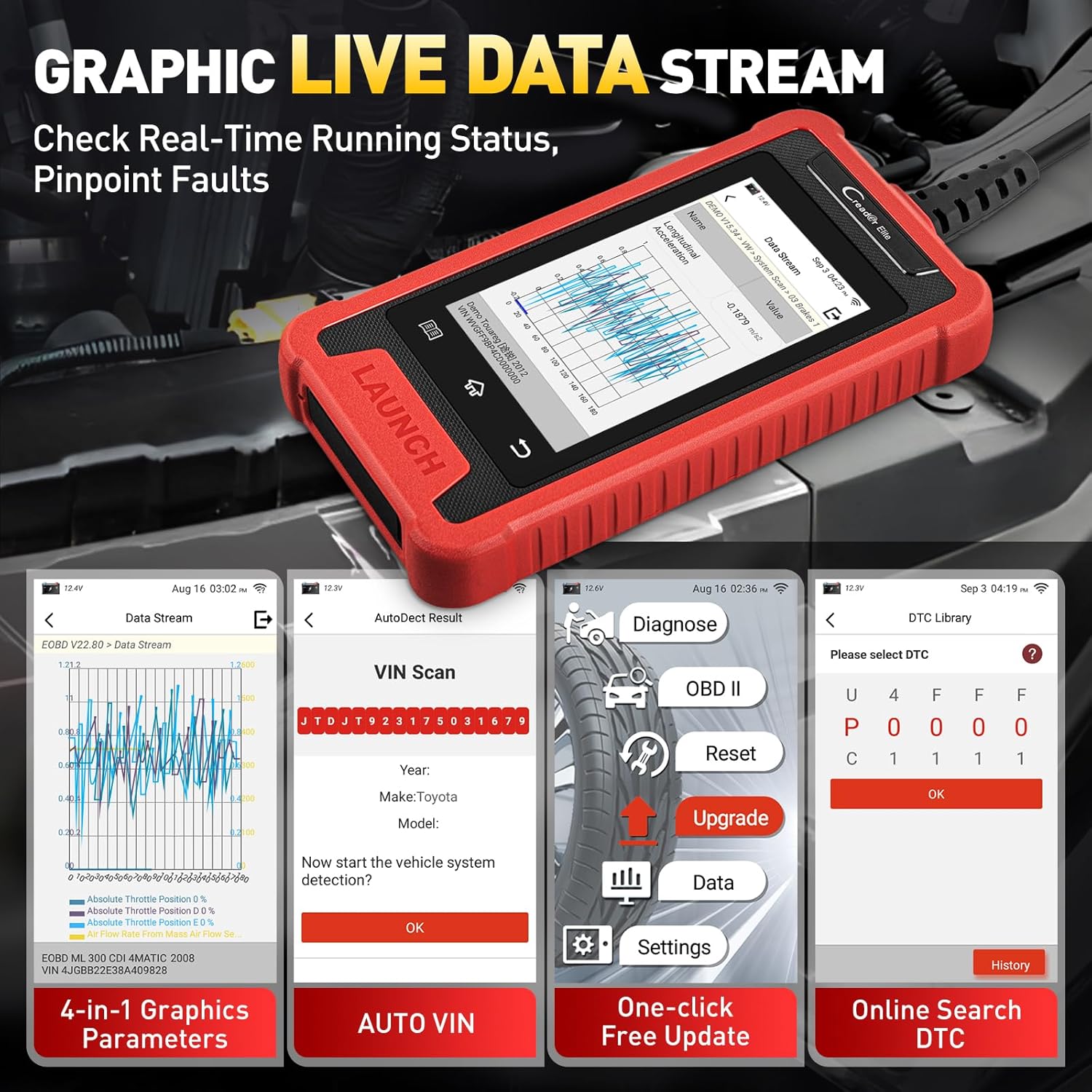
Figure 7: Real-time graphic data stream for detailed analysis.
3.6 Health Report Generation and Sharing
Generate comprehensive vehicle health reports that can be saved, shared, or printed for record-keeping or client communication.
Figure 8: Health report generation and sharing features.
4. Maintenance
To ensure the longevity and optimal performance of your LAUNCH Creader Elite 205, follow these maintenance guidelines:
- Cleaning: Use a soft, dry cloth to clean the device. Avoid abrasive cleaners or solvents.
- Storage: Store the device in a cool, dry place away from direct sunlight and extreme temperatures.
- Software Updates: Regularly update the device software to ensure compatibility with new vehicle models and access to the latest features. The device supports one-click lifetime free updates via Wi-Fi.
5. Troubleshooting
If you encounter issues with your LAUNCH Creader Elite 205, consider the following troubleshooting steps:
- No Power: Ensure the OBDII cable is securely connected to the vehicle's DLC and the vehicle's ignition is in the 'ON' position. Check the device's battery level.
- Communication Error: Verify that the vehicle's ignition is on. Check the OBDII cable connection. Ensure the vehicle is OBDII compliant.
- Device Freezes: Restart the device. If the issue persists, perform a factory reset (refer to the device's settings menu for this option).
- Software Update Issues: Ensure a stable Wi-Fi connection. Try the update again. If problems persist, contact technical support.
For more detailed troubleshooting, please refer to the official User Guide PDF.
6. Specifications
| Feature | Detail |
|---|---|
| Manufacturer | LAUNCH |
| Model | LAUNCH Creader Elite 205 |
| Item Weight | 1.4 pounds |
| Product Dimensions | 11.02 x 8.46 x 2.17 inches |
| Batteries | 1 A batteries required (included) |
| Operating System | Android 10.0 |
| Display Resolution | 480*800 |
7. Warranty and Support
The LAUNCH Creader Elite 205 comes with a 5-year backup plan, ensuring long-term reliability. Enjoy lifetime free software updates and dedicated online technical support to assist with any queries or issues you may encounter.
For comprehensive information and detailed instructions, please refer to the official User Guide (PDF).
Visit the LAUNCH Store for more products and information.
Related documentsLAUNCH Creader Elite 205


Ask a question about this manual
Ask about setup, troubleshooting, compatibility, parts, safety, or missing instructions. Manuals+ will review the question and use this page’s manual context to help answer it.