
Introduction
The SJCAM C100 is a compact and versatile action camera designed for capturing high-quality video and photos in various environments. Its small size, waterproof capabilities, and wireless connectivity make it suitable for sports, travel, and daily vlogging. This manual provides essential information for setting up, operating, and maintaining your C100 camera.

Image: The SJCAM C100 Action Camera, a compact device for capturing video and photos.
Setup
1. Inserting the Micro SD Card
The SJCAM C100 requires a Micro SD card (not included) for storing recordings. Ensure the camera is powered off before inserting or removing the card.
- Locate the Micro SD card slot on the side of the camera.
- Gently insert the Micro SD card into the slot until it clicks into place.
- To remove, press the card inward until it springs out.
Video: Demonstrates how to insert the Micro SD card into the SJCAM C100 camera.
2. Charging the Camera
The C100 camera has a built-in battery. Connect the camera to a power source using the provided USB cable. The camera can record while charging.
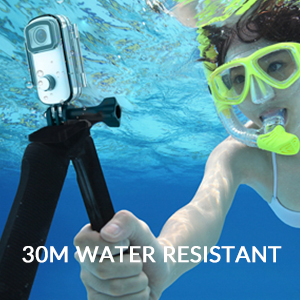
Image: The SJCAM C100 camera connected to a power bank, illustrating its ability to operate while charging. This extends recording time for longer sessions.
Operating the Camera
1. Power On/Off
- To power on: Press and hold the main button for 5 seconds. The camera will vibrate once, and a blue light will illuminate, indicating it is on.
- To power off: Press and hold the main button for 2 seconds. The blue light will turn off.
2. Start/Stop Recording
- To start recording: With the camera powered on, click the main button once. The blue light will flash, indicating recording has started.
- To stop recording: Click the main button again. The blue light will stop flashing, and the recording will be saved.
3. Connecting to the Mobile App (SJCAM Zone)
The SJCAM C100 can be controlled and managed via the "SJCAM Zone" app on your smartphone (Android or iOS).
- Download the "SJCAM Zone" app from the App Store (iOS) or Android download link.
- On the camera, double-click the main button to activate Wi-Fi. A green light will flash.
- On your mobile phone, go to Wi-Fi settings and connect to the network named "C100+_XXXXXX" (where XXXXXX is a unique identifier). The default password is 12345678.
- Once connected, open the "SJCAM Zone" app and click "Connect Camera" to establish a connection.

Image: Instructions for connecting the SJCAM C100 to the SJCAM Zone mobile application, including QR codes for app download.
4. Advanced Functions via App
Through the SJCAM Zone app, you can access and adjust various settings and modes:
- Loop Recording: Continuously records, overwriting older footage when the memory card is full.
- Slow-Motion Photography: Captures video at a higher frame rate for slow-motion playback.
- Driving Mode: Automatically starts recording when the vehicle starts and stops when it turns off.
- Image Flipping: Adjusts image orientation.
- Time-Lapse Mode: Captures a sequence of images at set intervals to create a time-lapse video.
- Exposure Adjustment: Controls the brightness of your recordings.
- White Balance Adjustment: Corrects color temperature for accurate color representation.

Image: An example of a time-lapse video captured with an action camera, demonstrating the creative possibilities of this mode.
Key Features
- Waterproof Design: The C100 comes with an IPX65 waterproof case, allowing for underwater use up to 30 meters.
- EIS Anti-Shaking: Advanced Electronic Image Stabilization (EIS) helps produce stable and clear videos, even during fast movements.
- 115° Wide Angle Lens: Captures a broad field of view, ideal for immersive action shots.
- Magnetic Body: The camera body features integrated magnets, allowing for easy attachment to metallic surfaces without additional accessories.
- Wearable Accessories: Includes a back clip for attaching the camera to clothing or gear, enhancing portability and hands-free recording.
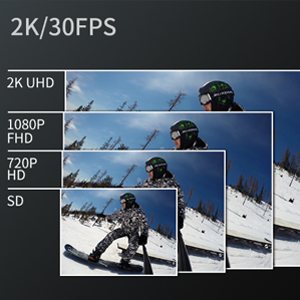
Image: The SJCAM C100 camera enclosed in its waterproof case, submerged in water, highlighting its water-resistant capability.
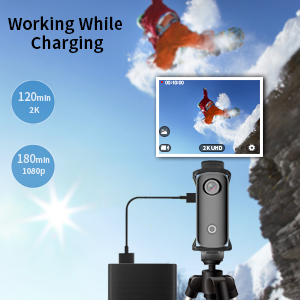
Image: A visual representation of the 115-degree wide-angle view captured by the SJCAM C100, showing a panoramic landscape.
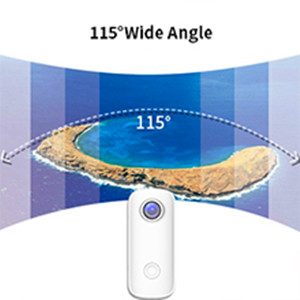
Image: The SJCAM C100 camera magnetically attached to a surface, demonstrating its versatile mounting options.

Image: A person wearing the SJCAM C100 camera attached to a backpack strap using the included wearable back clip.
Specifications
| Brand | SJCAM |
| Model Name | C100 |
| Model Number | C100+ |
| Effective Still Resolution | 15 MP |
| Video Capture Resolution | 1080P (1920*1080) 30FPS |
| Water Resistance Level | Waterproof (with case) |
| Image Stabilization | Digital (EIS) |
| Media Type | Micro SD |
| Connectivity | WiFi |
| Battery Average Life | 2 hours (1080P recording) |
| Item Weight | 1.4 Ounces |
Maintenance
- Cleaning: Use a soft, dry cloth to clean the camera body. For the lens, use a specialized lens cleaning cloth and solution.
- Storage: Store the camera in a cool, dry place away from direct sunlight and extreme temperatures.
- Battery Care: For optimal battery life, avoid fully discharging the battery frequently. Charge the camera regularly, even if not in use, to prevent deep discharge.
- Waterproof Case: After using the waterproof case in saltwater, rinse it with fresh water and allow it to air dry. Inspect the O-ring seal for any debris or damage before each use.
Troubleshooting
- Camera not turning on: Ensure the battery is charged. If the camera does not respond, connect it to a power source and try again. Verify a Micro SD card is inserted, as the camera may not operate without one.
- Recording stops randomly: This can often be caused by an incompatible or slow Micro SD card. Use a high-speed (U3 or higher) Micro SD card from a reputable brand. Format the card regularly.
- Wi-Fi connection issues: Ensure the camera's Wi-Fi is enabled (green light flashing). Check that you are connecting to the correct Wi-Fi network name and entering the correct password (12345678). Restart both the camera and your mobile device if issues persist.
- Poor image stabilization: While the camera features EIS, extreme vibrations or rapid movements may still result in some blur. Ensure the camera is securely mounted.
Warranty and Support
For warranty information and technical support, please refer to the official SJCAM website or contact your retailer. Keep your proof of purchase for warranty claims.


