
YunLone SKE-JBP-J01
YunLone Galaxy Projector SKE-JBP-J01 User Manual
Your guide to setting up and operating your YunLone Galaxy Projector.
1. Introduction
The YunLone Galaxy Projector SKE-JBP-J01 is a versatile device designed to create a captivating aurora and star projection experience. It integrates a Bluetooth 5.0 speaker, a white noise machine, and offers multiple control options including a smart app, infrared remote, voice control, and onboard buttons. This manual provides detailed instructions for safe and effective use of your projector.

Image 1.1: YunLone Galaxy Projector with app and remote control.
2. Safety Information
- This product is designed for indoor use only. Do not use outdoors or in wet environments.
- The device is not water resistant. Avoid contact with water or other liquids.
- Keep the projector away from heat sources, direct sunlight, and flammable materials.
- Do not stare directly into the projection light source to avoid eye strain.
- Ensure the power adapter is compatible with your local voltage and current specifications.
- Keep out of reach of small children to prevent accidental damage or injury.
- Do not attempt to disassemble or repair the device yourself. Contact customer support for assistance.
3. Package Contents
Please check the package for the following items:
- YunLone Galaxy Projector (SKE-JBP-J01)
- Infrared Remote Control
- USB Power Cable (Power adapter not always included, use a standard 5V/2A USB adapter)
- User Manual
4. Product Overview
Familiarize yourself with the main components of your YunLone Galaxy Projector and its remote control.

Image 4.1: Projector components and remote control layout.
4.1 Projector Components
- ON/OFF / WiFi / Volume / Charging Port: Multi-function button/port for power, WiFi pairing, volume adjustment, and power input.
- LED Light: The light source for aurora projection.
- Speaker: Integrated Bluetooth speaker for audio playback.
- Anti-slip Rubber Pad: Provides stability on surfaces.
- Projector ON/OFF Button: Controls the main projection.
- Stars ON/OFF Button: Controls the star projection.
4.2 Remote Control Functions
The remote control requires 1 Lithium Ion battery (not included). Insert the battery according to the polarity markings.
- Power Button: Turns the projector on/off.
- 8 Sound Track Button: Cycles through white noises and lullabies.
- Red/Green/Blue/White Light Buttons: Directly select aurora colors.
- Volume Up/Down: Adjusts speaker volume.
- Previous/Next Song: Skips tracks during Bluetooth playback.
- Play/Pause: Controls media playback.
- Aurora LED Light ON/OFF: Toggles the aurora projection.
- Voice Control Switch: Activates voice control mode.
- Flow Speed Up/Down: Adjusts the movement speed of the aurora.
- Brightness Adjustment: Changes the overall projection brightness.
- Stars ON/OFF: Toggles the star projection.
- Fade Mode 1/2: Selects different fade effects for colors.
- Bluetooth / White Noise Switch: Toggles between Bluetooth audio and white noise modes.
- Timer Settings (1H, 2H, 4H, Timer Off): Sets auto-off duration.
5. Setup
5.1 Placement
Place the projector on a stable, flat surface. For optimal projection, position it in the center of the room or facing a wall/ceiling where you desire the display.
5.2 Power Connection
- Connect the USB power cable to the charging port on the projector.
- Plug the other end of the USB cable into a 5V/2A USB power adapter (not included) and then into a wall outlet.
- The projector will power on automatically or can be turned on using the power button.
5.3 Remote Control Battery Installation
Open the battery compartment on the back of the remote control. Insert 1 Lithium Ion battery (not included), ensuring correct polarity. Close the compartment securely.
6. Operating Instructions
The YunLone Galaxy Projector offers four primary control methods:

Image 6.1: Four control methods for the projector.
6.1 Host Button Control
The buttons on the projector itself allow for basic control:
- Press the ON/OFF button to power the device on or off.
- Short press the Volume/Pause/Bluetooth button to cycle through functions or pause/play music.
- Long press the Volume/Pause/Bluetooth button to enter Bluetooth pairing mode.
6.2 IR Remote Control
Refer to Section 4.2 for a detailed overview of the remote control buttons. Point the remote directly at the projector for effective operation.
6.3 Smart APP Control
The projector can be controlled via a dedicated smartphone application, offering advanced customization.
- Download the App: Search for the 'Smart Life' or 'Tuya Smart' app in your smartphone's app store (iOS/Android).
- Register/Log In: Create an account or log in to the app.
- Add Device: Ensure your projector is powered on and in pairing mode (often indicated by a blinking light). In the app, tap '+' to add a device, then select 'Lighting' or 'Galaxy Projector'. Follow the on-screen instructions to connect the projector to your home Wi-Fi network (2.4GHz only).
- Control Functions: Once connected, you can control lighting effects, colors, brightness, speed, music playback, white noise, and timer settings directly from the app.

Image 6.2: Smart APP control interface.
6.4 Voice Control (Alexa Compatible)
The projector is compatible with Amazon Alexa for voice commands.
- Enable Skill: In the Alexa app, enable the 'Smart Life' or 'Tuya Smart' skill and link your account.
- Discover Devices: Ask Alexa to discover new devices.
- Voice Commands: Use commands such as:
- "Alexa, turn on [Projector Name]."
- "Alexa, change [Projector Name] to blue."
- "Alexa, set [Projector Name] brightness to 50%."
6.5 Lighting Effects
The projector offers 18 lighting effects, 6 brightness levels, and 4 light moving speeds, providing over 300 patterns.
- Color Selection: Use the remote or app to select individual colors (Red, Green, Blue, White) or combinations.
- Brightness Adjustment: Adjust the overall projection brightness (10%, 40%, 70%, 100%) and star brightness (0%-100%) via remote or app.
- Motion Speed: Control the aurora's movement speed (fast, middle, slow, still) using the remote or app.
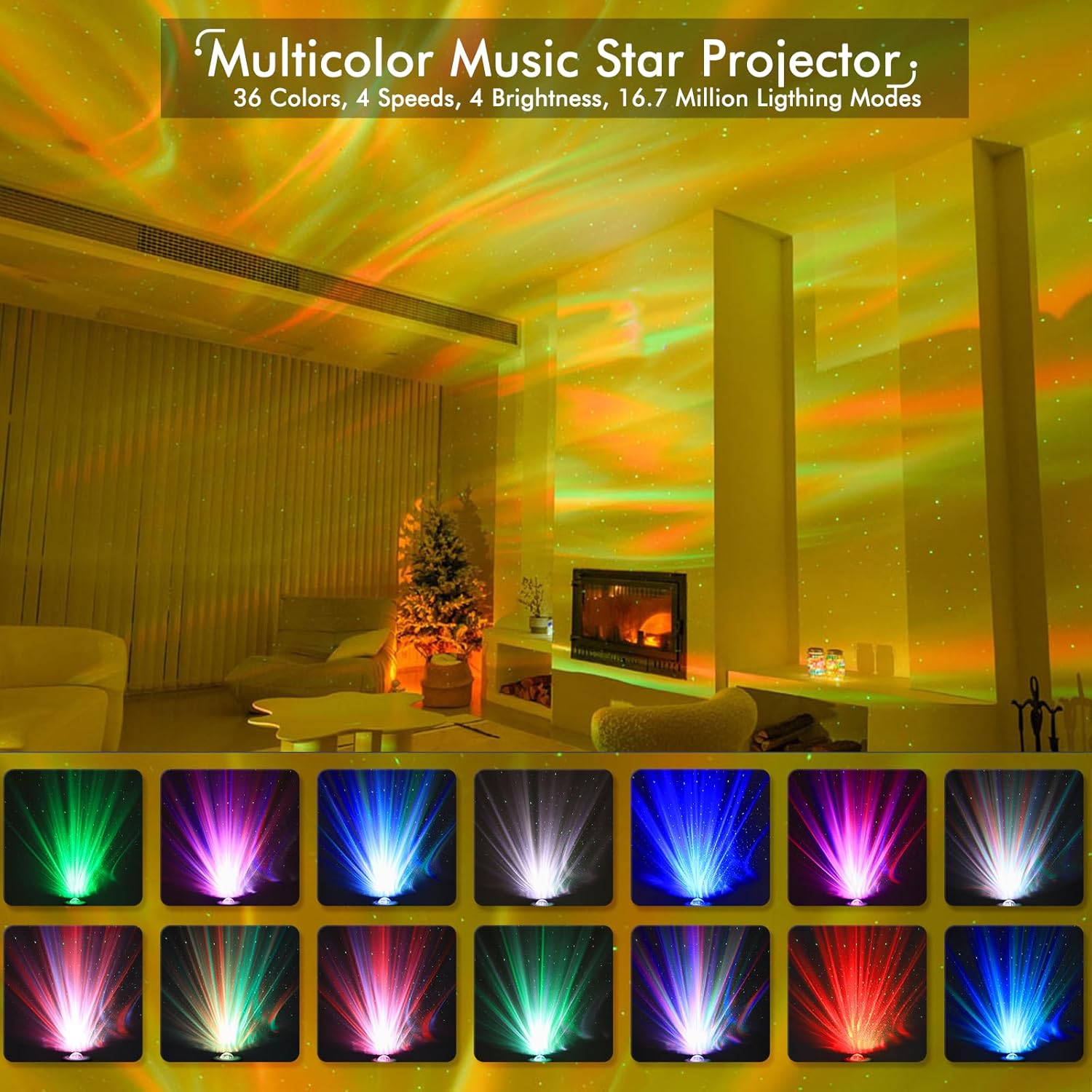
Image 6.3: Examples of various lighting effects.
6.6 Bluetooth Speaker
Connect your smartphone or other Bluetooth-enabled device to play music through the projector's speaker.
- Ensure the projector is powered on.
- Long press the Volume/Pause/Bluetooth button on the projector or press the Bluetooth button on the remote to enter pairing mode.
- On your device, search for Bluetooth devices and select 'SKE-JBP-J01' (or similar name).
- Once paired, you can play audio from your device. Use the remote or app to control volume and track selection.

Image 6.4: Projector used with Bluetooth speaker function.
6.7 White Noise Machine
The projector includes 8 soothing white noise sounds, including 3 baby lullabies.
- Press the 8 Sound Track Button on the remote to cycle through the available sounds.
- Adjust the volume using the remote or app.
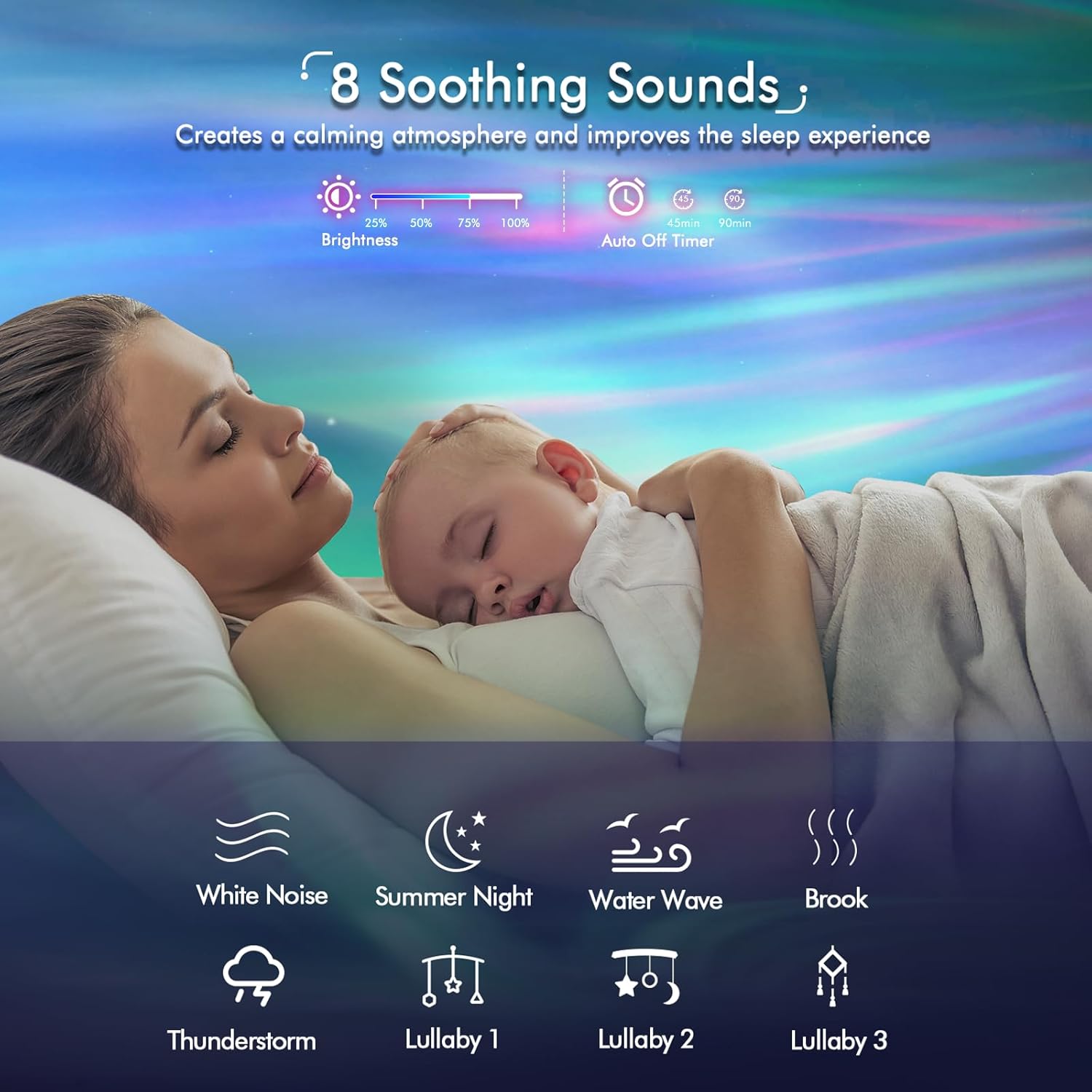
Image 6.5: Projector with white noise feature for relaxation.
6.8 Timer Function
Set an automatic shut-off timer for 1, 2, or 4 hours using the remote control or the app.
- Press the 1H, 2H, or 4H buttons on the remote to set the desired timer.
- To cancel the timer, press the Timer Off button on the remote or disable it via the app.
7. Maintenance
- Cleaning: Use a soft, dry cloth to wipe the exterior of the projector. Do not use abrasive cleaners or solvents.
- Lens Care: Gently clean the projection lens with a microfiber cloth to avoid scratches and maintain clear projection.
- Storage: When not in use, store the projector in a cool, dry place, away from direct sunlight and extreme temperatures.
8. Troubleshooting
| Problem | Possible Cause | Solution |
|---|---|---|
| Projector does not turn on. | No power, faulty adapter/cable. | Check power connection. Ensure adapter is 5V/2A. Try a different USB cable or adapter. |
| Remote control not working. | Dead battery, obstruction, out of range. | Replace remote battery. Ensure no obstructions between remote and projector. Point remote directly at the projector. |
| Bluetooth connection fails. | Projector not in pairing mode, device too far, interference. | Ensure projector is in Bluetooth pairing mode. Keep devices within 10 meters. Disconnect from other Bluetooth devices. |
| App cannot connect to projector. | Incorrect Wi-Fi band, incorrect pairing steps, network issues. | Ensure your Wi-Fi is 2.4GHz. Follow app pairing instructions carefully. Restart projector and router. |
| Projection is dim or unclear. | Brightness setting too low, dirty lens, ambient light. | Increase brightness via remote or app. Clean the projection lens. Reduce ambient light in the room. |
9. Specifications
| Feature | Detail |
|---|---|
| Brand | YunLone |
| Model Number | SKE-JBP-J01 |
| Product Dimensions | 4.13"D x 4.13"W x 5.59"H (10.5 cm x 10.5 cm x 14.2 cm) |
| Item Weight | 1.1 pounds (500 Grams) |
| Power Source | Mains-powered (5V) |
| Wattage | 5 watts |
| Light Source Type | LED |
| Control Methods | App, Voice (Alexa compatible), IR Remote, Host Button |
| Bluetooth Version | 5.0 |
| White Noise Sounds | 8 (including 3 lullabies) |
| Timer Settings | 1H, 2H, 4H |
| Brightness Levels | 4 (10%-40%-70%-100%) for aurora, 0%-100% for stars |
| Motion Speeds | 4 (fast-middle-slow-still) |
| Material | Stainless Steel (Base/Shade) |
| Indoor/Outdoor Usage | Indoor use only |
| Water Resistance Level | Not Water Resistant |
10. Warranty and Support
YunLone products are manufactured with quality and care. This product comes with a standard manufacturer's warranty against defects in materials and workmanship under normal use. Please refer to the product packaging or contact your retailer for specific warranty terms and duration.
For technical support, troubleshooting assistance, or warranty claims, please contact YunLone customer service through the retailer's platform or visit the official YunLone website for contact information.
Customer Support: [Insert Customer Support Contact Information Here, e.g., email, website link]
Ask a question about this manual
Ask about setup, troubleshooting, compatibility, parts, safety, or missing instructions. Manuals+ will review the question and use this page’s manual context to help answer it.