Introduction
This manual provides essential information for setting up, operating, and maintaining your ASUS VZ27EHE 27-inch 1080P Monitor. Please read this manual thoroughly before using the product to ensure proper and safe operation. The ASUS VZ27EHE monitor features a frameless, ultra-slim profile, IPS panel for wide viewing angles, 75Hz refresh rate, and 1ms MPRT response time, enhanced with ASUS Eye Care Plus technology for comfortable viewing.

Front view of the ASUS VZ27EHE monitor, showcasing its slim design and display.
Safety Information
Always observe the following safety precautions to prevent damage to the monitor and ensure your safety:
- Do not expose the monitor to rain or moisture.
- Do not open the monitor casing; there are no user-serviceable parts inside. Refer all servicing to qualified service personnel.
- Ensure proper ventilation around the monitor. Do not block ventilation openings.
- Use only the power adapter and cables provided with the monitor.
- Avoid placing the monitor on unstable surfaces.
- Disconnect the power cable from the wall outlet if the monitor is not going to be used for an extended period.
What's in the Box
Verify that all the following items are present in your product package:
- ASUS VZ27EHE Monitor
- HDMI Cable
- VGA Cable
- Power Cord & Adapter
- Warranty Card
- Quick Start Guide

Illustration of the items included in the monitor packaging.
Setup
Assembling the Stand
- Place the monitor face down on a soft, clean surface to prevent scratches.
- Align the stand base with the stand neck and secure it with the provided screw.
- Attach the assembled stand to the back of the monitor until it clicks into place.
Connecting Cables
Connect the necessary cables to the corresponding ports on the back of the monitor:
- Power: Connect the power adapter to the monitor's DC-in port and then plug the power cord into a power outlet.
- Video Input:
- HDMI: Connect one end of the HDMI cable to the monitor's HDMI port and the other end to your computer's HDMI output.
- VGA: Connect one end of the VGA cable to the monitor's VGA port and the other end to your computer's VGA output.
- Audio Output: Connect headphones or external speakers to the 3.5mm earphone out port if desired.

Rear view illustrating the VESA mount (75x75mm) and available ports: HDMI, VGA, and Earphone out.
VESA Wall Mounting
The monitor supports a 75mm x 75mm VESA wall mount. To mount the monitor:
- Remove the stand from the monitor.
- Attach the VESA-compatible mounting bracket (not included) to the four screw holes on the back of the monitor.
- Secure the monitor to your wall mount or arm according to the mounting kit's instructions.
Operating
Power On/Off
Press the power button located on the bottom right side of the monitor to turn it on or off.
On-Screen Display (OSD) Menu
The OSD menu allows you to adjust various monitor settings. Use the joystick control button, typically located on the back or bottom of the monitor, to navigate the menu.
- Press the joystick to open the OSD menu.
- Move the joystick up/down/left/right to navigate through options.
- Press the joystick to confirm a selection.
- Move the joystick left to exit a submenu or the OSD menu.
Key Features
Adaptive-Sync/FreeSync Technology
This technology synchronizes the monitor's refresh rate with your graphics card's frame rate to eliminate screen tearing and choppy frame rates, providing a smoother gaming experience. Ensure your graphics card supports Adaptive-Sync/FreeSync and enable it in your graphics driver settings.

Visual comparison demonstrating the effect of Adaptive-Sync technology on display smoothness.
ASUS Eye Care Plus Technology
Designed to reduce eye strain during prolonged use, this monitor incorporates several eye-care features:
- Flicker-Free Technology: Reduces screen flickering to minimize eye fatigue.
- Low Blue Light Technology: Filters out harmful blue light emissions. You can adjust the blue light filter level through the OSD menu.
- Color Augmentation: Helps users with color vision deficiency differentiate colors more easily.
- Rest Reminder: Prompts users to take breaks from the screen to prevent eye fatigue.

Illustration showing the difference in display stability with and without Flicker-Free technology.

Diagram showing different levels of blue light reduction for eye comfort.

A pie chart illustrating how Color Augmentation enhances the visibility of distinct colors.

Icon representing the Rest Reminder feature, encouraging breaks from screen time.
GamePlus Features
Enhance your gaming experience with integrated GamePlus functions:
- Crosshair: Provides an on-screen crosshair for improved aiming in first-person shooter games.
- Timer: Displays a countdown timer on the screen.
- FPS Counter: Shows the current frames per second (FPS) for real-time performance monitoring.

Visual representation of the GamePlus features: Crosshair, Timer, and FPS Counter.
Maintenance
Proper care and maintenance will extend the life of your monitor:
- Cleaning the Screen: Gently wipe the screen with a soft, lint-free cloth. For stubborn marks, dampen the cloth with a small amount of non-ammonia, non-alcohol based glass cleaner. Do not spray cleaner directly onto the screen.
- Cleaning the Casing: Use a soft, dry cloth to wipe the monitor casing. Avoid abrasive cleaners.
- Storage: If storing the monitor for an extended period, disconnect it from power and store it in a cool, dry place, preferably in its original packaging.
Troubleshooting
If you encounter issues with your monitor, refer to the following common problems and solutions:
| Problem | Possible Solution |
|---|---|
| No image on screen | Ensure the power cable is securely connected. Check if the video cable (HDMI/VGA) is properly connected to both the monitor and the computer. Press the power button to ensure the monitor is on. Select the correct input source via the OSD menu. |
| Image is blurry or distorted | Check the video cable connection. Adjust the resolution and refresh rate settings on your computer to match the monitor's native resolution (1920x1080) and supported refresh rate (up to 75Hz). |
| No sound from earphone out | Ensure your audio device is properly connected to the earphone out port. Check the volume settings on both the monitor (via OSD) and your computer. |
| Monitor flickers | Ensure Flicker-Free technology is enabled (it is by default). Check for external interference. Try a different video cable. |
| Adaptive-Sync/FreeSync not working | Ensure your graphics card supports Adaptive-Sync/FreeSync and that it is enabled in your graphics driver settings. Use an HDMI cable that supports the feature. |
Specifications
| Feature | Specification |
|---|---|
| Screen Size | 27 Inches |
| Panel Type | IPS |
| Resolution | Full HD (1920 x 1080) |
| Aspect Ratio | 16:9 |
| Refresh Rate | Up to 75Hz |
| Response Time | 1ms MPRT |
| Viewing Angle | 178° (H)/178° (V) |
| Brightness | 250 cd/m² (Typical) |
| Connectivity | 1 x HDMI, 1 x VGA, Earphone out |
| VESA Wall Mounting | 75mm x 75mm |
| Dimensions (WxHxD) | 24.09 x 17.09 x 8.27 inches (with stand) |
| Weight | 7.94 pounds |
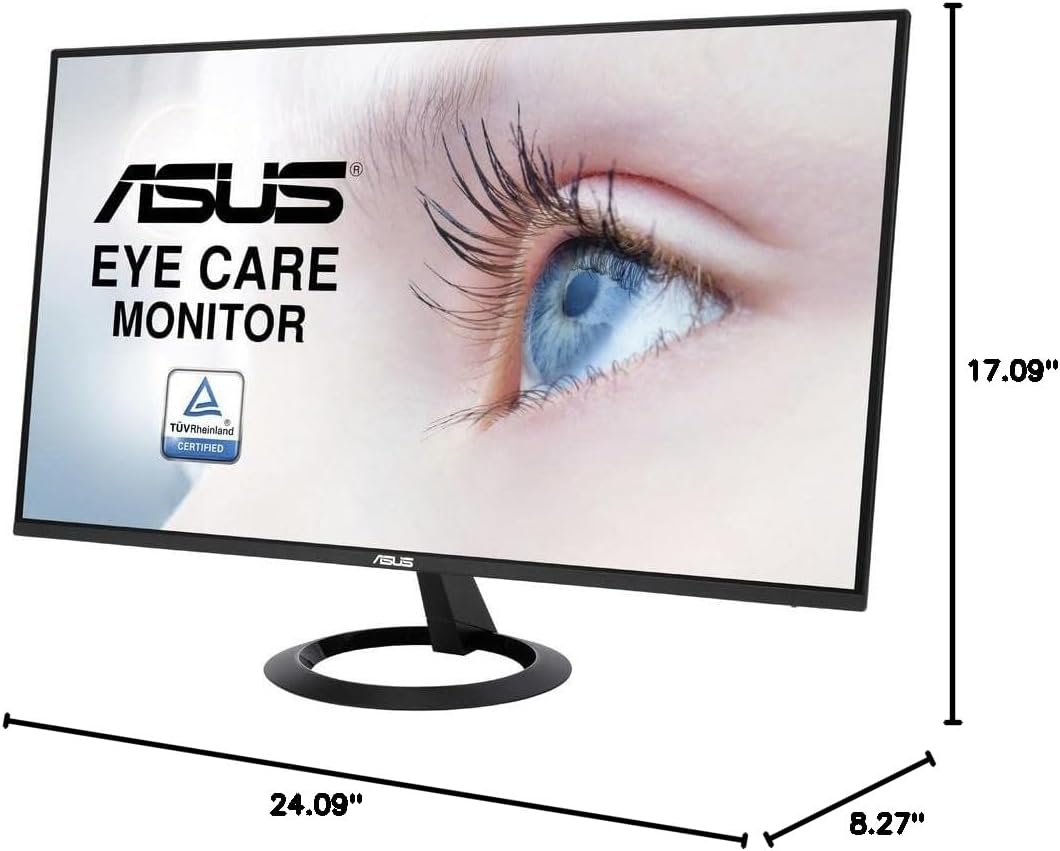
Diagram showing the dimensions of the ASUS VZ27EHE monitor.
Warranty and Support
Your ASUS VZ27EHE monitor comes with a manufacturer's warranty. Please refer to the included Warranty Card for detailed terms and conditions, including warranty period and coverage.
For technical support, troubleshooting assistance beyond this manual, or warranty claims, please contact ASUS Customer Service. You can find contact information on the ASUS official website or in the Quick Start Guide provided with your product.
Online resources such as drivers, FAQs, and additional support documents may be available on the official ASUS support website.


