
KPREPUBLIC Feker Machinic 02 980 Mechanical Keyboard Kit User Manual
Model: Feker Machinic 02 980
Introduction
Thank you for choosing the KPREPUBLIC Feker Machinic 02 980 Mechanical Keyboard Kit. This kit provides a foundation for building a custom mechanical keyboard, featuring a hot-swappable PCB, a durable case, and extensive RGB lighting capabilities. This manual will guide you through the assembly, operation, and maintenance of your keyboard kit.
Please note that this product is a keyboard kit and requires additional components such as switches and keycaps for full functionality. It is not a pre-assembled, complete keyboard.
Setup and Assembly
The Feker Machinic 02 980 kit is designed for easy assembly, featuring hot-swappable sockets that allow for switch installation without soldering.
Components Overview
- PCB (Printed Circuit Board): The main board with hot-swappable switch sockets and RGB LEDs.
- Case: A 3-layer PMMA organic glass material case designed to house the PCB and provide structural integrity.
- Stabilizers: Pre-installed or included for larger keys (Spacebar, Shift, Enter, Backspace).
- USB-C Cable: For connecting the keyboard to your computer.
Assembly Steps
- Prepare the PCB: Ensure the PCB is clean and free of debris. If stabilizers are not pre-installed, attach them to the PCB for the designated keys.
- Install Switches: Align the pins of your mechanical switches with the hot-swappable sockets on the PCB. Gently push each switch until it clicks into place. Ensure the switch is fully seated and the pins are not bent.
- Install Keycaps: Once all switches are installed, firmly press your desired keycaps onto the stems of the switches.
- Assemble the Case: Carefully place the assembled PCB with switches and keycaps into the bottom layer of the keyboard case. Secure the layers of the case together using the provided screws, if applicable.
- Connect to Computer: Connect the keyboard to your computer using the supplied USB-C cable. The keyboard is plug-and-play and should be recognized automatically.

Image: Top-down view of the KPREPUBLIC Feker Machinic 02 980 PCB, showing the layout of the hot-swappable switch sockets.
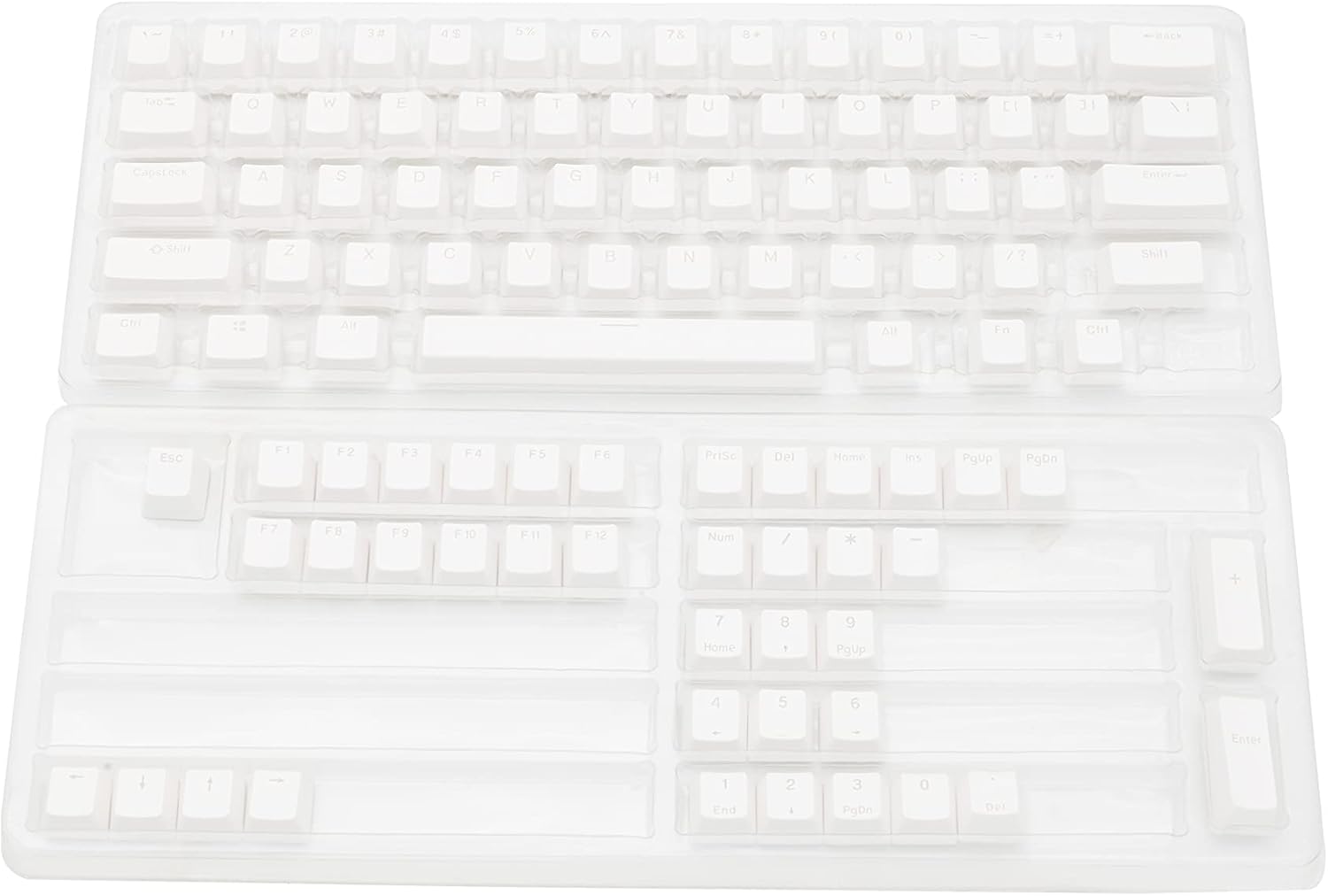
Image: The transparent case of the Feker Machinic 02 980 keyboard kit, ready for PCB and switch installation.

Image: The keyboard case with keycaps placed, illustrating the layout and appearance before final assembly.
Operating Instructions
The Feker Machinic 02 980 keyboard kit supports various functions and lighting effects.
Function (Fn) Combination Keys
Utilize the Fn key in combination with other keys to access secondary functions, such as media controls, volume adjustments, and lighting mode changes. Specific key combinations may vary based on firmware, but common functions include:
- Fn + F1-F12: Media controls (Play/Pause, Stop, Previous, Next, Mute, Volume Up/Down).
- Fn + Arrow Keys: Adjusting lighting brightness or speed.
- Fn + Specific Keys: Changing RGB lighting modes or colors. Refer to the specific firmware documentation for a complete list of combinations.
RGB Lighting Effects
The keyboard features extensive RGB lighting with a wide palette of colors and effects. You can customize the lighting to suit your preferences.
- RGB Light Palette Setting: Access software (if available) or use Fn key combinations to select specific colors from a full RGB spectrum.
- Multiple Lighting Modes: Cycle through various pre-programmed lighting effects such as breathing, wave, reactive, and static colors.
- Brightness and Speed Adjustment: Adjust the intensity and speed of dynamic lighting effects using Fn key combinations.

Image: The KPREPUBLIC Feker Machinic 02 980 keyboard fully assembled with switches and keycaps, showcasing its vibrant RGB backlighting.
Anti-Ghosting and N-Key Rollover (NKRO)
The PCB supports Anti-Ghosting and N-Key Rollover (NKRO), ensuring that every key press is registered accurately, even when multiple keys are pressed simultaneously. This feature is crucial for fast typing and gaming.
Maintenance
Proper maintenance will extend the lifespan and preserve the appearance of your keyboard kit.
- Cleaning the Case: Use a soft, dry microfiber cloth to wipe down the PMMA organic glass case. For stubborn smudges, a slightly damp cloth with mild soap can be used, followed by immediate drying. Avoid harsh chemicals or abrasive materials.
- Cleaning Keycaps: Keycaps can be removed for thorough cleaning. Wash them in warm, soapy water, rinse thoroughly, and ensure they are completely dry before reattaching.
- Cleaning the PCB: If switches are removed, use compressed air to clear dust and debris from the PCB and switch sockets. Avoid direct contact with liquids.
- Switch Replacement: Due to the hot-swappable design, switches can be easily replaced. Use a switch puller tool to carefully remove switches without damaging the PCB sockets.
Troubleshooting
If you encounter issues with your Feker Machinic 02 980 keyboard kit, refer to the following common troubleshooting steps:
- Keyboard Not Detected:
- Ensure the USB-C cable is securely connected to both the keyboard and the computer.
- Try a different USB port on your computer.
- Test with a different USB-C cable.
- Restart your computer.
- Keys Not Responding:
- Check if the switches are fully seated in their sockets. Gently press down on the affected switch.
- If a specific switch is faulty, replace it with a known working switch.
- Ensure no debris is obstructing the switch mechanism or socket.
- RGB Lighting Not Working or Incorrect:
- Verify that the keyboard is properly connected and receiving power.
- Cycle through lighting modes using Fn key combinations.
- If using software, ensure it is up-to-date and correctly configured.
- Intermittent Connectivity:
- This could indicate a loose USB-C connection or a faulty cable. Try reseating the cable or using a different one.
- Ensure the USB port on your computer is functioning correctly.
If these steps do not resolve the issue, please contact KPREPUBLIC customer support for further assistance.
Specifications
| Feature | Detail |
|---|---|
| Brand | KPREPUBLIC |
| Model | Feker Machinic 02 980 |
| Connectivity Technology | USB-C |
| Keyboard Description | Kit Only (not a full keyboard) |
| Special Feature | Backlit, Hot-swappable Sockets |
| Keyboard Backlighting Color Support | RGB |
| Number of Keys | 109 (layout dependent) |
| Case Material | 3 Layers PMMA Organic Glass |
| Additional Features | Anti-Ghosting, NKRO, 32K ROM |
Warranty and Support
Warranty Information
This KPREPUBLIC Feker Machinic 02 980 Mechanical Keyboard Kit comes with a 90 Days Warranty from the date of purchase. This warranty covers manufacturing defects under normal use. It does not cover damage caused by misuse, accidents, unauthorized modifications, or improper assembly.
Customer Support
For technical support, warranty claims, or any questions regarding your product, please contact KPREPUBLIC customer service through the retailer where you purchased the kit or visit the official KPREPUBLIC website for contact information.