
KPREPUBLIC Feker Machinic 02 980
KPREPUBLIC Feker Machinic 02 980 Mechanical Keyboard Kit User Manual
Model: Feker Machinic 02 980
Introduction
This user manual provides comprehensive instructions for the KPREPUBLIC Feker Machinic 02 980 Mechanical Keyboard Kit. It covers essential information regarding product features, setup, operation, maintenance, and troubleshooting to ensure optimal performance and longevity of your keyboard kit. Please read this manual thoroughly before assembling or using the product.
Product Overview
The Feker Machinic 02 980 is a high-quality mechanical keyboard kit designed for enthusiasts seeking customization and performance. Key features include:
- Transparent Design & Fantasy Lighting Effect: The kit features a transparent case that enhances the vibrant RGB lighting.
- 3 Layers PMMA Organic Glass Material: Constructed with durable PMMA organic glass for a robust and aesthetically pleasing build.
- RGB Light Palette Setting: Customizable RGB lighting with various effects and color options.
- CNC Cutting Technology: Precision-engineered components for a perfect fit and finish.
- 32K ROM: Increased storage space for saving custom settings and profiles.
- Anti-Ghosting & NKRO (N-Key Rollover): Ensures every keypress is registered accurately, even during rapid typing or gaming.
- Hot-Swappable Sockets: Allows for easy installation and removal of mechanical switches without soldering.
- Fn Combination Keys: Access to multimedia controls and other functions via combination key presses.
- Type-C Plug and Play: Simple and reliable connectivity via a modern USB Type-C port.
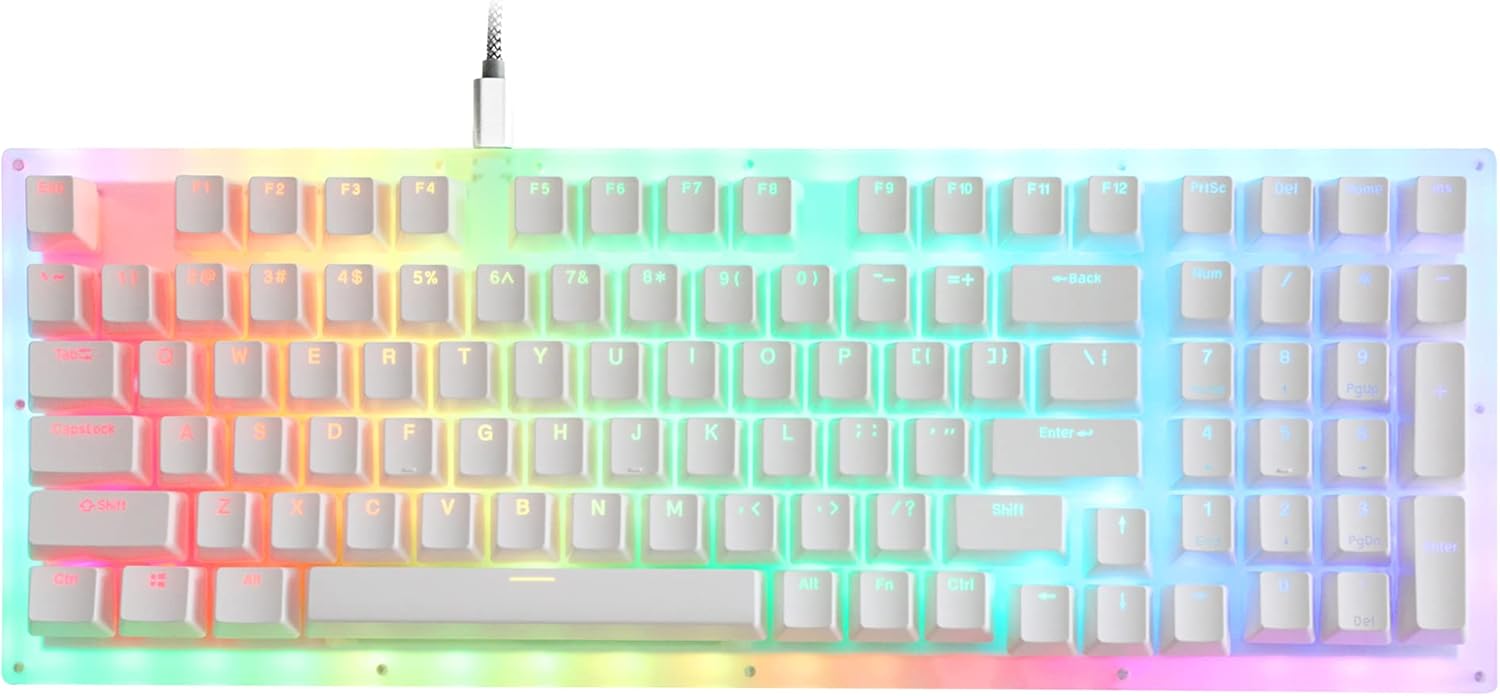
Figure 1: The KPREPUBLIC Feker Machinic 02 980 Mechanical Keyboard Kit fully assembled, showcasing its transparent design and vibrant RGB backlighting.
Setup Guide
Follow these steps to assemble and set up your Feker Machinic 02 980 Mechanical Keyboard Kit:
- Prepare Components: Unpack all components, including the PCB, case, and any included accessories. Ensure you have your desired mechanical switches and keycaps ready.
- Install Switches: The PCB features hot-swappable sockets. Align the pins of each mechanical switch with the corresponding holes on the PCB. Gently push the switch down until it clicks into place. Ensure the switch is fully seated and the pins are not bent.
- Assemble Case: Carefully place the assembled PCB (with switches installed) into the keyboard case. Ensure all alignment posts and screw holes match. Secure the PCB to the case using the provided screws, if any.
- Install Keycaps: Press each keycap onto its corresponding switch stem until it is firmly seated.
- Connect to Computer: Connect the keyboard to your computer using the provided USB Type-C cable. The keyboard is plug-and-play and should be recognized automatically by your operating system.

Figure 2: The keyboard's Printed Circuit Board (PCB) featuring hot-swappable sockets, allowing for easy installation of mechanical switches without soldering.
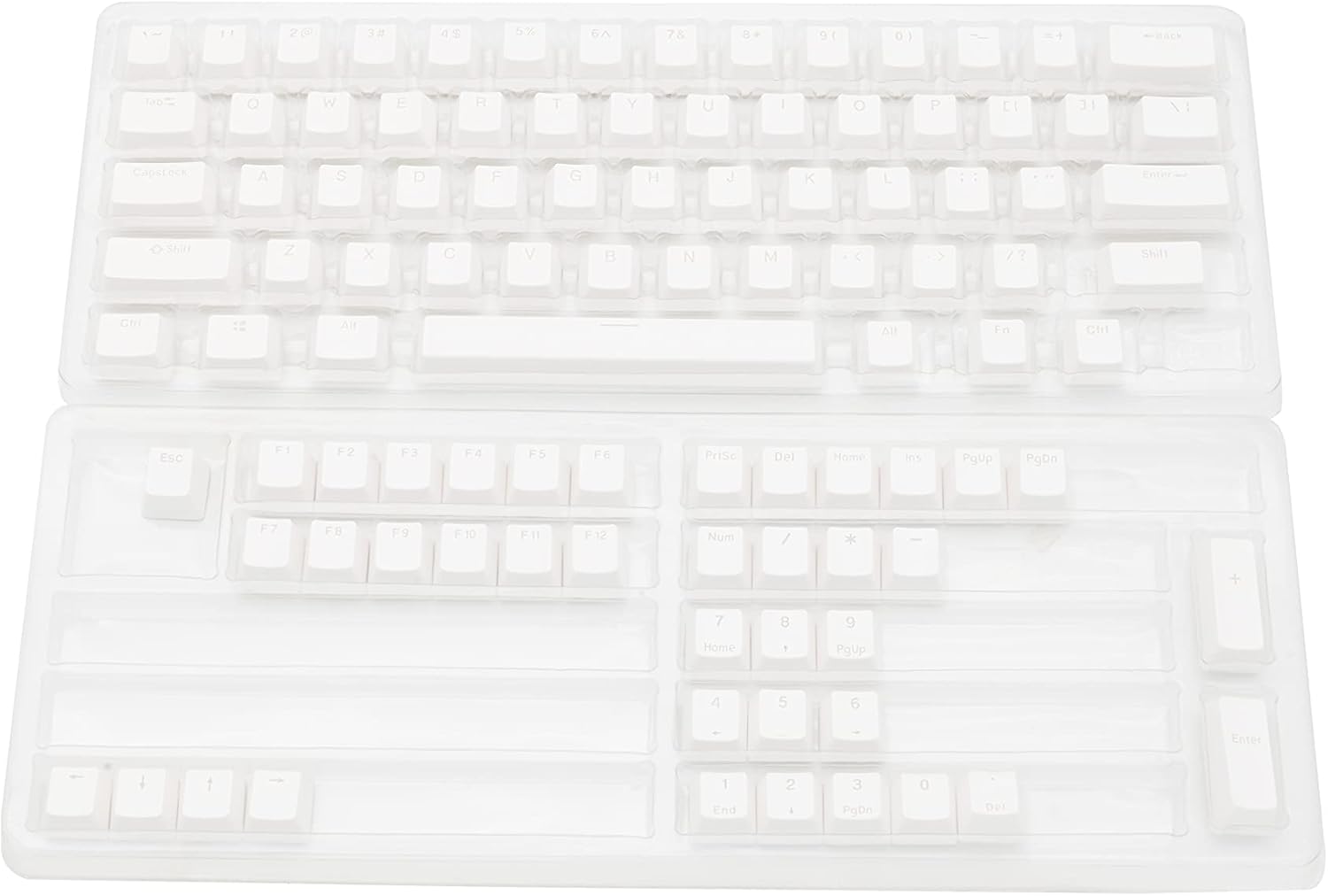
Figure 3: The transparent keyboard case and plate, ready for PCB and switch installation.
Operating Instructions
The Feker Machinic 02 980 keyboard kit offers various functions accessible through standard key presses and Fn key combinations.
Basic Operation:
- Typing: Use the keyboard for standard text input. The N-Key Rollover (NKRO) ensures all simultaneous key presses are registered.
- RGB Lighting: The keyboard features customizable RGB backlighting. Specific key combinations (often involving the Fn key) are used to cycle through lighting modes, adjust brightness, and change colors. Refer to the software or specific key legends for detailed lighting controls.

Figure 4: The complete layout of the Feker Machinic 02 980 keyboard, highlighting the standard keys and the presence of a full number pad.
Fn Combination Keys:
The Fn key (Function key) is used in combination with other keys to access secondary functions, such as multimedia controls, volume adjustment, and lighting effects. Specific combinations may vary based on firmware version. Common Fn key combinations include:
- Fn + F1-F12: Multimedia controls (e.g., Play/Pause, Stop, Previous/Next Track, Mute, Volume Up/Down).
- Fn + Arrow Keys: Adjusting RGB lighting direction or speed.
- Fn + Specific Keys (e.g., Ins, Home, PgUp, Del, End, PgDn): Cycling through different RGB lighting modes or static colors.
For a complete list of Fn key combinations and their functions, please refer to the product's official software or the key legends on your specific keycap set.
Maintenance
Proper maintenance ensures the longevity and performance of your mechanical keyboard kit.
- Cleaning Keycaps: Remove keycaps periodically and clean them with a mild soap solution and a soft cloth. Ensure they are completely dry before reattaching.
- Cleaning the Case and PCB: Use a soft, dry brush or compressed air to remove dust and debris from between switches and on the PCB. For the transparent case, wipe gently with a microfiber cloth. Avoid using harsh chemicals or abrasive materials.
- Switch Maintenance: If switches become scratchy or inconsistent, they can be lubricated. This process involves carefully removing the switch, disassembling it, applying lubricant, and reassembling. This is an advanced maintenance step and should only be performed if you are comfortable with the process.
- Cable Care: Avoid sharp bends or excessive pulling on the USB-C cable to prevent damage.
Troubleshooting
If you encounter issues with your Feker Machinic 02 980 keyboard kit, refer to the following common troubleshooting steps:
| Problem | Possible Cause | Solution |
|---|---|---|
| Keyboard not recognized by computer. | Loose USB connection, faulty cable, driver issue. | Ensure USB-C cable is securely connected to both keyboard and computer. Try a different USB port or cable. Restart your computer. |
| Certain keys not responding. | Switch not fully seated, faulty switch, bent switch pin. | Carefully remove the keycap and then the switch. Check for bent pins and straighten if necessary. Reinsert the switch firmly. If the issue persists, replace the switch. |
| RGB lighting not working or inconsistent. | Software setting, loose connection, LED malfunction. | Check lighting settings via Fn key combinations or dedicated software. Ensure the PCB is properly seated in the case. If a specific LED is out, it may indicate a component failure. |
| Keys "chattering" (registering multiple presses). | Faulty switch, dust/debris in switch. | Try cleaning the switch with compressed air. If the problem continues, replace the faulty switch. |
If these steps do not resolve your issue, please contact KPREPUBLIC customer support for further assistance.
Specifications
| Feature | Detail |
|---|---|
| Brand | KPREPUBLIC |
| Model | Feker Machinic 02 980 Kit |
| Connectivity Technology | USB-C |
| Keyboard Description | Kit Only (not a full keyboard) |
| Special Feature | Backlit (RGB) |
| Number of Keys | 109 |
| Keyboard Backlighting Color Support | RGB |
| Style | Modern |
| Included Components | Doubleshot Back-lit keycaps |
| Hot-Swappable Sockets | Yes |
| Anti-Ghosting / NKRO | Yes |
Warranty and Support
For warranty information and technical support, please refer to the official KPREPUBLIC website or contact their customer service directly. Details regarding warranty periods and support channels are typically provided with your purchase documentation or on the manufacturer's website.
Manufacturer: KPREPUBLIC
ASIN: B09D322NDX
Date First Available: August 19, 2021
Ask a question about this manual
Ask about setup, troubleshooting, compatibility, parts, safety, or missing instructions. Manuals+ will review the question and use this page’s manual context to help answer it.