1. Introduction
Thank you for choosing the MoKo Foldable Bluetooth Keyboard. This ultra-slim, portable keyboard is designed for seamless compatibility across iOS, Android, and Windows devices, offering an ergonomic and efficient typing experience on the go. This manual provides detailed instructions for setup, operation, maintenance, and troubleshooting to ensure optimal performance of your device.
2. What's in the Box
- MoKo Foldable Bluetooth Keyboard
- USB Cable
3. Setup
3.1 Power On/Off
The keyboard features an innovative magnetic switch for easy power management:
- To Power On: Simply unfold the keyboard. It will automatically turn on.
- To Power Off: Fold the keyboard. It will automatically turn off.

Image: The keyboard automatically powers on when unfolded and off when folded, thanks to its magnetic switch.
3.2 Bluetooth Pairing
Follow these steps to pair your MoKo Foldable Bluetooth Keyboard with your device:
- Unfold the keyboard to power it on.
- Press and hold the FN + T keys simultaneously to enter pairing mode. The blue LED indicator on the keyboard will blink.
- On your device (tablet, smartphone, laptop), navigate to the Bluetooth settings and turn on the Bluetooth switch.
- Search for "Foldable Bluetooth Keyboard" in the list of available devices and select it.
- Wait until your device indicates "Connected".
Video: This video demonstrates the setup process, including powering on, entering pairing mode, and connecting to a device via Bluetooth.

Image: The keyboard connected to a tablet, illustrating how to find and connect the keyboard in your device's Bluetooth settings.
3.3 System Compatibility Switching
The keyboard is compatible with multiple operating systems. Use the following key combinations to switch between modes for optimal performance:
- For Android devices: Press FN + Q
- For Windows devices: Press FN + W
- For iOS devices: Press FN + E

Image: The keyboard supports a wide range of devices running Windows, iOS, and Android operating systems.
4. Operating Instructions
4.1 Portability and Design
The MoKo Foldable Bluetooth Keyboard is designed for maximum portability and convenience:
- Ultra-Thin and Lightweight: When folded, its dimensions are approximately 6.37" x 3.8" x 0.4", and it weighs only 4.9 ounces (138.8g).
- Compact Design: The innovative folding design allows it to easily fit into a purse, bag, or pocket, making it ideal for travel and mobile work.

Image: The keyboard's compact size and lightweight design make it highly portable for use on the go.
4.2 Ergonomic Typing Experience
The keyboard features an ergonomic design for comfortable typing:
- V-shaped Frosting Surface: Provides an excellent sense of touch.
- 166-degree Innovative Design: Contributes to a comfortable typing posture, reducing wrist strain.
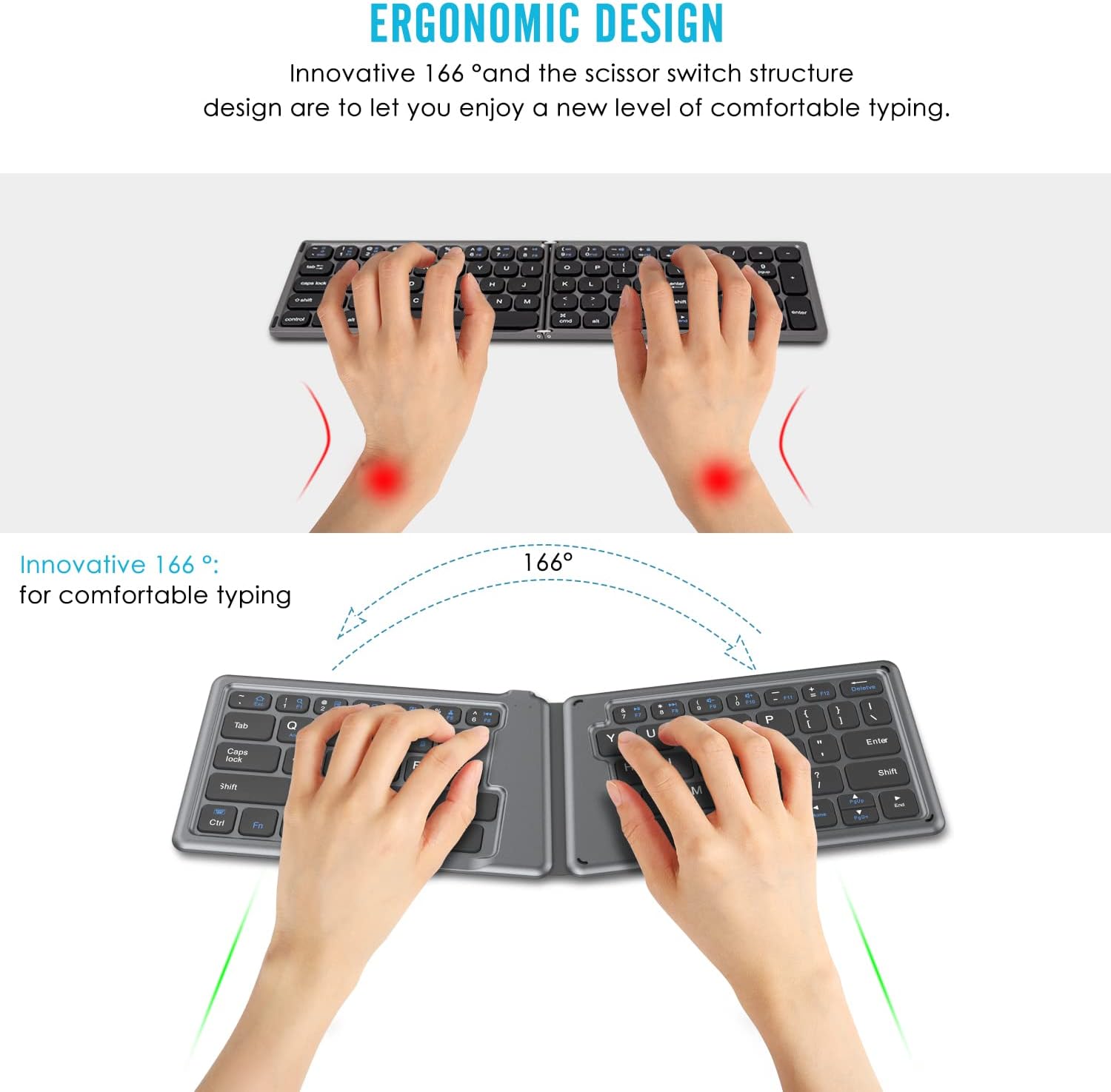
Image: The ergonomic design with a 166-degree angle promotes comfortable and natural hand positioning during typing.
4.3 Rechargeable Battery
The keyboard is equipped with a built-in rechargeable battery:
- Continuous Working Time: Supports up to 40 hours of continuous use on a single charge.
- Standby Time: Up to 30 days.
- Charging: Can be charged from any USB port using the included USB cable.

Image: The keyboard offers excellent battery life with long working and standby times, and quick charging.
5. Maintenance
To ensure the longevity and optimal performance of your MoKo Foldable Bluetooth Keyboard, follow these maintenance guidelines:
- Cleaning: Use a soft, dry cloth to wipe the surface of the keyboard. For stubborn dirt, slightly dampen the cloth with water or a mild cleaning solution. Avoid harsh chemicals or abrasive materials.
- Storage: When not in use, fold the keyboard to protect the keys and conserve battery. Store it in a cool, dry place away from direct sunlight, extreme temperatures, and humidity.
- Avoid Liquids: Do not expose the keyboard to liquids. In case of accidental spills, immediately power off the keyboard and allow it to dry completely before attempting to use it again.
- Handle with Care: Avoid dropping the keyboard or subjecting it to strong impacts, as this can damage internal components.
6. Troubleshooting
If you encounter issues with your MoKo Foldable Bluetooth Keyboard, refer to the following common problems and solutions:
6.1 Keyboard Not Pairing/Connecting
- Ensure Keyboard is On: Unfold the keyboard completely to ensure it is powered on.
- Check Battery: Ensure the keyboard has sufficient battery charge. Connect it to a power source using the USB cable if needed.
- Re-enter Pairing Mode: Press FN + T to put the keyboard back into pairing mode (blue LED blinking).
- Device Bluetooth: Ensure Bluetooth is enabled on your device and it is discoverable.
- Forget Device: If previously paired, try
Related Documents - P840034677294

MoKo Universal Foldable Bluetooth Keyboard (HB188) - User Manual
Comprehensive user manual for the MoKo Universal Foldable Bluetooth Keyboard (Model HB188). Learn how to set up, pair, and use this portable wireless keyboard with iOS, Android, and Windows devices. Includes specifications, key functions, and troubleshooting tips.
MOKO H3 Bluetooth Beacon: Datasheet and Technical Specifications
Detailed datasheet for the MOKO H3 Bluetooth Beacon, featuring a 3-axis accelerometer, iBeacon/Eddystone compatibility, long battery life, and configurable parameters for IoT applications. Includes physical characteristics, FCC statement, and technical support.
MOKO L03 Anchor Pro Bluetooth Beacon Product Specification
Comprehensive product specification for the MOKO L03 Anchor Pro Bluetooth beacon, detailing hardware, installation, operation, and package information for MOKO's IoT location tracking devices.
LW008-MTE User Guide - MOKO TECHNOLOGY LTD.
Comprehensive user guide for the MOKO LW008-MTE LoRaWAN Tracker. Learn about product features, specifications, installation, app configuration, communication protocols, and troubleshooting.
MOKO LW005-MP APP Configuration Guide
This guide provides detailed instructions on how to configure the MOKO LW005-MP LoRaWAN smart plug using the MKLoRa application. It covers installation, connection, LoRaWAN parameters, general settings, Bluetooth configuration, and device information.
MKGW4 Cellular Gateway User Manual - MOKO
Comprehensive user manual for the MOKO MKGW4 Cellular Gateway, covering setup, configuration, LED status, network and MQTT settings, BLE scanning, positioning, system settings, and troubleshooting. Includes FCC compliance information.