
Introduction
Thank you for choosing the Redragon S101-5 Wired Gaming Keyboard and Mouse combo. This manual provides detailed instructions to help you set up, operate, and maintain your new gaming peripherals. Please read this manual carefully before use to ensure optimal performance and longevity of your product.
Package Contents
- Redragon S101-5 Wired Gaming Keyboard
- Redragon M601RGB Wired Gaming Mouse
- User Manual (this document)
Setup
The Redragon S101-5 keyboard and mouse are designed for plug-and-play functionality. No additional drivers are typically required for basic operation on most modern operating systems.
Connecting the Keyboard
- Locate an available USB port on your computer.
- Plug the USB connector of the Redragon S101-5 keyboard into the USB port.
- Your operating system should automatically detect and install the necessary drivers.
Connecting the Mouse
- Locate another available USB port on your computer.
- Plug the USB connector of the Redragon M601RGB mouse into the USB port.
- Your operating system should automatically detect and install the necessary drivers.
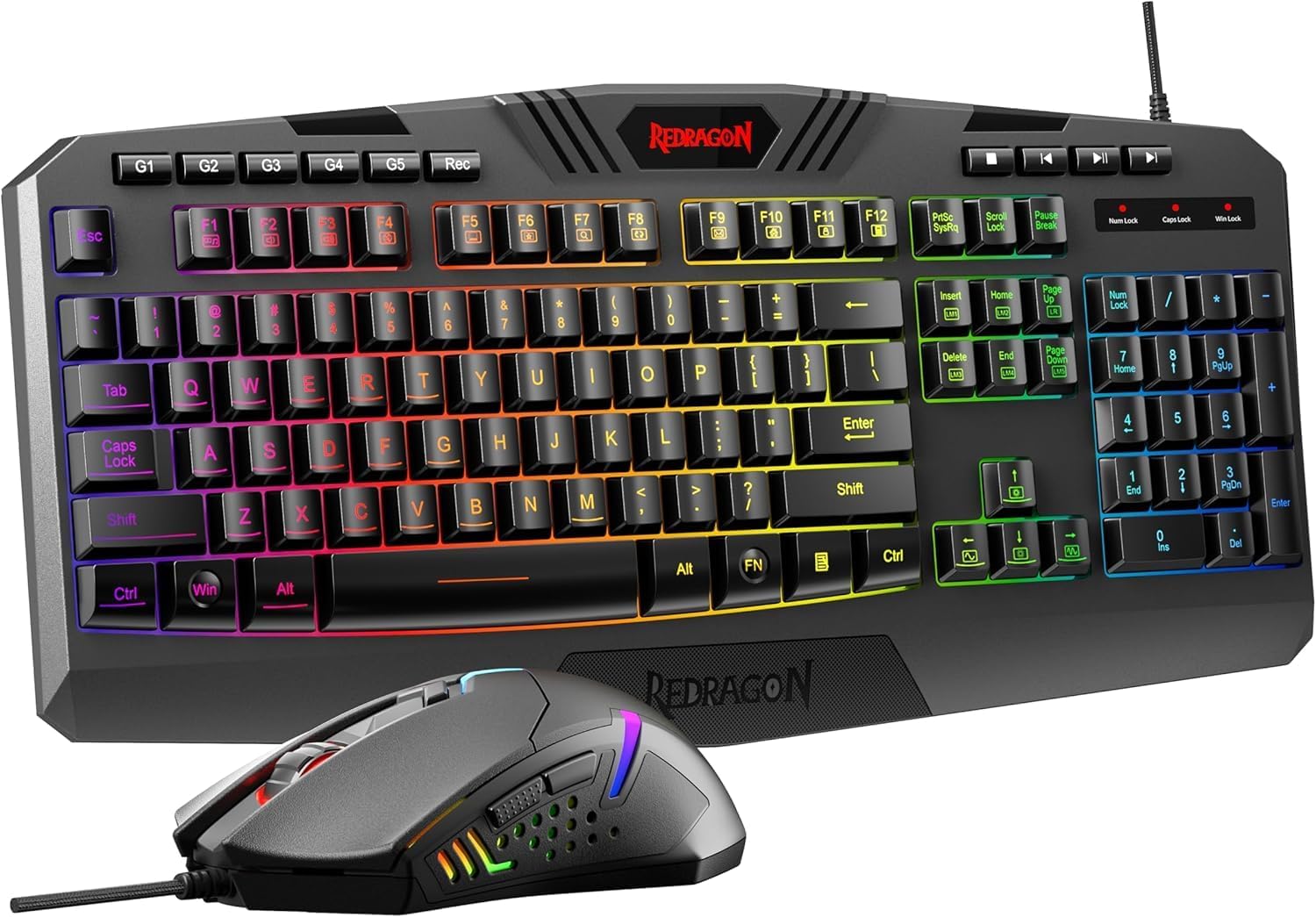
Figure 1: Redragon S101-5 Keyboard and M601RGB Mouse connected to a computer.
Operating the Keyboard
The Redragon S101-5 keyboard offers a range of features designed to enhance your gaming and typing experience.
Key Features
- 104 Standard Keys: Full-size layout for comprehensive functionality.
- 25 Non-Conflict Keys: Ensures multiple key presses are registered accurately during intense gaming.
- 12 Multimedia Keys: Dedicated keys for quick access to media controls (e.g., volume, play/pause). These are typically accessed via the FN key combined with F1-F12.
- Interchangeable WASD and Arrow Keys: Allows users to swap the functionality of the WASD keys with the arrow keys for personalized control. Refer to the keyboard's specific key combinations for this function (often FN + W).
- WIN Key Disable Function: Prevents accidental presses of the Windows key during gaming sessions. This function is usually activated by FN + WIN key.
RGB Backlight Control
The keyboard features RGB full-color backlighting with adjustable breathing speed.
- Adjusting Brightness: Use specific key combinations (e.g., FN + Page Up/Page Down) to increase or decrease backlight brightness.
- Changing Lighting Modes/Colors: Cycle through various lighting effects and colors using dedicated keys or key combinations (e.g., FN + Insert/Home/Page Up/Delete/End/Page Down or a dedicated light bulb key).
- Adjusting Breathing Speed: Modify the speed of breathing light effects using key combinations (e.g., FN + +/-).
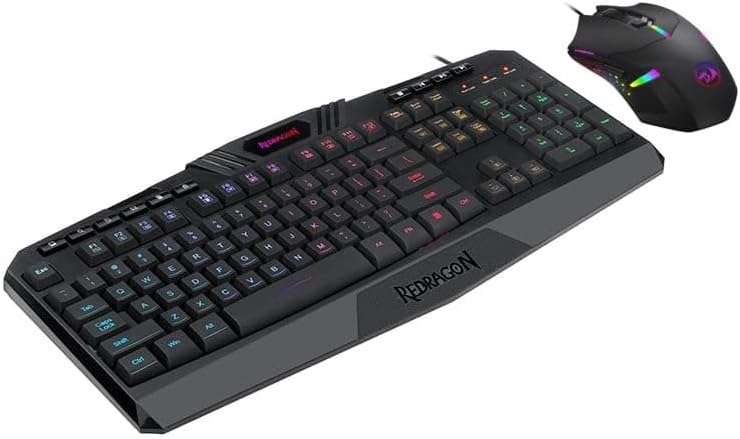
Figure 2: Redragon S101-5 Keyboard showcasing its RGB backlighting.
Operating the Mouse (M601RGB)
The Redragon M601RGB gaming mouse is designed for precision and customization.
Key Features
- High Precision Sensor: Up to 7200 DPI (Dots Per Inch) for accurate tracking.
- High Frame Rate: 4000 FPS (Frames Per Second) ensures smooth movement.
- Acceleration: 10G acceleration for rapid response.
- 6 Function Buttons: Programmable buttons for various in-game actions.
- 2 Side Buttons: Conveniently placed for quick access, often programmable via software.
- Adjustable Weight System: Features 8 built-in weights to customize the mouse's feel and balance.
- Antiskid Roller: 8mm width roller for precise scrolling.
- Durable TEFLON Feet Pads: For fast and fine gliding on various surfaces.
DPI Adjustment
The mouse typically has a dedicated DPI button (often located behind the scroll wheel) to cycle through different DPI settings. Each setting may correspond to a different LED color on the mouse for easy identification.
Weight Adjustment
To adjust the mouse's weight, locate the weight compartment on the underside of the mouse. Open the compartment and add or remove the small weights as desired to achieve your preferred balance and feel.

Figure 3: Redragon M601RGB Mouse with its adjustable weight system visible.
Maintenance
Proper maintenance ensures the longevity and optimal performance of your Redragon S101-5 gaming combo.
Cleaning the Keyboard
- Disconnect the keyboard from your computer before cleaning.
- Use a can of compressed air to remove dust and debris from between the keycaps.
- Wipe the surface of the keyboard with a soft, slightly damp cloth. Avoid excessive moisture.
- Do not use harsh chemicals or abrasive cleaners.
Cleaning the Mouse
- Disconnect the mouse from your computer.
- Use a soft, dry cloth to wipe the body of the mouse.
- For the optical sensor, use a cotton swab lightly dampened with isopropyl alcohol to gently clean the sensor lens. Ensure it is dry before reconnecting.
- Clean the scroll wheel area with compressed air or a small brush.
Troubleshooting
If you encounter issues with your Redragon S101-5 keyboard and mouse, refer to the following common solutions:
Keyboard/Mouse Not Responding
- Ensure the USB cables are securely plugged into your computer's USB ports.
- Try plugging the devices into different USB ports.
- Restart your computer.
- Test the keyboard/mouse on another computer to determine if the issue is with the device or your system.
Backlight Not Working or Incorrect
- Check the backlight brightness settings using the designated key combinations (e.g., FN + Page Up/Page Down).
- Cycle through different lighting modes to see if the backlight activates.
- Ensure no software is overriding the hardware lighting controls.
Mouse Tracking Issues
- Clean the optical sensor on the underside of the mouse.
- Ensure you are using the mouse on a suitable surface (a mouse pad is recommended).
- Adjust the DPI settings to see if it resolves erratic tracking.
Specifications
| Brand | Redragon |
| Model | S101-5 (Keyboard), M601RGB (Mouse) |
| Connectivity | Wired USB |
| Keyboard Keys | 104 Standard Keys, 25 Non-Conflict Keys, 12 Multimedia Keys |
| Keyboard Backlight | RGB Full Color, Adjustable Breathing Speed |
| Mouse DPI | Up to 7200 DPI |
| Mouse FPS | 4000 FPS |
| Mouse Acceleration | 10G |
| Mouse Buttons | 6 Function Buttons, 2 Side Buttons |
| Mouse Features | Adjustable Weight System (8 weights), 8mm Antiskid Roller, Durable TEFLON Feet Pads |
| Operating System | Windows XP and above |
| Dimensions (Keyboard) | 17.81 x 10.88 x 1.9 inches |
| Weight (Keyboard) | 2.29 pounds |
Warranty and Support
Redragon products are designed for durability and performance. For information regarding warranty coverage, technical support, or service inquiries, please refer to the official Redragon website or contact their customer support directly. Keep your purchase receipt as proof of purchase for warranty claims.
Official Redragon Website: www.redragonusa.com
