
Tuitager 9S
Tuitager Bluetooth Headphones User Manual
Model: 9S
1. Introduction
Thank you for choosing Tuitager Bluetooth Headphones. These over-ear headphones are designed to provide a high-fidelity audio experience with deep bass and clear treble, featuring long battery life, multiple EQ modes, and versatile connectivity options. Please read this manual carefully before use to ensure proper operation and maintenance.

Image 1.1: Tuitager Bluetooth Headphones (Black)
2. Safety Information
- Do not expose the headphones to extreme temperatures, humidity, or corrosive substances.
- Avoid dropping or subjecting the headphones to strong impacts.
- Do not disassemble or modify the headphones. This will void the warranty.
- Clean the headphones with a soft, dry cloth. Do not use liquid cleaners.
- Prolonged listening at high volume levels may cause hearing damage. Adjust volume to a safe level.
3. Setup
3.1 Charging the Headphones
Before first use, fully charge the headphones. Connect the provided USB-C charging cable to the Type-C charging port on the headphones and the other end to a compatible USB power source (e.g., computer USB port, wall adapter). The LED indicator will show charging status.
- Charging Time: Approximately 2 hours for a full charge.
- Battery Life: Up to 60 hours of playtime on a single charge.
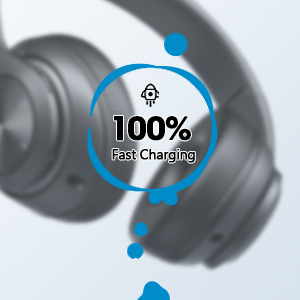
Image 3.1: Fast Charging Capability
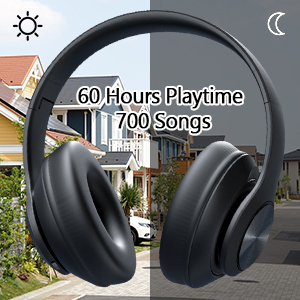
Image 3.2: Extended Playtime and Wired Option
3.2 Bluetooth Pairing
- Ensure the headphones are fully charged.
- Press and hold the Power On/Off button until the LED indicator flashes, indicating pairing mode.
- On your device (smartphone, tablet, laptop), enable Bluetooth and search for available devices.
- Select "Tuitager 9S" (or similar name) from the list of devices.
- Once connected, the LED indicator will stop flashing and remain solid blue.
The headphones will automatically attempt to reconnect to the last paired device when powered on.
3.3 Wired Connection (3.5mm Aux)
For a wired connection, use the included 3.5mm audio cable. Plug one end into the 3.5mm Aux plug-in port on the headphones and the other end into your audio device's 3.5mm jack. The headphones will automatically switch to wired mode when the cable is connected.
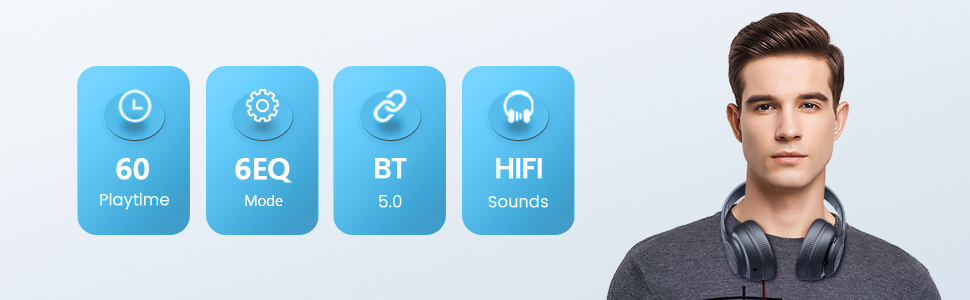
Image 3.3: Wide Compatibility and Usage (Wired & TF Card)
3.4 TF Card Usage
The headphones support TF (Micro SD) cards up to 32GB for direct music playback. Insert the TF card into the TF Card slot on the headphones. The headphones will automatically switch to TF card mode and begin playing audio files.
Note: TF card is not included.
4. Operating Instructions
4.1 Button Functions

Image 4.1: Easy Operation Button Layout
| Button/Port | Function |
|---|---|
| Power On/Off | Press and hold to power on/off. Short press to play/pause (in Bluetooth mode). |
| Play/Pause/Answer/Hang up | Short press to play/pause music or answer/end calls. Long press to reject calls. |
| Previous Track/Volume Down | Short press for previous track. Long press to decrease volume. |
| Next Track/Volume Up | Short press for next track. Long press to increase volume. |
| EQ Button | Short press to cycle through 6 EQ modes (Bass/Jazz/Voice/Rock/Pop/Classic). |
| Mode Button (M) | Short press to switch between Bluetooth Mode and FM Mode. |
| 3.5mm Aux Plug-in Port | For wired audio connection. |
| Type-C Charging Port | For charging the headphones. |
| TF Card Slot | For direct music playback from a TF (Micro SD) card. |
4.2 EQ Modes
The headphones feature 6 distinct EQ modes to optimize your listening experience:
- Bass: Enhanced low frequencies for powerful beats.
- Jazz: Balanced sound profile suitable for jazz music.
- Voice: Clearer vocals, ideal for podcasts or audiobooks.
- Rock: Dynamic sound for rock music.
- Pop: Vibrant and energetic sound for pop music.
- Classic: Rich and detailed sound for classical music.
Press the EQ button to cycle through these modes.
4.3 Making Calls
With the built-in microphone, you can make and receive calls when connected via Bluetooth:
- Answer/End Call: Short press the Play/Pause button.
- Reject Call: Long press the Play/Pause button.
5. Maintenance
- Keep the headphones clean by wiping them with a soft, dry cloth.
- Store the headphones in a cool, dry place away from direct sunlight and extreme temperatures.
- When not in use, fold the headphones for compact storage and to protect them from damage.

Image 5.1: Ergonomic and Foldable Design for Comfort and Portability
6. Troubleshooting
| Problem | Solution |
|---|---|
| Headphones won't turn on. | Ensure the headphones are fully charged. Press and hold the Power button for a few seconds. |
| Cannot pair with device. | Ensure headphones are in pairing mode (flashing LED). Turn off and on Bluetooth on your device. Move headphones closer to the device. Clear previous Bluetooth connections on your device. |
| No sound. | Check volume levels on both headphones and connected device. Ensure headphones are properly paired or the 3.5mm cable is fully inserted. Try a different audio source. |
| Poor sound quality. | Ensure there are no obstructions between headphones and device (in Bluetooth mode). Try a different EQ mode. Check audio source quality. |
| Intermittent connection. | Move closer to the connected device. Avoid environments with strong Wi-Fi or other wireless interference. Ensure headphones are fully charged. |
7. Specifications
- Model Name: 9S
- Connectivity Technology: Wired, Wireless (Bluetooth)
- Wireless Communication Technology: Bluetooth 5.3
- Bluetooth Range: Up to 32 Feet (10 meters)
- Audio Driver Size: 40 Millimeters
- Battery Life: Up to 60 Hours
- Charging Time: Approximately 2 Hours
- Headphones Jack: 3.5 mm Jack
- Material: Plastic
- Item Weight: 10.2 ounces (approx. 289 grams)
- Control Type: Volume Control, Button
- Included Components: Headphones, USB Charging Cable, 3.5mm Audio Cable, User Manual
8. Warranty and Support
Tuitager products come with a standard manufacturer's warranty. For detailed warranty information, please refer to the warranty card included in your product packaging or visit the official Tuitager website.
If you encounter any issues or have questions regarding your Tuitager Bluetooth Headphones, please contact our customer support team:
- Online Support: Visit the Tuitager Store on Amazon: Tuitager Store
- User Guide (PDF): A digital version of the user guide is available here: Download PDF
Related documents9S

Ask a question about this manual
Ask about setup, troubleshooting, compatibility, parts, safety, or missing instructions. Manuals+ will review the question and use this page’s manual context to help answer it.