
Cooler Master SK-653-SKTR1-US
Cooler Master SK653 Wireless Mechanical Keyboard User Manual
Model: SK-653-SKTR1-US
Introduction
This manual provides comprehensive instructions for the setup, operation, maintenance, and troubleshooting of your Cooler Master SK653 Hybrid Wireless Mechanical Keyboard. Designed for both productivity and gaming, the SK653 combines a full-size layout with low-profile mechanical switches and hybrid wireless functionality, offering a versatile and comfortable typing experience.

Image: Top-down view of the Cooler Master SK653 keyboard, showcasing its full layout and vibrant RGB backlighting.
Package Contents
- Cooler Master SK653 Wireless Mechanical Keyboard
- USB-C to USB-A Cable
- User Manual (this document)
Setup
Wired Connection
To connect the keyboard via a wired connection, simply plug the provided USB-C cable into the keyboard's USB-C port and the USB-A end into an available USB port on your computer. The keyboard will be recognized automatically.
Bluetooth Wireless Connection
The SK653 supports Bluetooth 4.0 for wireless connectivity with up to three devices. Ensure the keyboard's wireless switch (located on the left side) is in the ON position.
- Initial Wired Connection: For the first-time setup, it is recommended to connect the keyboard via USB-C cable to your computer. This helps ensure proper recognition and firmware updates.
- Initiate Pairing Mode: With the keyboard connected via wire and the wireless switch ON, press and hold the Cooler Master Logo Key (Fn key) simultaneously with one of the Bluetooth profile keys: Z (for Profile 1), X (for Profile 2), or C (for Profile 3). Hold these two keys until the Caps Lock indicator light starts blinking blue, indicating pairing mode.
- Pair with Device: On your computer or mobile device, navigate to Bluetooth settings and search for available devices. Select "SK653" from the list.
- Enter Pairing Code: If prompted, enter the pairing code that flashes on the keyboard's number row.
- Complete Connection: Once connected, the Caps Lock indicator light will stop blinking and remain solid blue for a moment before returning to its normal state. You can now unplug the USB-C cable if you wish to use it wirelessly.
To switch between paired Bluetooth devices, simply press the Cooler Master Logo Key + Z, X, or C corresponding to the desired profile. The switch should be instantaneous.
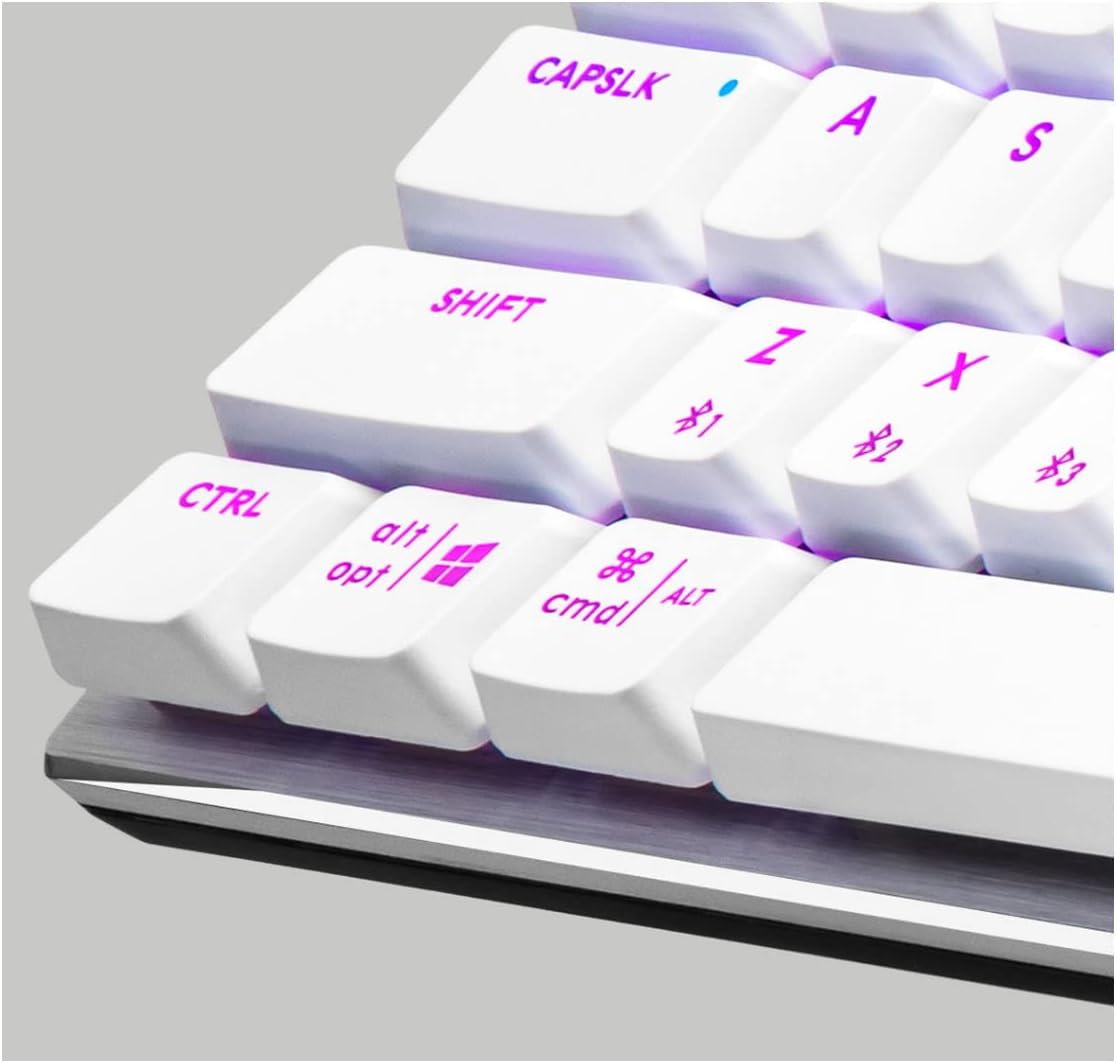
Image: Close-up of the Cooler Master SK653 keyboard's bottom left section, highlighting the Cooler Master logo key and the Z, X, and C keys used for Bluetooth profile selection.
Operating System Compatibility
The SK653 keyboard is compatible with a wide range of operating systems, including Windows 8 and above, Mac OS X, iOS, and Android. You can easily switch between OS modes using specific key combinations (refer to the keyboard's function key legends for details, typically involving the Cooler Master logo key and specific F-keys or other designated keys).
Operating the Keyboard
Key Features
- Low Profile Mechanical Switches: Experience a reduced travel distance and actuation point for faster response, while retaining the tactile feedback and durability of mechanical switches.
- Brushed Aluminum Design: The keyboard features a slim top plate and floating keycaps, contributing to a minimalist and durable aesthetic.
- Ergonomic Upgrades: Improved keycap design and adjustable feet provide a more comfortable typing experience.
- Full RGB Backlighting: Customize your lighting effects and colors directly on the keyboard or through the MasterPlus software.

Image: Side view of the Cooler Master SK653 keyboard, illustrating the adjustable feet and ergonomic design for comfortable typing angles.

Image: Detailed view of the low-profile mechanical switches used in the Cooler Master SK653 keyboard.
Function Keys and Multimedia Controls
The SK653 features a range of function keys (F1-F12) that, when combined with the Cooler Master Logo Key (Fn), provide access to various multimedia controls, lighting adjustments, and system functions. Refer to the legends printed on the keycaps for specific functions.
- Lighting Control: Adjust brightness, change lighting modes, and customize colors.
- Multimedia Control: Play/pause, skip tracks, and adjust volume.
- System Functions: Lock PC, open calculator, etc.
Battery Status (Wireless Mode)
To check the battery life of your keyboard in wireless mode, you typically need to access your device's Bluetooth settings. The Caps Lock indicator light may also show charging status (red for charging, green for full).
Maintenance
Cleaning
To maintain the keyboard's appearance and functionality, regularly clean it with a soft, dry cloth. For deeper cleaning, you may use a can of compressed air to remove dust and debris from between the keycaps. Avoid using harsh chemicals or abrasive materials.
Keycap Replacement
While the SK653 features improved keycaps, if you wish to replace them, be aware that larger keys (such as Space, Shift, and Backspace) utilize stabilizers that may not be compatible with all aftermarket keycap sets. Exercise caution when removing or installing keycaps to avoid damaging the switches or stabilizers.
Troubleshooting
| Problem | Possible Cause | Solution |
|---|---|---|
| Keyboard not recognized (wired) | Faulty cable or USB port; driver issue. | Try a different USB-C cable and/or a different USB port on your computer. Ensure your operating system drivers are up to date. |
| Bluetooth pairing issues | Incorrect pairing procedure; Bluetooth adapter issues; interference. |
|
| Bluetooth lag or inconsistent connection | Weak Bluetooth signal; interference; outdated firmware. |
|
| Keys double-clicking or not registering | Switch malfunction; dust/debris under keycap. |
|
Firmware Updates and Software
For optimal performance and access to advanced customization options, download and install the Cooler Master MasterPlus software from the official Cooler Master website. This software allows you to update the keyboard's firmware, customize RGB lighting, remap keys, and create macros.
Specifications
| Feature | Detail |
|---|---|
| Brand | Cooler Master |
| Model Number | SK-653-SKTR1-US |
| Connectivity Technology | Wired (USB-C), Bluetooth 4.0 |
| Keyboard Description | Mechanical, Gaming |
| Switch Type | Low Profile Red Switches |
| Number of Keys | 104 |
| Operating System Compatibility | Windows 8 and above, Mac OS X, iOS, Android |
| Colour | Sliver White |
| Material | Aluminum (top plate) |
| Product Dimensions (L x W x H) | 43 x 12.5 x 2.5 cm |
| Item Weight | 737 g |
Warranty and Support
Cooler Master products are backed by a limited warranty. For detailed warranty information, technical support, or service inquiries, please visit the official Cooler Master website or contact their customer support directly. Keep your proof of purchase for warranty claims.
Cooler Master Official Website: www.coolermaster.com
Related documentsSK-653-SKTR1-US


Ask a question about this manual
Ask about setup, troubleshooting, compatibility, parts, safety, or missing instructions. Manuals+ will review the question and use this page’s manual context to help answer it.