1. Product Overview
The Jancane USB 3.0 Switch Selector allows two computers to share up to four USB 3.0 peripheral devices. This device eliminates the need to constantly swap cables between computers, enhancing efficiency in both office and home environments. It supports high-speed data transfer and is compatible with various operating systems.
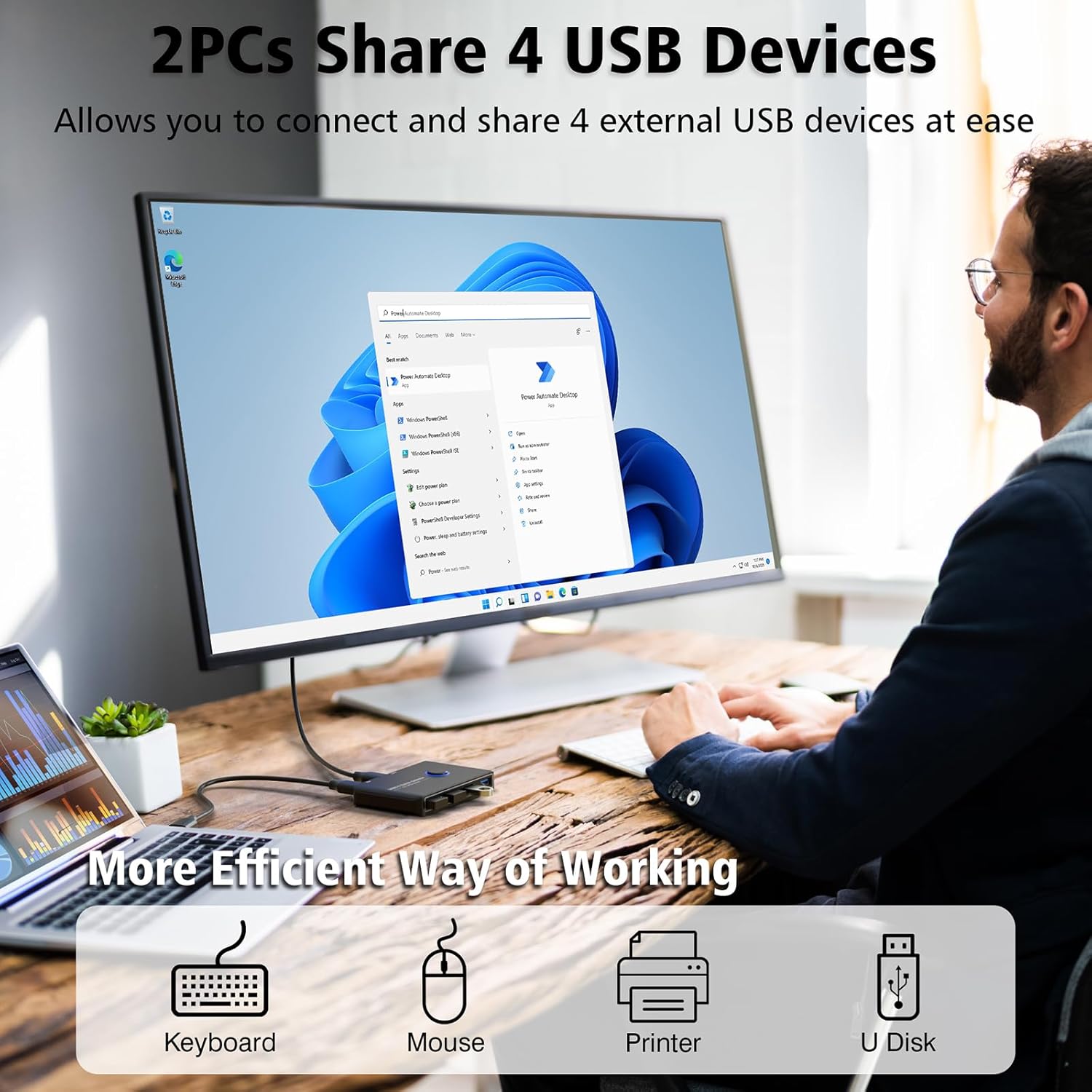
Image: The Jancane USB 3.0 Switch Selector connected to a laptop and a monitor, sharing a keyboard, mouse, printer, and USB drive.
Key Features:
- 2 In 4 Out USB 3.0 Connectivity: Connects 2 computers to share 4 USB 3.0 devices such as mice, keyboards, printers, scanners, and flash drives.
- Faster Data Transfer: Supports data transfer speeds up to 5Gbps, which is 10 times faster than USB 2.0, and is backward compatible with USB 2.0/1.1.
- One-Press Switching: Easily switch between two connected systems (PC1 and PC2) with a single button press.
- LED Indicators: Green LED indicates PC1 is active, and blue LED indicates PC2 is active, providing clear status at a glance.
- Wide Compatibility: Driver-free installation for Windows 10/8/8.1/7/Vista/XP, Mac OS X, Linux, and Chrome OS.
- Optional External Power: Includes a Micro USB port for optional 5V external power when using high-power USB devices (adapter not included).
2. Setup Instructions
Follow these steps to set up your Jancane USB 3.0 Switch Selector:
- Connect USB Devices: Plug your 4 USB peripheral devices (e.g., keyboard, mouse, printer, USB drive) into the "USB OUT" ports on the front of the switch selector.
- Connect Computers: Use the provided USB 3.0 A to A cables to connect your two computers (PC1 and PC2) to the respective "PC1" and "PC2" input ports on the rear of the switch selector.
- Optional Power Connection: If you are connecting high-power USB devices (e.g., external hard drives, digital video cameras), connect a standard 5V Micro USB power adapter (not included) to the "DC 5V" port on the side of the switch selector. This ensures stable operation for all connected devices.
- Power On: Ensure both connected computers are powered on. The switch selector does not require a separate power button; it draws power from the connected computers or the optional external power supply.

Image: A visual guide illustrating how to connect two PCs and four USB devices to the Jancane USB 3.0 Switch Selector, including the optional power supply connection.
Video: An official Jancane LLC video demonstrating the setup and functionality of the USB 3.0 Switch Selector, showing how to connect two computers and share four USB devices.
3. Operating Instructions
Operating the Jancane USB 3.0 Switch Selector is straightforward:
- Switching Between Computers: Press the large circular button on the top of the switch selector to toggle between PC1 and PC2.
- LED Indicators: Observe the LED indicators next to the button. A green light signifies that PC1 is currently active and has control of the connected USB devices. A blue light indicates that PC2 is active.
- Device Recognition: After switching, the active computer will automatically detect and connect to the shared USB devices. This process is typically quick and seamless.

Image: Close-up of the Jancane USB 3.0 Switch Selector showing the one-button switch and the blue/green LED indicators for active PC selection.
4. Maintenance
- Cleaning: Use a soft, dry cloth to clean the exterior of the device. Avoid using liquid cleaners or abrasive materials.
- Storage: Store the device in a cool, dry place away from direct sunlight and extreme temperatures when not in use.
- Handling: Handle the device with care to prevent damage to ports or internal components. Avoid dropping or subjecting it to strong impacts.
5. Troubleshooting
- Devices Not Recognized:
- Ensure all USB cables are securely connected to both the switch selector and the computers/devices.
- Verify that the correct PC is selected (indicated by the green or blue LED).
- If using high-power USB devices, ensure a 5V external power adapter is connected to the "DC 5V" port.
- Try restarting the computers or unplugging and re-plugging the USB cables.
- Slow Data Transfer:
- Ensure you are using USB 3.0 compatible cables and ports on your computers and devices for optimal speed.
- Confirm that the external 5V power supply is connected if multiple high-power devices are in use.
- Switch Button Unresponsive:
- Check power connections to ensure the device is receiving adequate power.
- Disconnect and reconnect the USB cables from the computers to reset the switch.
6. Specifications
| Feature | Detail |
|---|---|
| Model Number | U101 |
| Operation Mode | Manual (Push Button) |
| Operating Voltage | 5 Volts |
| Connector Type | USB |
| Number of Positions | 2 (for PCs) |
| Number of Items | 1 (USB Switch) |
| Color | Black |
| Material | Plastic |
| Item Dimensions (L x W x H) | 5.2 x 4.2 x 0.9 inches |
| Item Weight | 0.32 ounces |
| Compatible Devices | Camcorders, Digital Cameras, External Hard Disk Drives, Keyboards, Laptops, MacBook, MacBook Air, MacBook Pro, Mice, Personal Computer, Printers, Scanners, USB Flash Drives, Video Surveillance Cameras, Webcams, iMac, iPad, iPhone |
7. Warranty and Support
Jancane products are designed for reliability and performance. For warranty information or technical support, please refer to the contact details provided with your product packaging or visit the official Jancane website.
If you encounter any issues, please consult the troubleshooting section first. If the problem persists, do not hesitate to contact Jancane customer support for assistance.


