
Introduction
Thank you for choosing the MUSTAR Digital Piano. This manual provides essential information for the proper setup, operation, and maintenance of your new instrument. Please read it thoroughly before use to ensure optimal performance and longevity.
1. Setup
1.1 Unboxing and Component Check
Carefully remove all components from the packaging. Ensure the following items are present:
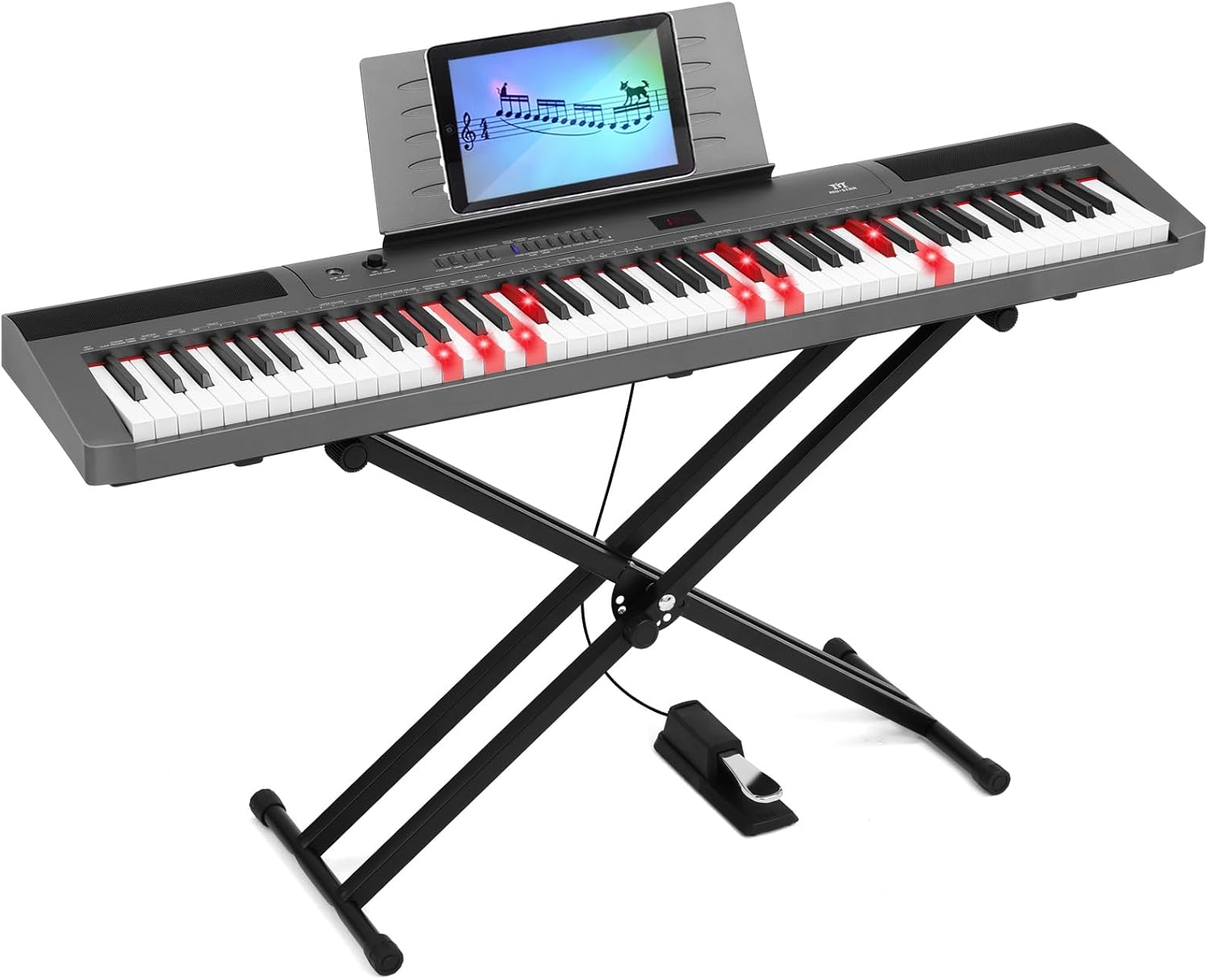
- MUSTAR 88-Key Digital Piano
- X-shaped Keyboard Stand
- Sustain Pedal
- Power Adapter
- Music Rest
- User Manual
- Waterproof Padded Case (if included in package)
- Dust Cover (if included in package)
1.2 Assembling the Keyboard Stand
- Unfold the X-shaped keyboard stand to its desired width.
- Adjust the height using the quick-release mechanism to a comfortable playing position (adjustable from 17 to 42 inches). Ensure all locking mechanisms are securely fastened.
- Place the digital piano securely on top of the stand.
1.3 Connecting the Sustain Pedal and Power
Locate the pedal input port on the rear of the piano. Connect the sustain pedal cable firmly. Connect the power adapter to the DC 12V input port on the rear of the piano, then plug the adapter into a standard electrical outlet.
1.4 Connectivity Overview
The digital piano offers various connection options for enhanced functionality:

- UDISK: For connecting USB flash drives.
- USB-MIDI: Connects to a computer or smart device for MIDI data transfer.
- PEDAL: For the sustain pedal connection.
- AUDIO IN: Allows connection of external audio sources (e.g., MP3 player).
- AUDIO OUT: For connecting to external speakers or amplifiers.
- PHONES-1 & PHONES-2: Dual 3.5mm headphone jacks for private practice.
- D.C. 12V: Power adapter input.
2. Operating Instructions
2.1 Power On/Off and Volume Control
Press the power button to turn the piano on or off. Adjust the master volume knob to control the overall sound output from the built-in stereo speakers or connected headphones.
2.2 Key Features and Functions
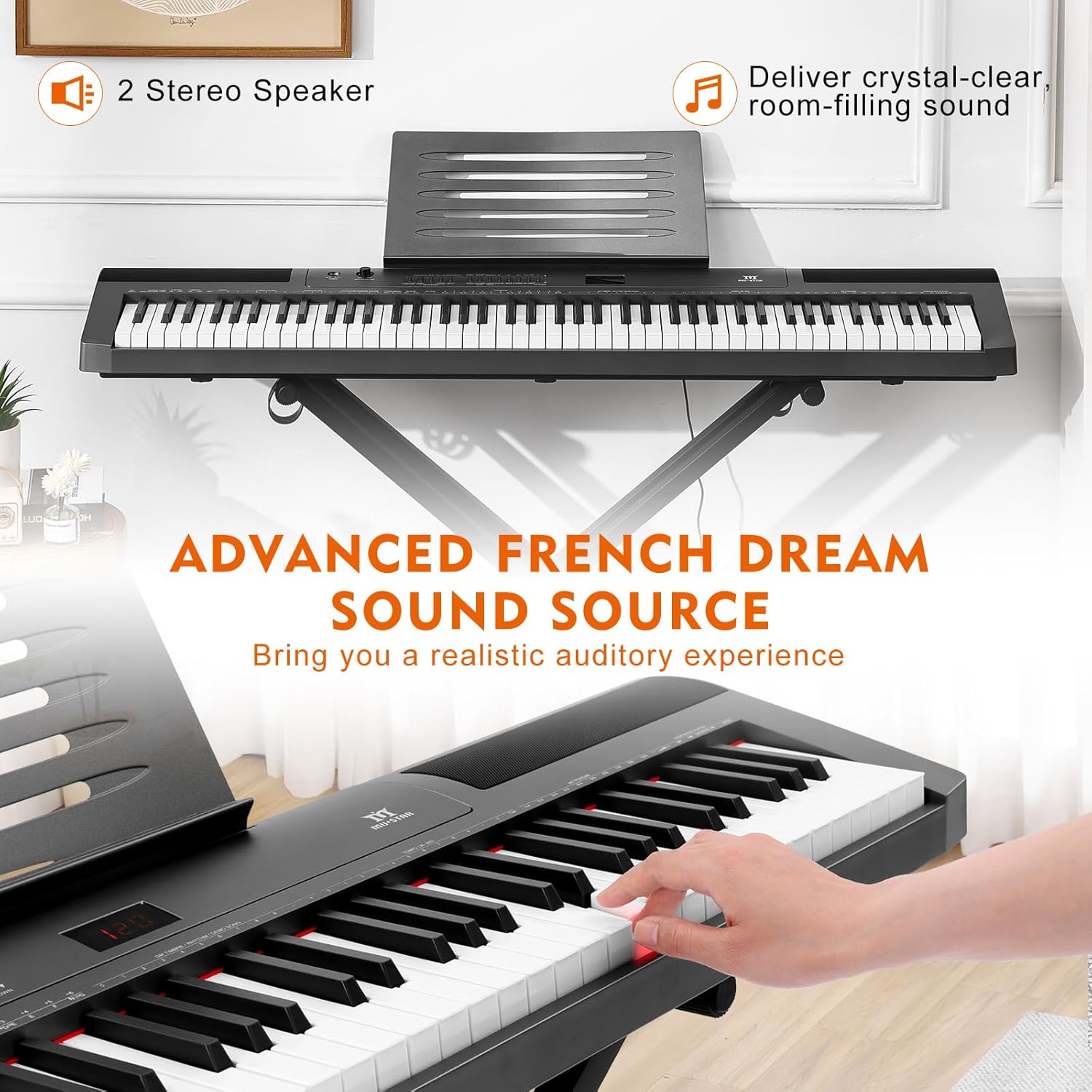
The MUSTAR Digital Piano offers a wide range of features to enhance your playing experience:

- Tones: Select from 128 different instrument sounds.
- Rhythms: Choose from 128 preset rhythms for accompaniment.
- Demo Songs: Enjoy 20 built-in demo songs.
- Polyphony: 64-note polyphony ensures complex pieces can be played without notes cutting off.
- Touch Sensitivity: The 88 semi-weighted keys respond to your playing dynamics. Play softly for quiet sounds or with more force for louder tones.

2.3 Advanced Functions
- Dual-Tone Mode: Combine two voices (e.g., piano and organ) to create richer sounds.
- Transpose: Shift the pitch of the entire keyboard up or down.
- Accompaniment Volume Adjustment: Control the volume of the rhythm section independently.
- Chord/Dynamics Function: Explore various chord and dynamic settings.
- Record/Playback: Record your performances and play them back instantly.
- Lesson Mode: Utilize built-in lesson features for learning.
- Lighted Keys: Certain models feature lighted keys to assist with learning.

2.4 Using Headphones
The digital piano includes dual 3.5mm headphone jacks, allowing two users to practice silently without disturbing others. Simply plug in your headphones to either PHONES-1 or PHONES-2 port.

3. Maintenance
3.1 Cleaning
To clean the digital piano, use a soft, dry cloth. For stubborn dirt, slightly dampen the cloth with water and a mild soap solution, then wipe dry immediately. Avoid using abrasive cleaners, solvents, or waxes, as these can damage the finish.
3.2 Storage
When not in use, protect your digital piano from dust and moisture. Use the provided dust cover or waterproof padded case for storage and transport. Store the instrument in a stable environment, away from direct sunlight, extreme temperatures, and high humidity.
4. Troubleshooting
| Problem | Possible Cause | Solution |
|---|---|---|
| No sound from speakers/headphones | Volume too low; power not connected; headphones not fully inserted. | Increase master volume. Ensure power adapter is securely connected. Re-insert headphones firmly. |
| Keys not responding | Piano not powered on; internal issue. | Ensure piano is powered on. If problem persists, contact customer support. |
| Sustain pedal not working | Pedal cable not fully inserted. | Ensure sustain pedal cable is securely connected to the PEDAL input. |
| MIDI connection issues | Incorrect cable; driver issues on computer. | Use a proper USB-MIDI cable. Install necessary drivers for your computer/software. |
5. Specifications
- Number of Keys: 88 Semi-Weighted Keys
- Tones: 128
- Rhythms: 128
- Demo Songs: 20
- Polyphony: 64-note
- Speakers: Built-in Stereo Speakers
- Connectivity: USB, MIDI, 3.5mm Jack, 6.35mm Jack (Pedal), DC 12V
- Product Dimensions: 134.1D x 31W x 77H Centimetres (approx. 49 x 11 x 30 inches)
- Body Material: MDF
- Power Source: Corded Electric
- Special Features: Headphone Jack, Portable, Touch-Sensitive Keys, Dual-Tone, Transpose, Record/Playback, Lesson Mode
- Skill Level: Beginner
6. Warranty Information
This product is covered by a manufacturer's warranty. Please refer to the warranty card included with your purchase or contact MUSTAR customer support for detailed information regarding warranty terms and conditions.
7. Customer Support
For technical assistance, troubleshooting, or any questions regarding your MUSTAR Digital Piano, please contact MUSTAR customer support. Contact information can typically be found on the product packaging, the official MUSTAR website, or your purchase documentation.

