
GoolRC S80
GoolRC S80 RC Drone User Manual
Model: S80
1. Safety Precautions
Before operating the GoolRC S80 RC Drone, please read and understand all safety instructions. Failure to follow these instructions may result in injury or damage to the product.
- Always operate the drone in open areas, away from people, animals, buildings, and power lines.
- Do not fly the drone in strong winds or adverse weather conditions.
- Ensure the drone battery is fully charged and the remote controller batteries are fresh before each flight.
- Keep fingers and loose clothing away from rotating propellers.
- This product is not a toy. Adult supervision is recommended for users under 14 years of age.
- Do not attempt to modify or disassemble the drone or its components.
- Follow all local regulations and laws regarding drone operation.
2. Package Contents
Verify that all items are present in the package:
- 1 x GoolRC S80 RC Drone
- 1 x Remote Controller
- 2 x Drone Batteries (3.7V 2000mAh)
- 1 x USB Charging Cable
- 2 x Spare Propellers
- 4 x Protection Rings
- 1 x Screwdriver
- 1 x User Manual
- 1 x Storage Bag

Image: All components included in the GoolRC S80 drone package.
3. Product Overview
The GoolRC S80 is a foldable RC drone equipped with dual cameras for aerial photography and FPV flight. It features a compact design for portability and various intelligent flight modes.

Image: The GoolRC S80 drone in its unfolded state, alongside its remote controller.
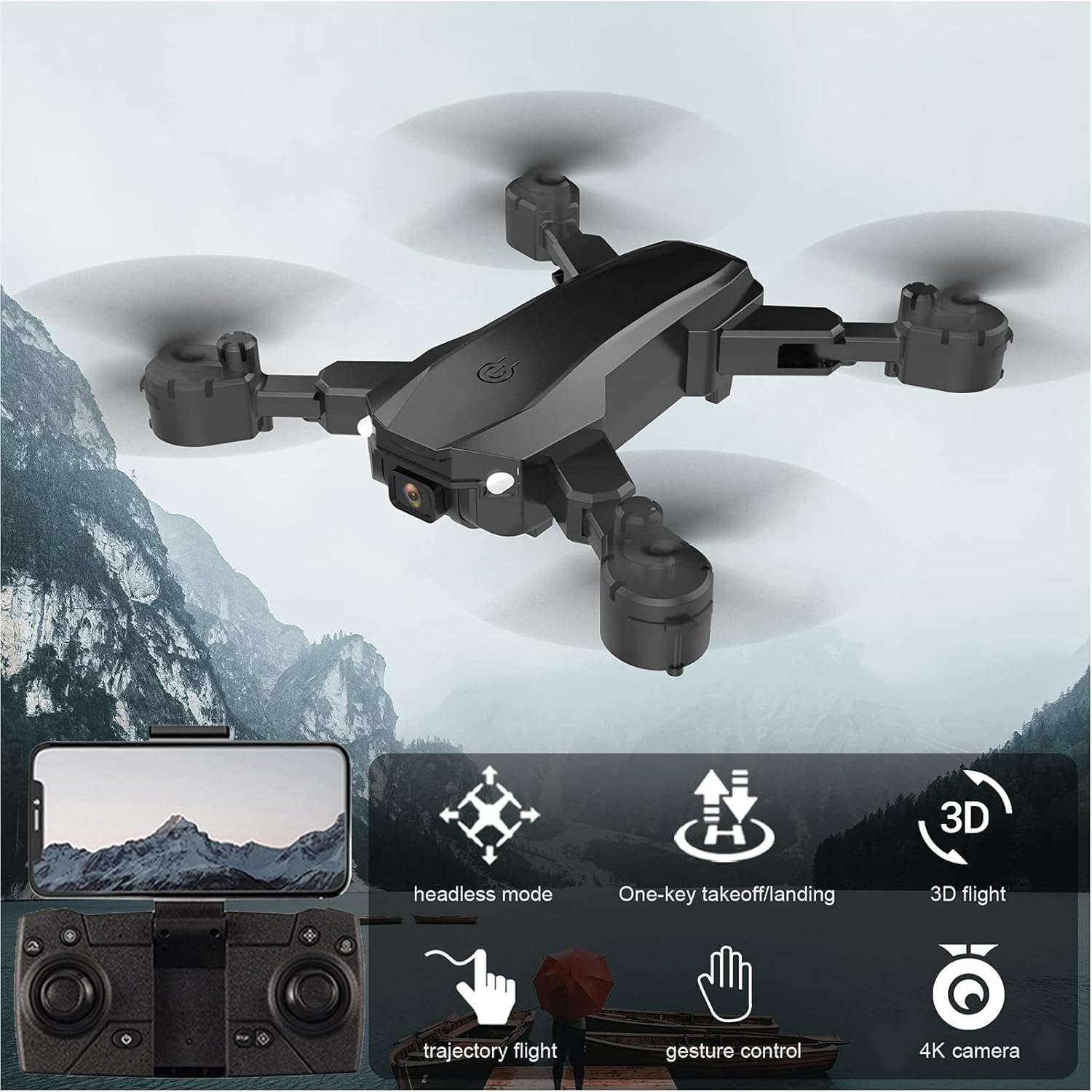
Image: Visual representation of the GoolRC S80 drone highlighting its key features.
4. Battery Installation and Charging
4.1 Drone Battery
- Ensure the drone is powered off.
- Locate the battery compartment on the underside of the drone.
- Insert the 3.7V 2000mAh drone battery into the compartment, ensuring it clicks into place securely.
- To charge, connect the drone battery to the USB charging cable. Connect the USB cable to a 5V/1A USB power adapter (not included).
- The charging indicator light will show the charging status. Charging time is approximately 60 minutes.
- Do not leave batteries charging unattended.
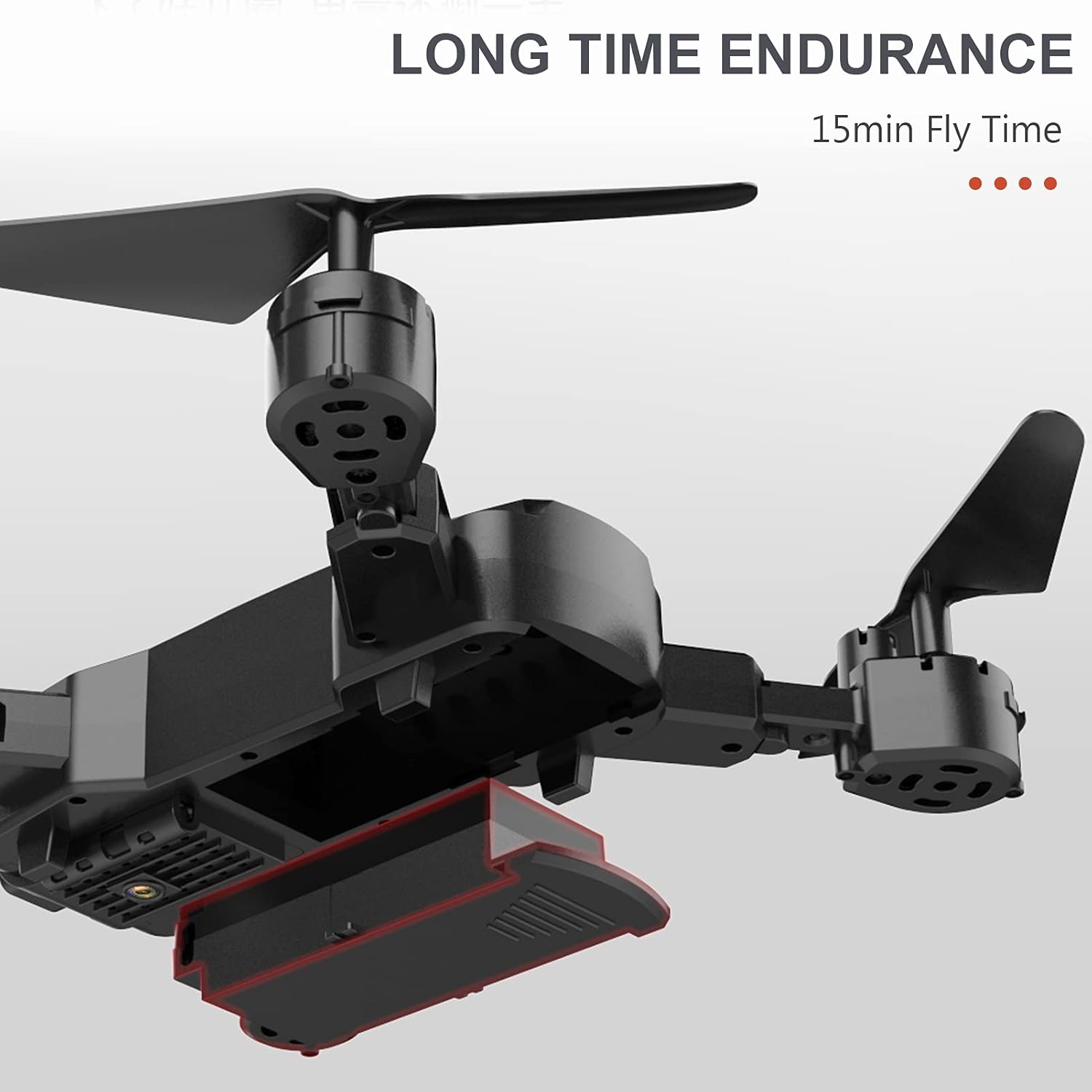
Image: The drone's battery compartment and the battery being inserted.
4.2 Remote Controller Batteries
- Open the battery cover on the back of the remote controller.
- Insert 3 x AA batteries (not included) into the compartment, observing the correct polarity (+/-).
- Close the battery cover securely.
5. Remote Controller Setup and Pairing
- Place the drone on a flat, level surface.
- Power on the drone. The indicator lights will flash.
- Power on the remote controller.
- Push the left joystick (throttle) all the way up, then all the way down. The drone lights will stop flashing and remain solid, indicating successful pairing.
6. Drone Calibration
Before the first flight and after any crash, it is recommended to calibrate the drone's gyroscope for stable flight.
- After successful pairing, place the drone on a flat, level surface.
- Push both joysticks on the remote controller to the bottom-right corner simultaneously for a few seconds.
- The drone's indicator lights will flash rapidly and then become solid, indicating successful calibration.
7. Basic Flight Operations
7.1 One-Key Takeoff / Landing
- After pairing and calibration, press the One-Key Takeoff button (usually indicated by an upward arrow icon) on the remote controller. The drone will automatically ascend and hover at a certain altitude.
- To land, press the One-Key Landing button (usually indicated by a downward arrow icon). The drone will slowly descend and land automatically.
7.2 Altitude Hold
The drone features an auto-hover function that maintains a steady altitude, making it easier to control and capture stable photos/videos.

Image: The drone maintaining a fixed height using its intelligent air pressure system.
7.3 Headless Mode
In Headless Mode, the drone's orientation is relative to the pilot, regardless of the drone's actual front direction. This simplifies control for beginners.
- Press the Headless Mode button on the remote controller to activate/deactivate.
- When activated, the drone will respond to joystick movements based on your perspective.
8. Advanced Flight Features
8.1 Trajectory Flight
Using the companion app on your smartphone, you can draw a flight path on the screen, and the drone will automatically follow the designated route.
- Download and install the GoolRC S80 app on your smartphone.
- Connect your smartphone to the drone's Wi-Fi network.
- In the app, select the Trajectory Flight mode and draw your desired path.
8.2 3D Flips
Perform exciting 360-degree flips with a single button press.
- Fly the drone to a sufficient height (at least 3 meters).
- Press the 3D Flip button (refer to remote controller diagram in the full manual).
- Immediately push the right joystick in the desired direction (forward, backward, left, or right) to execute the flip.

Image: The drone executing a 3D flip maneuver.
8.3 Gesture Control
The drone can recognize specific hand gestures to take photos or record videos.
- Ensure the drone's camera is facing you.
- Perform the designated gesture (e.g., 'V' sign for photo, open palm for video) within the camera's view.
- The drone will automatically capture the photo or start/stop video recording.
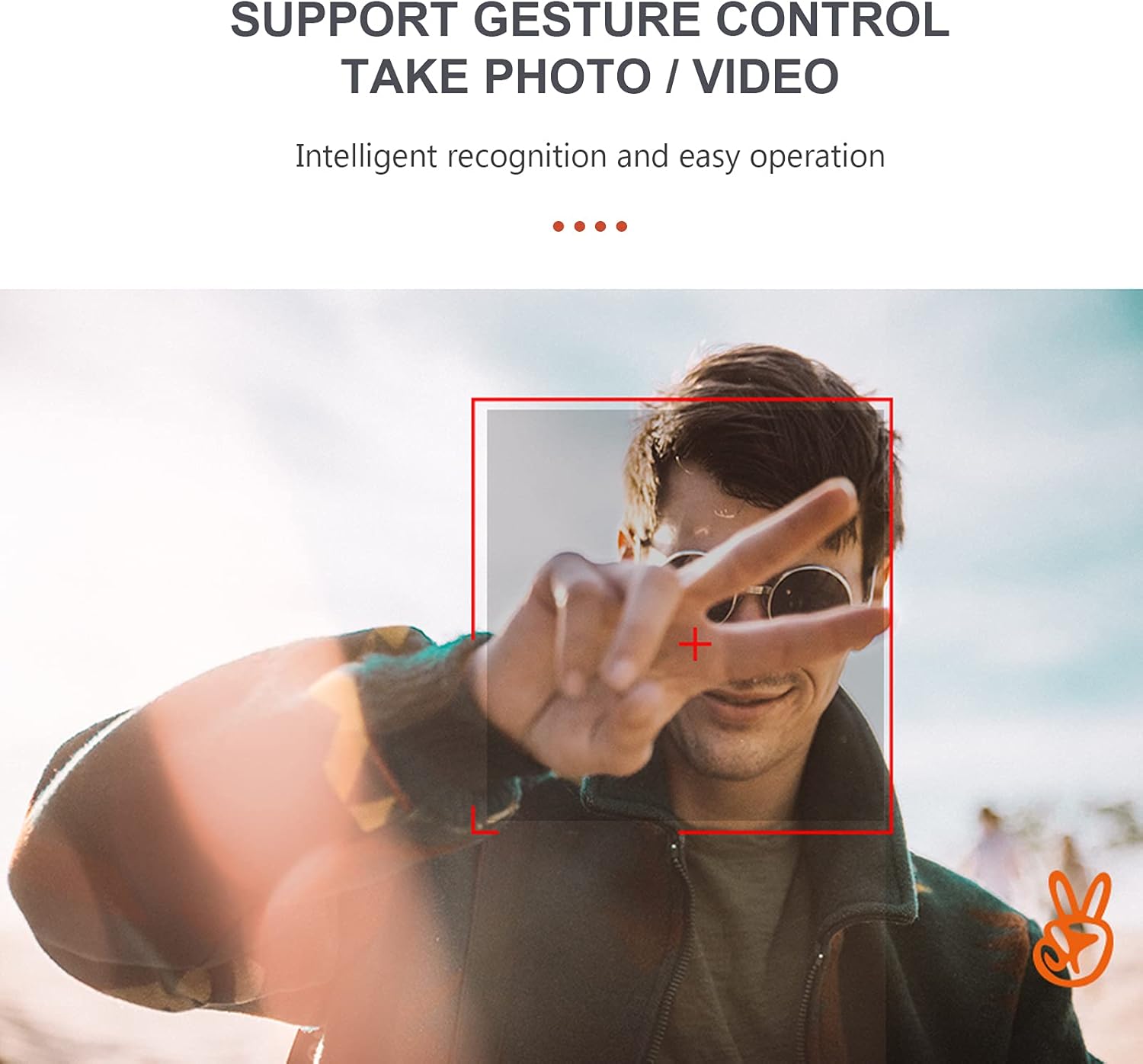
Image: A user performing a gesture to control the drone's camera.
8.4 Speed Adjustment
The drone offers multiple speed settings to suit different flying environments and skill levels.
- Press the speed adjustment button on the remote controller to cycle through low, medium, and high speeds.
- Higher speeds are recommended for outdoor flight in calm conditions.
9. Camera Operation
The GoolRC S80 drone is equipped with a 4K front camera and a bottom camera for versatile aerial photography and videography.
- Taking Photos: While flying, press the Photo button on the remote controller or use the gesture control feature.
- Recording Videos: Press the Video button on the remote controller to start recording. Press again to stop. Alternatively, use gesture control.
- FPV (First Person View): Connect your smartphone to the drone's Wi-Fi network and open the companion app to view live video feed from the drone's camera.
- Captured media is typically saved to your smartphone via the app or to an onboard storage (if applicable, refer to app instructions).

Image: Details on the resolution capabilities of the drone's front and bottom cameras.
10. Maintenance
- Propeller Replacement: If propellers are damaged, use the included screwdriver to replace them with spare propellers. Ensure correct orientation (A and B propellers).
- Cleaning: Use a soft, dry cloth to clean the drone body and camera lens. Do not use harsh chemicals.
- Storage: Store the drone and remote controller in a cool, dry place, away from direct sunlight. Remove batteries from the remote controller if storing for extended periods.
- Protection Rings: Install the protection rings before flight to prevent damage to propellers and for safer indoor flying.
11. Troubleshooting
| Problem | Possible Cause | Solution |
|---|---|---|
| Drone does not respond to remote controller. | Not paired; Low remote controller battery; Drone battery low. | Re-pair the drone and remote; Replace remote batteries; Charge drone battery. |
| Drone flies unstably or drifts. | Gyroscope not calibrated; Damaged propeller; Uneven surface during takeoff. | Calibrate the gyroscope; Replace damaged propellers; Take off from a flat surface. |
| Camera not taking photos/videos or FPV not working. | App not connected to drone Wi-Fi; Insufficient light for gesture control; App error. | Ensure Wi-Fi connection; Check lighting for gestures; Restart app and drone. |
| Short flight time. | Battery not fully charged; Old battery; Aggressive flying. | Fully charge battery; Consider replacing old batteries; Fly more conservatively. |
12. Specifications
| Feature | Detail |
|---|---|
| Model | S80 |
| Material | ABS |
| Motor Type | Brushed motor |
| Frequency | 2.4Ghz |
| Charging Time | Approx. 60 minutes |
| Flying Time | Approx. 15 minutes |
| Remote Control Distance | Approx. 100 meters |
| Front Camera Photo Resolution | 4096*3072 (4K) |
| Front Camera Video Resolution | 1280*720 |
| Bottom Camera Resolution | 640*480 |
| Image Transmission Distance | Approx. 40 meters |
| Drone Battery | 3.7V 2000mAh (Included) |
| Remote Control Battery | 3* AA battery (Not Included) |
| Drone Size (Unfolded) | 17 x 17.4 cm |
| Drone Size (Folded) | 11.3 x 13.8 x 3.1 cm |

Image: Detailed dimensions of the GoolRC S80 drone.
13. Warranty and Support
If you encounter any problems with your GoolRC S80 RC Drone, please contact our store in time. We are committed to providing a satisfactory solution to any issues you may experience.
For further assistance, please refer to the contact information provided with your purchase or visit the official GoolRC website.
Related documentsS80


Ask a question about this manual
Ask about setup, troubleshooting, compatibility, parts, safety, or missing instructions. Manuals+ will review the question and use this page’s manual context to help answer it.