
1. Product Overview
The NETVUE Sentry 2 is a 1080P outdoor security camera designed to provide comprehensive surveillance for your home. It features advanced functionalities such as 360° pan and 110° tilt for wide area coverage, real-time motion and human detection, two-way audio communication, and enhanced night vision capabilities. Its IP66 weatherproof rating ensures reliable performance in various outdoor conditions.
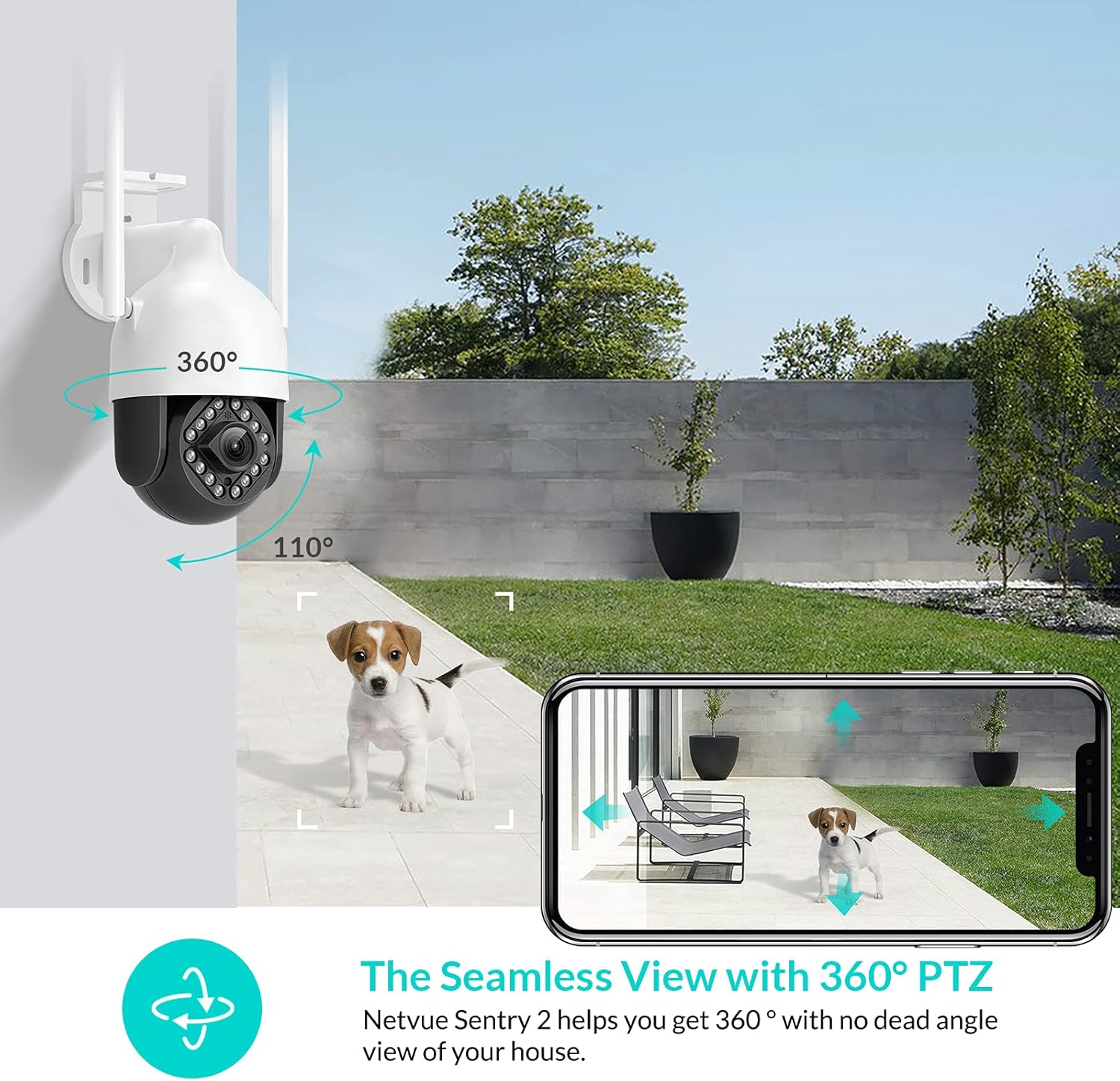
Image: NETVUE Sentry 2 Outdoor Security Camera showcasing its 360° pan and 110° tilt view.
2. What's in the Box
Upon unboxing your NETVUE Sentry 2 camera, please verify that all components are present:
- NETVUE Sentry 2 Outdoor Security Camera
- Power Adapter
- Mounting Bracket
- Mounting Screws and Wall Anchors
- Waterproof Kit for Cable Connections
- User Manual (this document)
For a visual guide on the product and its components, please refer to the official product video below:
Video: Official Netvue Outdoor Security Camera Sentry 2 overview, including unboxing and installation steps.
3. Setup and Installation
3.1 Powering On
- Connect the power adapter to the camera's power input.
- Plug the power adapter into a standard electrical outlet.
- Wait for the camera to power on and initiate its self-test.
3.2 App Download and Account Creation
- Download the official NETVUE app from your device's app store (iOS or Android).
- Open the app and create a new account, or log in if you already have one.
3.3 Wi-Fi Connection
The NETVUE Sentry 2 camera supports 2.4GHz Wi-Fi networks. Ensure your mobile device is connected to a 2.4GHz Wi-Fi network during the setup process.
- In the NETVUE app, tap 'Add Device' and select your camera model.
- Follow the on-screen instructions to connect the camera to your Wi-Fi network. This typically involves scanning a QR code generated by the app with the camera lens.

Image: NETVUE Sentry 2 camera demonstrating stable Wi-Fi connection in distance.
3.4 Physical Installation
Choose a suitable outdoor location for mounting the camera, ensuring it has a clear view and is within Wi-Fi range. The camera is IP66 weatherproof, suitable for various outdoor conditions.
- Use the mounting bracket as a template to mark drill holes on the desired surface.
- Drill the holes and insert the wall anchors.
- Secure the mounting bracket to the surface using the provided screws.
- Attach the camera to the mounting bracket.
- Ensure all cable connections are properly sealed using the waterproof kit to prevent water ingress.
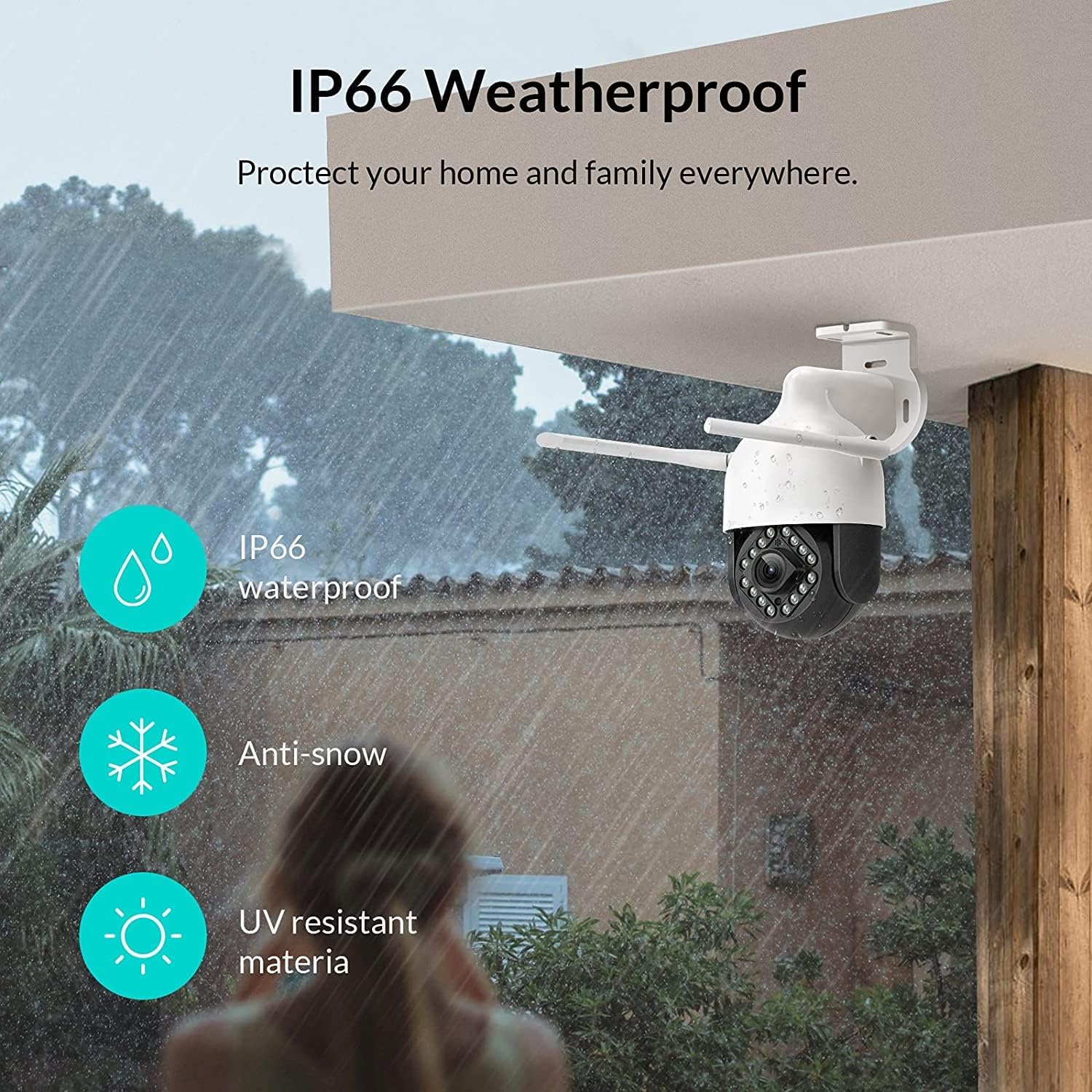
Image: NETVUE Sentry 2 camera highlighting its IP66 weatherproof features against rain and snow.
4. Operating the Camera
4.1 Live View and Pan/Tilt Control
Access the live video feed from your camera through the NETVUE app. You can remotely control the camera's pan (horizontal) and tilt (vertical) movements to adjust the viewing angle as needed.
4.2 Motion and Human Detection
The camera is equipped with motion and human detection capabilities. When motion or a human figure is detected, you will receive immediate notifications on your mobile device.

Image: Real-time motion detection alert displayed on a smartphone from the NETVUE Sentry 2 camera.

Image: Motion and human detection alert from the NETVUE Sentry 2 camera, showing a person at the front door.
4.3 Two-Way Audio
Utilize the two-way audio feature to communicate with individuals near the camera. This is useful for interacting with visitors or deterring unwanted guests.

Image: Two-way audio feature of the NETVUE Sentry 2 camera, allowing communication with a delivery person.
4.4 Night Vision
The NETVUE Sentry 2 camera is equipped with 16 infrared lights for super night vision, providing clear video footage even in low-light or complete darkness.

Image: Close-up of the NETVUE Sentry 2 camera's 16 infrared lights for super night vision.
5. Maintenance
5.1 Cleaning the Camera
Periodically clean the camera lens and housing to ensure optimal performance. Use a soft, damp cloth to wipe away dust and dirt. Avoid using harsh chemicals or abrasive materials that could damage the lens or finish.
5.2 Firmware Updates
Regularly check the NETVUE app for available firmware updates. Keeping your camera's firmware up-to-date ensures you have the latest features, security enhancements, and bug fixes.
5.3 Storage Management
The camera supports local storage via a microSD card (not included) and cloud storage options. If using a microSD card, ensure it is properly formatted and regularly check its status within the app to prevent recording issues.
6. Troubleshooting
6.1 Wi-Fi Connection Issues
- Ensure 2.4GHz Wi-Fi: The camera only supports 2.4GHz Wi-Fi. Confirm your router is broadcasting a 2.4GHz signal and your phone is connected to it during setup.
- Signal Strength: Verify the camera is installed within a strong Wi-Fi signal range. Relocate the camera or use a Wi-Fi extender if necessary.
- Router Settings: Check your router settings for any restrictions that might prevent new devices from connecting.
6.2 SD Card Not Detected or Recording
- Reinsert SD Card: Power off the camera, remove the microSD card, and reinsert it firmly. Power the camera back on.
- Format SD Card: Format the SD card through the NETVUE app. If issues persist, try a different, high-quality microSD card.
- Check App Settings: Ensure recording settings are correctly configured in the NETVUE app.
6.3 No Motion Alerts
- Enable Alerts: Confirm motion detection and notification alerts are enabled in the NETVUE app settings.
- Adjust Sensitivity: Adjust the motion detection sensitivity to an appropriate level.
- Check Schedule: Ensure motion detection is not disabled during specific times via a schedule.
6.4 General Issues
- Restart Camera: Disconnect the power adapter, wait 10 seconds, and reconnect it to restart the camera.
- Update App: Ensure your NETVUE app is updated to the latest version.
7. Specifications
| Compatible Devices | Video Monitor |
| Power Source | AC/DC |
| Connectivity Protocol | Wi-Fi |
| Controller Type | Iris |
| Mounting Type | Wall Mount |
| Video Capture Resolution | 1080p |
| Number of Items | 1 |
| Number of Channels | 1 |
| Wireless Communication Technology | Wi-Fi |
| Batteries Required? | No |
| Low Light Technology | Night Color |
| Alert Type | Motion Only |
| Light Source Type | Infrared |
| Video Capture Format | MPEG-4 |
| Unit Count | 1.0 Count |
| International Protection Rating | IP66 |
| Package Dimensions | 11.3 x 6.1 x 5.91 inches |
| Item Weight | 2.12 pounds |
| Recommended Uses For Product | Outdoor Security |
| Indoor/Outdoor Usage | Outdoor |
8. Warranty and Support
For warranty information and technical support, please refer to the official NETVUE website or contact NETVUE customer service directly. Keep your purchase receipt for warranty claims.


