
1. Introduction
This manual provides detailed instructions for the setup, operation, and maintenance of your aikeec 64 Bit USB Handbrake. Designed for PC Windows sim racing games, this handbrake enhances your racing experience with realistic control and durable construction. Please read this manual thoroughly before use to ensure optimal performance and longevity of your device.

Image 1.1: The aikeec USB Handbrake, designed for simulated racing on PC Windows systems.
2. Product Features
- Premium Material: Constructed from lightweight CNC machined aluminum and mild steel for enhanced durability and a precise feel.
- 64 Bit On-Contact Hall Sensor: Utilizes Hall-effect precision technology to provide a realistic brake feel, improving the driving simulation experience.
- Plug-and-Play Compatibility: Functions with both linear and non-linear games. Easy setup within game settings for titles like Euro Truck Simulator and American Truck Simulator, requiring no separate computer device or printer setup.
- Automatic Calibration: Features an automatic calibration system with memory for starting and ending points, acting as an independent game device for racing control.
- Wide Application: Supports Windows 7 and above PC systems. Compatible with popular racing wheels such as Logitech G27, G25, G29, T500, T300, and FANATECOSW. Works with numerous simulation games including Assetto Corsa, DiRT Rally Series, Forza Horizon 4/5, Forza Motorsport 7, Euro Truck Simulator 2, WRC 9, Richard Burns Rally, Project Cars, Live For Speed, and TOCA Pro Race Driver.

Image 2.1: Overview of the handbrake's special features, including automatic calibration, ease of use, quality assurance, and upgraded sensor technology.
3. Package Contents
The aikeec 64 Bit USB Handbrake package includes the following items:
- aikeec 64 Bit USB Handbrake Unit (without clamp)
- USB Connection Cable
- Handle Grip (pre-installed)
- Additional Handle Grip Sleeves (two thickness options)
- Conventional Spring (yellow)
- Reinforced Spring (blue)
- Mounting Hardware (bolts, nuts, washers for securing the handbrake to a rig or separately purchased clamp)
- Hex Wrenches for assembly and adjustment

Image 3.1: Close-up view of the durable USB connection cable and the true fiber backing on the handbrake unit.

Image 3.2: Details of the hand protection design, highlighting shock absorption, anti-skid properties, sound absorption, and soft, elastic material. Two grip thickness options are included.
4. Setup Guide
4.1 Physical Installation
- Mounting: Secure the aikeec USB Handbrake to your sim racing rig or a compatible desk clamp (sold separately) using the provided mounting hardware. Ensure all bolts are tightened securely to prevent movement during use.
- Height Adjustment: The handbrake handle's height can be adjusted to suit your preference. Loosen the bolts on the side of the handle, slide it to the desired height, and re-tighten the bolts.
- Spring Tension Adjustment: The handbrake comes with two springs (conventional and reinforced) and allows for tension adjustment. To change the spring, carefully disassemble the spring mechanism. To adjust tension, tighten or loosen the nut on the spring mechanism.

Image 4.1: Illustration of the handbrake's adjustable features, including handle height and internal spring mechanism for controlling pulling ease.
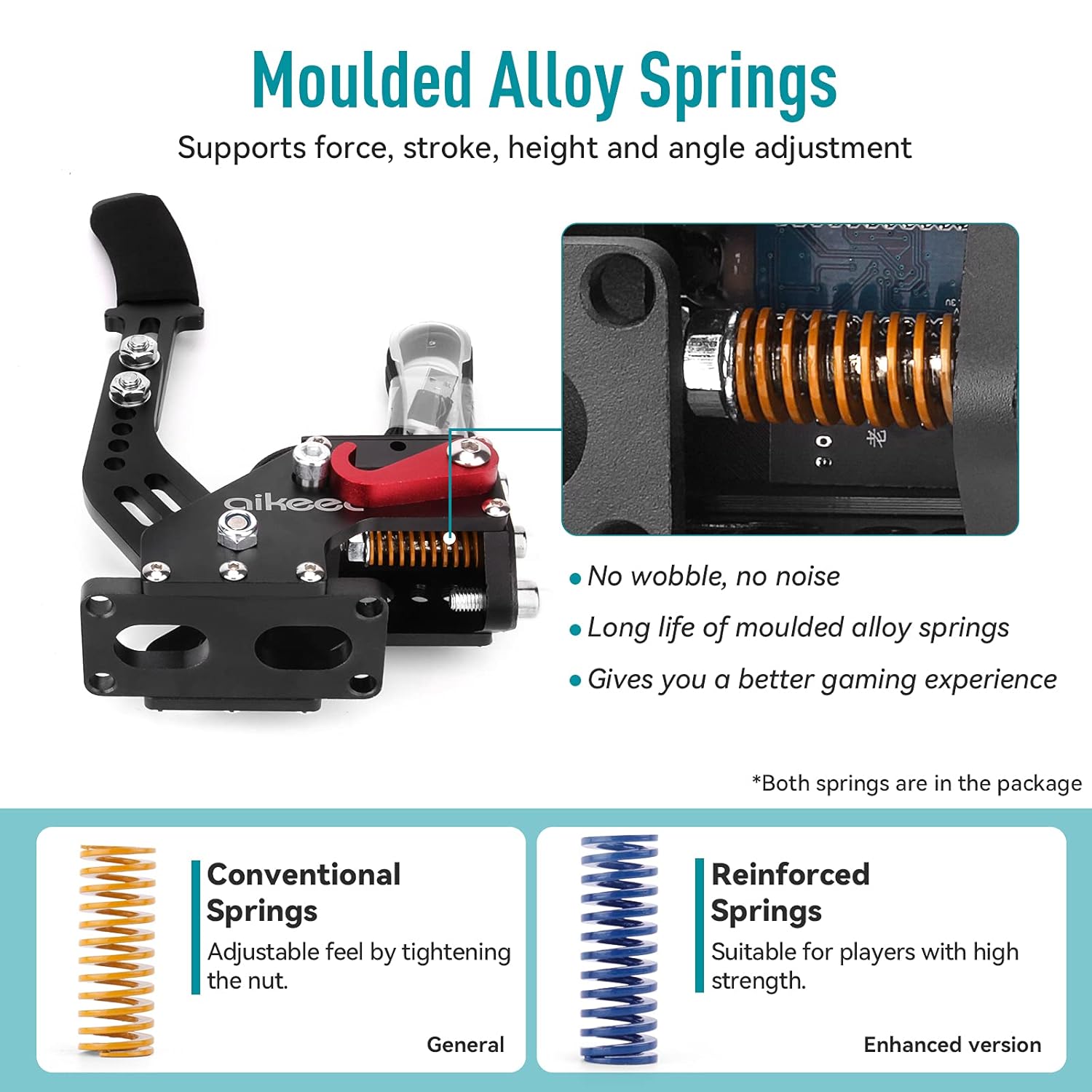
Image 4.2: Detail of the moulded alloy springs, showing both conventional (yellow) and reinforced (blue) options for different resistance levels.
4.2 Connecting to PC
- Locate an available USB port on your PC.
- Connect the USB cable from the aikeec Handbrake to the USB port on your PC.
- Your PC operating system (Windows 7 or above) should automatically detect and install the necessary drivers. No manual driver installation is typically required.
5. Operating Instructions
5.1 In-Game Configuration
Once connected, the handbrake will be recognized as a generic USB game controller. To use it in your sim racing games:
- Launch your preferred sim racing game.
- Navigate to the game's 'Options' or 'Settings' menu.
- Look for 'Controls', 'Key Bindings', or 'Peripherals' settings.
- Locate the 'Handbrake' or 'E-brake' function.
- Assign this function to the aikeec USB Handbrake input. The game should detect the handbrake's analog input when you pull the lever.
- Adjust any dead zones or sensitivity settings within the game to fine-tune the handbrake's response to your preference.
Video 5.1: An official video demonstrating the aikeec USB Handbrake in use with various sim racing games, showcasing its functionality and ease of integration.
6. Compatibility
The aikeec 64 Bit USB Handbrake is compatible with PC systems running Windows 7 and above. It supports a wide range of popular sim racing games and steering wheel setups:
6.1 Supported Steering Wheels
- Logitech G27
- Logitech G25
- Logitech G29
- Thrustmaster T500
- Thrustmaster T300
- FANATECOSW
6.2 Supported Games
- Assetto Corsa
- DiRT Rally Series
- Forza Horizon 4 (Windows Version)
- Forza Motorsport 7
- Forza Horizon 5
- Euro Truck Simulator 2
- WRC 9
- Richard Burns Rally
- Project Cars
- Live For Speed
- TOCA Pro Race Driver
- And many other simulation games that support handbrake options.

Image 6.1: A collage of popular racing games, illustrating the wide compatibility of the aikeec USB Handbrake with major titles.
7. Maintenance
To ensure the longevity and optimal performance of your aikeec USB Handbrake, follow these maintenance guidelines:
- Cleaning: Regularly wipe the handbrake unit with a soft, dry cloth to remove dust and debris. Avoid using harsh chemicals or abrasive cleaners.
- Lubrication: Periodically check the moving parts and spring mechanism. If any squeaking or stiffness occurs, apply a small amount of silicone-based lubricant to the pivot points and spring.
- Storage: When not in use for extended periods, store the handbrake in a clean, dry environment away from direct sunlight and extreme temperatures.
- Cable Care: Avoid sharp bends or kinks in the USB cable. Do not pull the cable to disconnect the device; always grasp the connector.
8. Troubleshooting
If you encounter issues with your aikeec USB Handbrake, refer to the following common problems and solutions:
- Handbrake Not Detected by PC:
- Ensure the USB cable is securely connected to both the handbrake and the PC.
- Try connecting to a different USB port on your PC.
- Restart your PC.
- Verify that your Windows operating system is up to date.
- Handbrake Not Working in Game:
- Confirm that the handbrake is correctly assigned to the 'Handbrake' function within the game's control settings (refer to Section 5.1).
- Check for any conflicting controller inputs. Disconnect other game controllers if necessary to isolate the issue.
- Ensure the game itself supports external handbrake devices.
- Handbrake Feels Loose or Too Stiff:
- Adjust the spring tension as described in Section 4.1.
- Ensure all mounting bolts are securely tightened.
9. Technical Specifications
| Feature | Specification |
|---|---|
| Model | 64 Bit USB Handbrake |
| Connectivity | USB |
| Sensor Type | 64 Bit On-Contact Hall Sensor |
| Material | CNC Machined Aluminum, Mild Steel |
| Operating System Compatibility | Windows 7 and above |
| Item Weight | 2.35 pounds (approximately 1.07 kg) |
| Package Dimensions | 8.86 x 7.44 x 3.86 inches (approximately 22.5 x 18.9 x 9.8 cm) |
10. Warranty and Customer Support
For warranty information, product support, or technical assistance, please refer to the aikeec official website or contact your retailer. Keep your purchase receipt as proof of purchase for any warranty claims.