
1. Introduction
Thank you for choosing the aikeec 64-Bit USB Handbrake. This device is designed to enhance your PC sim racing experience by providing a realistic and responsive handbrake control. This manual will guide you through the installation, setup, operation, and maintenance of your new handbrake.
2. Product Overview and Features
The aikeec USB Handbrake is constructed from durable CNC machined aluminum and mild steel, ensuring longevity and precise control. It features a 64-bit on-contact Hall sensor for increased realism and an automatic calibration system for ease of use.

Image: Key features of the aikeec USB Handbrake, including its new design, ease of use, quality assurance, and advanced 64-bit on-contact Hall sensor technology.
Key Features:
- Premium Construction: Made from lightweight CNC machined aluminum and mild steel for durability.
- 64-Bit On-Contact Hall Sensor: Provides precise and realistic brake feel for an immersive racing experience.
- Automatic Calibration System: Features automatic memory for starting and ending points, simplifying setup.
- Plug and Play: Compatible with Windows 7 and above PC systems, requiring no additional drivers.
- Adjustable Design: The handbrake's height and spring tension can be adjusted to suit user preferences.
- Versatile Game Compatibility: Supports a wide range of linear and non-linear racing simulation games.
3. Package Contents
Please verify that all items are present in your package:

Image: The aikeec USB Handbrake, desk clamp, various bolts, nuts, Allen wrenches, a spare spring, and two handle grip sleeves.
- aikeec 64-Bit USB Handbrake Unit
- Desk Clamp
- USB Connection Cable
- Mounting Hardware (various bolts and nuts)
- Allen Wrenches (2 sizes)
- Spare Spring (Reinforced)
- Handle Grip Sleeves (2 thickness options)
4. Setup Instructions
4.1 Physical Assembly
- Attach Handbrake to Clamp: Use the provided bolts and nuts to securely fasten the handbrake unit to the desk clamp. Ensure all connections are tight.
- Mount to Desk: Position the assembled handbrake and clamp on your desired desk or racing rig surface. Tighten the clamp screw until the unit is stable and does not shift during use. Consider adding protective padding between the clamp and your desk surface if needed.

Image: Visual guide demonstrating the adjustable height of the handbrake handle and the internal spring mechanism for tension adjustment.
4.2 USB Connection
Connect the provided USB cable from the handbrake unit to an available USB port on your PC. The device is plug-and-play for Windows 7 and above, meaning no manual driver installation is typically required.
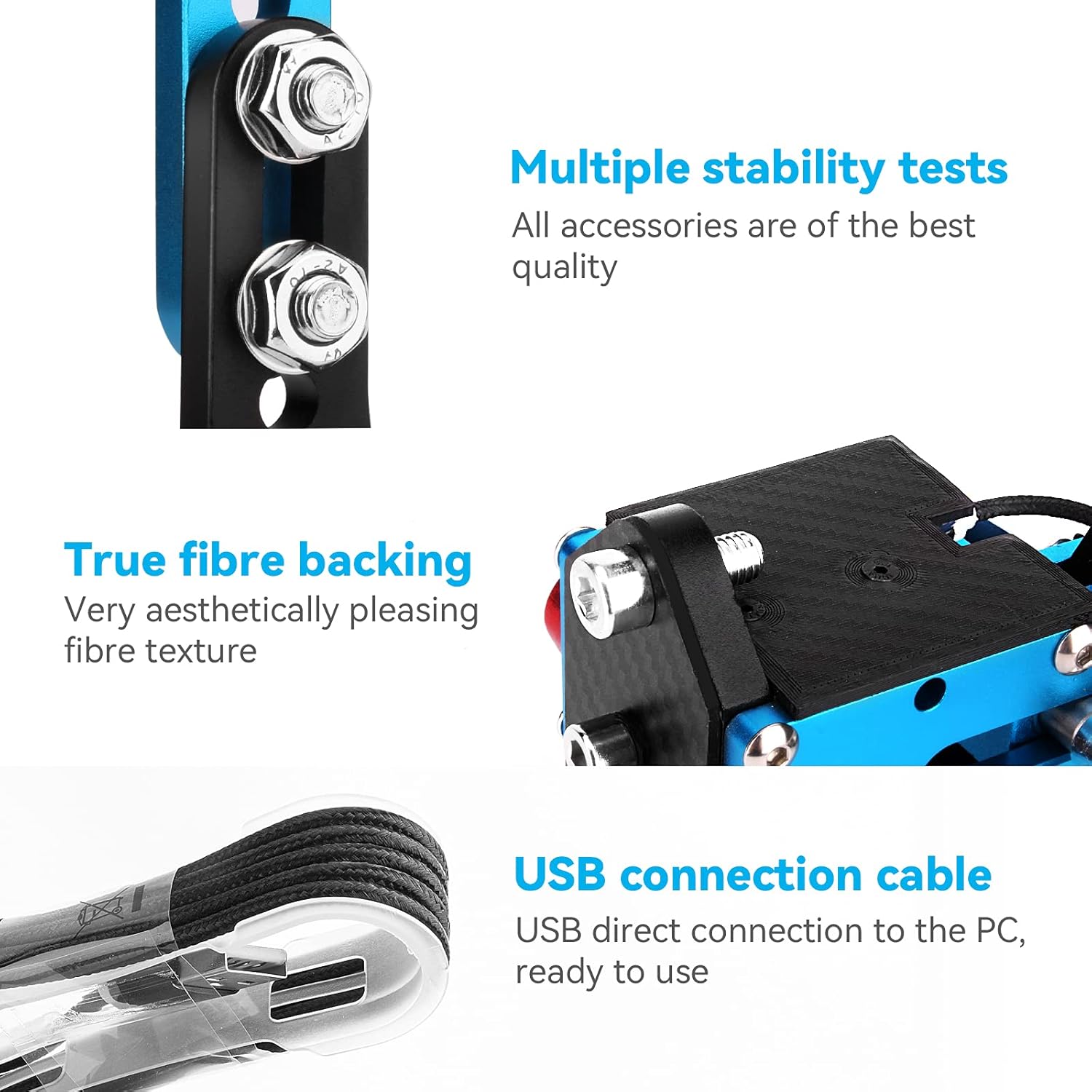
Image: Detailed view of the handbrake's aesthetic fiber backing and the durable USB connection cable, ready for direct PC connection.
4.3 Handle Grip Installation
Two handle grip sleeves of different thicknesses are included. Choose the one that best suits your preference and slide it onto the handbrake handle. If installation is difficult, try pushing from the bottom of the grip rather than pulling from the top.

Image: Illustration of the two included handle grip options, detailing their respective diameters and thicknesses for user customization and comfort.
4.4 Spring Adjustment
The handbrake comes with a conventional spring installed and a reinforced spring as an alternative. You can adjust the spring tension by tightening or loosening the nut on the spring mechanism. The reinforced spring offers a stiffer feel, suitable for users preferring higher resistance.

Image: Detailed view of the handbrake's molded alloy springs, showing the internal mechanism and a comparison between the standard and reinforced spring options.
5. Operating Instructions
5.1 Initial Recognition
Once connected to your PC, Windows should automatically recognize the handbrake as a game controller. You can verify this in your operating system's device settings (e.g., 'Devices and Printers' in Windows).
5.2 In-Game Setup
For most racing simulation games, you will need to map the handbrake function within the game's controller settings. Navigate to the 'Controls' or 'Key Bindings' section of your game and assign the handbrake input to the desired action (e.g., 'E-Brake', 'Handbrake'). The handbrake supports both linear and non-linear game inputs.
Video: An official product video demonstrating the aikeec USB Handbrake in use with various sim racing games, showcasing its functionality and integration into a racing setup.
6. Game Compatibility
The aikeec USB Handbrake is compatible with a wide range of PC Windows sim racing titles, including but not limited to:

Image: A visual representation of the aikeec USB Handbrake's compatibility with major racing games such as American Truck Simulator, Euro Truck Simulator 2, Need for Speed, Project Cars, WRC, Dirt 4, and Gran Turismo 6.
- Logitech G25, G27, G29, T500, T300, FANATECOSW
- Assetto Corsa
- DiRT Rally Series
- Forza Horizon 4 (Windows Version)
- Forza Motorsport 7
- Forza Horizon 5
- Euro Truck Simulator 2
- WRC 9
- Richard Burns Rally
- Project Cars
- Live For Speed
- TOCA Pro Race Driver
7. Maintenance
To ensure optimal performance and longevity of your aikeec USB Handbrake, follow these maintenance guidelines:
- Cleaning: Regularly wipe the unit with a soft, dry cloth to remove dust and debris. Avoid using harsh chemicals or abrasive cleaners.
- Connection Check: Periodically inspect the USB cable and connections for any signs of wear or damage. Ensure the cable is not kinked or strained.
- Mounting Stability: Check the tightness of the desk clamp and all assembly bolts regularly to prevent loosening during intense use.
- Spring Inspection: If you notice a change in resistance or feel, inspect the spring for any deformation or damage. Replace with the spare spring if necessary.
8. Troubleshooting
If you encounter issues with your aikeec USB Handbrake, please refer to the following common solutions:
| Problem | Possible Cause | Solution |
|---|---|---|
| Handbrake not recognized by PC | Loose USB connection, faulty USB port, or operating system issue. |
|
| Handbrake not working in game | Incorrect in-game control settings, game not compatible. |
|
| Handbrake feels too loose or too stiff | Spring tension not adjusted to preference. | Adjust the spring tension by tightening or loosening the nut on the spring mechanism (refer to Section 4.4). Consider swapping to the reinforced spring for a stiffer feel. |
| Physical wobble or instability | Loose mounting bolts or clamp. | Tighten all mounting bolts and the desk clamp securely. Ensure the clamp has a firm grip on the desk surface. |
9. Specifications
- Model: 64 Bit USB Handbrake with Clamp
- Manufacturer: aikeec
- Connectivity: USB
- Sensor Type: 64-Bit On-Contact Hall Sensor
- Material: CNC Machined Aluminum and Mild Steel
- Operating System Compatibility: Windows 7 and above
- Item Weight: 3.39 pounds (approximately 1.54 kg)
- Package Dimensions: 8.94 x 7.32 x 3.78 inches (approximately 22.7 x 18.6 x 9.6 cm)
- Date First Available: August 14, 2021
10. Warranty Information
Please refer to the retailer or manufacturer's official website for specific warranty terms and conditions. Typically, aikeec products come with a standard manufacturer's warranty covering defects in materials and workmanship from the date of purchase.
11. Support
For technical assistance, troubleshooting, or further inquiries, please contact aikeec customer support through their official website or the retailer from whom the product was purchased. Please have your product model and purchase information ready when contacting support.