
Introduction
This manual provides essential instructions for the setup, operation, maintenance, and troubleshooting of your HP Smart Tank 7602 Wireless All-in-One Ink Tank Printer. Please read this manual thoroughly to ensure proper use and to maximize the performance of your device.
What's in the Box
Verify that all components are present before proceeding with the setup:
- HP Smart Tank 7602 All-in-One Printer
- HP 32XL Black Original Ink Bottle (135 ml)
- HP 31 Cyan Original Ink Bottle (70 ml)
- HP 31 Magenta Original Ink Bottle (70 ml)
- HP 31 Yellow Original Ink Bottle (70 ml)
- HP Black Printhead
- HP Tri-color Printhead
- Power cord
- Setup guide
- Reference guide
- Regulatory flyer
- Warranty flyer
Setup Instructions
1. Unpacking and Placement
Carefully remove the printer from its packaging. Choose a stable, level surface for placement, ensuring adequate space around the printer for ventilation and access to ports.
2. Power Connection
Connect the power cord to the printer and then to a grounded electrical outlet. Do not connect the printer to a USB cable until instructed by the setup software.
3. Ink Filling
The HP Smart Tank 7602 features a mess-free ink refill system. Open the ink tank covers and carefully unseal the ink bottles. Invert each bottle over its corresponding color tank and allow the ink to drain completely. Do not squeeze the bottles. Close the ink tank covers securely after filling.

4. Printhead Installation
Follow the on-screen instructions on the printer's display or the setup guide to install the black and tri-color printheads. Ensure they are securely latched into place.
5. Paper Loading
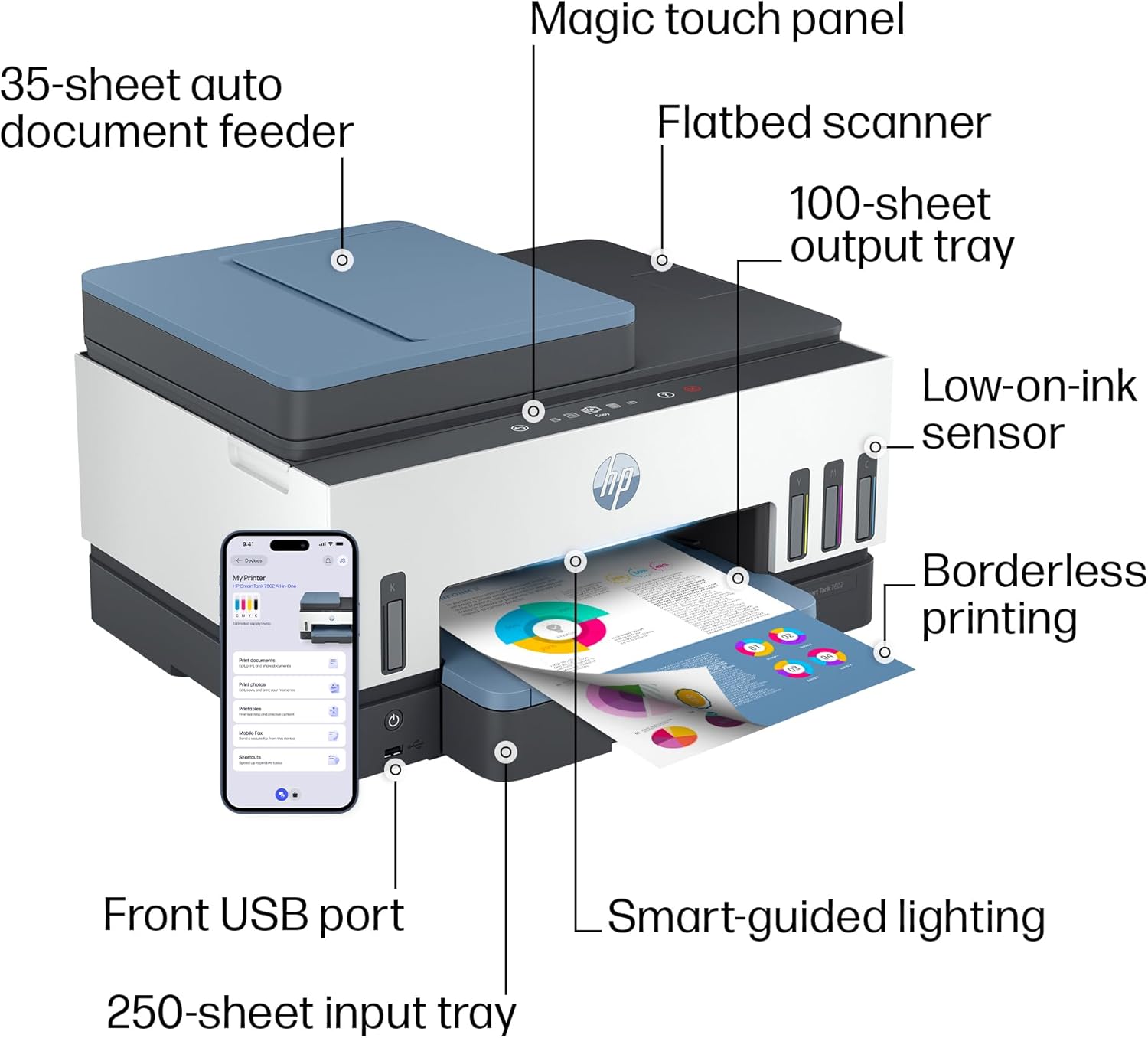
Load paper into the 250-sheet input tray. Adjust the paper guides to fit the paper size snugly. The printer supports various paper types and sizes, including plain paper, glossy photo paper, envelopes, and labels.
6. Network Connection (Wireless/Ethernet)
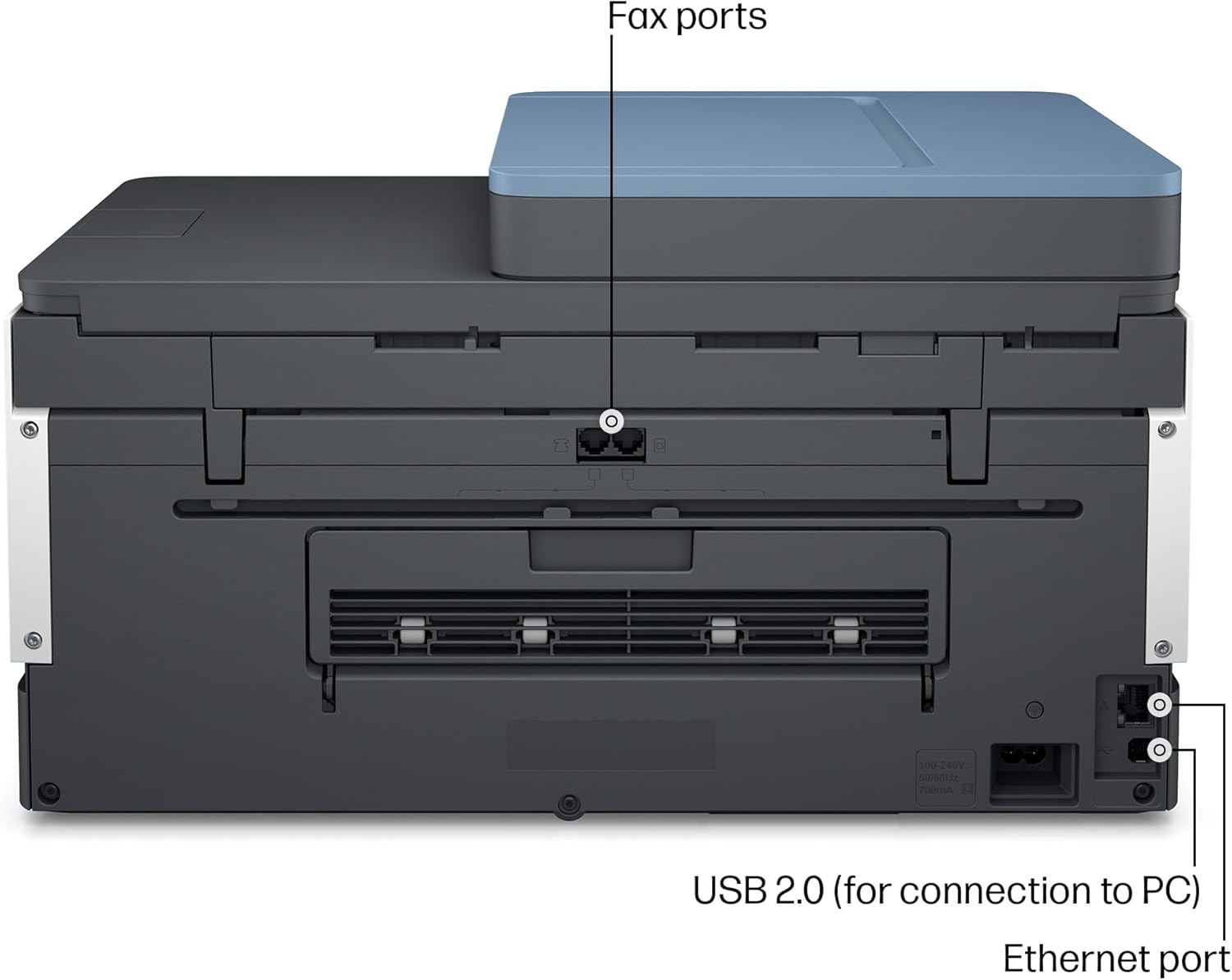
The printer supports both wireless (Wi-Fi) and Ethernet connections. For wireless setup, follow the prompts on the printer's control panel to connect to your Wi-Fi network. The printer features self-healing dual-band Wi-Fi to automatically detect and resolve connectivity issues. For an Ethernet connection, connect an Ethernet cable from your router to the printer's Ethernet port.

7. Software Installation (HP Smart App)
Download the HP Smart app on your smartphone, tablet, or PC. The app guides you through the final setup steps, including driver installation and printer registration. The HP Smart app allows you to print, scan, copy, and fax directly from your device.

Operating Instructions
Printing
- Print Speed: Up to 15 pages per minute (ppm) for black and white documents, and 9 ppm for color documents.
- Borderless Printing: Supports printing without margins for photos and documents.
- Automatic Two-Sided Printing (Duplex): The printer automatically prints on both sides of the paper, saving time and resources.
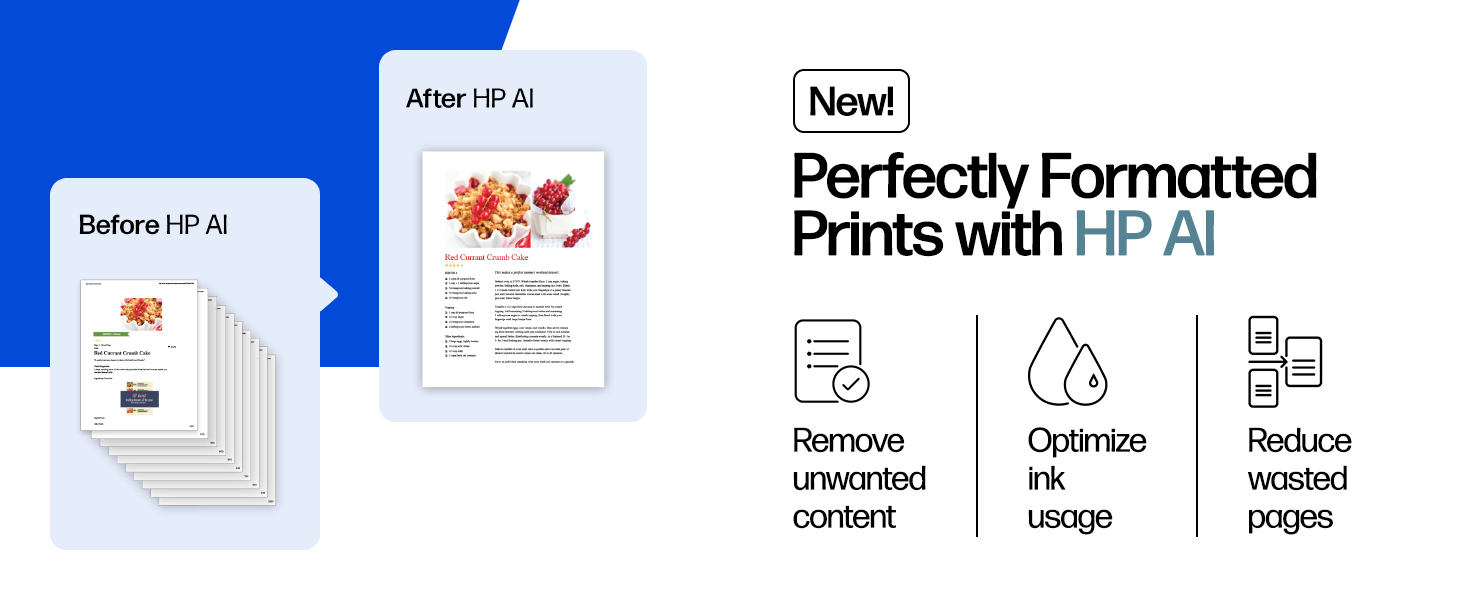
- HP AI for Optimized Prints: Utilize HP AI features to remove unwanted content from web pages and emails, ensuring prints are formatted precisely as desired.
Copying
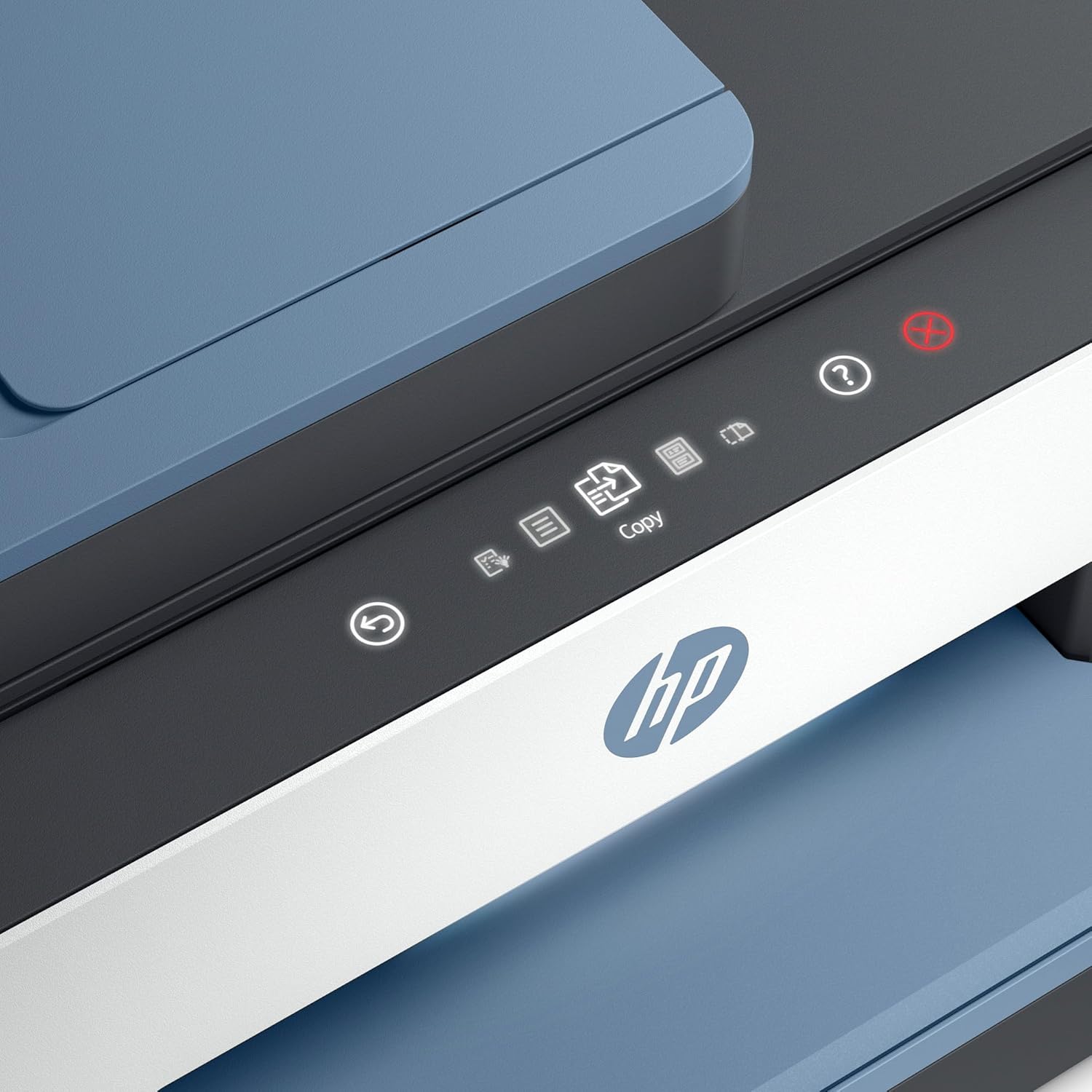
- Control Panel: Use the intuitive magic touch panel on the printer to select copy functions and settings.
- Maximum Copies: Up to 99 copies can be made in a single run.
- Resolution: Max copy resolution of 600 x 600 dpi for both color and black-white.

Scanning
- Scanner Types: Features both a flatbed scanner for delicate items and an Auto Document Feeder (ADF) for multi-page documents.
- ADF Capacity: The 35-page ADF allows for quick scanning of multiple pages.
- HP Smart App: Initiate scans directly from the HP Smart app on your connected device.

Faxing
The HP Smart Tank 7602 includes fax functionality. Refer to the HP Smart app or the printer's on-screen menu for detailed fax setup and operation instructions.
Maintenance
Ink Refill
The printer uses a high-capacity ink tank system. When ink levels are low, refill the tanks using genuine HP 32XL Black and HP 31 Cyan, Magenta, Yellow ink bottles. The printer is designed for mess-free refills; simply invert the bottle over the correct tank and let it drain.
- Black Ink: HP 32XL 135-ml Black bottle (approx. 6000 pages)
- Color Inks: HP 31 70-ml Cyan, Magenta, Yellow bottles (approx. 8000 pages each)
The printer comes with approximately 2 years of ink included, based on average usage.
Cleaning
Regularly clean the exterior of the printer with a soft, damp, lint-free cloth. For print quality issues, consult the HP Smart app or the printer's maintenance menu for printhead cleaning and alignment options.
Troubleshooting
Connectivity Issues
If you experience Wi-Fi connectivity problems, the printer's self-healing dual-band Wi-Fi feature is designed to automatically detect and resolve common issues. Ensure your router is functioning correctly and the printer is within range. Restarting both the printer and your router can often resolve temporary network glitches.
Print Quality Problems
If prints appear faded, streaky, or incorrect colors, perform a printhead cleaning and alignment through the printer's control panel or the HP Smart app. Ensure genuine HP ink is used and ink tanks are adequately filled.
Paper Jams
Follow the on-screen instructions if a paper jam occurs. Carefully remove any jammed paper from the input tray, output tray, or internal areas of the printer. Avoid tearing the paper to prevent small pieces from remaining inside.
General Issues
For other issues, consult the comprehensive help section within the HP Smart app or visit the official HP support website for detailed troubleshooting guides and FAQs.
Specifications
| Feature | Detail |
|---|---|
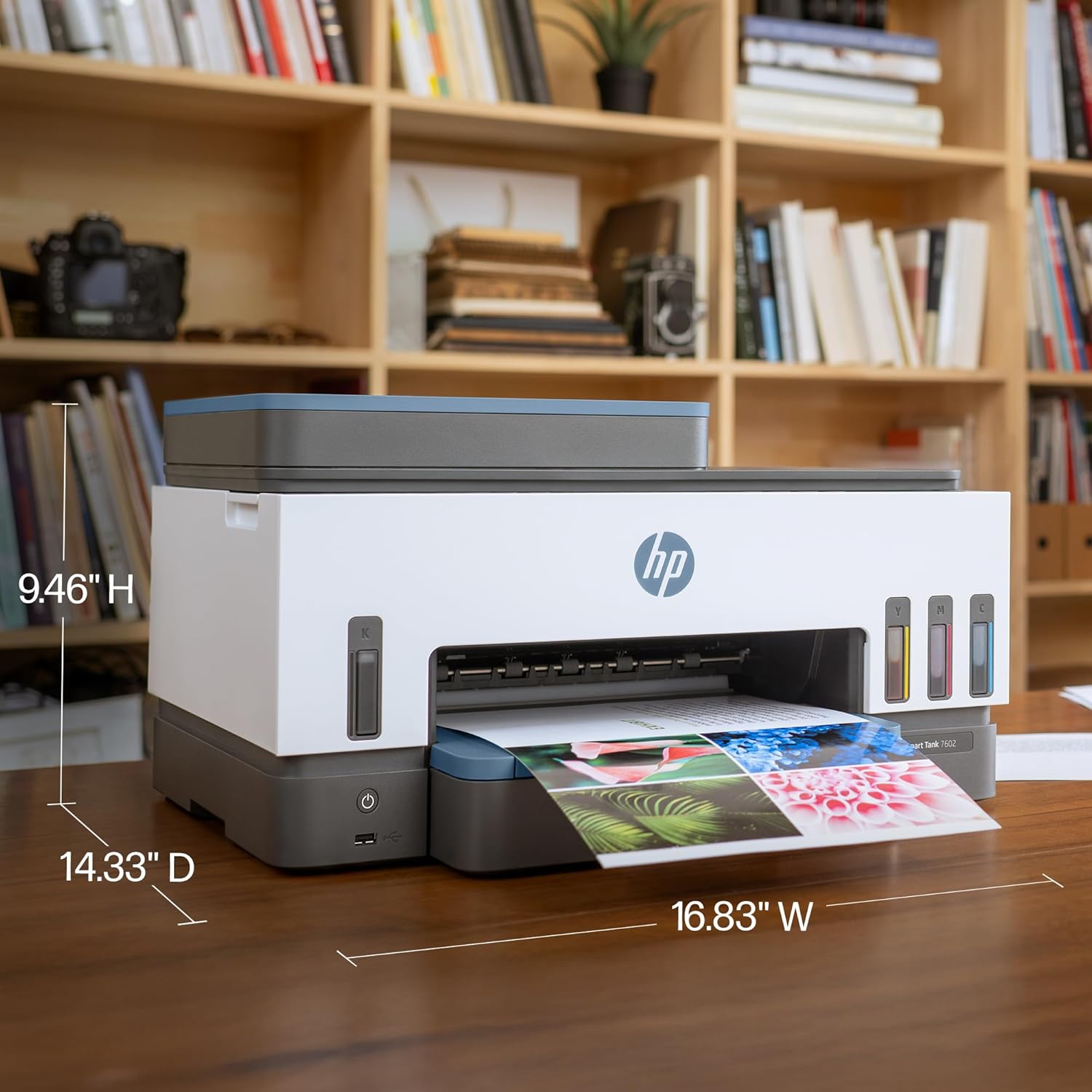
| Product Dimensions | 16.83"D x 9.46"W x 14.33"H |
| Item Weight | 16.98 pounds |
| Connectivity Technology | Wireless (Dual-band Wi-Fi), Ethernet, USB 2.0 |
| Printing Technology | HP Thermal Inkjet |
| Functions | Print, Copy, Scan, Fax |
| Max Print Speed (Black) | 15 ppm |
| Max Print Speed (Color) | 9 ppm |
| Max Print Resolution (Black) | 1200 x 1200 Dots Per Inch |
| Max Print Resolution (Color) | 4800 x 1200 Dots Per Inch |
| Duplex Printing | Automatic |
| Scanner Type | ADF, Flatbed |
| ADF Capacity | 35 sheets |
| Max Input Sheet Capacity | 250 sheets |
| Output Sheet Capacity | 100 sheets |
| Max Copy Speed (Black) | 13 ppm |
| Max Copy Resolution | 600 x 600 dpi |
| Maximum Copies per Run | 99 |
| Ink Color | Black, Cyan, Magenta, Yellow |
| Compatible Cartridge | HP 32XL Black, HP 31 Cyan, HP 31 Magenta, HP 31 Yellow |
| Power Consumption | 1.1 watts (on-mode) |
| Control Method | App, Magic Touch Panel |
| Compatible Devices | Laptops, PC, Smartphones, Tablets |
| Special Features | Auto Document Feeder (ADF), Auto-Duplex, Display Screen, Refillable Ink Tank, Dual-band Network-Ready, HP AI-enabled |
Warranty Information
The HP Smart Tank 7602 printer comes with a Limited Warranty. For specific terms and conditions, please refer to the warranty flyer included in your product box or visit the official HP support website.
Important Note on Smart Tank Printer Warranty Service: For Smart Tank printers, HP's warranty service policy may require the customer to bear the cost of shipping the defective unit and provide the packaging box. A replacement unit will be shipped only after the defective unit is received by HP. This differs from standard warranty procedures for some other HP products where a replacement might be shipped first. Please confirm the exact warranty terms with HP Support if service is required.
Support and Security
For further assistance, product updates, or to access additional resources, please visit the official HP Support Website. The HP Smart app also provides extensive support features and guides.
Your HP Smart Tank 7602 printer is equipped with HP Wolf Essential Security, designed to help maintain privacy and control through basic encryption and password protection, keeping your information and network safe.
