
1. Introduction
This user manual provides detailed instructions for the SHREYANS 1D Wired Barcode Scanner, Model KP_306 NEW. It covers essential information regarding product setup, operation, maintenance, and troubleshooting to ensure optimal performance and longevity of your device. Please read this manual thoroughly before using the scanner.
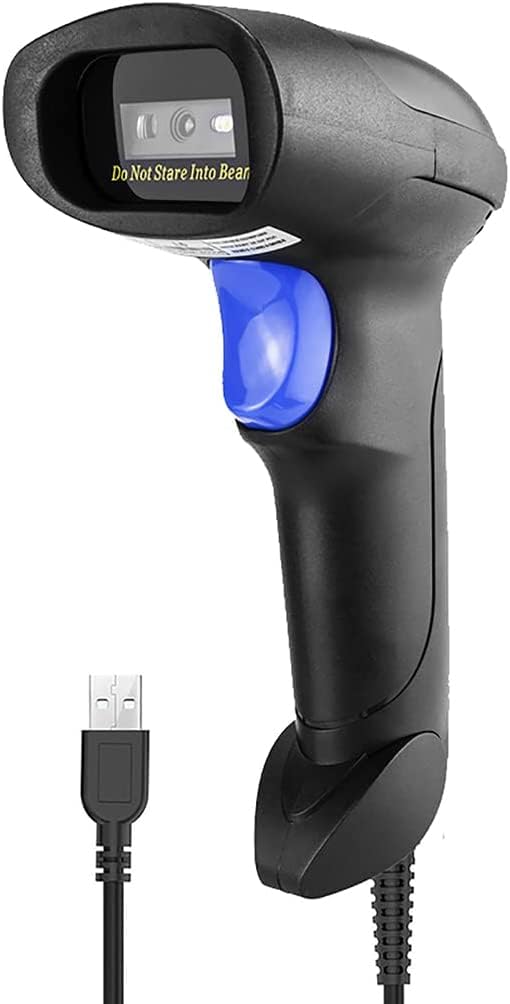
Figure 1: SHREYANS 1D Wired Barcode Scanner, Model KP_306 NEW.
2. Key Features
- Advanced CCD Image Scanning Technology: Equipped with a CCD sensor for quick and accurate capture of 1D barcodes from both paper and digital screens.
- Durable and Anti-Shock Design: Constructed with high-quality ABS material, designed to withstand drops from up to 2 meters onto concrete surfaces, ensuring long-term reliability.
- Multiple Scanning Modes: Features Key Trigger Mode, Auto-Induction Mode, and Continuous Mode for versatile operation.
- Broad 1D Barcode Compatibility: Supports a wide range of 1D barcode types including UPC-A, UPC-E, EAN-8, EAN-13, ISSN, ISBN, Code 128, GS1-128, Code39, Code93, Code32, Code11, UCC/EAN128, Interleaved 2 of 5, Industrial 2 of 5, Codabar(NW-7), MSI, Plessey, RSS, and China Post.
- Plug and Play Connectivity: Simple USB 2.0 wired connection for immediate use with PCs and laptops, requiring no additional driver installation.

Figure 2: The scanner's robust anti-shock design, capable of withstanding drops.

Figure 3: The scanner's ability to decode damaged, reflective, colorful, and distorted barcodes.
3. Setup
3.1 Package Contents
Verify that all items are present in the package:
- 1 x SHREYANS 1D Wired Barcode Scanner
- 1 x USB Cable
- 1 x User Manual (this document)
3.2 Connecting the Scanner
The SHREYANS 1D Wired Barcode Scanner is designed for plug-and-play functionality. Follow these steps to connect it to your computer:
- Locate an available USB port on your PC or laptop.
- Connect the USB cable to the scanner's port.
- Plug the other end of the USB cable into the USB port on your computer.
- The scanner will automatically install necessary drivers (if required) and be ready for use. No additional software installation is typically needed.

Figure 4: Illustrates the simple USB 2.0 wired connection process for the scanner.
4. Operating Instructions
4.1 Scanning Modes
The scanner supports three operational modes:
- Key Trigger Mode: Press the trigger button to activate the scan beam and read a barcode. Release the button to stop scanning.
- Auto-Induction Mode: The scanner automatically detects a barcode placed within its scanning range and activates the beam to read it without requiring a trigger press.
- Continuous Mode: The scan beam remains continuously active, allowing for rapid, successive scanning of multiple barcodes without repeatedly pressing the trigger.
4.2 Scanning Barcodes
To scan a barcode:
- Ensure the scanner is properly connected to your computer.
- Open a text editor, spreadsheet, or POS application where you want the scanned data to appear.
- Point the scanner's window at the barcode you wish to scan.
- Activate the scan beam according to your selected scanning mode (press trigger, or allow auto-induction/continuous mode to activate).
- A successful scan will typically be indicated by an audible beep and/or a visual confirmation (e.g., LED indicator). The barcode data will then appear in your active application.

Figure 5: Demonstrating the scanner's ability to read various 1D barcodes, including those that are damaged or distorted.
4.3 Supported 1D Barcode Types
The SHREYANS 1D Wired Barcode Scanner is compatible with the following 1D barcode symbologies:
- UPC-A, UPC-E, EAN-8, EAN-13
- ISSN, ISBN
- Code 128, GS1-128, Code39, Code93, Code32, Code11
- UCC/EAN128
- Interleaved 2 of 5, Industrial 2 of 5
- Codabar (NW-7)
- MSI, Plessey, RSS
- China Post
5. Care and Maintenance
Proper care ensures the longevity and optimal performance of your barcode scanner:
- Cleaning: Use a soft, dry cloth to clean the scanner's exterior. For the scanning window, use a soft, lint-free cloth lightly dampened with a mild, non-abrasive cleaner. Avoid harsh chemicals or abrasive materials.
- Storage: Store the scanner in a cool, dry place away from direct sunlight and extreme temperatures.
- Handling: While the scanner has an anti-shock design, avoid unnecessary drops or impacts to prevent potential damage.
- Cable Care: Do not bend or twist the USB cable excessively. Ensure it is not pinched or placed under heavy objects.
6. Troubleshooting
If you encounter issues with your SHREYANS barcode scanner, refer to the following table for common problems and solutions:
| Problem | Possible Cause | Solution |
|---|---|---|
| Scanner does not power on. | USB cable not properly connected or faulty USB port. | Ensure the USB cable is securely connected to both the scanner and the computer. Try a different USB port. |
| Scanner does not read barcodes. | Barcode is damaged, poorly printed, or not a supported 1D type. Incorrect scanning mode. | Ensure the barcode is clear and undamaged. Verify it is a supported 1D barcode type. Check the selected scanning mode and adjust if necessary. Ensure the scanner is aimed correctly. |
| Scanned data appears incorrectly. | Keyboard language settings mismatch or scanner configuration issue. | Check your computer's keyboard language settings. Refer to the scanner's programming guide (if available) for advanced configuration options. |
| Scanner is slow or unresponsive. | Interference from other devices or system resource issues. | Disconnect and reconnect the scanner. Restart your computer. Ensure no other applications are heavily utilizing system resources. |
If the problem persists, please contact customer support for further assistance.
7. Technical Specifications
| Feature | Specification |
|---|---|
| Brand | SHREYANS |
| Model Number | KP_306 NEW |
| Connectivity Technology | USB Cable |
| Power Source | Corded Electric |
| Compatible Devices | Laptop, PC |
| Item Weight | 200 g |
| Item Dimensions (LxWxH) | 8 x 5 x 9 Centimeters |
| Manufacturer | Shreyans Retail Solutions |
| Country of Origin | India |
8. Warranty and Customer Support
8.1 Warranty Information
This product comes with a standard manufacturer's warranty. For specific details regarding warranty coverage, duration, and terms, please refer to the warranty card included in your product packaging or contact SHREYANS customer support.
8.2 Customer Support
For technical support, installation assistance, or any other inquiries, please contact our customer support team:
- Phone: +91 22-40041231
- Mobile/WhatsApp: +91 9324776246
- Email: shreyanspos@gmail.com
Our support team is available 24/7 to assist you with any technical faults or problems.

Figure 6: SHREYANS 24/7 Customer Support Service details.