
1. Product Overview
The Shreyans 2D Wired USB Barcode Scanner is a versatile and durable handheld device designed for efficient scanning of 1D, 2D, and QR codes. It offers reliable performance for various applications, from retail to logistics.

Image 1.1: The Shreyans 2D Wired USB Barcode Scanner with its integrated USB cable.
Key Features:
- Ergonomic Design: Features a curved, thickened handle and a smooth trigger for comfortable and extended use.
- Durable Construction: Equipped with an orange anti-shock silicone protective cover, designed to withstand drops from up to 6.56 feet (2 meters). IP54 rated for dust protection.
- Plug and Play Connectivity: Connects via USB cable, requiring no driver or software installation.
- Broad Compatibility: Compatible with Windows, Mac OS, Linux, iOS, and Android operating systems, and works with common software applications.
- Comprehensive Decoding: Scans a wide range of 1D, 2D, and QR codes from both screens and printed materials.
2. Setup Instructions
Setting up your Shreyans 2D Wired USB Barcode Scanner is a straightforward process.
- Unpack the Scanner: Carefully remove the barcode scanner and its USB cable from the packaging.
- Connect to Computer: Plug the USB cable of the scanner into an available USB port on your computer or host device.
- System Recognition: The operating system (Windows, Mac OS, Linux, etc.) will automatically detect and install the necessary generic drivers. No manual driver installation is required.
- Ready for Use: Once the system indicates that the device is ready, the scanner is prepared for operation. You can open any text editor or application (e.g., Notepad, Word, Excel) and scan a barcode to test functionality. The scanned data should appear as text.
3. Operating Instructions
This section details how to effectively use your Shreyans 2D Wired USB Barcode Scanner.
3.1 Scanning Barcodes
- Aim the Scanner: Point the scanner's window at the barcode you wish to scan. Ensure the red scanning line or area covers the entire barcode.
- Press the Trigger: Press the trigger button located on the handle. The scanner will emit a light and a beep (if enabled) upon successful decoding.
- Data Transmission: The decoded barcode data will be transmitted to your connected computer or host device as if it were typed via a keyboard.
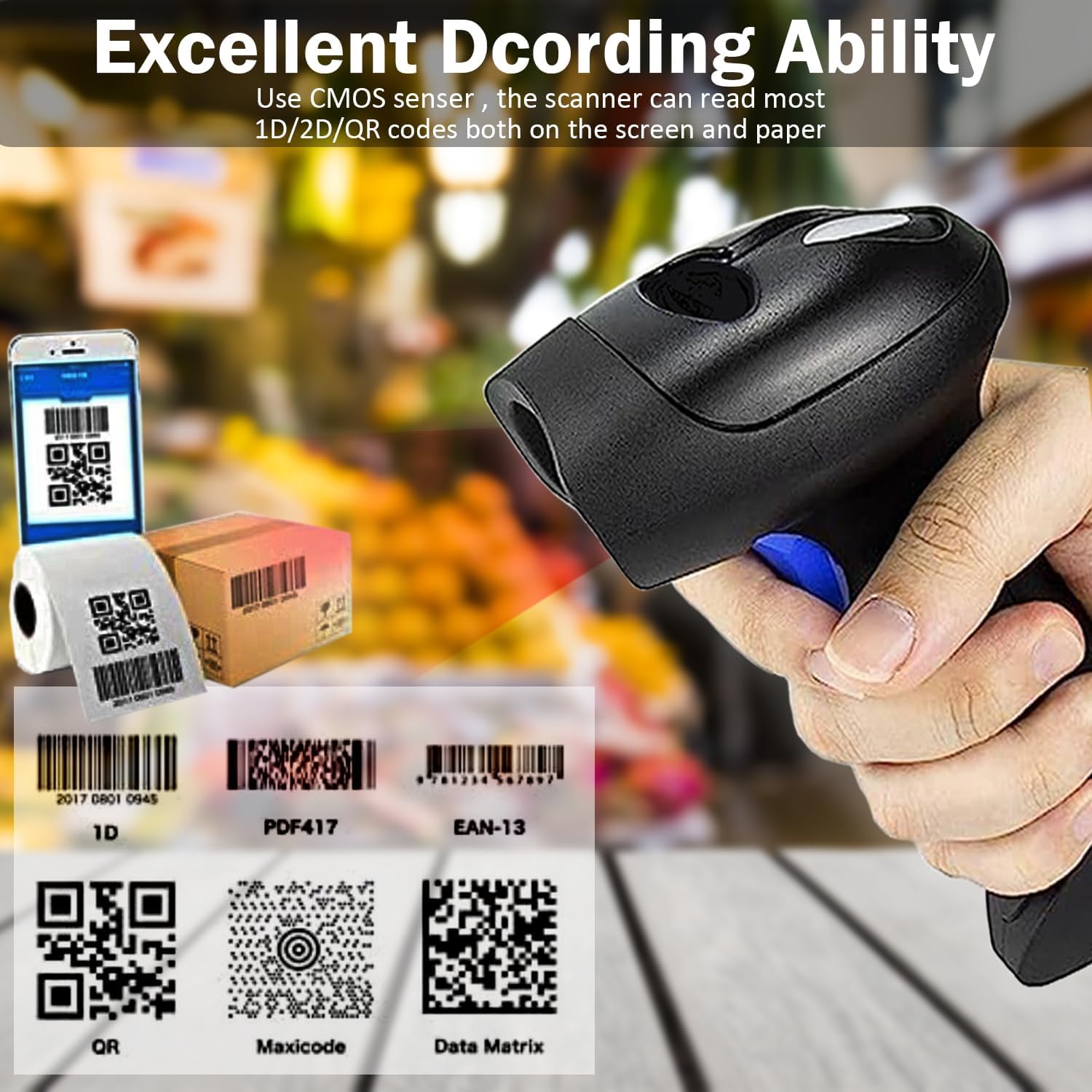
Image 3.1: The scanner's ability to decode various 1D and 2D barcode types from both printed labels and digital screens.
3.2 Supported Barcode Symbologies
The scanner is capable of decoding a wide array of barcode types:
- 1D Barcodes: UPC-A, UPC-E, EAN-8, EAN-13, Code 128, Code 39, Code 93, Code 11, Interleaved 2 of 5, Matrix 2 of 5, Standard 2 of 5, Codabar, MSI Plessey, GS1, China Post, Databar (RSS), Korea, NEC2 of 5, etc.
- 2D Barcodes: QR Code, Data Matrix, PDF417, Aztec code, Maxicode.
3.3 Language Settings
The scanner supports multiple languages for barcode output. The factory default language is English. To ensure correct output, especially for barcodes containing special characters, align the scanner's language setting with your computer's keyboard language. Refer to the full user manual (if provided separately) for specific programming barcodes to change language settings.
4. Maintenance
Proper maintenance ensures the longevity and optimal performance of your barcode scanner.
- Cleaning: Regularly clean the scanner's window with a soft, lint-free cloth. For stubborn smudges, slightly dampen the cloth with water or a mild, non-abrasive cleaner. Avoid harsh chemicals.
- Protection: The anti-shock silicone cover provides protection against minor impacts and scratches. Ensure it is properly fitted.
- Storage: Store the scanner in a clean, dry environment away from extreme temperatures and direct sunlight when not in use.
- Cable Care: Avoid bending or twisting the USB cable excessively to prevent internal damage.
5. Troubleshooting
If you encounter issues with your scanner, try the following troubleshooting steps:
- Scanner Not Responding:
- Ensure the USB cable is securely connected to both the scanner and the computer.
- Try plugging the scanner into a different USB port on your computer.
- Restart your computer.
- No Data Output / Incorrect Data:
- Verify that the barcode is clean, undamaged, and clearly visible.
- Ensure the scanner's language setting matches your computer's keyboard language (see Section 3.3).
- Test scanning a known good barcode.
- Check if the application you are using is active and ready to receive input.
- Scanner Beeps Continuously: This may indicate a configuration error. Refer to the full user manual for factory reset or specific programming instructions.
If these steps do not resolve the issue, please contact customer support.
6. Specifications
| Feature | Specification |
|---|---|
| Brand | SHREYANS |
| Model | 2D Wired |
| Connectivity Technology | USB Cable |
| Power Source | Corded Electric |
| Compatible Devices | Laptop (and other devices supporting USB HID) |
| Item Weight | 200 g |
| Item Dimensions (LxWxH) | 8 x 5 x 9 Centimeters |
| Durability | Anti-shock silicone cover, IP54 dust protection |
| Supported 1D Barcodes | UPC-A, UPC-E, EAN-8, EAN-13, Code 128, Code 39, Code 93, Code 11, Interleaved 2 of 5, Matrix 2 of 5, Standard 2 of 5, Codabar, MSI Plessey, GS1, China Post, Databar (RSS), Korea, NEC2 of 5, etc. |
| Supported 2D Barcodes | QR Code, Data Matrix, PDF417, Aztec code, Maxicode |
7. Warranty Information
The Shreyans 2D Wired USB Barcode Scanner comes with a 2-year warranty from the date of purchase. This warranty covers manufacturing defects and malfunctions under normal use. Please retain your proof of purchase for warranty claims. For detailed terms and conditions, refer to the warranty card included with your product or contact customer support.
8. Customer Support
For any technical assistance, installation queries, or troubleshooting, please contact Shreyans customer support:

Image 8.1: Shreyans Customer Support contact information.
- Email: shreyanspos@gmail.com
- Phone: 022-40041231, 9324776246
Our support team is available to assist you with any product-related inquiries.