
1. Introduction
This manual provides essential instructions for the installation, operation, and maintenance of your TODAAIR PTZ Baby Monitor and Home Security Camera (Model CA01). This camera is designed to provide 1080P HD video surveillance with advanced features such as night vision, motion detection, two-way audio, and compatibility with smart home systems like Amazon Alexa and Google Home. Please read this manual thoroughly before using the product to ensure proper setup and functionality.
2. Product Overview
2.1 Package Contents
- TODAAIR PTZ Baby Monitor and Home Security Camera (Model CA01)
- Power Adapter
- Mounting Accessories (Screws, Wall Plugs)
- User Manual
2.2 Key Features
- 1080P HD Vision: Provides clear 1080P HD image and video recording for detailed monitoring.
- Pan-Tilt-Zoom (PTZ) Functionality: Features 355° horizontal and 70° vertical tilt range for comprehensive area coverage.
- Clear Night Vision: Enhanced lens combined with infrared technology allows for clear black and white images in dark conditions, up to 5 meters.
- Motion Detection Alarm: Real-time motion detection sends notifications to your smartphone when activity is detected.
- Two-Way Audio: Built-in microphone and speaker enable two-way communication.
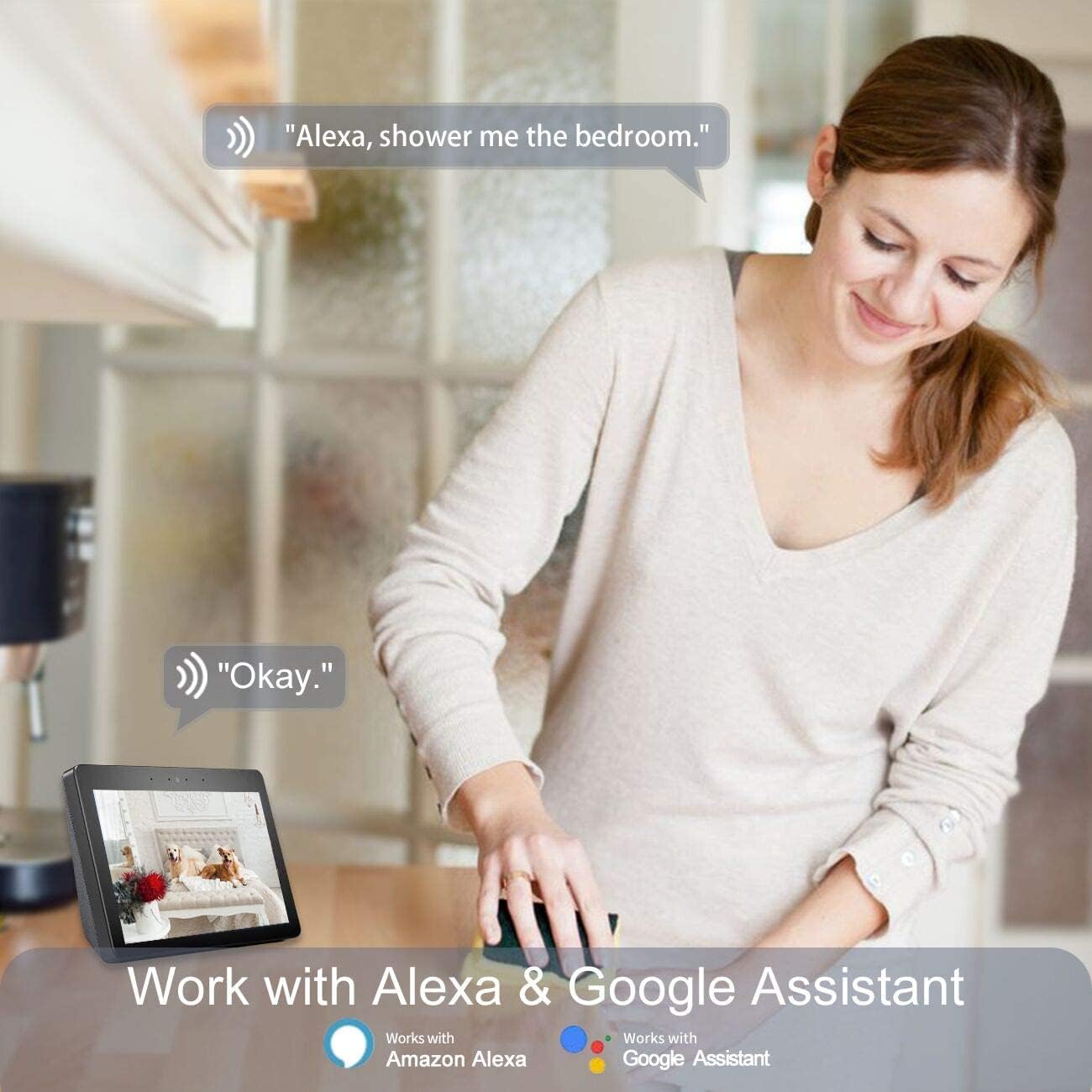
- Smart Home Compatibility: Works with Amazon Alexa and Google Home for voice control and integration.
- Cloud & Local Storage: Supports USA Server Cloud Storage and up to 128GB TF card for video data and images.
2.3 Product Diagram
Below is an illustration of the TODAAIR PTZ Camera with its main features highlighted.


3. Setup
3.1 Initial Camera Setup
- Download the App: Search for the "Tuya Smart" app (or "Smart Life" as mentioned in the Alexa video) on the Apple App Store or Google Play Store and install it on your smartphone.
- Power On: Connect the camera to a power source using the provided adapter. Wait for the camera to power on and enter pairing mode (usually indicated by a flashing LED).
- Register/Login: Open the app, register a new account, or log in if you already have one.
- Add Device: In the app, follow the on-screen instructions to add a new device. This typically involves scanning a QR code on the camera or selecting the camera type manually and connecting to your Wi-Fi network. Ensure your Wi-Fi network is 2.4GHz.
3.2 Physical Installation
The TODAAIR PTZ Camera can be placed on a flat surface or mounted to a wall. Use the provided mounting accessories for wall installation. Ensure the camera is placed in a location that provides the desired viewing angle and is within range of your Wi-Fi network.
3.3 Smart Assistant Integration (Alexa & Google Home)
The TODAAIR PTZ Camera is compatible with Amazon Alexa and Google Home, allowing for voice control and integration into your smart home ecosystem. Follow the steps below to link your camera with Alexa:
- Download Alexa App: Install the Amazon Alexa app from your device's app store.
- Login/Register: Register or log in to your Amazon account within the Alexa app.
- Access Settings: From the Alexa app homepage, click the menu button (usually three horizontal lines) in the upper left corner, then select "Settings".
- Set Up New Device: In Settings, select "SET UP A NEW DEVICE". Choose your Echo device type and language.
- Connect to Echo Hotspot: Follow the app's prompts to connect your phone to the Echo device's hotspot. Ensure the Echo's indicator light is orange and rotating during this process. If not, press and hold the button on the Echo to reset it.
- Connect Echo to Wi-Fi: Once connected to the Echo hotspot, the Alexa app will guide you to connect your Echo to your home Wi-Fi network. Select your network and enter the password.
- Enable Tuya Smart Skill: Go back to the Alexa app homepage, open the menu, and select "Skills". In the search box, type "Tuya Smart" and select the skill. Click "Enable Skill".
- Link Accounts: A dialog box will appear asking for your Tuya Smart app account credentials. Enter your account and password to link the accounts.
- Discover Devices: Once accounts are linked, say "Alexa, discover devices" to your Echo. Alexa will automatically find and add your TODAAIR camera.
- Rename Devices (Optional): For easier voice control, it is advised to change your device name in the Tuya Smart app to English before connecting to Echo. For example, you can name your camera "Baby Camera" or "Living Room Camera".
You can also integrate with Google Home by enabling the Tuya Smart skill within the Google Home app and linking your accounts.
4. Operating Instructions
4.1 Live View and PTZ Control
- Open the Tuya Smart app and select your camera from the device list.
- The live video feed will appear.
- Use the on-screen controls to pan (rotate horizontally 355°) and tilt (rotate vertically 70°) the camera to adjust the viewing angle.
- Digital zoom may be available through pinch-to-zoom gestures on the live feed.

4.2 Two-Way Audio
- While viewing the live feed, tap the microphone icon to speak through the camera's speaker.
- Tap the speaker icon to listen to audio from the camera's environment.

4.3 Motion Detection and Alerts
- In the app, navigate to the camera settings to enable motion detection.
- Adjust sensitivity levels as needed to minimize false alarms.
- When motion is detected, the camera will record a short video clip and send a notification to your smartphone.

4.4 Night Vision
- The camera automatically switches to night vision mode in low-light conditions.
- Night vision provides clear black and white video up to 5 meters without infrared light pollution.


4.5 Video Storage
- Cloud Storage: The camera supports cloud storage via USA servers for recorded video data and images. Refer to the app for subscription details.
- Local Storage: Insert a Micro SD (TF) card (up to 128GB, not included) into the camera's slot for local video recording.
5. Maintenance
- Cleaning: Use a soft, dry cloth to clean the camera lens and body. Avoid using harsh chemicals or abrasive cleaners.
- Firmware Updates: Regularly check the Tuya Smart app for available firmware updates to ensure optimal performance and security.
- Secure Your Account: Use strong, unique passwords for your app and smart assistant accounts. Enable two-factor authentication if available.
- Power Cycle: If the camera experiences issues, try unplugging it from the power source for 10 seconds and then plugging it back in.
6. Troubleshooting
| Problem | Possible Cause | Solution |
|---|---|---|
| Camera fails to connect to Wi-Fi | Incorrect Wi-Fi password; 5GHz Wi-Fi network; camera too far from router; network congestion. | Ensure correct 2.4GHz Wi-Fi password. Move camera closer to router. Restart router. |
| Poor video quality | Insufficient bandwidth; dirty lens; low light conditions. | Check internet speed. Clean the camera lens. Ensure adequate lighting or rely on night vision. |
| Motion detection not working or too sensitive | Settings not configured correctly; environmental factors. | Adjust motion detection sensitivity in the app. Ensure detection zones are set correctly. |
| Two-way audio issues | Microphone/speaker muted; app permissions; network delay. | Check app audio settings and phone permissions. Ensure stable internet connection. |
| Alexa/Google Home integration failure | Incorrect account linking; device name not recognized. | Re-link Tuya Smart skill. Ensure device names are simple and in English. Say "Alexa, discover devices" again. |
7. Specifications
| Feature | Detail |
|---|---|
| Recommended Uses | Baby Monitoring |
| Brand | TODAAIR |
| Connectivity Technology | Wireless (Wi-Fi) |
| Special Features | Motion Sensor, Night Vision, PTZ Technology |
| Indoor/Outdoor Usage | Indoor |
| Compatible Devices | Smartphone |
| Controller Type | Amazon Alexa |
| Mount Type | Wall Mount |
| Color | Pro Smart Camera (White) |
| Form Factor | Dome |
| Upper Temperature Rating | 60 Degrees Celsius |
| Alert Type | Motion Only |
| Room Type | Nursery |
| Light Source | LED |
| Waterproof Rating | IP65 |
| Control Method | Voice |
| Video Capture Resolution | 1080p, 720p |
| Frame Rate | 15 fps |
| Photo Sensor Technology | CMOS |
| Model Number | CA01 |
| Manufacturer | TODAAIR |
| Connectivity Protocol | Wi-Fi |
| Wireless Technology | Wi-Fi |
| Power Source | AC/DC |
| Wattage | 5 watts |
| Number of Channels | 2 |
| Item Dimensions | 5.91 x 3.94 x 7.87 inches |
| Unit Count | 1.0 Count |
8. Warranty and Support
TODAAIR is committed to providing high-quality products and professional technical support. If you encounter any problems during the use of your camera, please contact our professional technical team for assistance. Specific warranty details may vary; please refer to the product packaging or the official TODAAIR website for the most current warranty information.