
1. Product Overview
The FEONAL 10.1-inch Android 12 Tablet is designed for versatile use, offering a responsive touch experience and robust performance. Featuring an Octa-Core processor, 4GB RAM, and 64GB internal storage (expandable up to 512GB), it is suitable for entertainment, browsing, and productivity. The tablet includes dual cameras (13MP rear, 5MP front), Wi-Fi, Bluetooth, and GPS capabilities.

Figure 1: FEONAL 10.1-inch Android 12 Tablet
2. Setup Guide
2.1 Initial Power On
- Press and hold the Power button (located on the side) for a few seconds until the FEONAL logo appears on the screen.
- Follow the on-screen prompts to select your language and region.
2.2 Connecting to Wi-Fi
- From the home screen, swipe down from the top to open the Quick Settings panel.
- Tap and hold the Wi-Fi icon to open Wi-Fi settings.
- Select your desired Wi-Fi network from the list and enter the password if prompted.
- Tap 'Connect'.
2.3 Google Account Setup
The tablet is GMS Certified, allowing full access to Google services.
- During initial setup or via Settings > Accounts, sign in with your existing Google account or create a new one.
- This enables access to Google Play Store, Gmail, YouTube, and other Google services.
2.4 Charging the Tablet
Use the provided Type-C charging cable and wall adapter to charge the tablet. Connect the cable to the tablet's USB-C port and the adapter to a power outlet. A full charge provides up to 8 hours of usage.

Figure 2: Tablet battery capacity and usage time.
3. Operating Instructions
3.1 Basic Navigation
- Swipe: Move your finger across the screen to scroll through content or switch between home screens.
- Tap: Touch the screen briefly to select an item or open an app.
- Pinch-to-Zoom: Place two fingers on the screen and move them apart or together to zoom in or out.
3.2 Downloading Applications
Access the Google Play Store to download a wide variety of applications, including streaming services like Netflix and YouTube, games, and productivity tools.
- Open the 'Play Store' app from your home screen or app drawer.
- Search for your desired app.
- Tap 'Install' and follow the on-screen instructions.

Figure 3: Android 12 OS with pre-installed and downloadable apps.
3.3 Using the Cameras
The tablet features a 13MP rear camera and a 5MP front camera for photos and video calls.
- Open the 'Camera' app.
- Tap the shutter button to take a photo or switch to video mode.
- Use the camera switch icon to toggle between front and rear cameras.
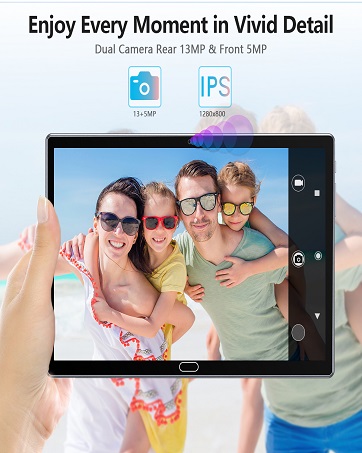
Figure 4: Capturing moments with the tablet's camera.
3.4 Media Consumption and Browsing
Enjoy a superior watching experience on the 10.1-inch IPS Full HD display (1920x1200 resolution).
- Videos: Stream content from platforms like YouTube and Netflix.
- E-books: Read comfortably for extended periods.
- Browsing: Navigate the web efficiently with the Octa-Core processor.

Figure 5: Tablet in various usage scenarios.
3.5 GPS and Bluetooth
- GPS: Utilize built-in GPS for navigation and location-based services.
- Bluetooth: Connect wireless accessories such as headphones or keyboards.

Figure 6: GPS navigation and Bluetooth connectivity.
4. Maintenance
4.1 Battery Care
- To prolong battery life, avoid extreme temperatures.
- Charge the tablet regularly, but avoid leaving it plugged in for extended periods after reaching 100%.
4.2 Storage Management
The tablet comes with 64GB of internal storage and supports expansion up to 512GB via a Micro SD card.
- Regularly clear unnecessary files and apps to free up internal storage.
- Insert a Micro SD card into the designated slot to expand storage for media and documents.

Figure 7: Storage capacity and expansion options.
4.3 Software Updates
Ensure your tablet is running the latest Android 12 updates for optimal performance and security.
- Go to Settings > System > System update to check for and install available updates.
4.4 Cleaning the Device
- Use a soft, lint-free cloth to clean the screen and body of the tablet.
- Avoid using harsh chemicals or abrasive materials.
5. Troubleshooting
- Tablet not turning on: Ensure the tablet is charged. Connect it to the charger and try powering it on after a few minutes.
- Wi-Fi connectivity issues: Restart your Wi-Fi router and the tablet. Forget the network in Wi-Fi settings and reconnect.
- Apps crashing or freezing: Clear the cache of the problematic app (Settings > Apps > [App Name] > Storage > Clear cache). If the issue persists, reinstall the app.
- Slow performance: Close unused apps, clear cache, and ensure sufficient storage space. Consider a factory reset as a last resort (Settings > System > Reset options > Erase all data).
- Screen rotation not working: Check if auto-rotate is enabled in Quick Settings. If it is, restart the tablet.
If you encounter any persistent issues, please contact FEONAL customer service for assistance.
6. Specifications
| Feature | Specification |
|---|---|
| Brand | FEONAL |
| Model Name | 2024 Latest Stable Android 12.0 Tablet |
| Operating System | Android 12 |
| Processor | Octa-Core ARM CortexTM A55 MP8 1.6GHz |
| RAM | 4 GB |
| Internal Storage (ROM) | 64 GB |
| Expandable Storage | Up to 512 GB (Micro SD card) |
| Screen Size | 10.1 Inches |
| Screen Resolution | 1920 x 1200 pixels (Full HD) |
| Rear Camera | 13 MP |
| Front Camera | 5 MP |
| Battery Capacity | 6000 mAh |
| Average Battery Life | Up to 8 Hours |
| Wireless Type | 802.11ax (Wi-Fi) |
| Connectivity | Bluetooth, GPS |
| Item Weight | 1.8 pounds |
| Product Dimensions | 12.2 x 7.8 x 1.2 inches |
7. Warranty and Support
The FEONAL Tablet typically comes with a 1-year warranty. For any product-related issues, technical support, or warranty claims, please contact FEONAL customer service.
You can find contact information on the official FEONAL website or through your purchase platform.
8. Product Videos
8.1 FEONAL Tablet Overview and Setup
Video 1: A comprehensive overview of the FEONAL 10.1-inch Android tablet, demonstrating its ease of setup and key features.
8.2 Easy to Use Tablet Features
Video 2: Demonstrates the user-friendly interface and various functionalities of the FEONAL 10.1-inch Android tablet.
8.3 Storage and Performance Highlights
Video 3: Highlights the 64GB large memory and overall performance of the FEONAL 10.1-inch tablet.